 Bloomz
Build a group that updates itself from SIS data
Build a group whose membership stays current on its own — every student on a bus route, every 5th grader, every student your sync marks chronically absent — instead of a static list a human has to rebuild by hand after every roster change.
Before you start
Dynamic Groups is a Premium feature your Bloomz team provisions for your district; it does not appear until they turn it on. You need a district or school admin role.
Step 1 — Open Dynamic Groups
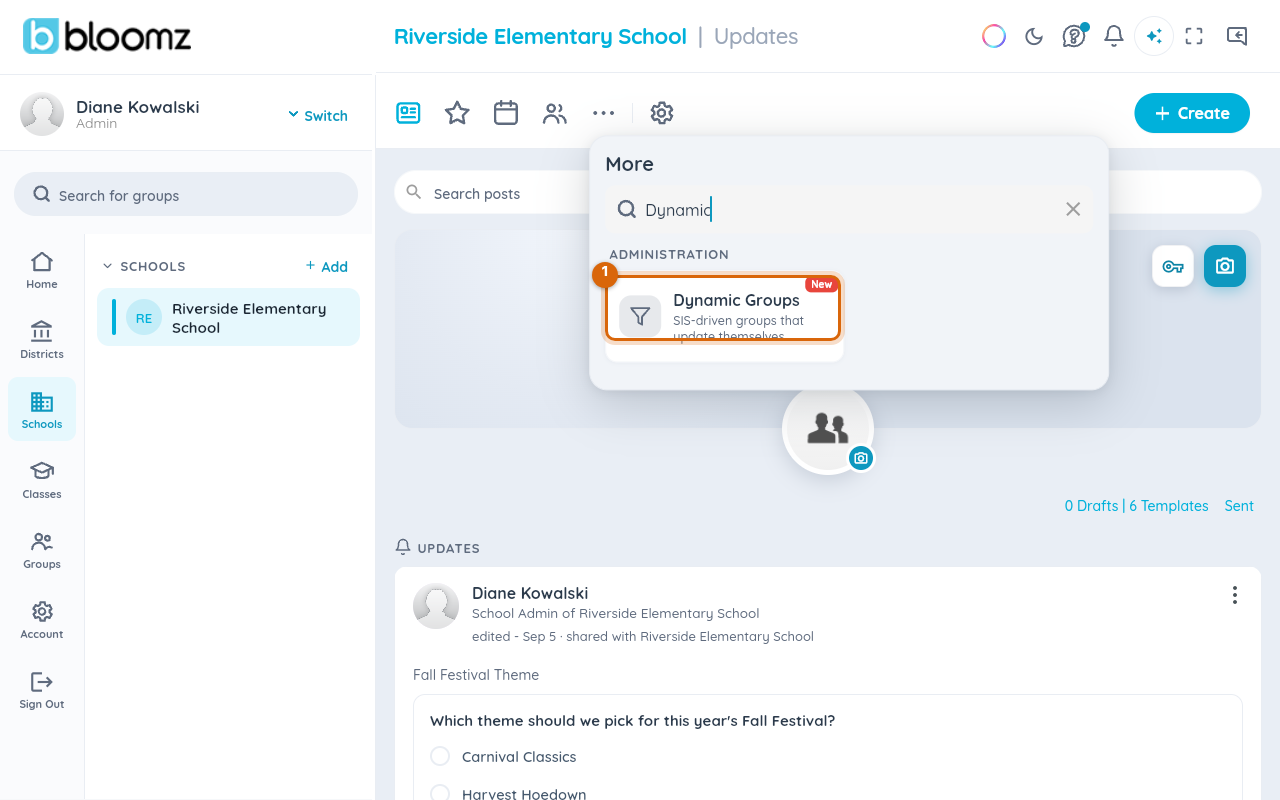
Select More (…), then Dynamic Groups under Administration.
Step 2 — Start a new rule
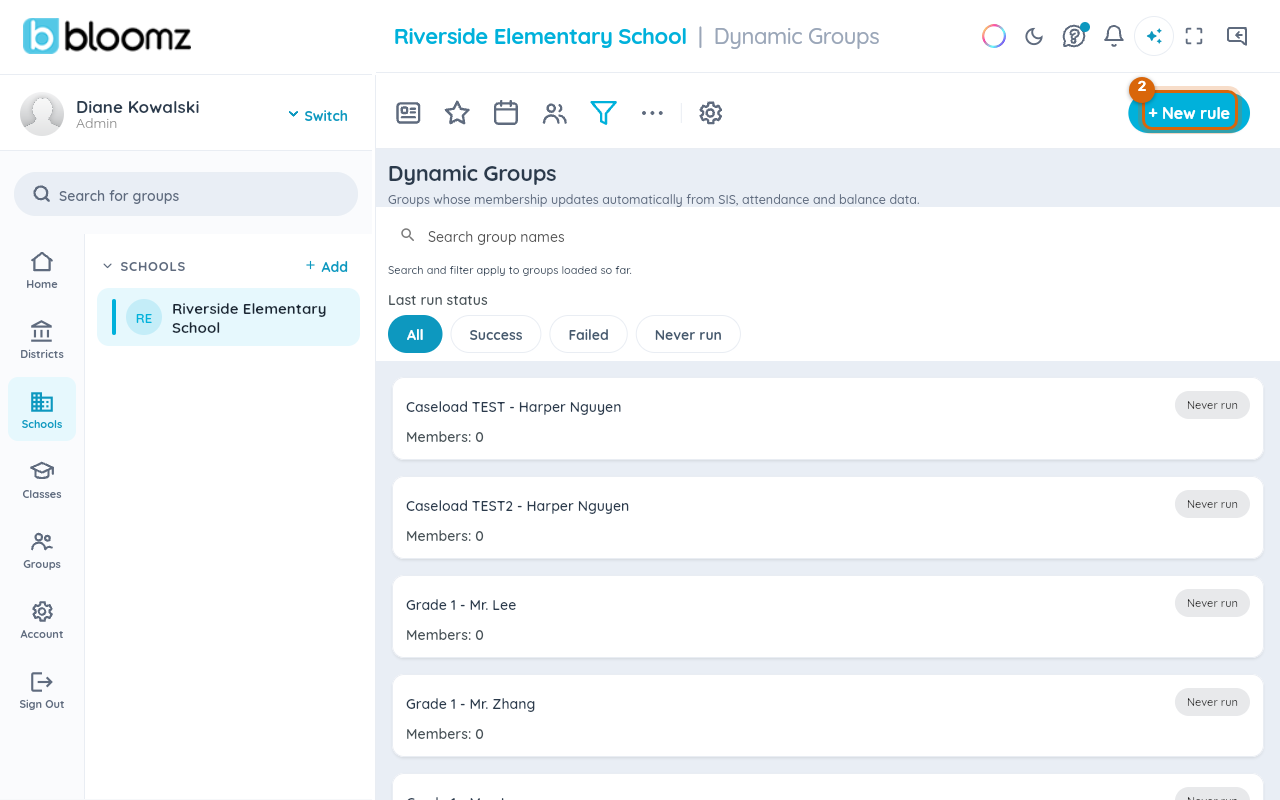
The list shows every rule already built, its member count and whether its last sync run succeeded. Select + New rule and choose the district or school the rule belongs to.
Step 3 — Build your criteria
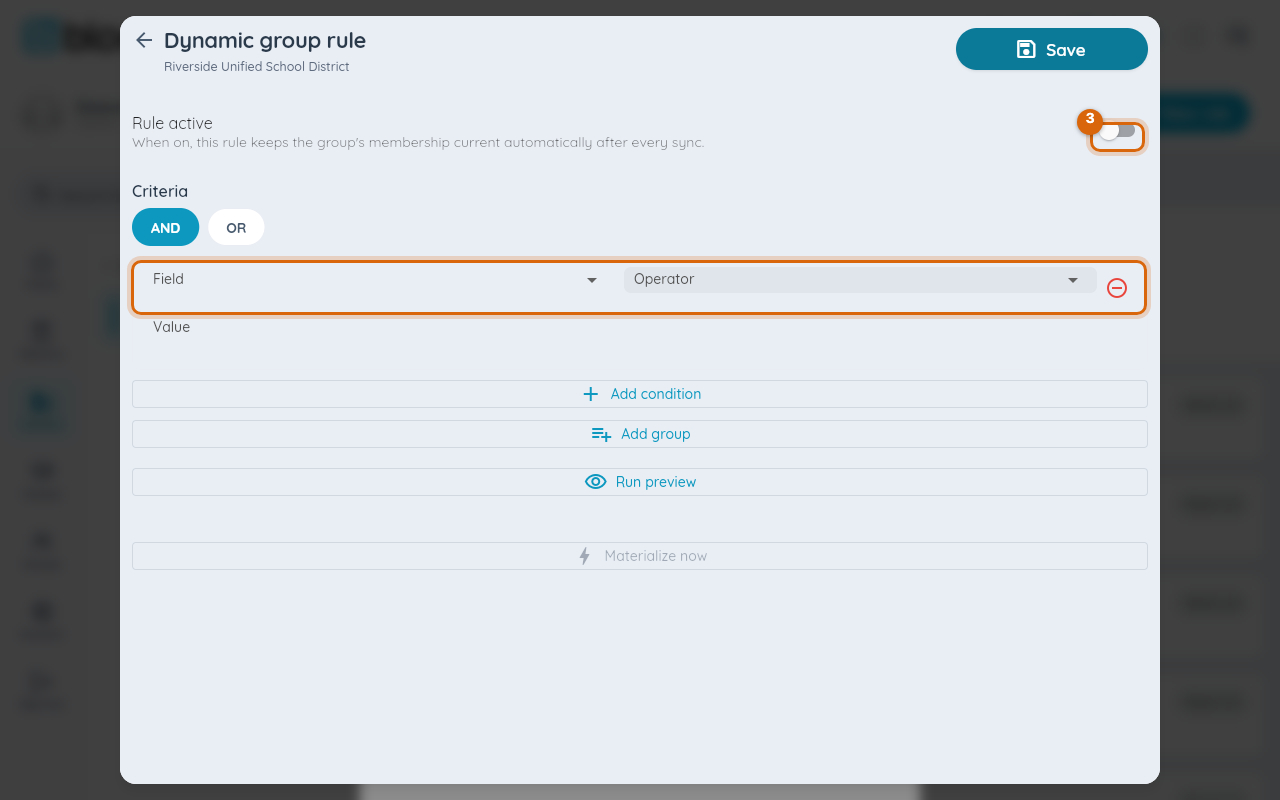
Select Add condition. Each condition is a Field, an Operator, and a Value — combine several with AND/OR, or Add group to nest a sub-condition. Toggle Rule active on when you're ready for it to keep the group current after every sync.
Step 4 — Choose what to match on
The Field list covers ordinary SIS attributes — Grade, School, Homeroom, Bus route, Program, Language, English language learner, IEP — plus three fields no plain roster export carries: Attendance tier, Chronic absence, and Balance past due. Selecting Attendance tier offers Good, Watch or Chronic as values.
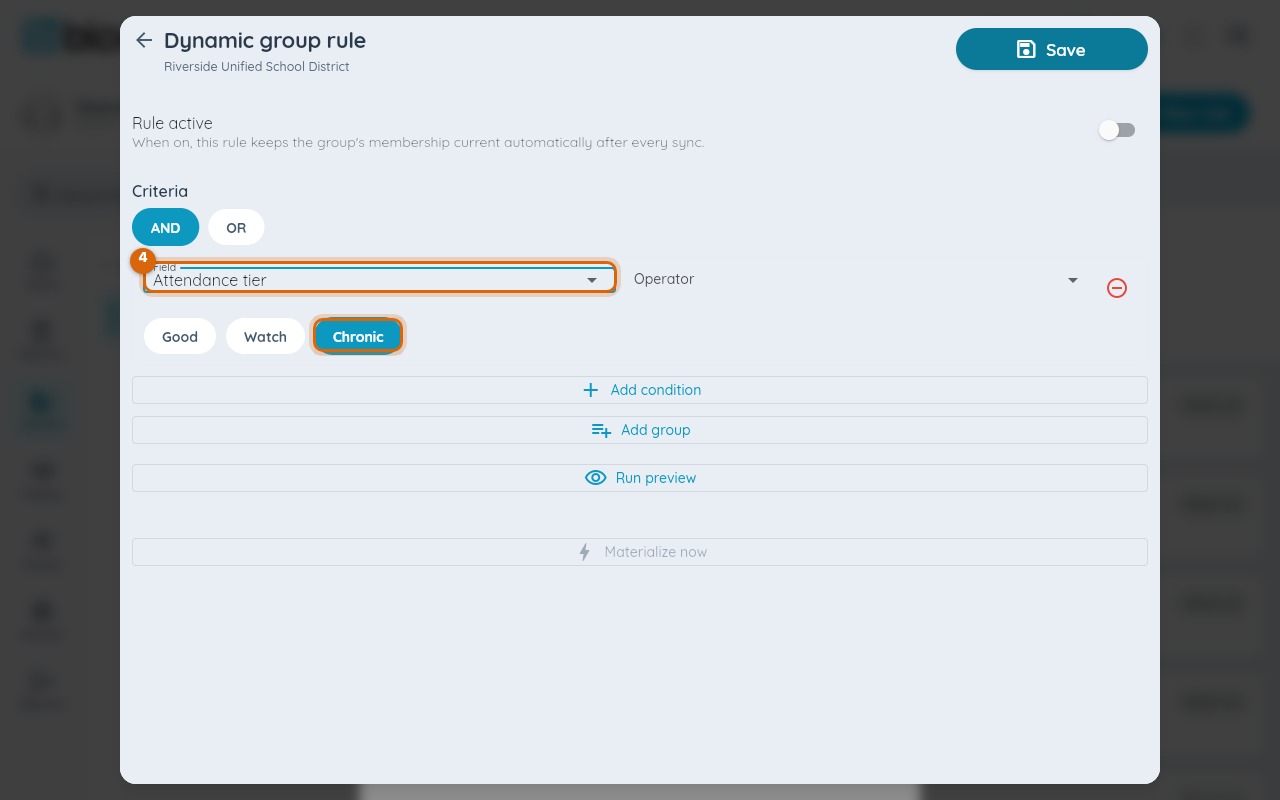
Watch out: the attendance, chronic-absence and balance fields only work because Bloomz already owns that data (Thrive and Bloomz Pay) — a rule that combines them with a SIS field ("5th graders on the Elm St. route who are also chronically absent") is something a roster-only tool cannot build at all.
Step 5 — Preview and save
Select Run preview to see who the rule matches right now before saving, then Save. An active rule re-evaluates its membership on every SIS sync.
Related
- Turn features on or off for a school
- Import your roster from a CSV — the import wizard
- Track immunization compliance for your school