Bloomz
Give a colleague access to your site
Add a colleague to your site's People list so they can update pages themselves — right from the site itself, no district office ticket required.
Before you start
You need the Site admin role on the site (or a district/Bloomz-staff role above it) — a Page editor can edit their assigned pages but cannot manage people. The People panel only ever hands out two tiers for one site: Site admin (pages, media, settings and people) and Page editor (just the pages they're given). Higher roles — district or Bloomz-staff — are assigned separately and are not part of this flow.
Step 1 — Open People
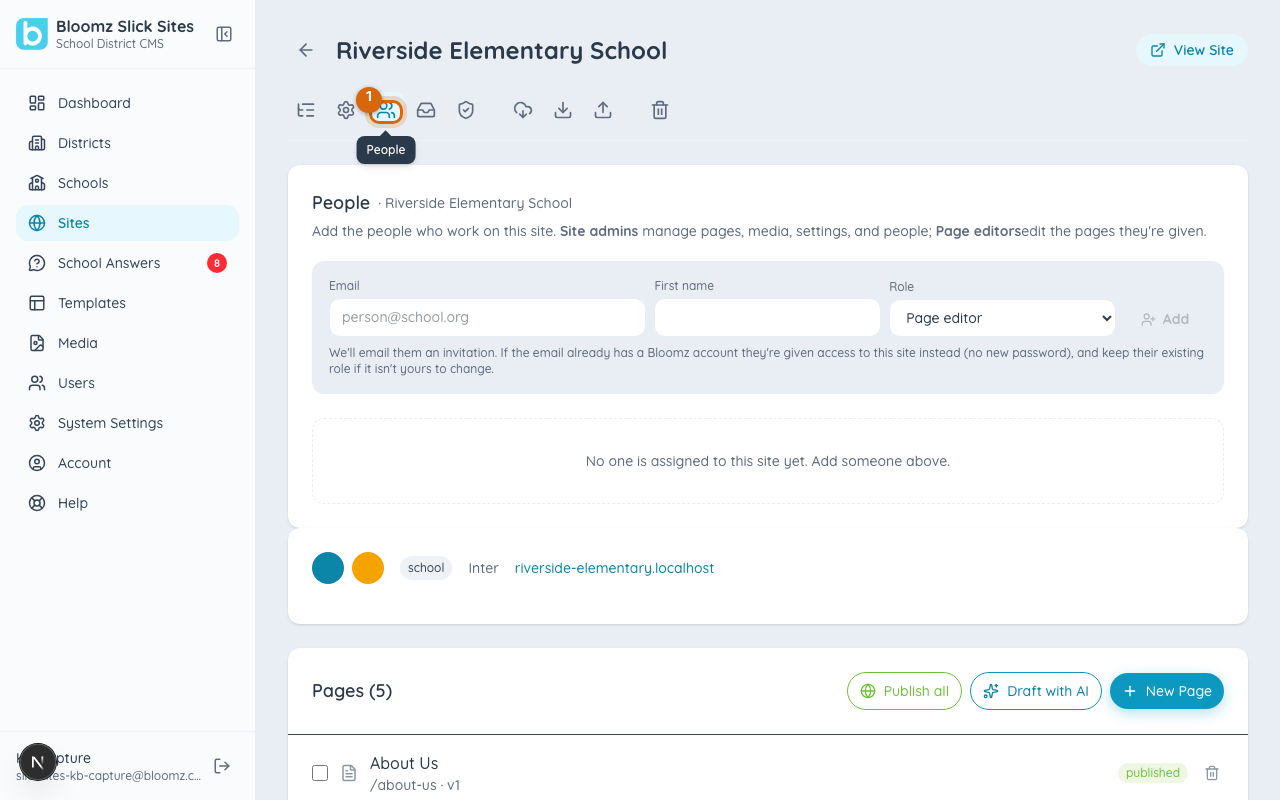
Open the site and select People in the toolbar. The panel lists everyone currently assigned to this one site. Each person shows their name and email, with their role.
Step 2 — Enter their email and name
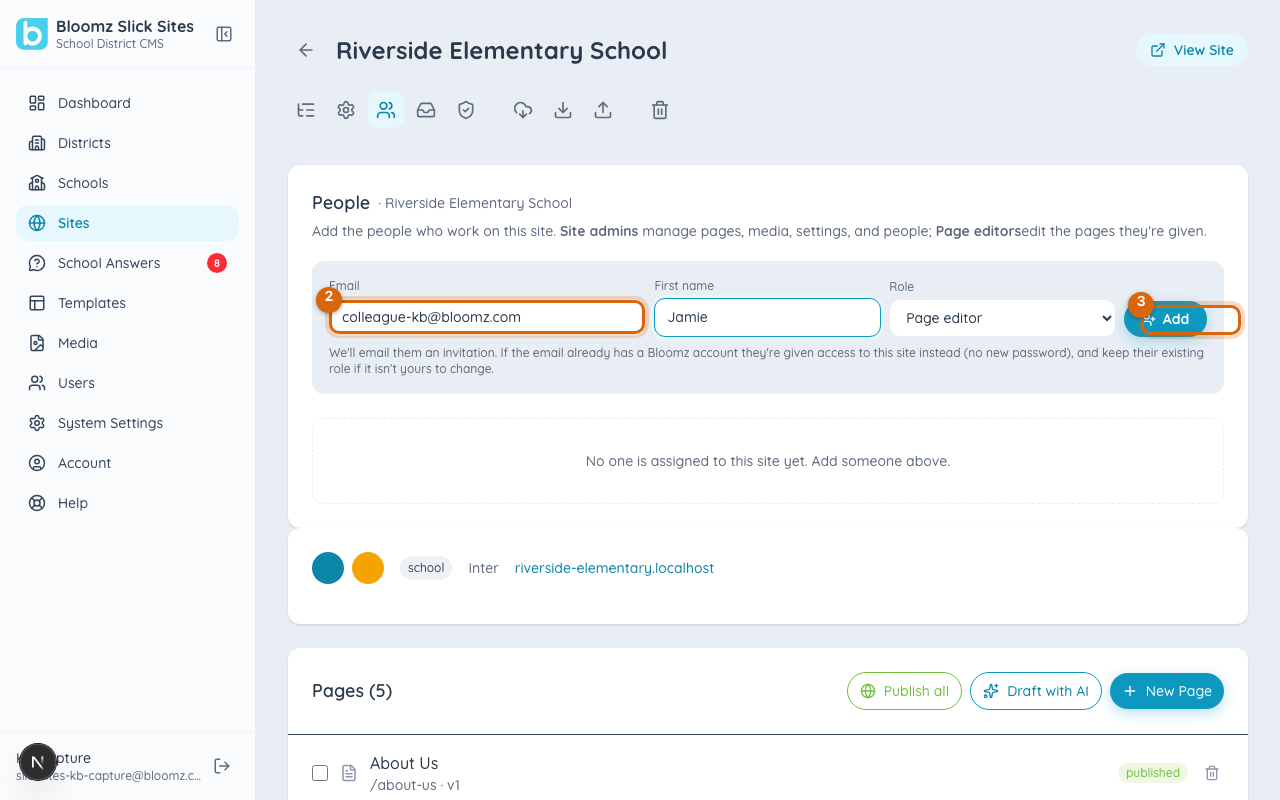
Type your colleague's Email, First name and Last name (names are optional, but they make the People list easier to read). If they already use Bloomz, use the same address — it links their access up automatically instead of creating a second account.
Step 3 — Choose their role
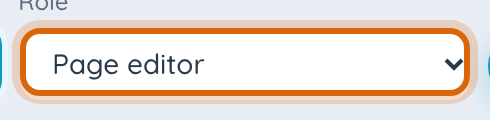
Pick Page editor (the default) or Site admin from the Role field.
Step 4 — Select Add
If the email is new, an account is created and a one-time temporary password is shown so you can share it directly. The panel also tells you whether the invitation email was sent. If the email already has an account, they just gain access to this site; they keep whatever role they already had if you don't have the authority to change it (that only happens if they also work on sites outside your reach).
Watch out: your colleague signs in with that email and password at the CMS login screen, or — if their Bloomz account already has editor access — with single sign-on the next time they use School Website from Bloomz. Either way there's nothing further for you to send them, unless the panel warns that the invitation email was not sent (see below).
If the invitation does not arrive
If an invitation email cannot be sent, the People panel shows an orange warning, for example "Account created for … but the invitation email wasn't sent". For a new account it also shows the temporary password and says to copy it now and send it to the person yourself, because it won't be shown again. For an existing account, let the person know they now have access; they sign in as usual.
A person who did not get a password-reset email can ask for another from the sign-in page.
If they forget their password
Nobody needs to come back to you for a reset. From the CMS login screen, Forgot password? emails them a one-time reset link — the link expires after about an hour, and requesting a fresh one cancels any older links still sitting in their inbox, so the newest email is always the one to use. The request screen shows the same "if an account exists" message whether or not the address matches an account, on purpose. A colleague who is already signed in can change their password themselves from Account in the dashboard sidebar, by entering their current password and a new one.
Colleagues who sign in with Bloomz have no separate site password — there is nothing to reset here, and both screens point them back to their Bloomz sign-in instead.
See what they'll see (Bloomz staff only)
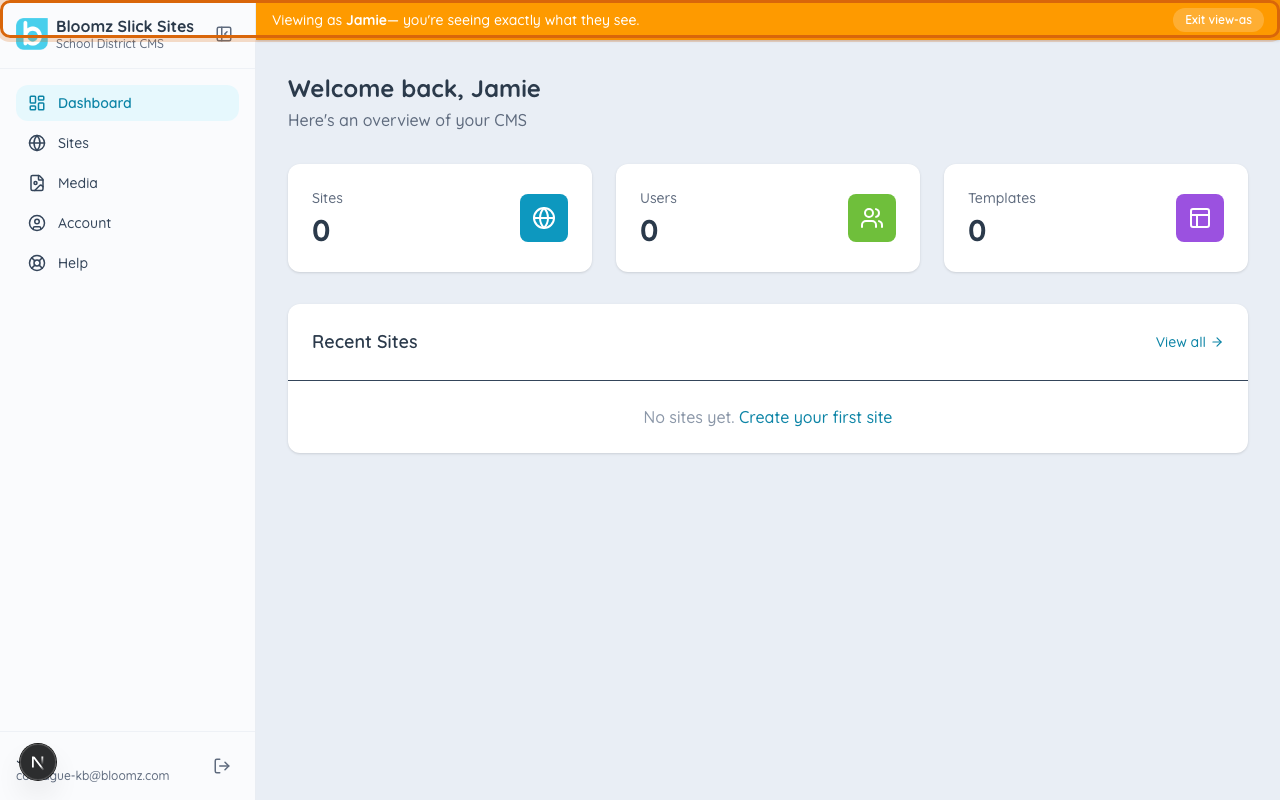
Bloomz staff with the super_admin role can open the global Users screen and
select the eye icon next to anyone who isn't also a super admin to sign in to the
dashboard exactly as that person, banner and all. This is not available to school or
district admins — if you need to check what a colleague's role can see, ask Bloomz
support.