 Bloomz
Give a substitute time-boxed access to a class
A substitute assignment gives a sub staff access to one class for exactly the dates you set — no permanent roster change, nothing to remember to undo. When the window ends, the access simply stops existing.
Before you start
- Substitutes is off by default and takes two steps to turn on, like Hall Pass, Dismissal and Office Referrals: Bloomz first makes it available for your school (ask your Bloomz account team), then a school or district admin turns it on in Settings → Features.
- Creating and managing assignments is school-admin only.
- The substitute must already be a registered user at your school — Bloomz won't accept an arbitrary outside account.
Step 1 — Open Substitutes
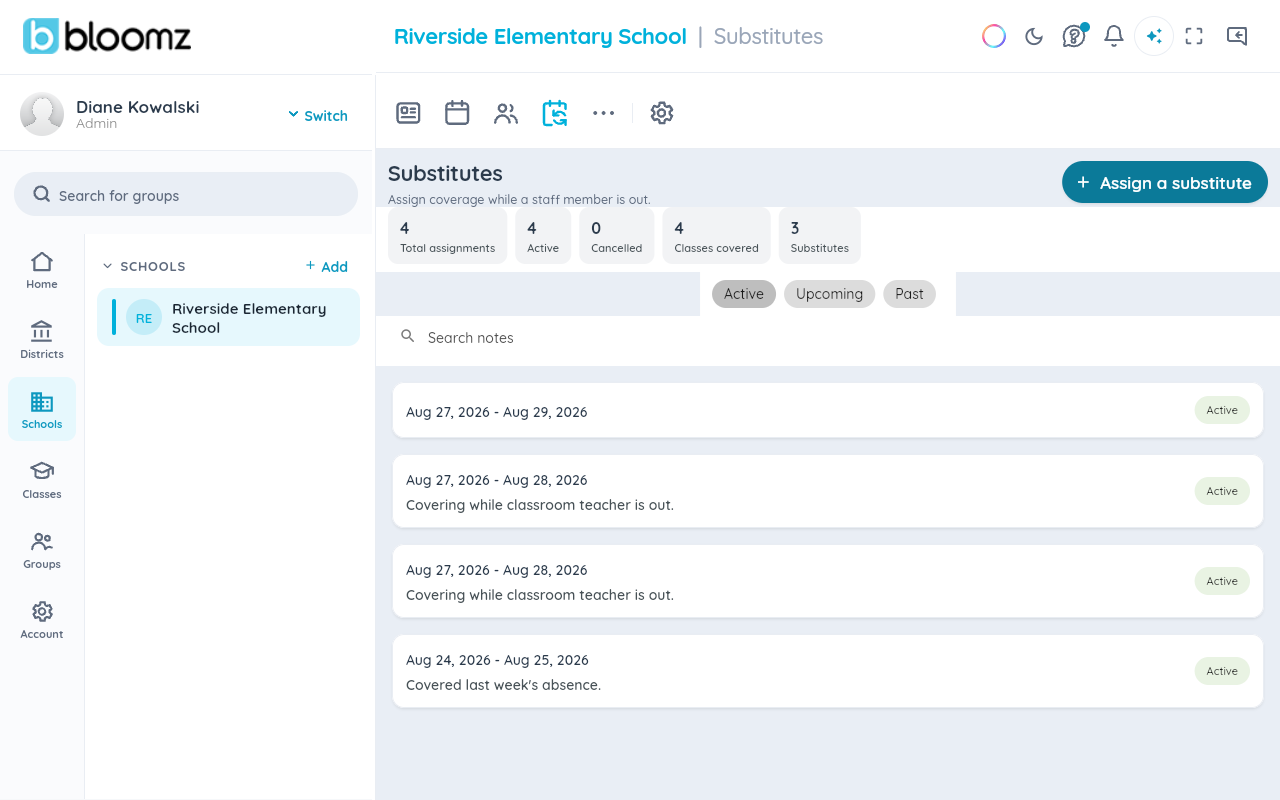
From your school, select More (…) and choose Substitutes (once opened it also appears as a tab in the toolbar). The page shows a strip of counts — Total assignments, Active, Cancelled, Classes covered and Substitutes — with Active, Upcoming and Past tabs and a Search notes box.
Step 2 — Create the assignment
Select + Assign a substitute. In the sheet, pick the Class being covered, the Staff member who is out, the Substitute, and the Start date and End date.
Step 3 — Attach a lesson plan (optional)
Under Lesson plan (optional), select Attach lesson plan to upload a document the assignment carries with it.
Step 4 — Assign and let Bloomz do the rest
Select Assign a substitute at the bottom of the sheet. The substitute gets a "you're covering" notification. For the assignment's dates — and only those dates — they can act as class staff across the class's operational tools (check-in/out, hall pass, dismissal, office referrals, extended day), and the class roster marks them as a sub. Every create, change and cancellation is recorded in the school's audit trail.
Step 5 — Cancel when plans change
Cancelling an assignment revokes the sub's access immediately, even mid-window. Cancelled assignments stay in the list for the record — they're never hard-deleted.
Watch out: an assignment grants the base staff role only. Admin-level delegated actions — dismissal-coordinator overrides, referral administration — are never granted by an assignment, no matter what the absent teacher could do.
What the substitute sees
The sub has their own read-only My Coverage view listing the classes and dates they're covering — see See the classes you're covering as a substitute.