 Bloomz
Stop importing staff phone numbers from your SIS
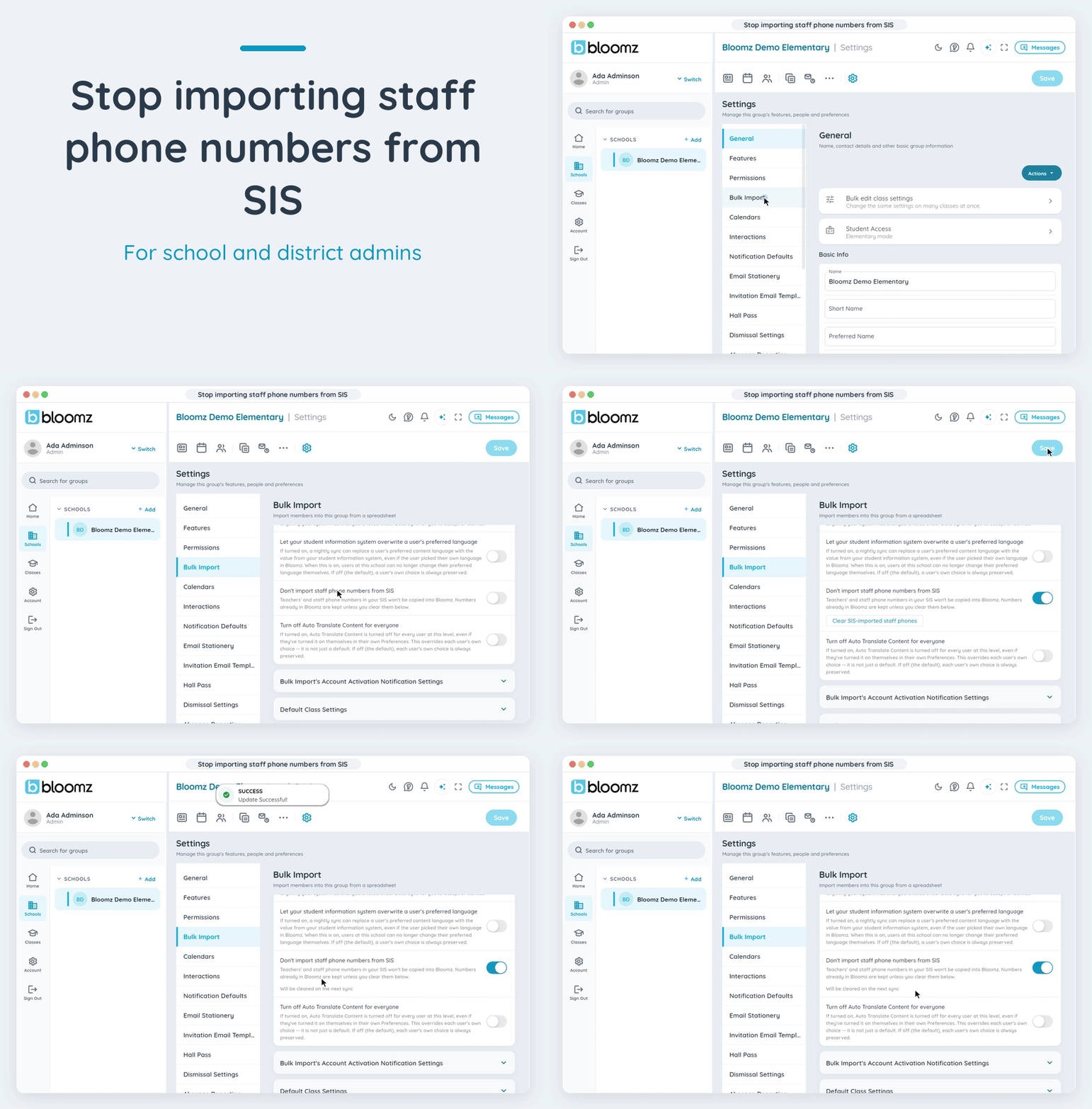
What this does
When your school or district is connected to a student information system (SIS) such as Skyward, Clever or PowerSchool, each sync used to copy every teacher's and staff member's phone number from the SIS into Bloomz, and replace any number they had changed themselves. You can now stop that. You can also remove the staff numbers the SIS already added.
Student and parent phone numbers are not affected. They keep syncing as before.
Stop the SIS from adding or changing staff phone numbers
- Sign in as a school or district admin and open your school or district.
- Select Settings, then Bulk Import.
- Under General Permissions, turn on Don't import staff phone numbers from SIS. It is off until you turn it on.
- Select Save. You'll see "Update Successful".
From the next sync on, the SIS no longer adds, fills in or replaces a teacher's or staff member's phone number. Phone numbers already in Bloomz stay as they are unless you clear them (below).
If you turn this on for a district, it applies to every school in that district.
Remove staff phone numbers the SIS already added
The Clear SIS-imported staff phones button appears under the switch only while the switch is on.
- Select Clear SIS-imported staff phones.
- Read the message Clear SIS-imported staff phone numbers?, then select Clear on next sync.
- Where the button was, the page now shows Will be cleared on the next sync.
Nothing is removed right away. The numbers are removed the next time your SIS sync runs, and then the message goes away.
Changed your mind? Turn Don't import staff phone numbers from SIS off and select Save before the next sync. That withdraws the waiting clear, and no numbers are removed.
What gets removed and what is kept
- Removed: a staff member's phone number in Bloomz that matches the number in your SIS.
- Kept: a number a staff member typed in themselves that is different from the SIS.
- Kept: the number of a staff member who signs in to Bloomz with their phone number only (no email), so they can still sign in.
- Kept: all parent and student phone numbers, even if a family shares the same number.
This can't be undone. Once the sync has removed a number, Bloomz does not keep a copy. Staff can add their own number again in their account settings.
Good to know
- Each teacher can also stop the SIS from changing their own number, even when this school switch is off. See "Stop your school's SIS from changing your phone number".
- With the switch on, a new staff member whose SIS record has a phone number but no email address can't be added by the sync, because they would have no way to sign in. Add an email for them in your SIS.