 Bloomz
Add a form or poll to your site
Embed a Bloomz form or poll directly into a website page so visitors can respond without leaving your site or needing a Bloomz account.
Before you start
The form or poll must already exist in Bloomz and be set to accept public responses; a form limited to a specific class or group cannot be embedded on the public website. You need editor access to the site page you are adding it to.
Step 1 — Open the page and add a Form block
Open the page, select Add block, and choose Form / Poll from the panel.
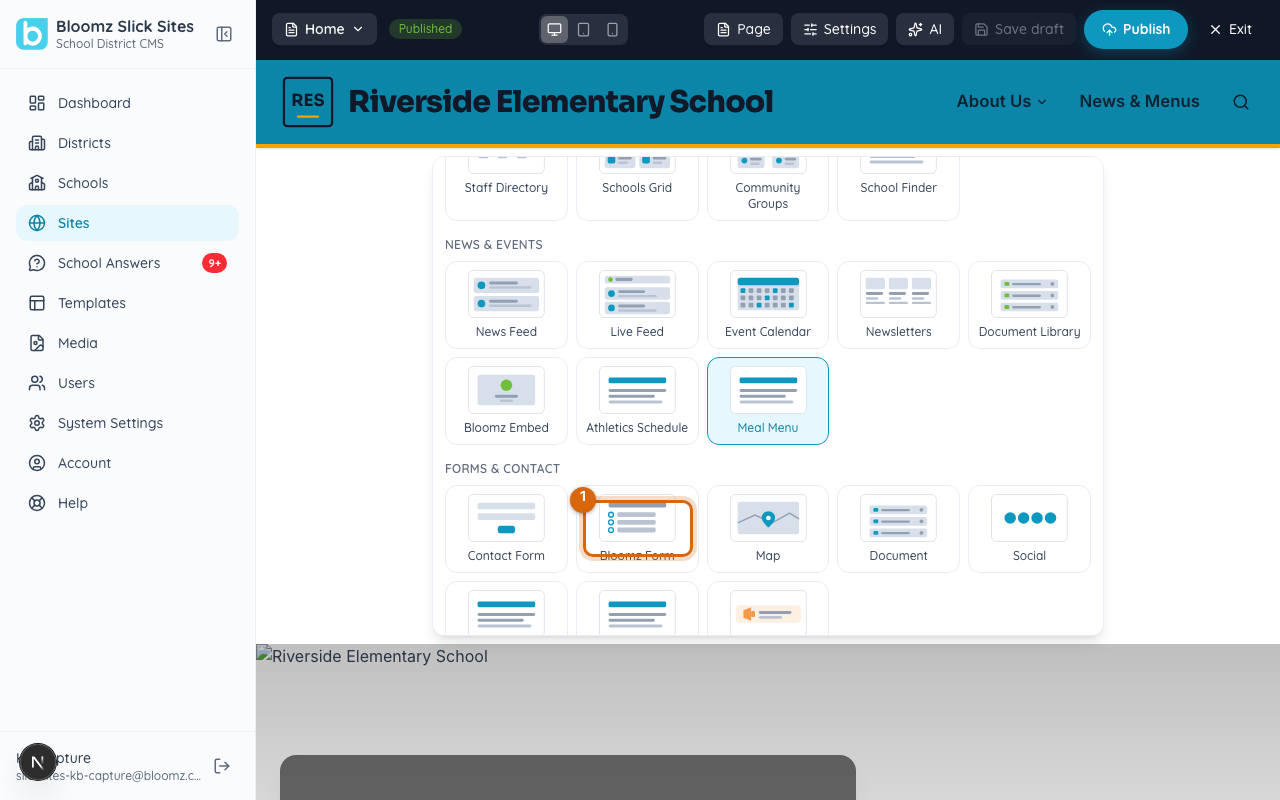
Step 2 — Choose the form or poll
In the block's settings, search for the Bloomz form or poll by name and select it. Only forms and polls set to accept public responses appear in this list.
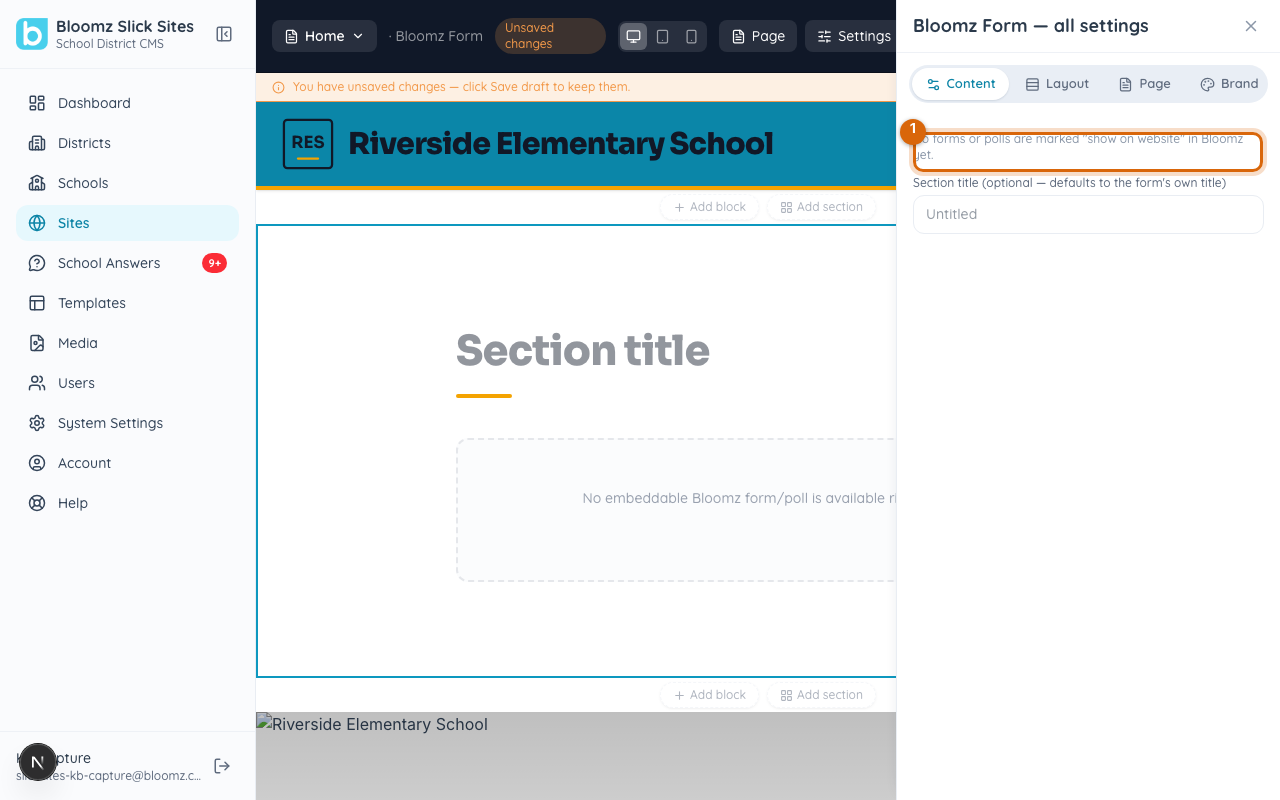
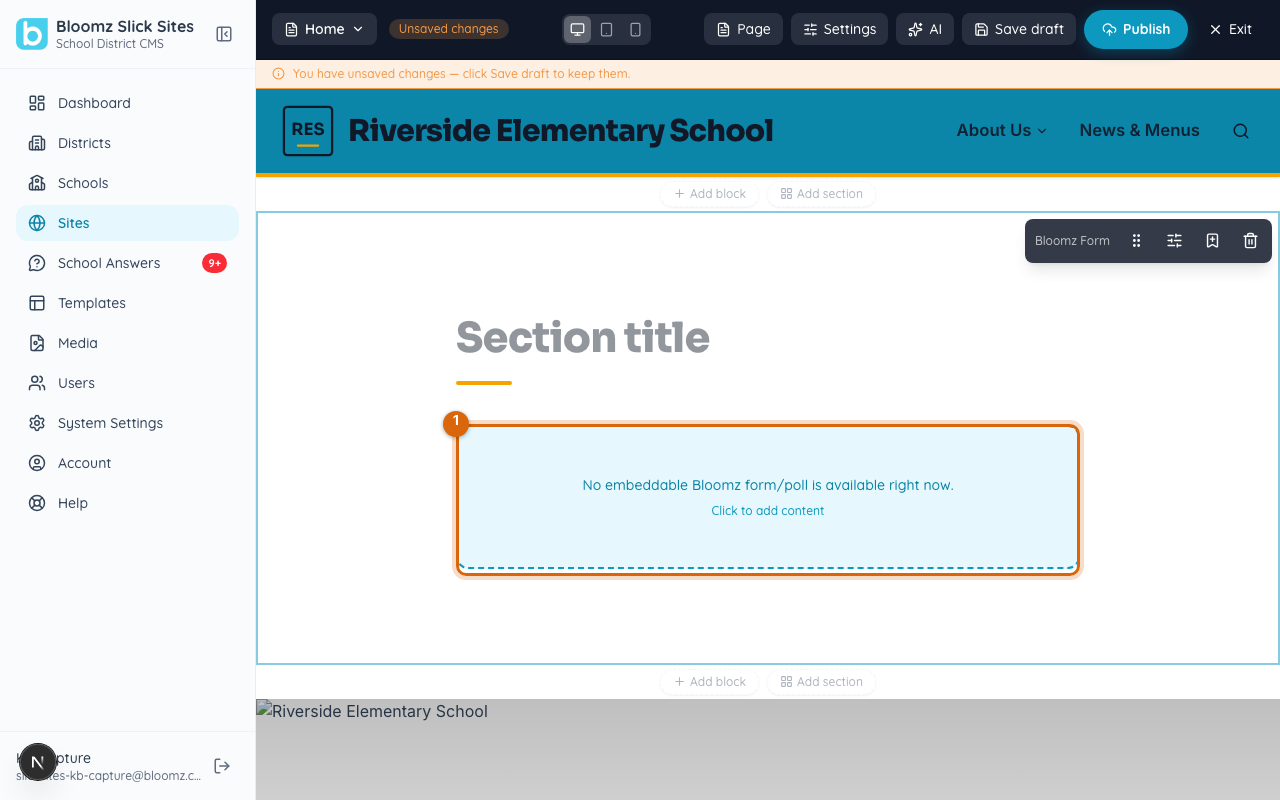
Step 3 — Preview the block
The block shows a live preview of the questions as they will appear to visitors. Adjust the block's heading text or layout if you want, then select Save.
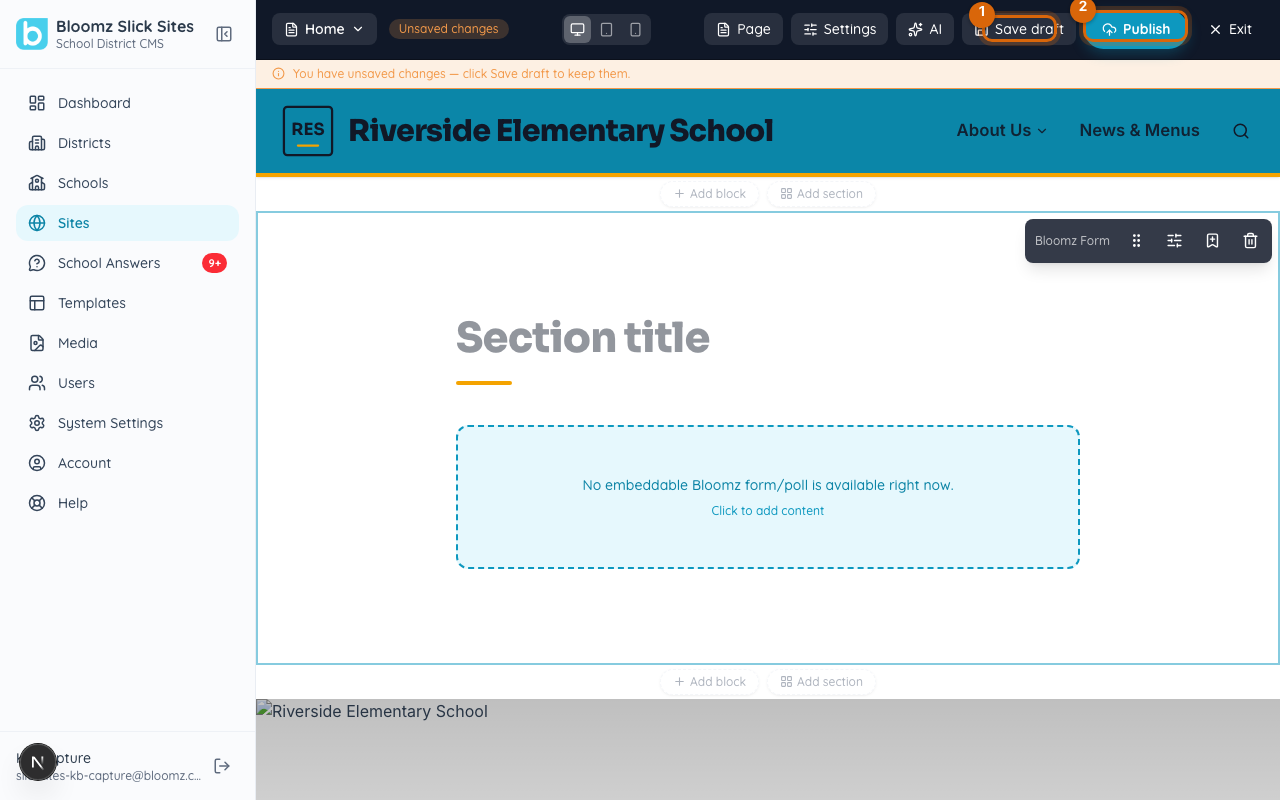
Step 4 — Publish and check the live page
Publish the page, then open the public site and submit a test response to confirm the form works end to end.
Watch out: responses submitted from the website go to the same place as responses submitted in Bloomz — there is no separate export. If the form or poll closes in Bloomz, the website block stops accepting new answers automatically.
What visitors see
Anyone on the public website can fill in the embedded form or poll, no sign-in required, and results roll into the same results view you already use in Bloomz.