 Bloomz
Show a Bloomz post on your school website
A Bloomz post marked to show on your school's website can appear there automatically — no copying, no separate posting, no second login. This article covers the real, verified mechanism on the website side; the exact place to mark a post from inside Bloomz itself could not be confirmed in this environment (see below).
The real mechanism, verified end to end but one
Your school's website needs a News Feed content block already placed on the page where you want posts to appear — ask your site editor if you are not sure it exists (see Edit a page with content blocks). That block has a Live from Bloomz content source: once set, it pulls straight from the site's connected Bloomz group and refreshes on its own — no manual entry, and nothing to re-save after the first setup.
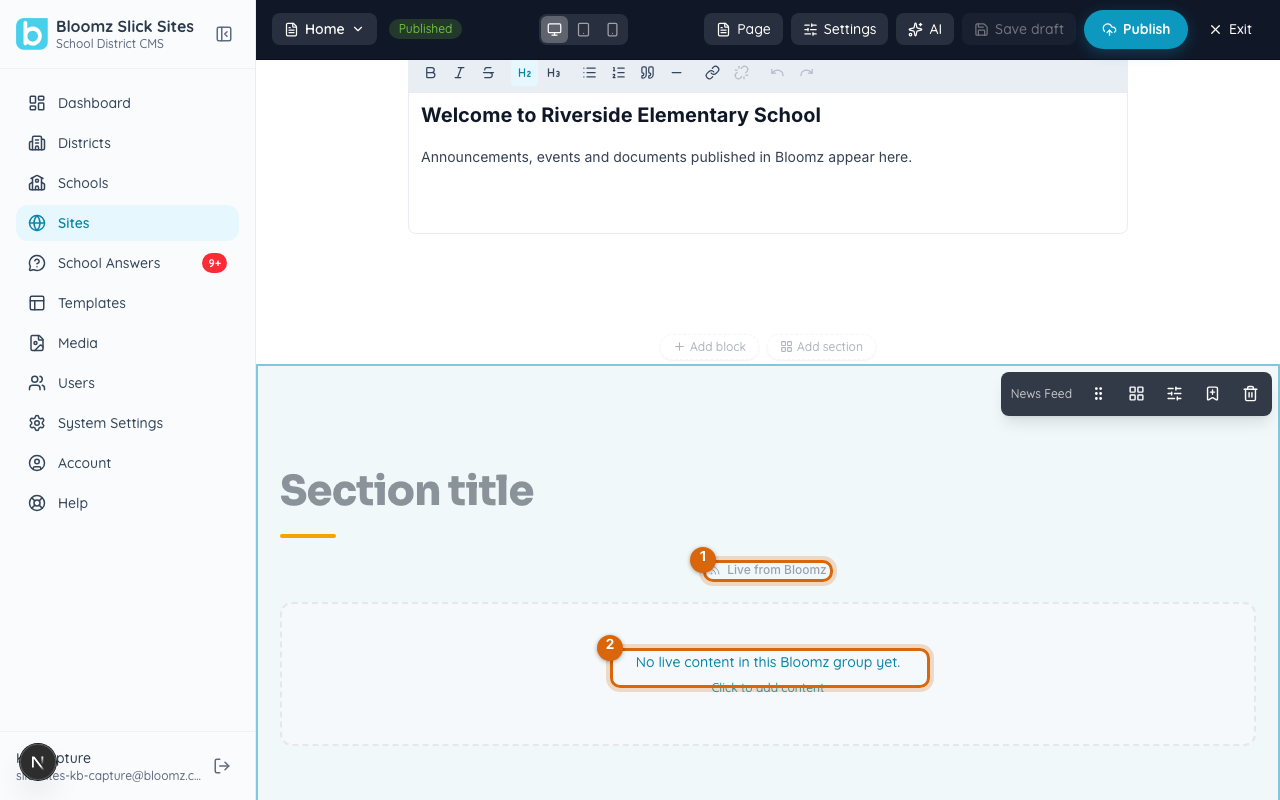
We set exactly this up on a real site and published it: the block is live-connected and correctly shows "No live content in this Bloomz group yet" because no Bloomz post has been marked to show on the website yet. On the public page itself, a News Feed block with nothing to show renders nothing at all — no broken box, no error — so turning this on ahead of time is safe even before your first marked post exists.
What we could not verify
Marking a post to show on the website happens from inside the Bloomz composer, and we could not reach a working Bloomz composer in this environment to confirm the toggle's exact label or where it sits in the composer's options — an environment issue with the available Bloomz accounts' group access, not a sign the feature is missing. If you don't see an option like this when creating a post, ask your Bloomz administrator whether your school's website is connected yet (see Open your school website from Bloomz).
What families see
Anyone visiting the public website would see a post shown this way, including visitors without a Bloomz account, with it updating or disappearing if you edit or delete the original in Bloomz.
Watch out: only a News Feed block (or another block explicitly set to pull from Bloomz) shows posts this way — a block that isn't connected will never show one, no matter how many you mark. If posts aren't appearing, confirm the block's content source is Live from Bloomz and that the site itself is connected to the right Bloomz group (see Your school website with Slick Sites).
Related
- Your school website with Slick Sites
- Open your school website from Bloomz
- Edit a page with content blocks