 Bloomz
School Answers: AI answers on your school website
School Answers is an AI assistant that lives on your public school website (and, optionally, a school SMS number) and answers families' everyday questions — enrollment, bus routes, lunch menus, schedules, policies — any hour of the day. It answers only from sources you have added, cites them, and hands anything it cannot support to a human. This article covers the four everyday jobs: what a visitor's question looks like, working the escalation inbox, syncing your Bloomz content into the knowledge base, and reading the coverage scorecard.
Before you start
School Answers is enabled per site from its admin console, and the admin tasks below need a role of school webmaster or above on that site. The free plan is limited to three knowledge-base source documents; the premium plan removes that cap. Sensitive topics — bullying, counseling, custody, substance concerns — are always routed straight to staff without an AI reply, and questions mentioning self-harm, violence or abuse are answered immediately with crisis resources and flagged at top priority. None of that is configurable, by design.
Ask a question as a visitor
Step 1 — Select the chat bubble
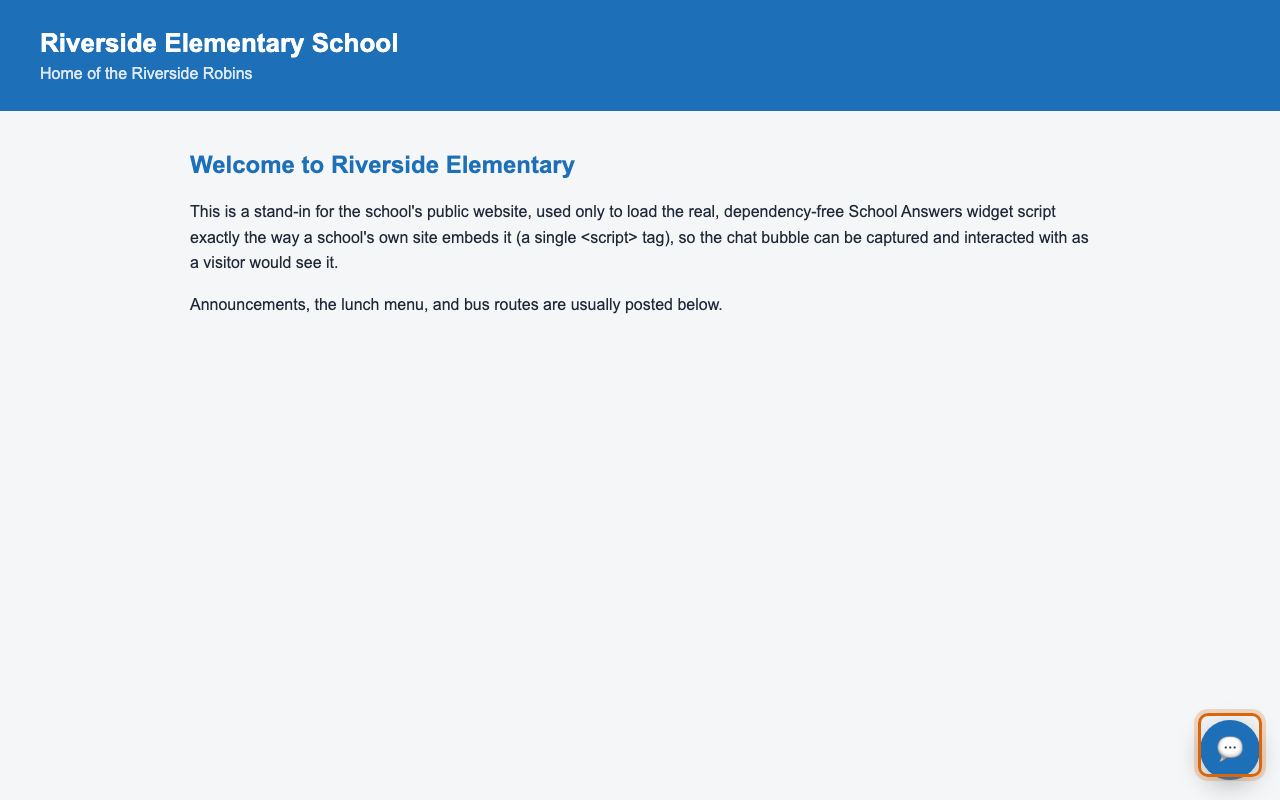
On the school's website, select the chat bubble in the corner. It carries the bot name, colors and greeting the school configured.
Step 2 — Type your question
Ask in your own language — the answer comes back in that language. The reply arrives with citations: the actual documents and passages it came from, so you can check the source yourself, with a link when the source has one.
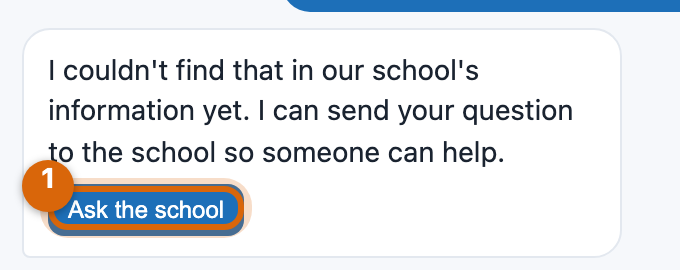
What you should see: an answer with its sources listed underneath, a thumbs up/down on the reply, and an Ask the school option. If the sources do not support an answer, the assistant says so and offers to pass the question to the school — it never guesses. A question about your own child (attendance, lunch balance, schedule) prompts you to sign in first; without a verified sign-in it will not answer, and every such lookup is read-only and audit-logged.
Step 3 — Rate the answer, or send it to the school
A thumbs-down, or choosing Ask the school, opens a small form right in the chat: enter your email and choose Send to school, or Skip to send it without one.
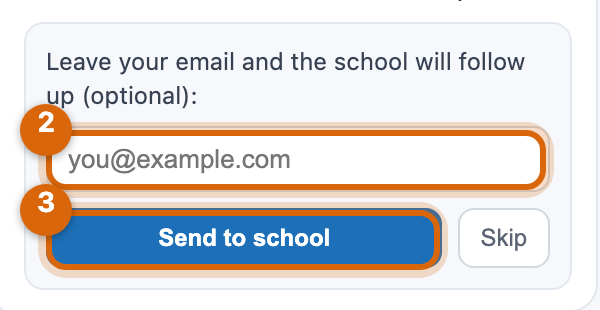
Leaving an email is how the school can send you its answer directly.
Review escalations
Questions the assistant would not or could not answer land in an inbox in your console: low-confidence answers, questions with no matching content, sensitive auto-escalated categories, safety flags, and anything a parent thumbs-downed or sent to the school.
Step 1 — Open the Escalations tab
Open the site's School Answers console and select the Escalations tab. The dashboard sidebar shows a red badge with your open-question count, and the site picker shows a per-site "N open" badge that jumps straight to this tab.
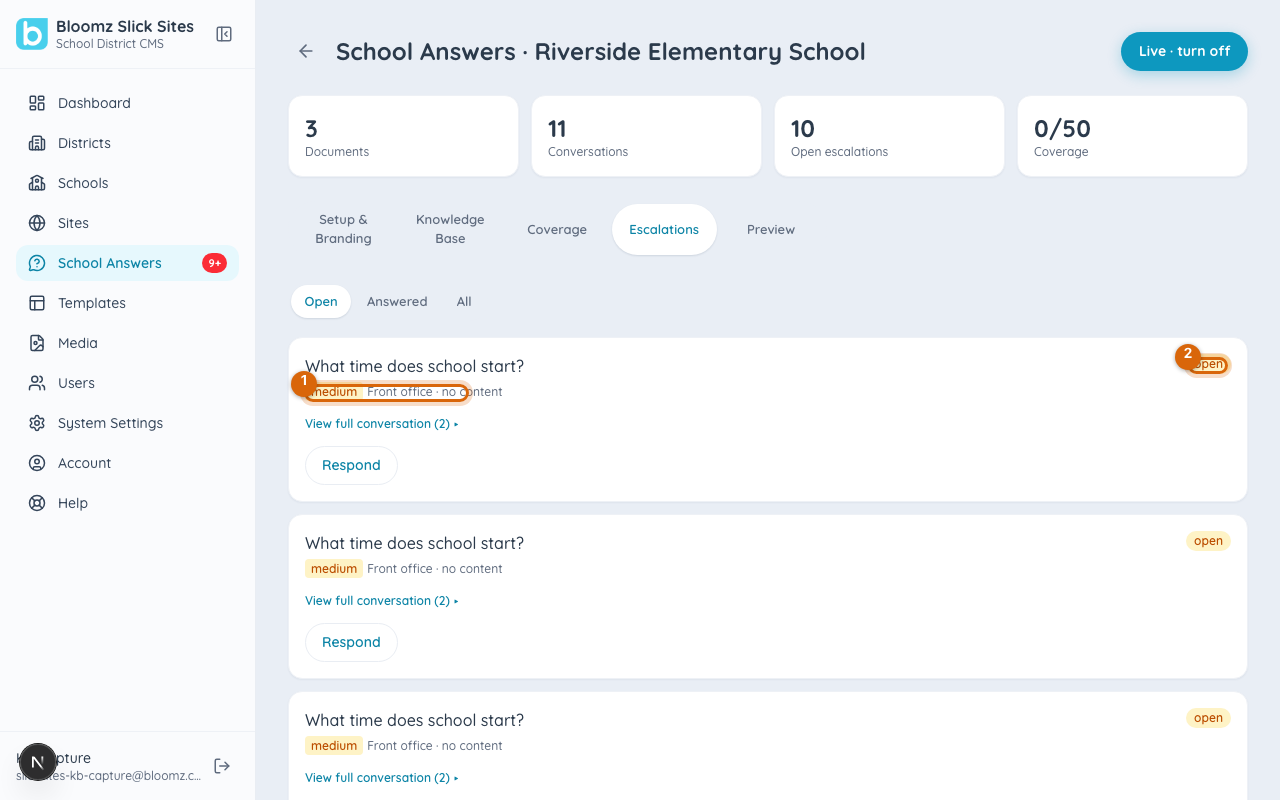
Each question arrives already routed to a department with a priority and a response-time target, based on its category.
Step 2 — Open the question and read the conversation
Expand View full conversation on the row to see the whole back-and-forth, not just the question that tripped the escalation — the context usually changes the answer.
Step 3 — Respond
Write your answer. Two options on the response matter:

- Notify the parent (on by default) — emails your reply to the address the parent left.
- Add to knowledge base (on by default) — stores your answer as a custom Q&A, so the next parent who asks gets it instantly from the assistant. This only happens when the answer's visibility is set to public.
What you should see: the escalation moves to answered, and your response is recorded in the audit trail.
Watch out: "Add to knowledge base" publishes your answer to every future asker. If the reply contains anything specific to one family, set the visibility to private — a private answer is never added to the knowledge base.
Sync your Bloomz content
Announcements, events and documents your school shares to its website from Bloomz can be indexed too, with each answer cited back to the original item — for example "Bloomz · Announcement · Field Day is Friday!".
Step 1 — Open the Bloomz content card
In the console's Knowledge Base tab, find the Bloomz content card. If the site is not linked to a Bloomz group yet, or no Bloomz web token has been minted, the card says exactly what to connect first.
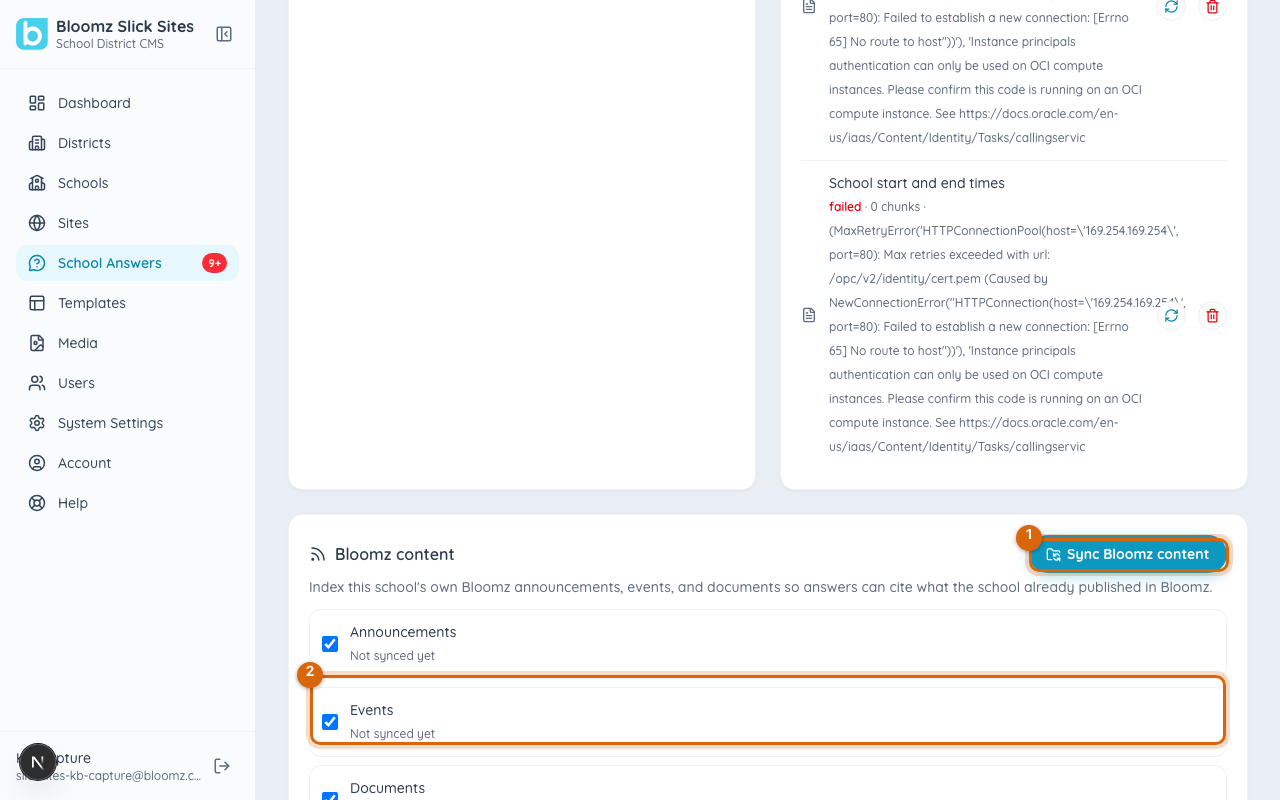
Step 2 — Choose which kinds to include
Announcements, Events and Documents each have their own toggle. A kind you switch off is simply skipped on the next sync — what was already indexed stays.
Step 3 — Select Sync Bloomz content
One button refreshes every enabled kind. What you should see: a last-sync time and item count per kind, and the synced items appearing in the document list.
Watch out: syncs are run by you, not on a schedule — this is true for website pages and connected drives too. After a round of site updates, new documents or fresh Bloomz posts, open the console and sync so the assistant answers from the current versions.
Read the coverage scorecard
The scorecard checks your knowledge base against the 50 most common categories of parent questions and shows which ones your content can answer and where the gaps are.
Step 1 — Open the coverage scorecard and recompute it
Open the site's coverage view and recompute after any significant content change.
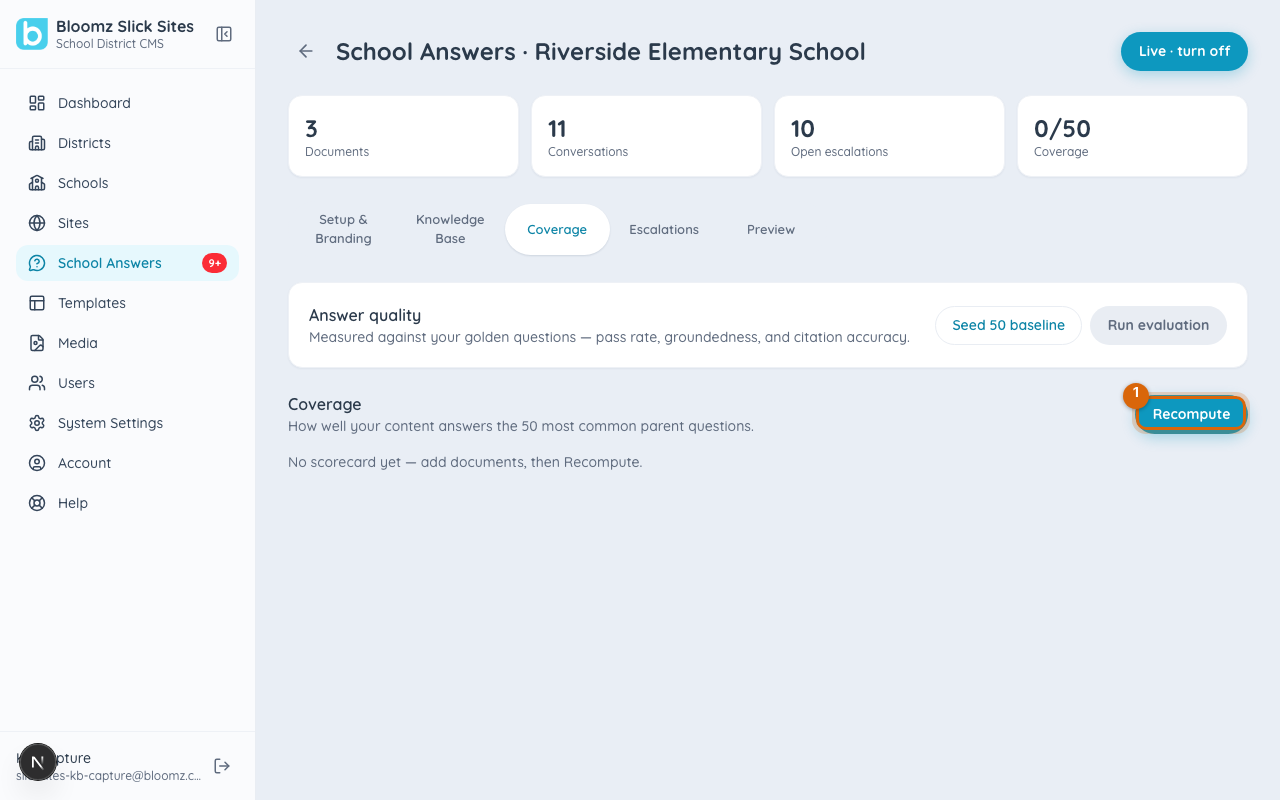
What you should see: a covered-vs-total count and a per-category list. An uncovered category is your to-do list — upload the handbook section, write a custom answer, or sync the page that covers it, then recompute. A built-in test suite of golden questions is also available for checking answer quality after content changes.
Related
- Your school website with Slick Sites
- Show a Bloomz post on your school website
- Use Bloomz without an account