 Bloomz
Connect a custom domain
Point your school's own domain — say www.myschool.org — at your Slick Sites website
instead of the default cms.bloomz.net address; the site answers to both once it is
connected.
Before you start
You need editor access to the site and someone who can change DNS records for your
domain — your IT team or domain provider. Your site's built-in cms.bloomz.net address
keeps working forever; adding a custom domain does not replace it.
Step 1 — Point the domain at Bloomz
Have your IT team or domain provider add one DNS record: a CNAME from
www.myschool.org to cms.bloomz.net. A second CNAME, on an _acme-challenge
subdomain, lets your HTTPS certificate be issued and renewed automatically — for the
rare provider that won't allow a CNAME there, two TXT records do the same job
instead. There is no plain A-record path in this product; get the exact values from
the handout in Step 3 rather than typing them from memory.
Step 2 — Add the hostname in Settings
Open the site, select Settings, and enter the exact hostname — www.myschool.org
— in Custom domains. Add more than one, comma-separated, if families use both
www.myschool.org and myschool.org.
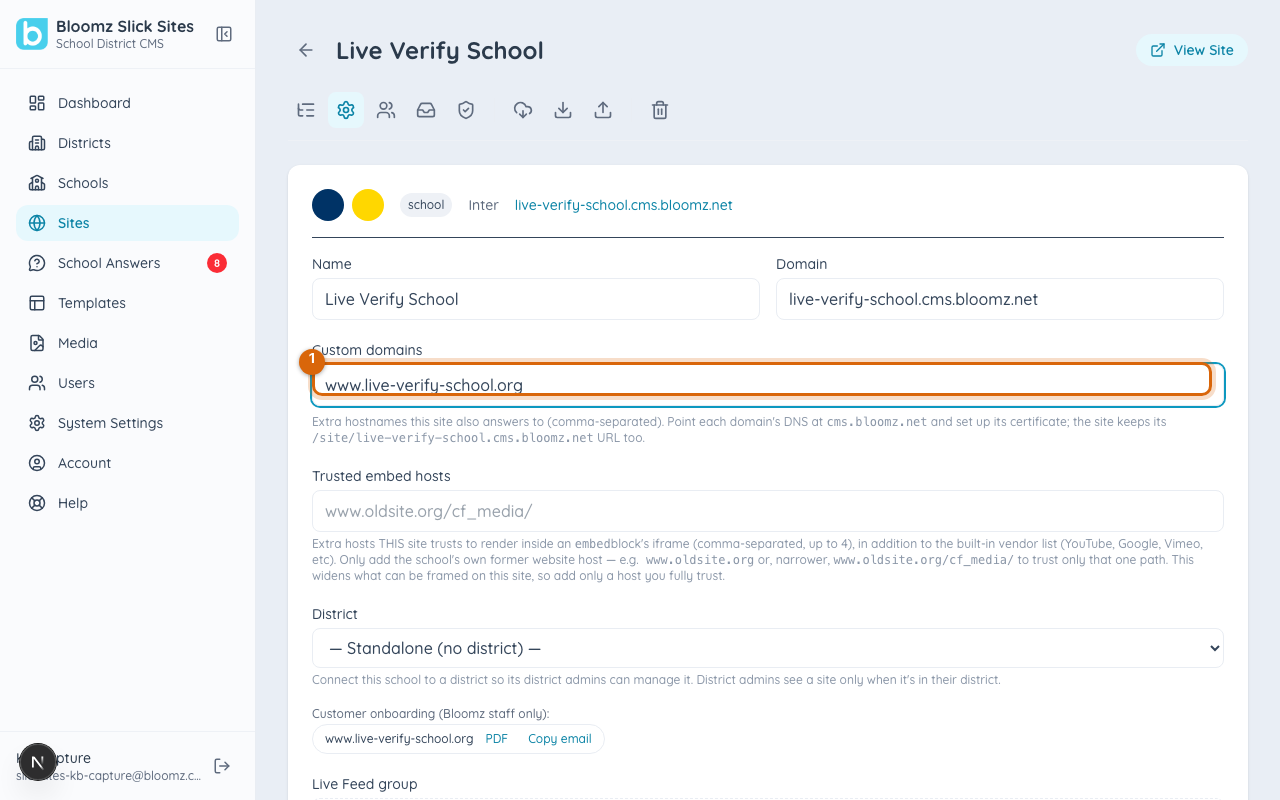
Step 3 — Get the ready-made handout
Bloomz staff see PDF and Copy email buttons next to each hostname here — either one generates a customer-ready "connect your domain" handout listing the exact DNS records, so your IT team has nothing to figure out. Don't see these buttons? They're limited to Bloomz staff; ask Bloomz support to send the handout for your hostname.

Step 4 — Wait — there's nothing to check manually
Once the records are live, Bloomz detects them and issues the certificate
automatically — usually within 15 to 60 minutes, occasionally longer. There is no
"verify now" button to click; when it's ready, www.myschool.org simply loads your
site with a secure padlock, same as cms.bloomz.net always did.
Watch out:
www.myschool.organdmyschool.orgare two different hostnames — if families use both, add both to Custom domains (or have your provider redirect one to the other) rather than assuming one covers the other.