 Bloomz
Manage calendar categories and the staff directory
Calendar categories and staff entries are not site-wide lists — each Event Calendar or Staff Directory block keeps its own, configured from that block's settings panel on the page it sits on. This article covers both, since they share the same panel-based editing pattern.
Before you start
You need editor access to the site. If the same block type appears on two different pages, its categories or staff are configured separately on each — there is nothing site-wide to set once and forget.
Step 1 — Open an Event Calendar block's settings
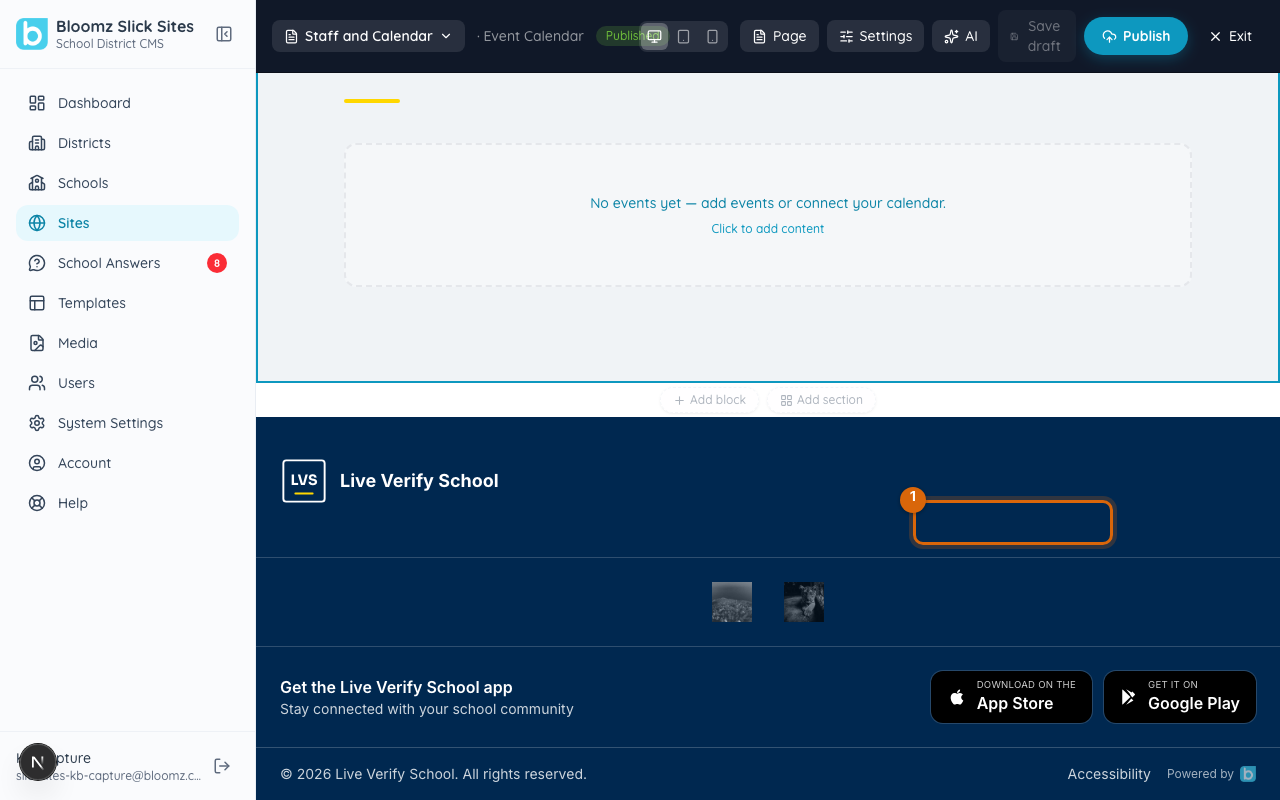
Open the page and select the Event Calendar block, then its settings (gear) icon to open Event Calendar — all settings. Categories sits between the section title and the display options, with an Add item link.
Step 2 — Add a category
Select Add item, type a name, and pick a color (or leave it to derive one from your site's brand palette automatically). Visitors use these to filter the calendar; a category only shows a filter chip once 2 or more are in use.

Step 3 — Open a Staff Directory block's settings
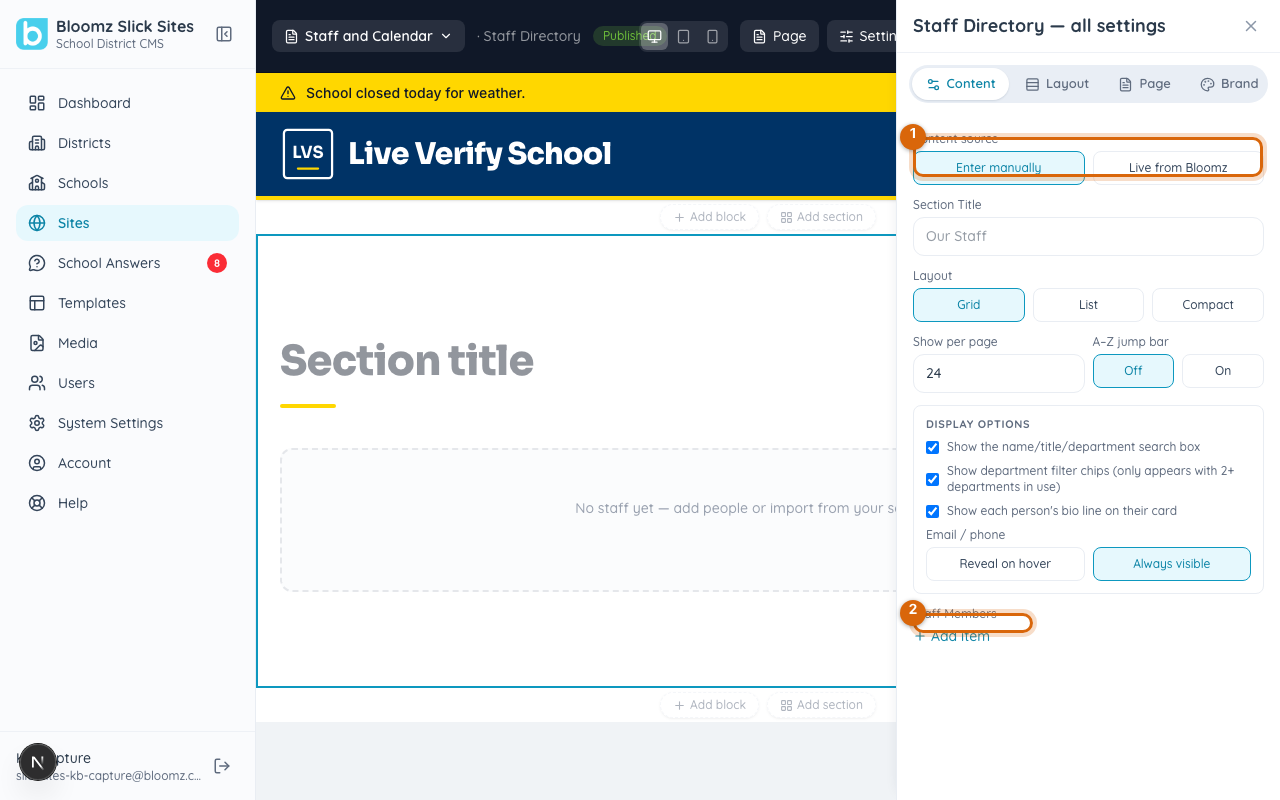
On a Staff Directory block, open its settings the same way. Content source is Enter manually (you add each person) or Live from Bloomz (the roster pulls automatically from your linked group — nothing here to add or edit by hand).
Step 4 — Add a staff member manually
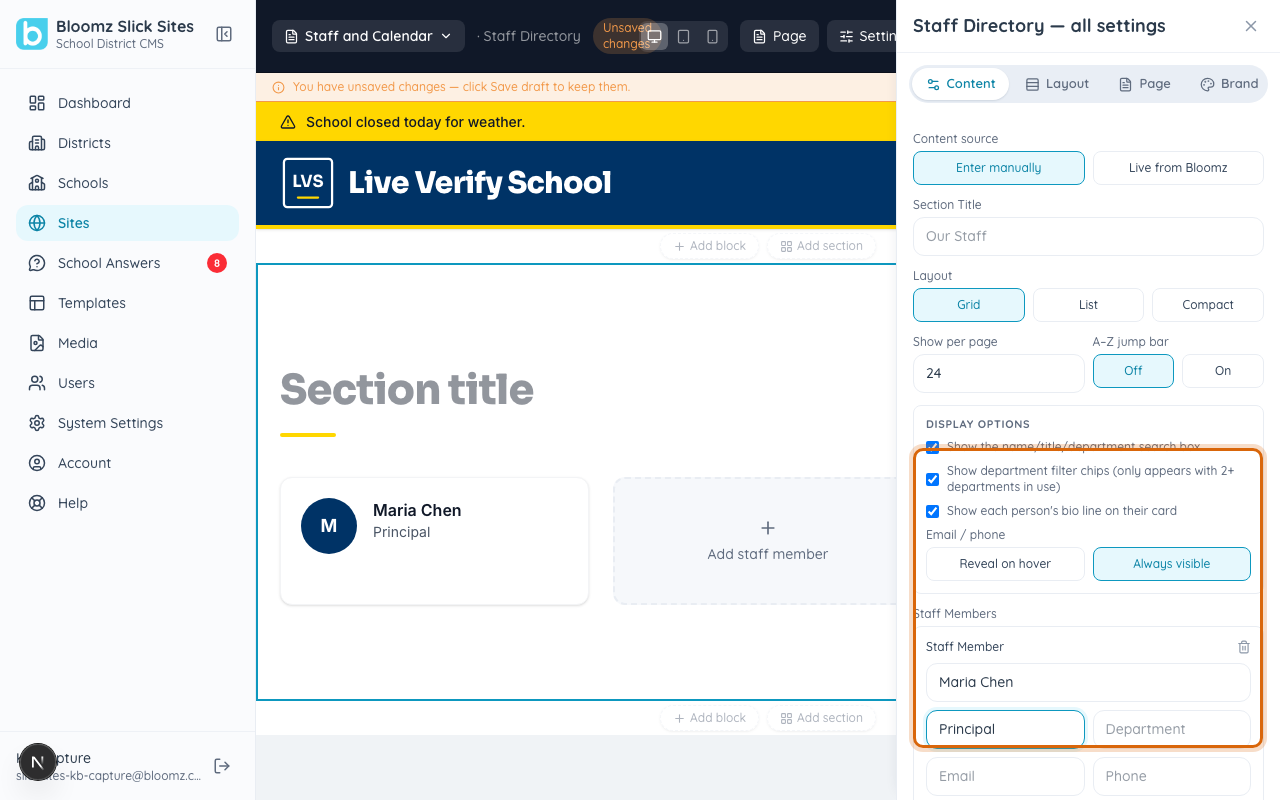
With Enter manually selected, select + Add item under Staff Members and fill in name, title, department, email, phone, photo and bio. The live preview on the left updates as you type.
Step 5 — Rearrange or remove entries
Hovering a card on the page (not in the settings panel) reveals ‹ › to move it earlier or later, a pencil to edit it, and a trash icon to remove it.

Watch out: the public directory always lists manually-entered staff alphabetically by name, no matter what order you arrange them in while editing — the ‹ › controls change what you see while working on the page, not what families see once it's live. To remove someone from a Live from Bloomz directory, update their listing in Bloomz itself; there is no separate hide toggle here.
What visitors see
The calendar's filter chips match that block's categories exactly, and each staff directory shows the people from that block's own source — manual entries in alphabetical order, or your live Bloomz roster.