 Bloomz
Manage your district's translation glossary
Some words should never be guessed at by machine translation — a program name that should stay in English, or a term like "IEP" that has one exact meaning your families need to see the same way every time. The Education Glossary is where your district defines those terms once, so every automatic translation across Bloomz uses your wording instead of a generic guess.
Before you start
You need the TranslationReviewer capability or a district-admin role to add, edit or delete terms — anyone can read the glossary once it exists. The glossary ships with roughly 150 platform-default education terms (special education, attendance, enrollment and health vocabulary) that your district can add to or override.
Step 1 — Open the Education Glossary
Open More, search translation, select Translation Plus, then Education Glossary.
Step 2 — Browse or filter existing terms
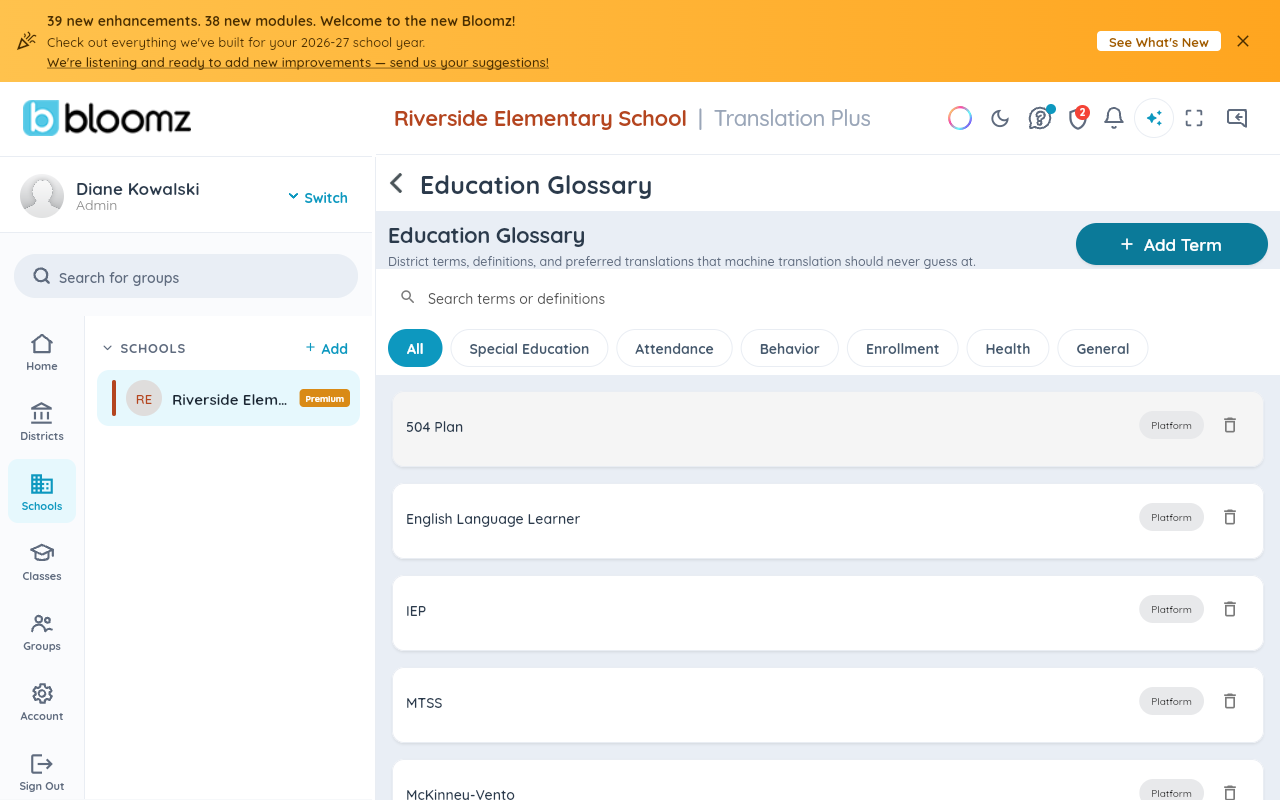
Filter by category — Special Education, Attendance, Behavior, Enrollment, Health or General — or use Search terms or definitions to find one by name. The glossary is shared district-wide, so you'll see the same terms whether you open Translation Plus from the district group or from one of your individual schools.
Step 3 — Add a term
Select + Add Term. Fill in the Term, its Category, a plain Definition, and any Aliases it's also known by (so "ELL" and "EL" both match "English Language Learner," for example).
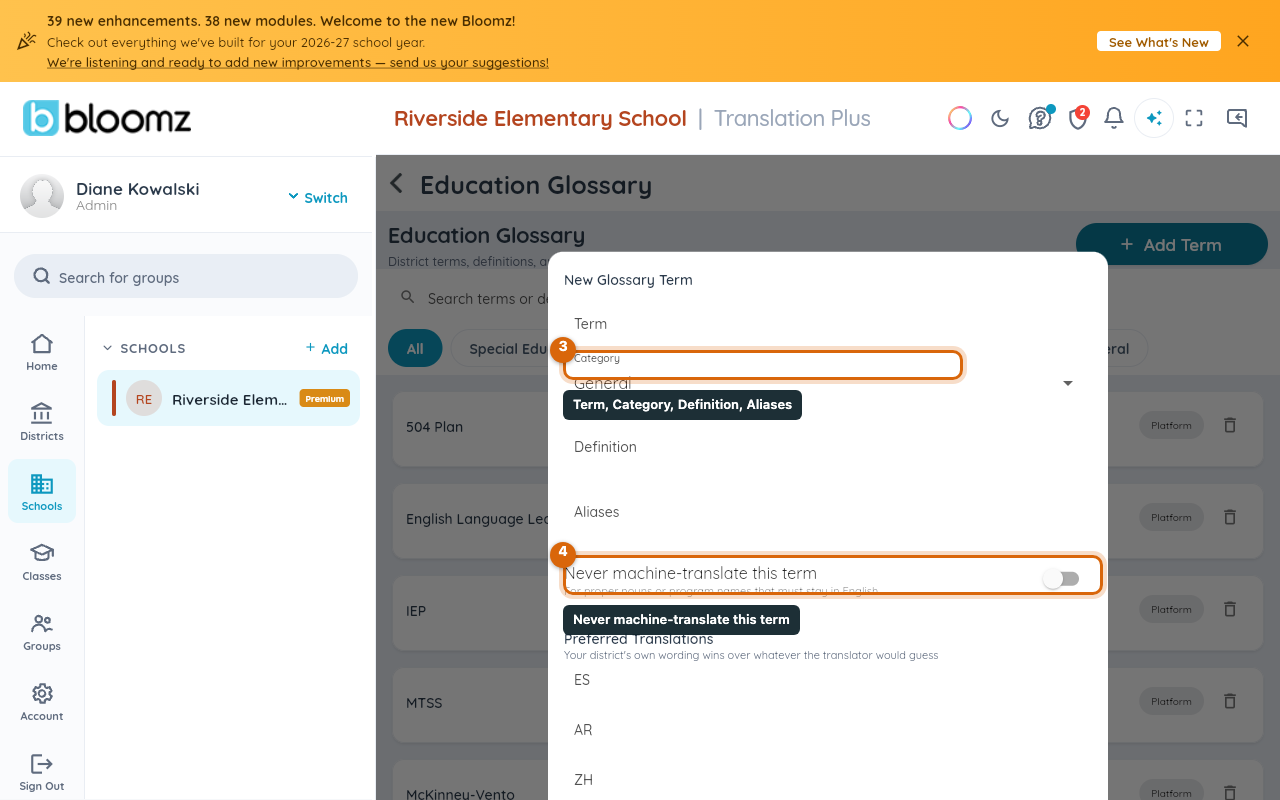
Turn on Never machine-translate this term for a proper noun or program name that should stay in English no matter what language the rest of the message is in. Otherwise, fill in Preferred Translations for each language your district needs — your district's own wording always wins over whatever the translator would have guessed on its own.
Step 4 — Save
Select Save. From this point on, any automatic translation anywhere in Bloomz that contains this term uses your definition and preferred wording instead of translating it fresh each time.
Watch out: a platform-default term (no district customization yet) can't be deleted — only edited or overridden with your own preferred translation. That protects every other district relying on the same starter term.