 Bloomz
Get posts and messages translated into your language
Set a content language once, and everything people write in Bloomz — posts, messages, announcements, comments and the notifications that carry them — arrives translated for you, even when the teacher writes in English. This is the setting families miss: it is separate from the language of the app's own buttons and menus.
Before you start
Anyone can do this, on every plan. You only set it for yourself — each guardian chooses their own content language on their own account. If your school syncs this from its student information system, this picker is locked instead — see If your language is locked below.
Step 1 — Open Account
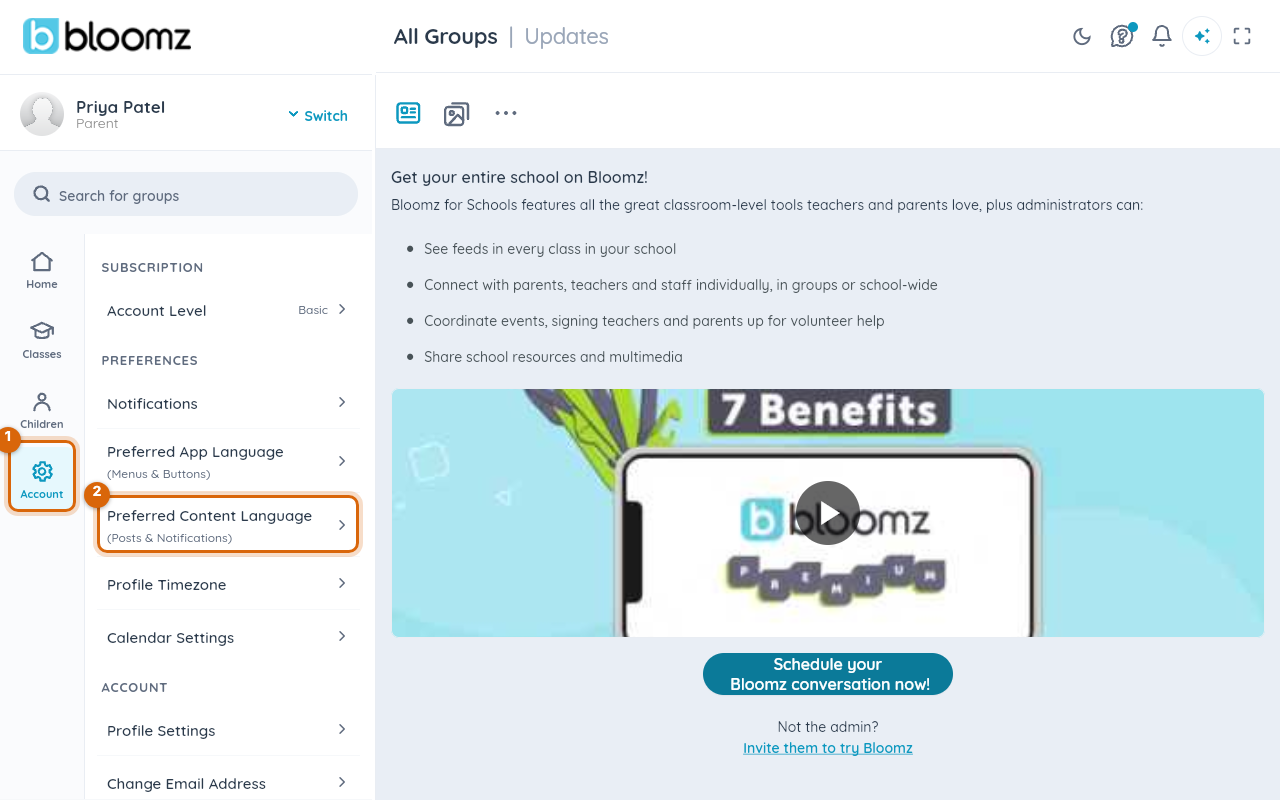
In the left rail, select Account.
Step 2 — Choose Preferred Content Language
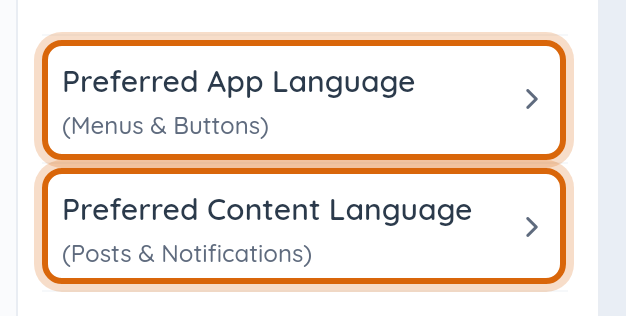
Under Preferences, select Preferred Content Language — the row that says (Posts & Notifications) beneath it. Not the row above it: that one changes the app's menus, not what people write.
Step 3 — Search for your language
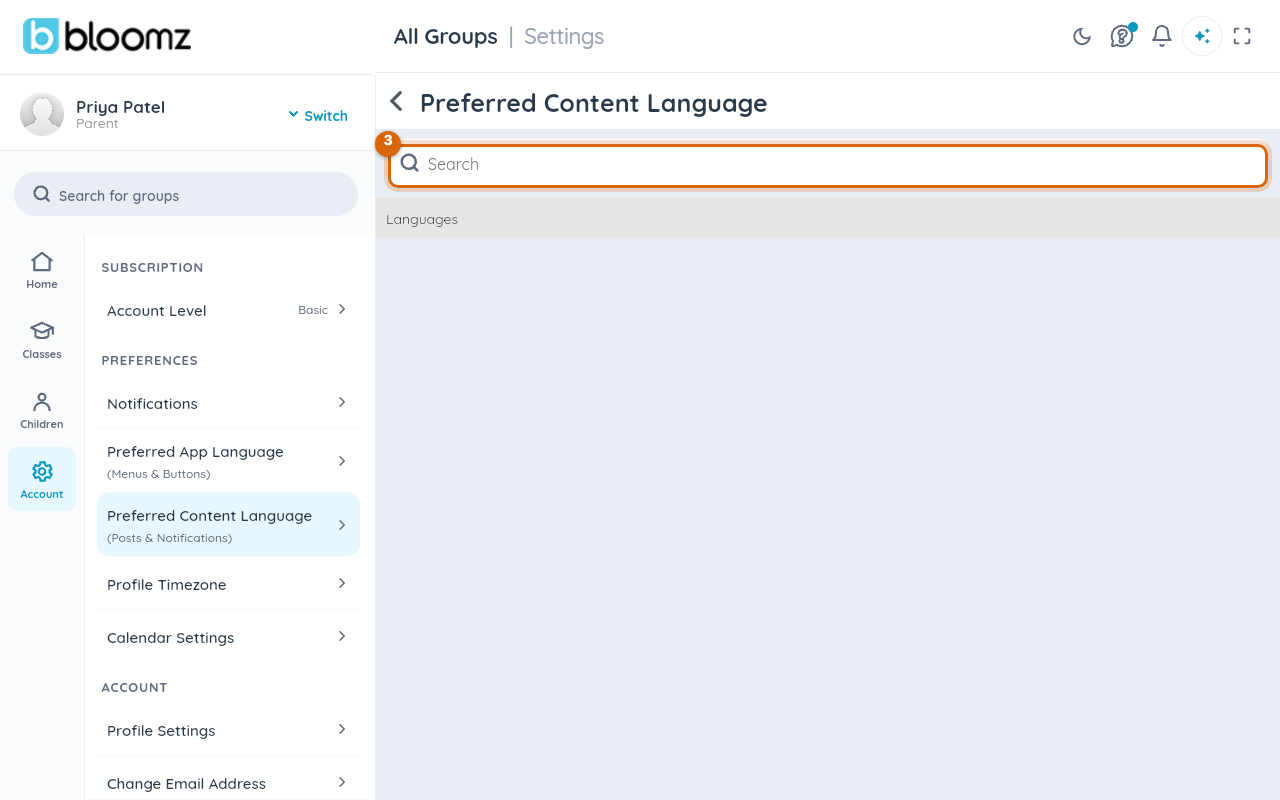
Select the Search field and type the first letters of your language. Each entry shows the name in English and in its own script.
Step 4 — Select it
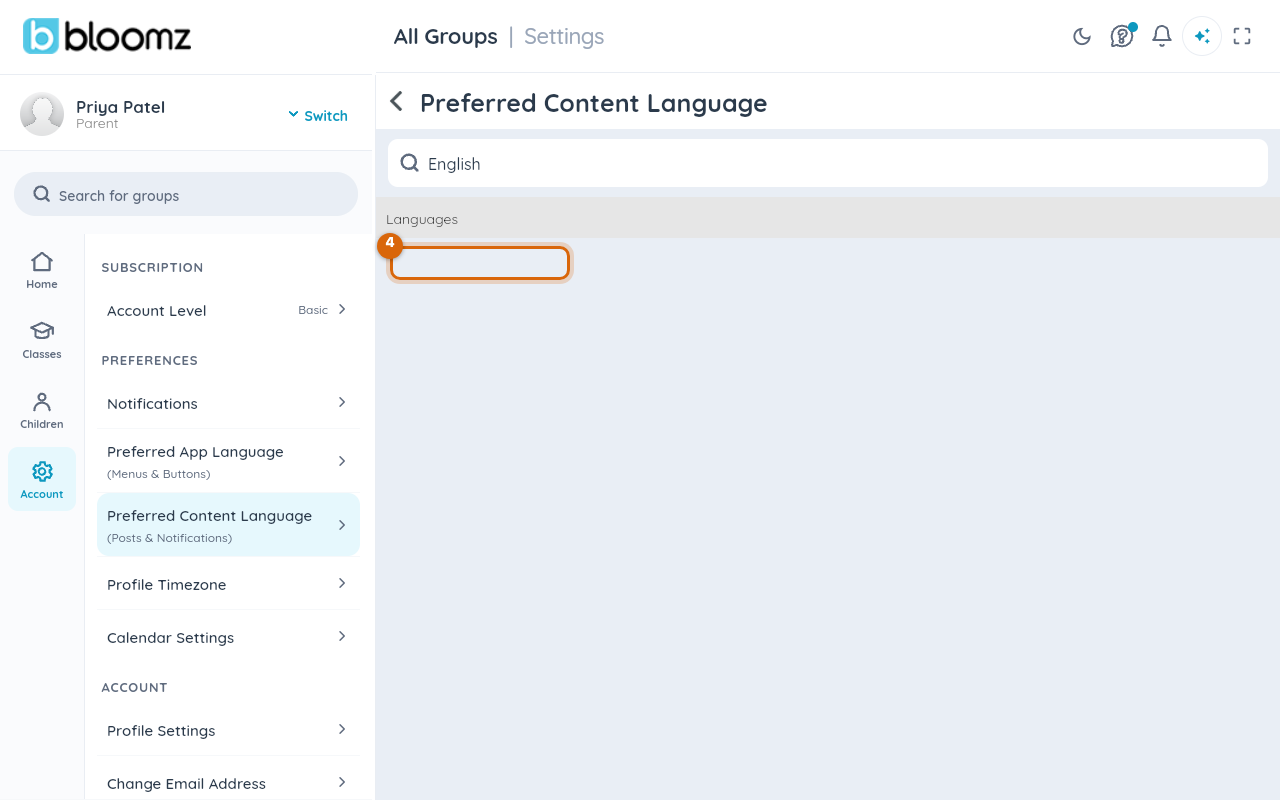
Select your language. Its circle fills in and the setting is saved straight away — there is no Save button on this screen.
Step 5 — Go back to the feed
Select the back arrow. From now on, new posts and messages open in your language, and the notifications about them are translated too; posts written in another language show a Translate link under them.
Watch out: a post that was already on your screen keeps its original language until you open it again. If the feed still looks untranslated right after saving, refresh the feed — it is not a failed setting.
If your language is locked
Some schools turn on a setting that keeps everyone's content language in step with their student information system's nightly sync. If yours has, this screen shows a lock icon next to each language instead of a circle, tapping a row does nothing, and a banner above the list reads: "Your school syncs your preferred language from its student information system, so it can't be changed here. Contact your school if this needs to change." Preferred App Language is never affected by this — you can still change the app's own menus and buttons yourself either way. If your content language is wrong, ask your school's office; only a school or district admin can turn the sync setting off, or update the value in your student information system for the next sync.
What families see
Every reader gets the same post in their own content language; the sender does not have to write it twice, and the sender's own copy stays in the language they wrote. Translation covers text in Bloomz. An attached PDF, a photo of a flyer or a link to another website stays exactly as it was uploaded — if a message must reach every family, the words belong in the message, not only in the attachment.
Related
- Change the language Bloomz shows you
- Choose which notifications you receive
- Lock content language to your student information system
- Why a post arrived in the wrong language