 Bloomz
Choose which notifications you receive
If Bloomz is telling you too much, or not enough, one screen controls it: which channels reach you, and when Bloomz stays quiet. This takes two minutes and only changes your own account.
Before you start
Anyone can do this, on every plan. Two settings on this screen — Group-Specific Notification Settings (different settings per class) and Advanced Settings — are Premium features; on a Basic account they open an Upgrade Now page instead.
Step 1 — Open Account
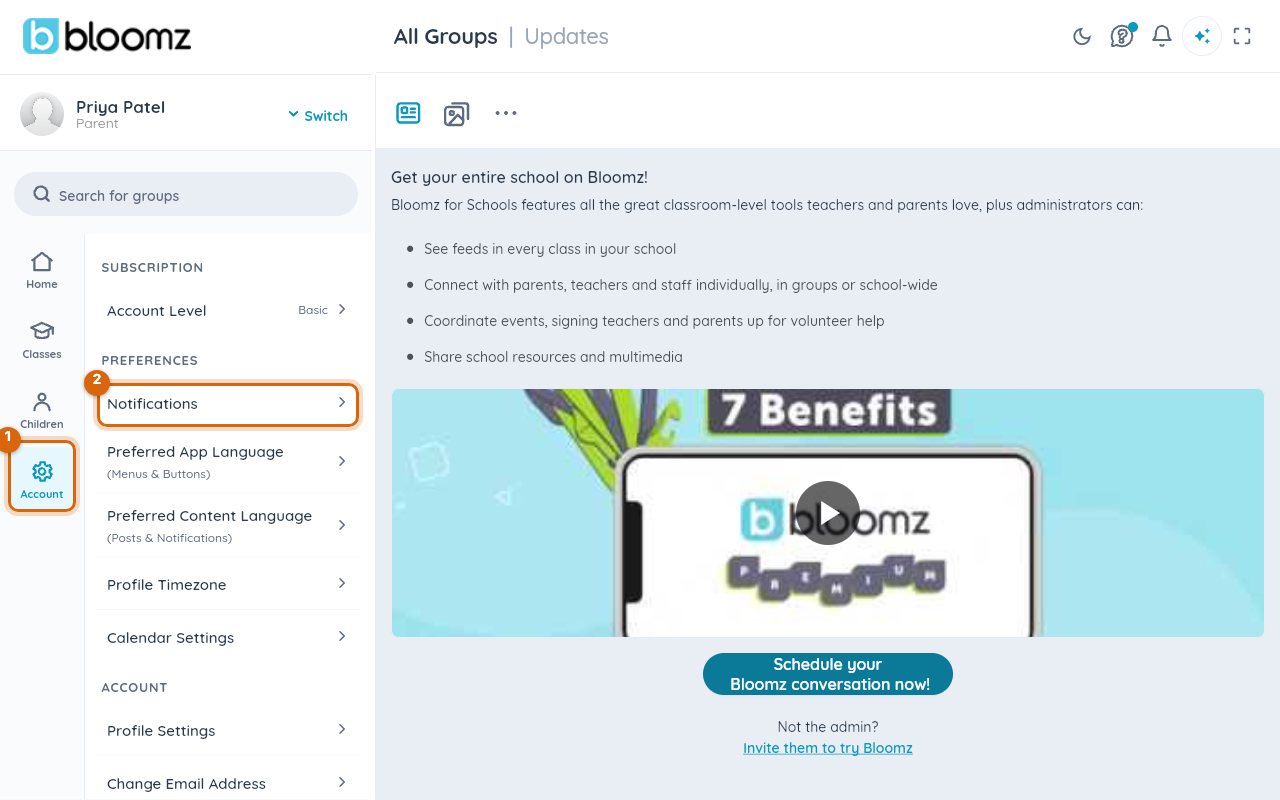
In the left rail, select Account.
Step 2 — Open Notifications
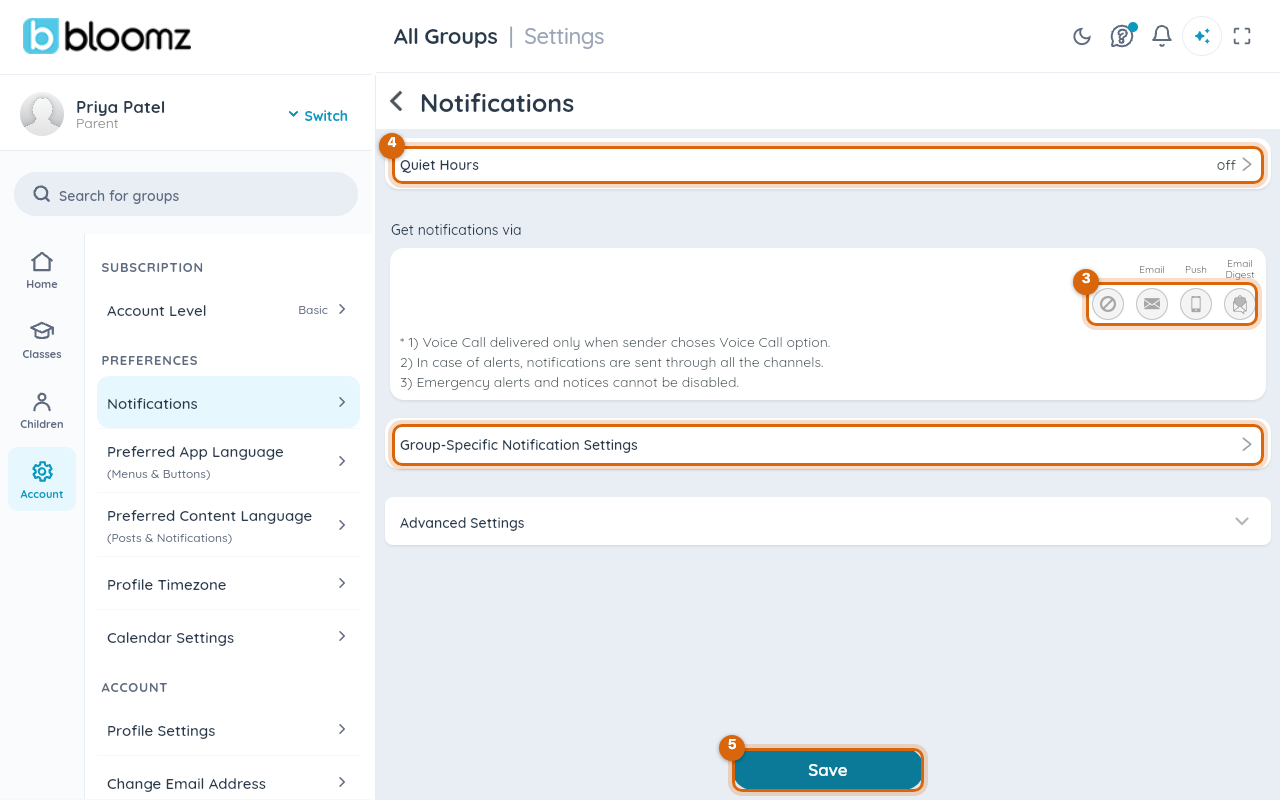
Under Preferences, select Notifications. The notification settings screen opens.
Step 3 — Choose how notifications reach you
Under Get notifications via, select one icon in the row: off (the crossed circle), Email, Push or Email Digest. The selected icon fills in.
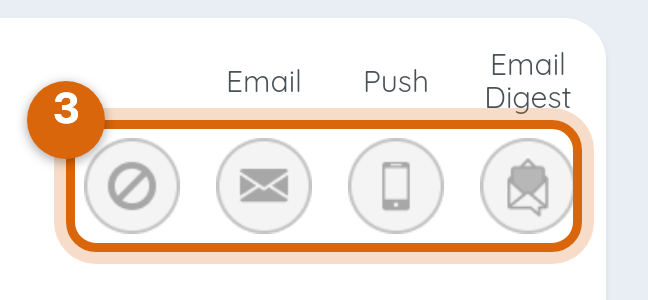
If the problem is too many emails, choose Email Digest rather than off — it gathers the day's updates into one email instead of one message each time.
Step 4 — Set Quiet Hours (optional)
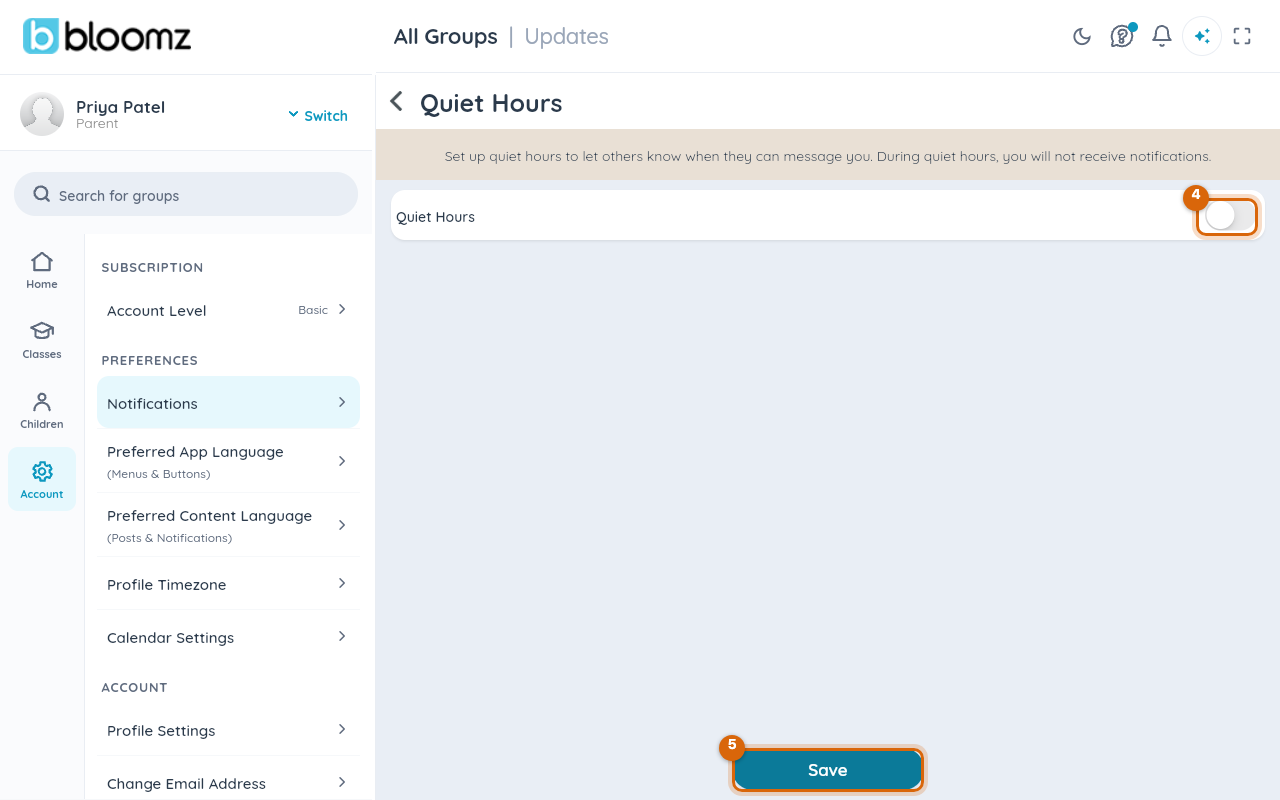
Select the Quiet Hours row, switch it on and choose the window when Bloomz should not disturb you. During quiet hours no notifications are delivered; they are waiting for you afterwards.
Step 5 — Save
Select Save at the bottom of the screen. Your choice applies from the next notification on.
Watch out: changing an icon or switch does nothing until you select Save. Leaving the screen first keeps your old settings, and it looks as though the change was ignored.
What you cannot turn off
The screen says so itself, and both are deliberate: emergency alerts and notices are always delivered, on every channel, and Alerts from your school reach you through all channels regardless of the settings above — that is what makes an Alert different from a post. Voice calls only arrive when the sender specifically chose to send one.
Why a text or call sometimes arrives later
Most schools have Intelligent Notifications on: Bloomz delivers by push and email first and follows up by SMS or voice call after a delay, only if you have not opened the notification by then. A text arriving a little after the email is not a glitch. Emergency alerts skip the delay. If you must always be reached on every channel at once — you are the emergency contact for a child with a medical condition, say — ask your school's office to mark you as a Critical Contact.
Related
- Change your email address
- Set a Critical Contact so urgent notices always reach you
- Change the language Bloomz shows you