 Bloomz
Update your profile photo and contact details
Your profile photo helps teachers and other parents recognize you at a glance. It's a one-click change from anywhere in Bloomz — your phone number and email, on the other hand, live on their own separate screens, not a combined "contact details" form.
Before you start
Anyone can do this, on every plan. Have a photo ready — the picture uploads the moment you pick it, with no in-between crop step on the web app.
Step 1 — Open your account menu
Select your name and photo in the top-left corner, above the navigation rail. A menu opens: My Profile, Change Profile Photo, Account Settings, Sign Out.
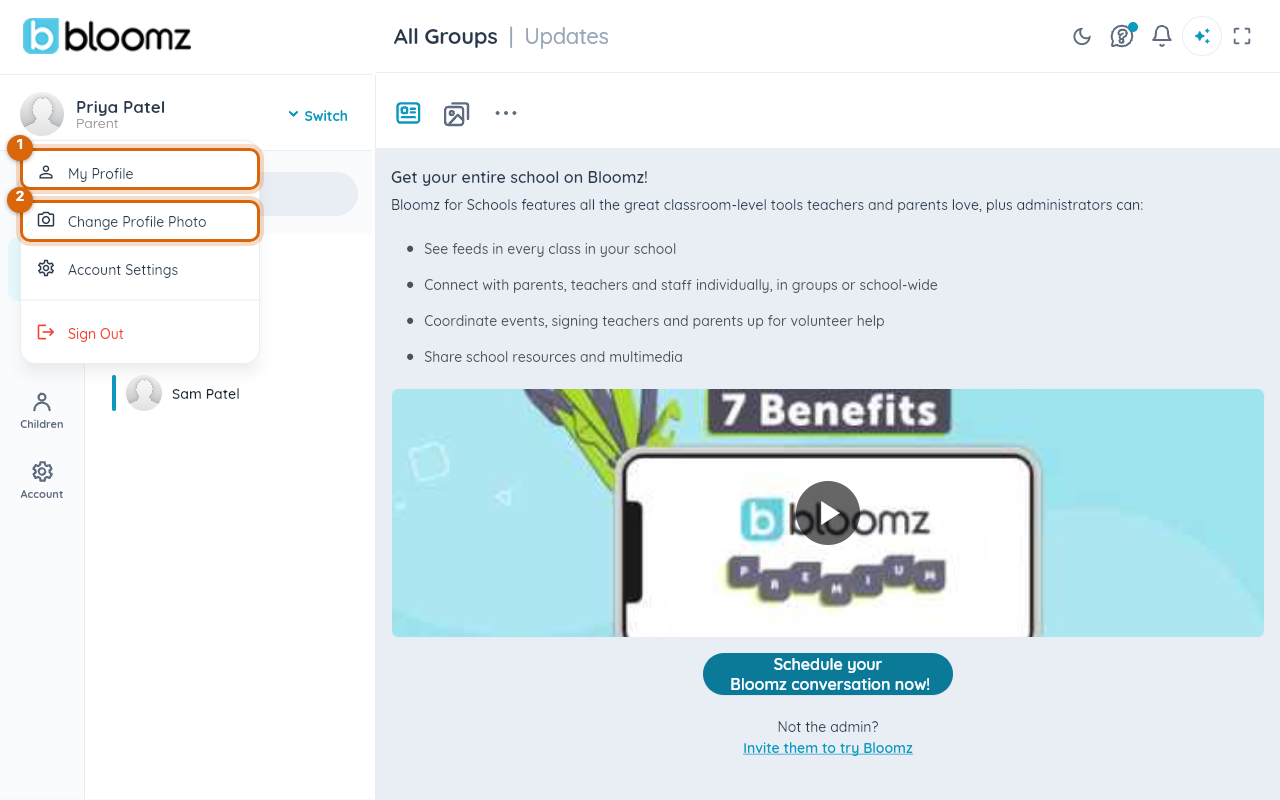
Step 2 — Select Change Profile Photo
Your device's own file picker opens — this is your operating system's dialog, not a Bloomz screen.
Step 3 — Choose a photo
Pick an image file. It uploads immediately and replaces your photo everywhere in Bloomz, including for teachers who already have you in their class list — there's no crop step and no separate Save button to press.
Changing your phone number or email
Bloomz doesn't have one combined "contact details" screen for phone and address. Your email address has its own Change Email Address screen, and your phone number has its own Add/Change Primary Phone screen (a Premium feature) — see Change your email address and Update your phone number for each.
Watch out: changing your phone number does not automatically make it your Critical Contact — that's a separate, school-staff-controlled setting.
Related
- Update your phone number
- Set a Critical Contact so urgent notices always reach you
- Change your email address
- Sign out of Bloomz