 Bloomz
Update your phone number
Your phone number is used for SMS and voice-call notifications. Adding or changing it is a Premium feature — on a Basic account, the row that should open the phone form opens an upgrade screen instead.
Before you start
You need an active Premium subscription. If you're not sure whether you have one, Cancel your Premium subscription explains where to check your plan.
Step 1 — Open your account menu
Select your name and photo in the top-left corner, then select Account Settings.
Step 2 — Select Account Settings
The Account Settings page lists an Add Primary Phone row (or Change Phone Number, once a number is on file) near the bottom, under Change Email Address.
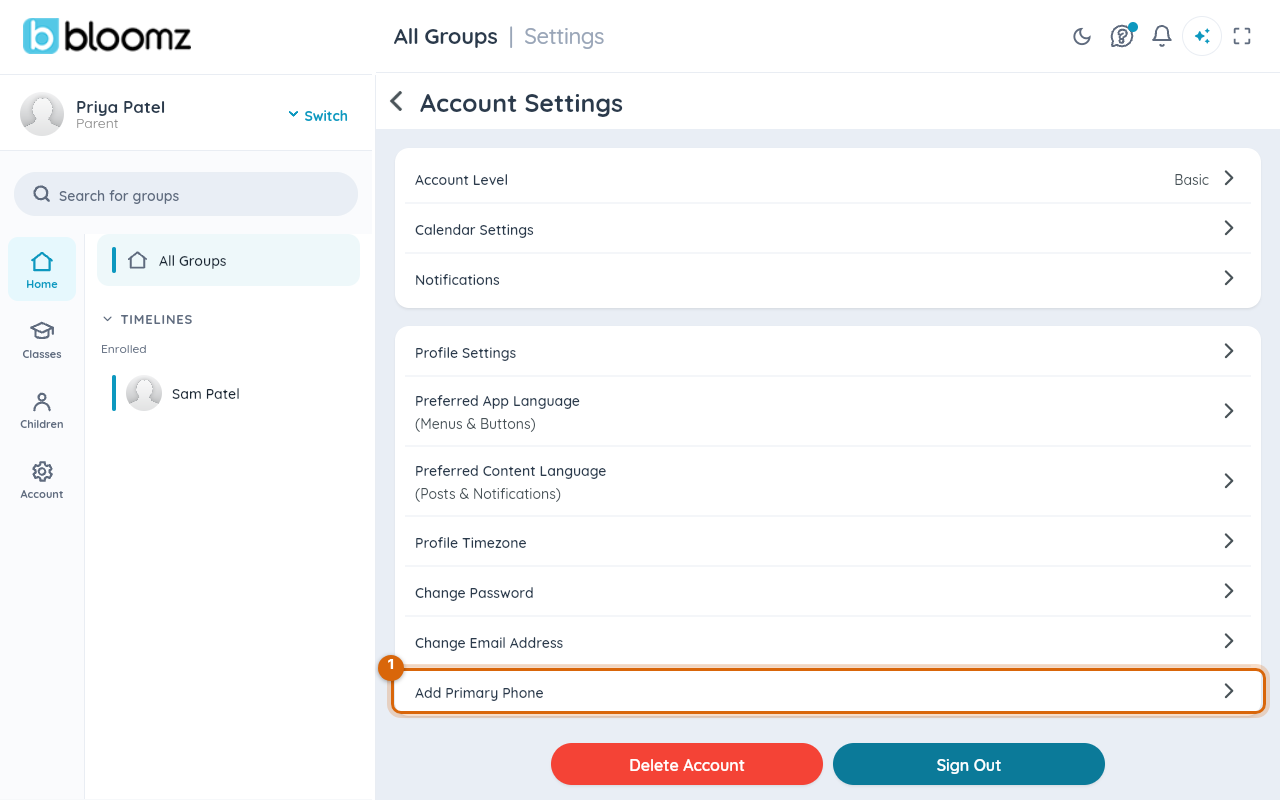
Step 3 — Select Add Primary Phone
On a Basic account, this opens Upgrade Now instead of a phone-number form — Bloomz checks your subscription tier before showing the screen at all.
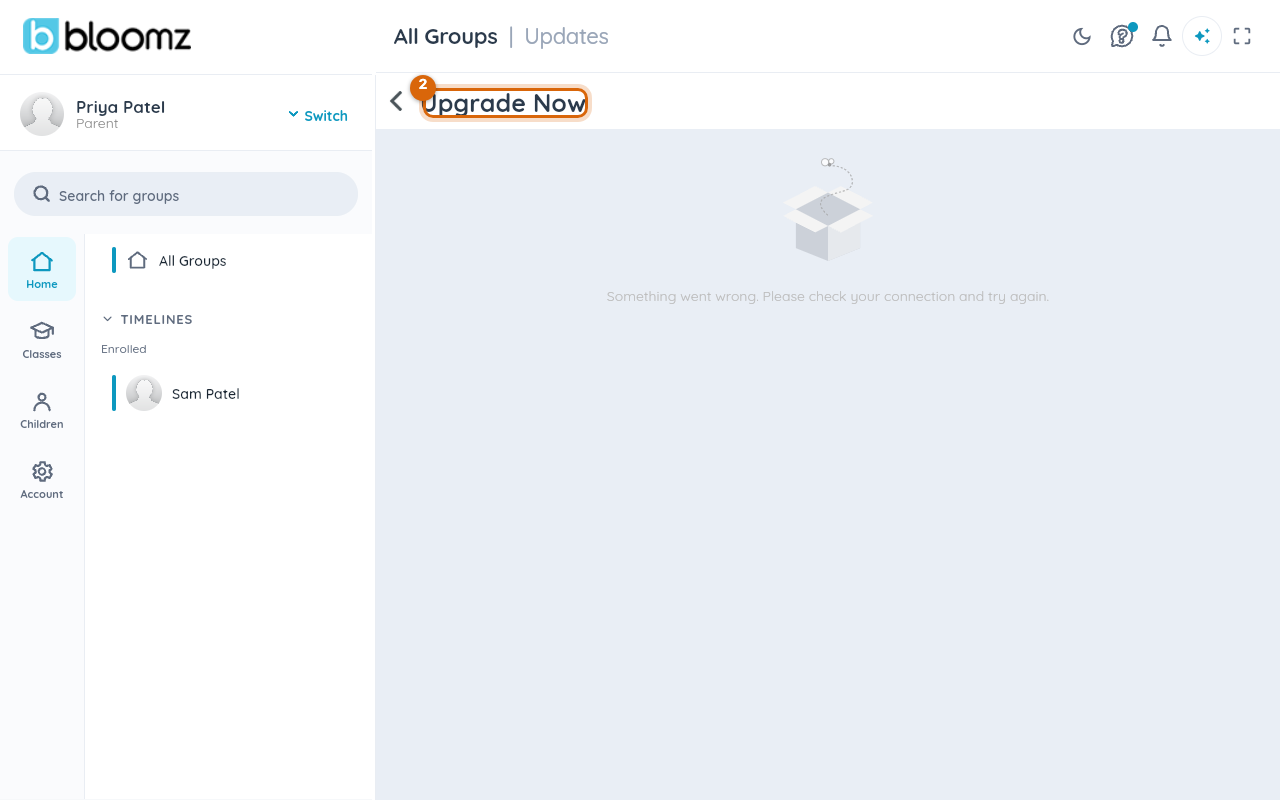
What the real form looks like, on Premium
Once you're on Premium, the same row opens a simple form: your old number (read-only, if you have one), a field for the new number, and your password to confirm it's you — then one Save button. There's no separate SMS verification step; entering your password is what confirms the change.
Watch out: if the new number was set as your Critical Contact, ask your school to reselect it afterward — that's a setting your school's staff controls, not something that updates automatically when your number changes.
Related
- Set a Critical Contact so urgent notices always reach you
- Update your profile photo and contact details
- Turn on two-step verification