 Bloomz
Cancel your Premium subscription
There's no in-app "Cancel Subscription" button anywhere in Bloomz. Premium is managed wherever you originally subscribed, and canceling happens there — Bloomz's own screens only show you what plan you're on.
Before you start
Anyone can check their own plan, on every plan tier.
Step 1 — Open your account menu
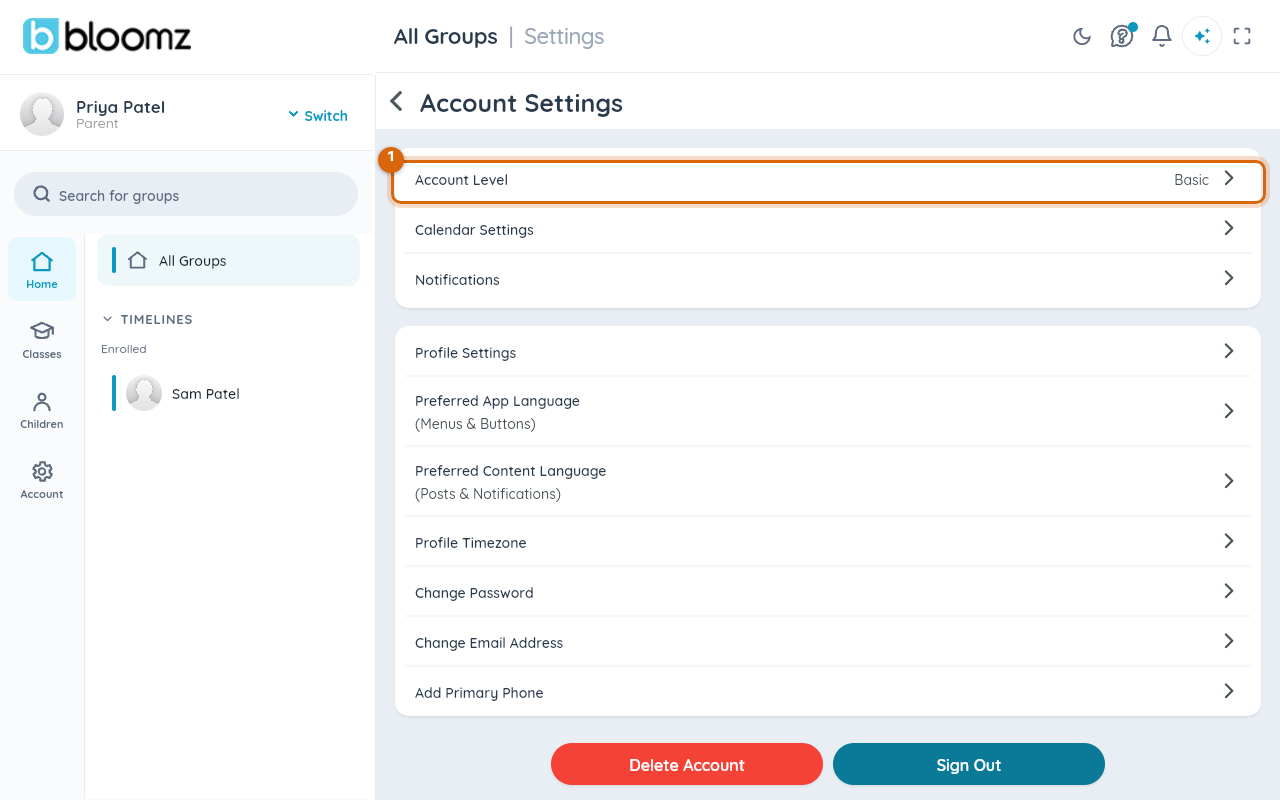
Select your name and photo in the top-left corner, then select Account Settings.
Step 2 — Select Account Level
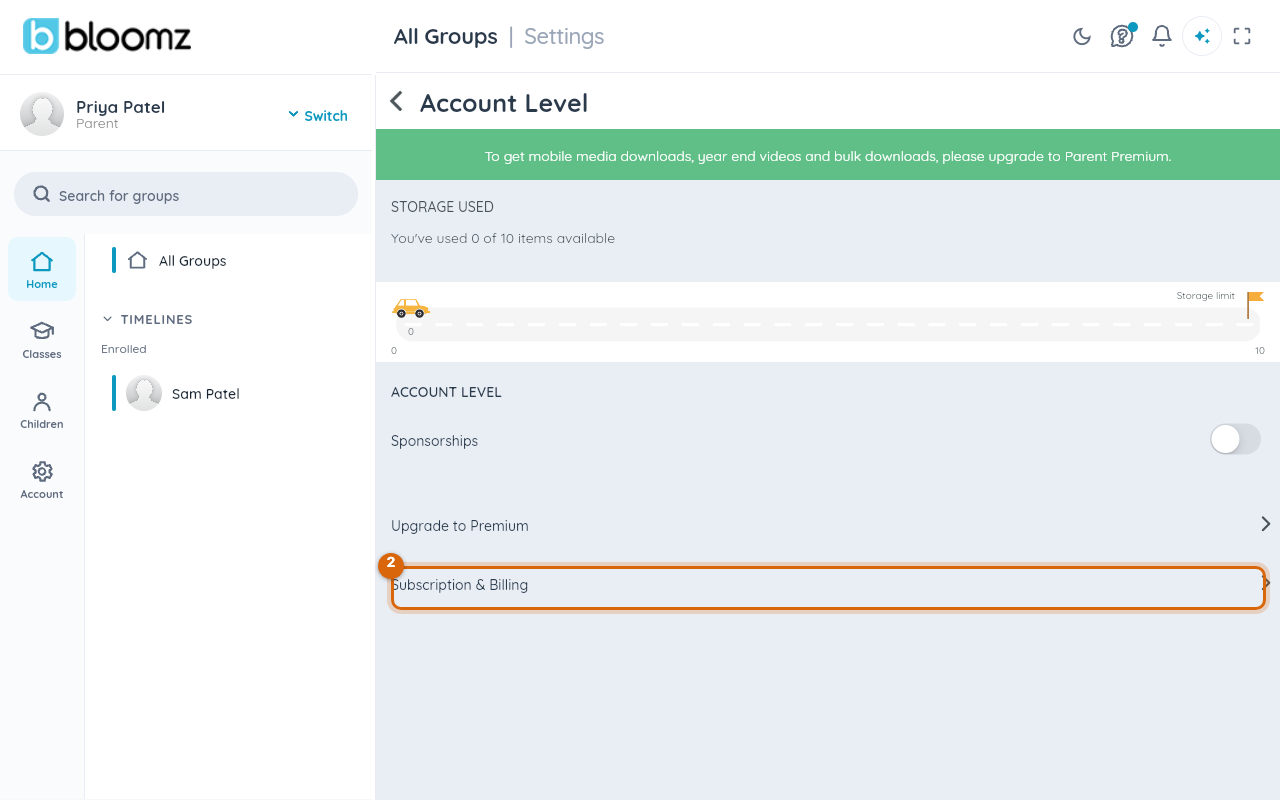
At the top of Account Settings, select Account Level. This shows your storage usage and, if you're not on Premium, an Upgrade to Premium row.
Step 3 — Select Subscription & Billing
Select Subscription & Billing to see your current plan, renewal date, and payment history in one place.
Where cancellation actually happens
If you subscribed through the App Store or Google Play, cancel it from your device's own subscription settings — Bloomz deleting your account does not cancel that subscription; it keeps renewing until you cancel it at the source. If your school or district billed you directly, cancellation goes through whoever set up that billing, not through this screen.
Watch out: Premium-only features — like Group-Specific Notification Settings or Advanced Settings — stop working once your access ends, whenever that turns out to be. Anything you created while those features were on is preserved but becomes read-only until you resubscribe.
Related
- Choose which notifications you receive
- Change your password
- Update your profile photo and contact details