 Bloomz
Change your password
Change your password while you are signed in — for example because you shared it to get help, or you use it somewhere else. You need your current password to do this; if you have forgotten it, see Reset your password instead.
Before you start
Anyone can do this, on every plan. Your new password must be one you have not used for Bloomz before. Changing it does not sign you out of other devices on its own.
Step 1 — Open Account
In the left rail, select Account, then scroll the panel down to the Account section.
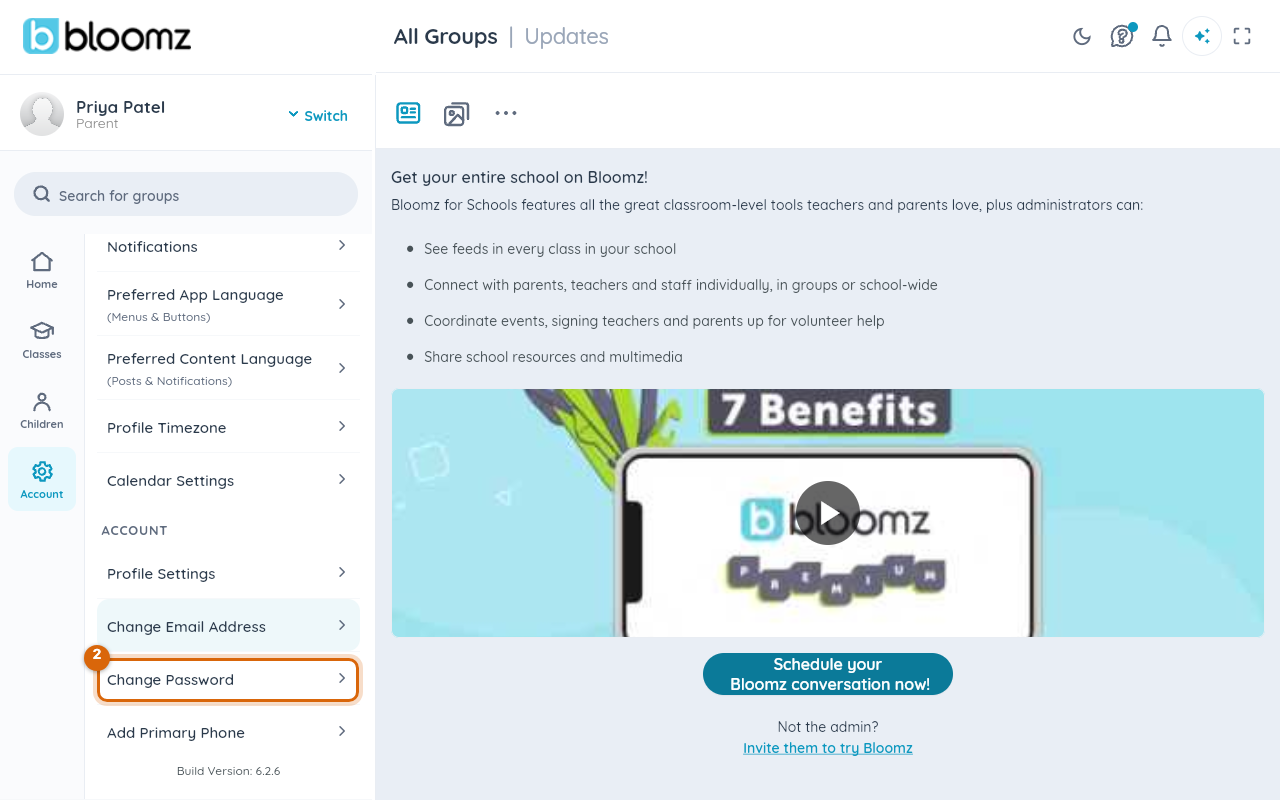
Step 2 — Choose Change Password
Select Change Password. A short form opens on the right.
Step 3 — Type your current password
Type it into Old Password. The eye icon at the end of the field shows what you have typed.
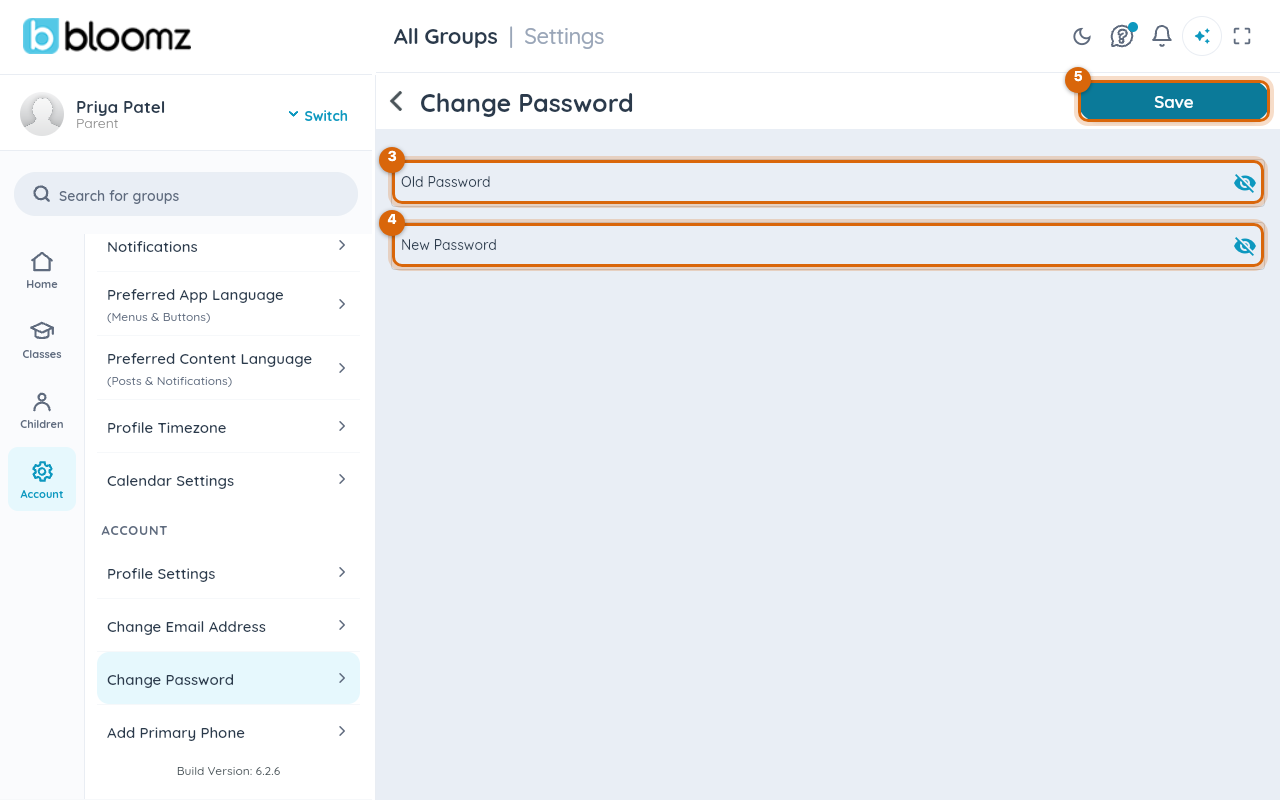
Step 4 — Type the new password
Type the new password into New Password. Use the eye icon to check it — there is no "confirm" field, so a typo here becomes your password.
Step 5 — Save
Select Save in the top corner. A confirmation appears; use the new password the next time you sign in.
Watch out: if Save returns an error about the old password, the password you typed in Step 3 is not the one Bloomz has. Sign out and use Reset your password from the sign-in screen rather than guessing — repeated wrong attempts lock the account for a while.
Related
- Reset your password
- Change your email address
- Choose which notifications you receive