 Bloomz
Sign out of Bloomz
Signing out closes your Bloomz session on this device — anyone who opens Bloomz here afterward has to sign back in with a password to see anything. The fastest way is the Sign Out entry at the very bottom of the left rail, available to every role on every plan.
Before you start
Anyone signed in to Bloomz can do this. If you use Switch Profile to move between more than one Bloomz login on this device, signing out only ends the profile you're currently on — your other saved profiles aren't affected, but this profile's own saved sign-in is cleared, so picking it again from the switcher asks for your password rather than reopening it.
Step 1 — Find Sign Out
Look at the very bottom of the left rail — the column of icons running down the left edge of the screen. Below every class and page shortcut is Sign Out, marked with a logout icon.
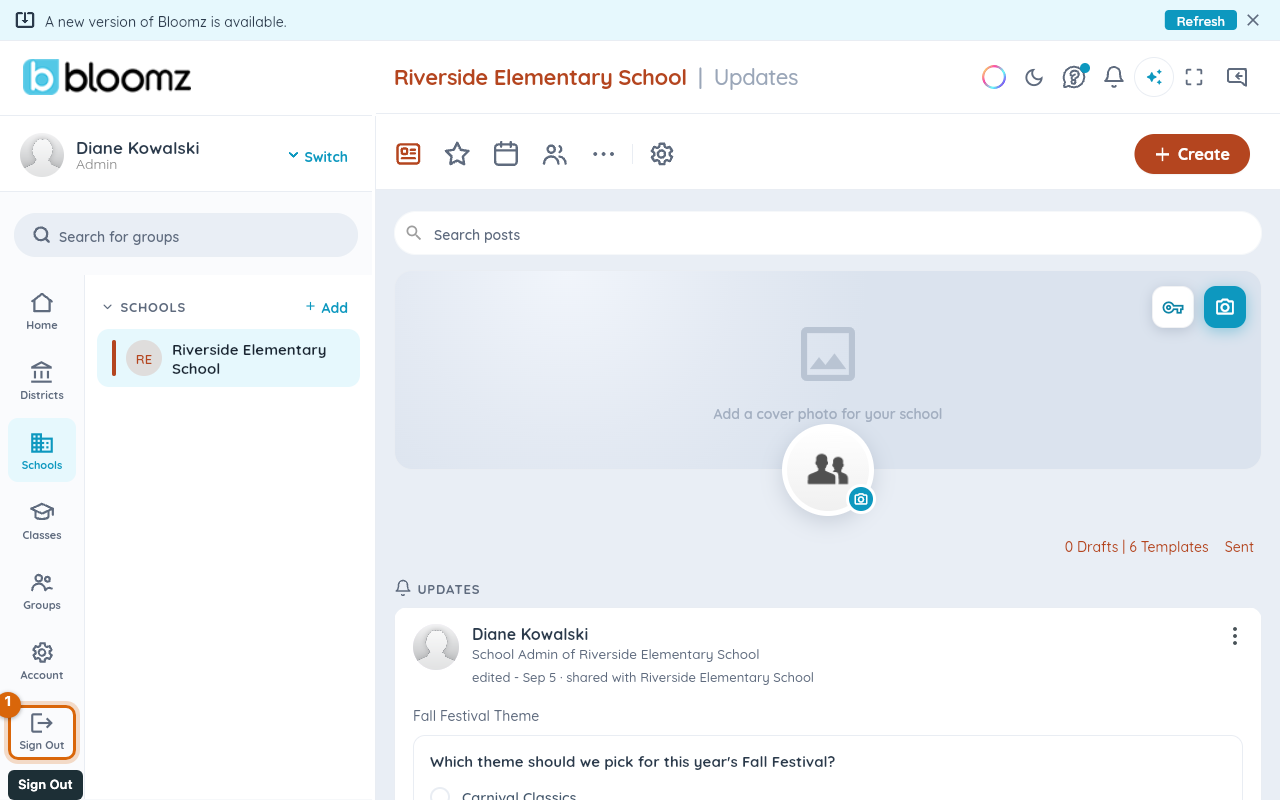
Step 2 — Select Sign Out
Select it. A dialog opens asking "Are you sure you want to sign out?" — nothing happens to your session yet.
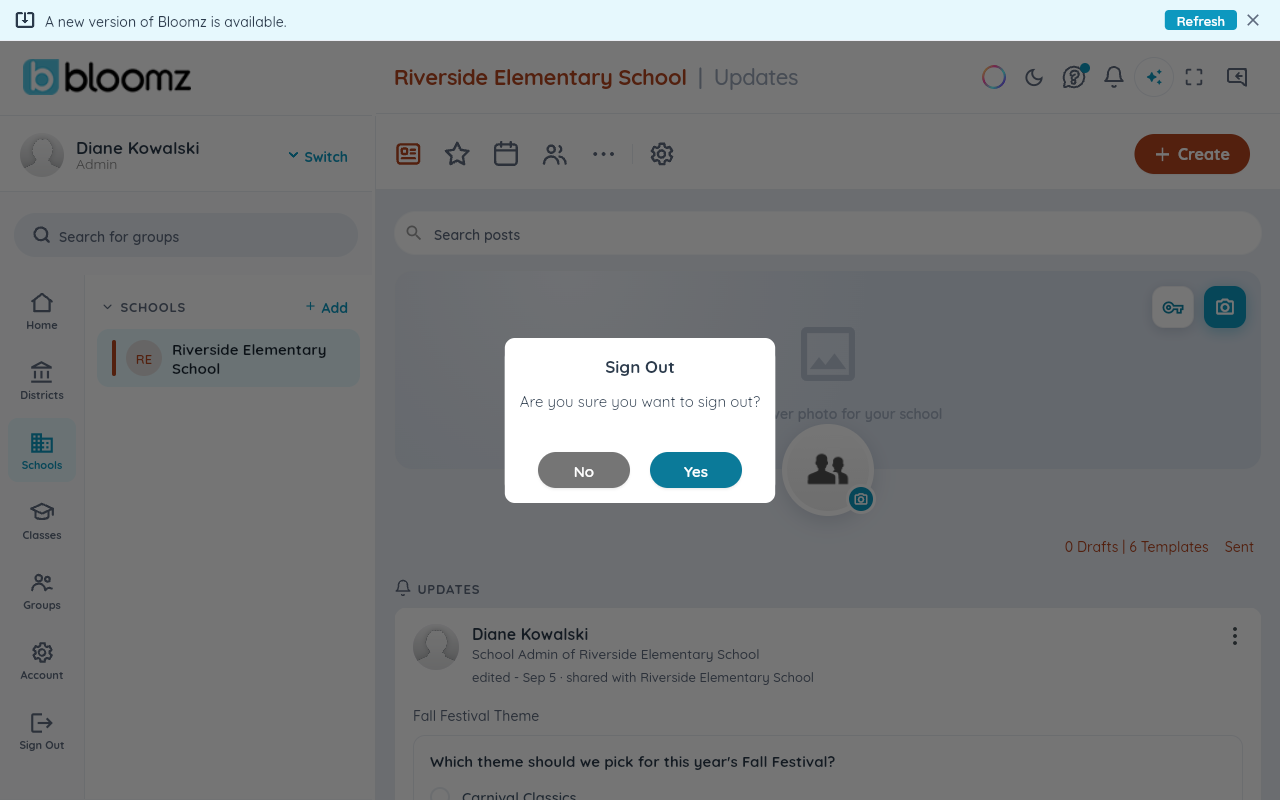
Step 3 — Confirm
Select Yes to finish signing out, or No to stay signed in. Signing out returns you to the sign-in screen immediately.
Watch out: there's no "sign out everywhere" option here — this only ends your session on this device. If you're signed in on other devices too, sign out of each one separately, or contact
support@bloomz.comif a device is lost or you think someone else has access to your account.
Related
- Update your profile photo and contact details
- Change your password
- Turn on two-step verification