 Bloomz
Read a student's day timeline
The day timeline is one chronological rail of a student's whole school day — arrival and checkout, hall passes, dismissal stages, absence reports, behavior points, well-being check-ins, and clinic visits, merged from every module your school runs into a single view. This article is for staff; the Day Timeline feature — like every Whole-Day module — is off by default (Settings → Features, under Insights).
Before you start
- The timeline is view-only — there's nothing to create or edit here. Each event links back to the module that produced it.
- Don't confuse it with the older Day tab from the check-in module: that tab is check-in only, and both can coexist. The Day Timeline tab is the merged, cross-module rail.
- What you see as staff is the full, unfiltered day. What a parent sees of the same day is filtered by each source module's own parent-visibility settings.
Step 1 — Open the student's Day Timeline tab
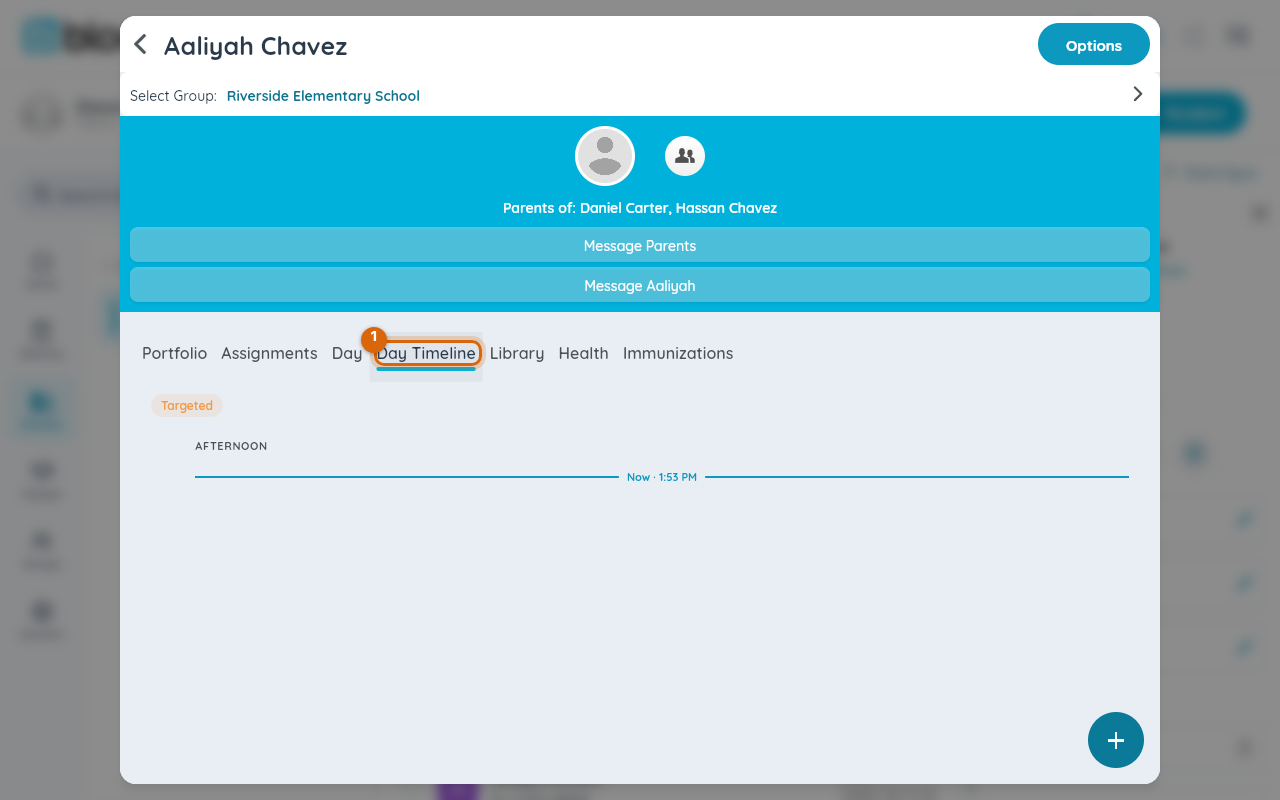
Open a student's profile and select the Day Timeline tab.
Step 2 — Read the rail
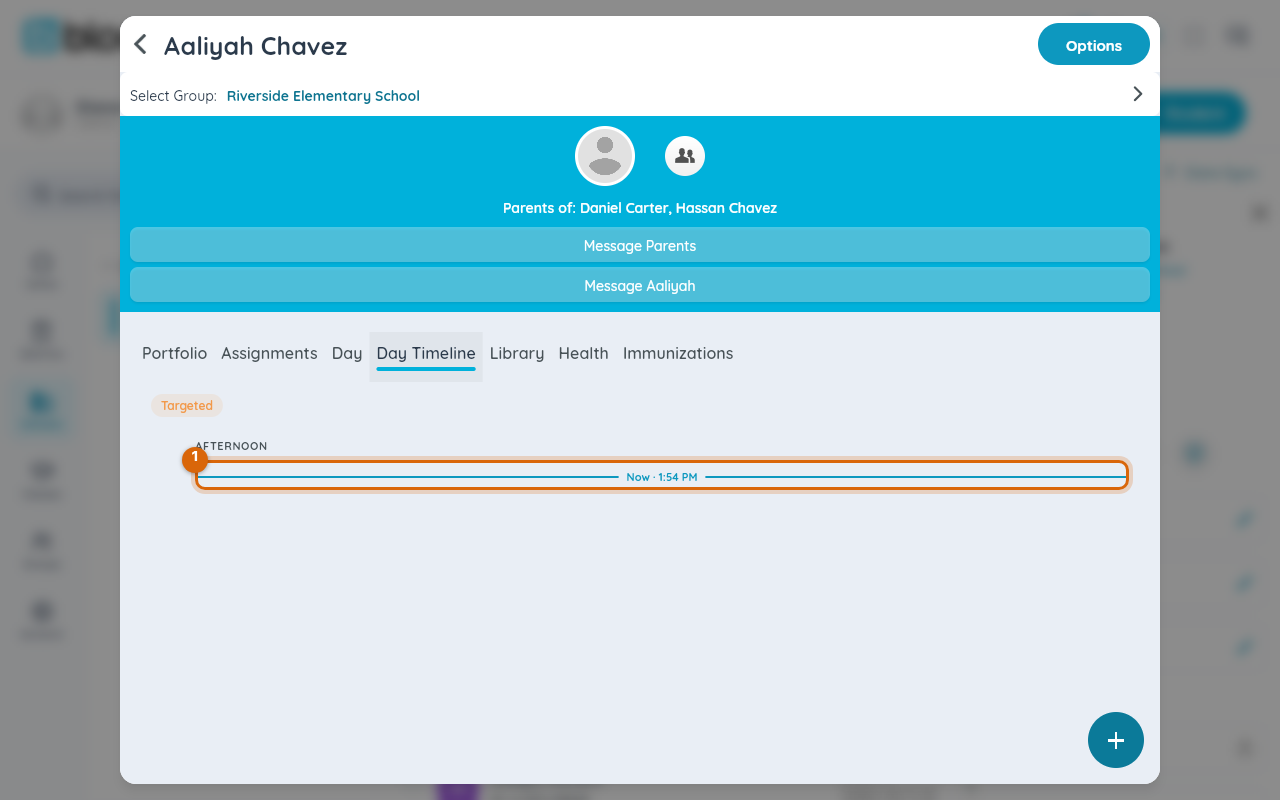
Events run in time order down the rail, each colored by its source module and banded into the day's segments — before school, morning, afternoon, dismissal, evening — with a "now" marker showing where the day currently stands. The summary at the top shows arrival time, current status, any open hall pass, and the dismissal stage.
Well-being (SEL) events show only that a check-in happened — never the student's responses, for any viewer; those stay in the SEL module's own staff surfaces.
Step 3 — Check the MTSS tier chip
Where your school runs Thrive, the summary carries the student's MTSS tier chip — the same Universal/Targeted/Intensive tier the Thrive watchlist shows — so you can read the day's events with the student's support context in view. Parents never see this chip.

Step 4 — Change the date
Use the date picker to read a previous day the same way.
Watch out: the rail is only as complete as the modules your school runs — a day with no hall-pass events may mean nothing happened, or that Hall Pass isn't enabled. Check Settings → Features before reading an empty rail as a quiet day.
What families see
Parents get their own view of the same rail — a Today card on their child's profile plus a daily summary notification — filtered by your school's per-module visibility settings. See See your child's day at a glance.