 Bloomz
Student check-in and immunizations
Bloomz check-in records when each student arrives and leaves, who brought or collected them, and — for programs that need it — whether their immunization record is up to date. It serves childcare rooms, after-school programs and camps as well as K-12 classes. This article covers each way to check in, the kiosk (including its exit protection), and the immunization tools.
Before you start
- Check-In/Out is a school-level toggle, off by default; the immunization and health profile screens sit behind the separate Health Profiles flag. If you do not see these screens, your school has not enabled them.
- Health details and immunization records are visible only to admin-level and configured lead roles, plus the child's own parents. Room staff see attendance, not health data — and the kiosk shows no health data at all.
Check students in from the room roster (staff)
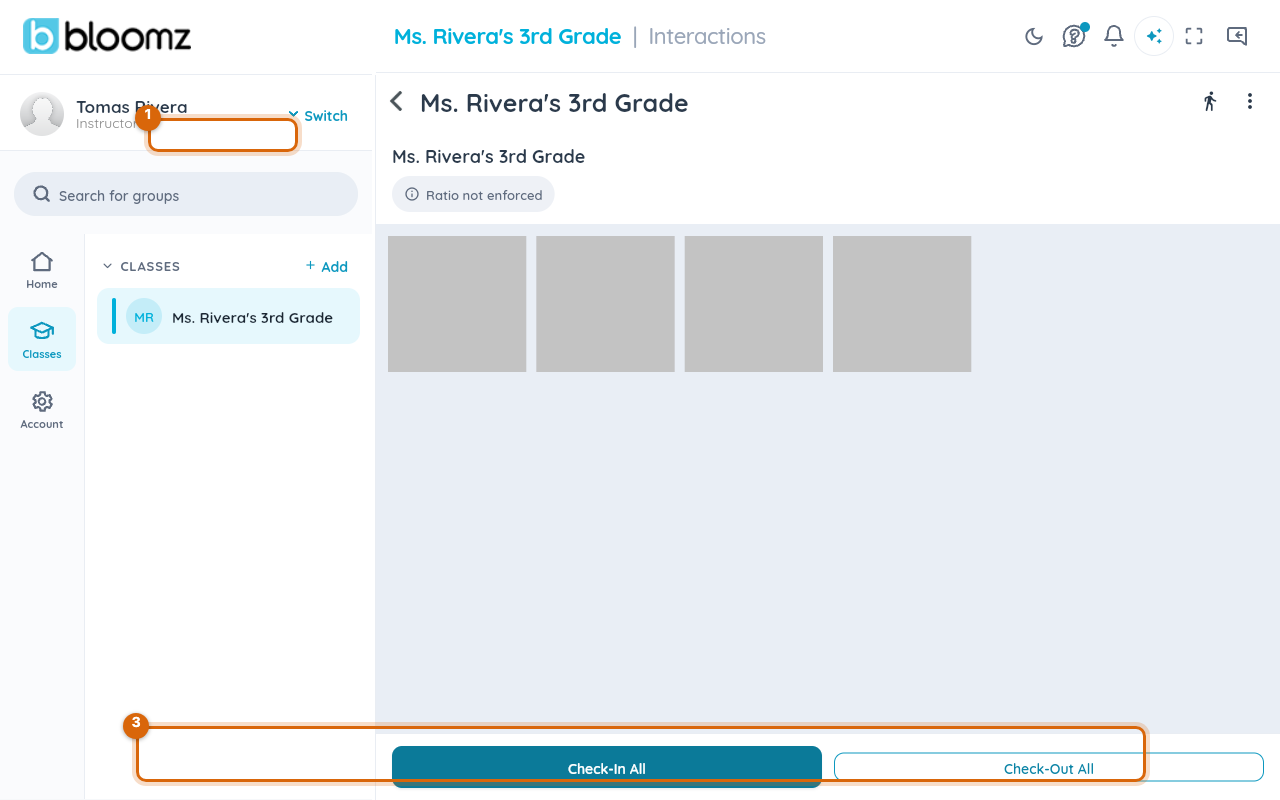
- Open Room Check-In for your room. The roster is a grid of students; a live ratio status chip shows Good or a warning naming how many more staff are needed. Going out of ratio notifies admins automatically.
- Select a student to check them in or out, choosing the method used.
- Use check-in-all / check-out-all for the whole room at once.

Run the kiosk at the door (staff)
- Put a shared tablet into kiosk mode from the Check-In Kiosk card in the More menu (Safety & Wellbeing section), or from the "Use this device for check-in" row on the Room Check-In screen.
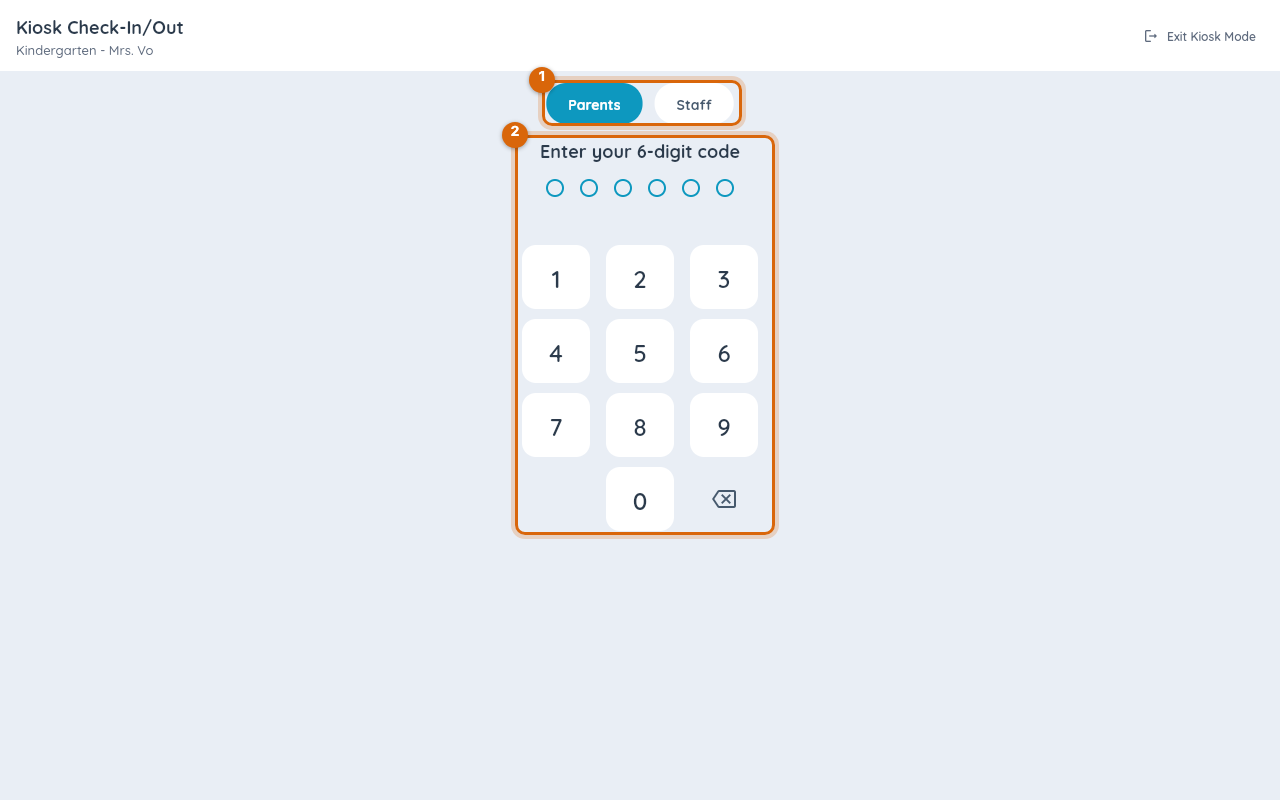
- An arriving adult enters their family's 6-digit Check-in Kiosk PIN to bring up their children, picks who is dropping off or collecting, signs on the signature pad, and chooses the room. The kiosk never shows the student roster; staff help a family without a PIN.
- The kiosk confirms and resets to its landing screen — it also resets itself after 60 seconds of inactivity, and its session expires on its own.
Leaving kiosk mode
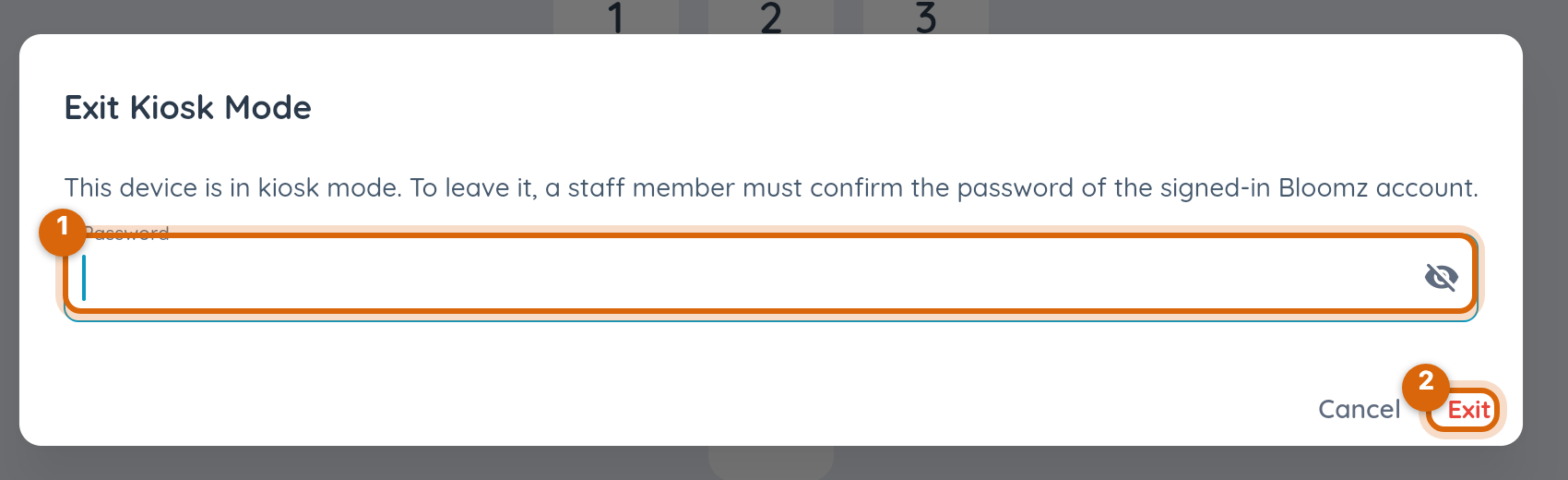
Because the kiosk runs while a staff member is signed in, every exit path — the Exit Kiosk Mode button, browser Back, Escape — opens a dialog demanding the signed-in staff member's Bloomz password. A wrong password shows an inline error and keeps the dialog open; five wrong tries in a row disable the field for 30 seconds; a connection problem is reported separately and does not count against the limit. On the web the kiosk fills the whole tab.
Watch out: the password gate stops someone tapping into the signed-in account, but no app can stop someone leaving the app at the device level. For a genuinely unattended kiosk, also turn on Guided Access (iPad), screen pinning (Android tablet), or Chrome kiosk mode (Chromebook / desktop web). The same gate protects the Hall Pass Kiosk.
Check in your own child (parents)
- Open parent check-in, select one child or several, and choose the room (or Absent).
- Or scan the room's printed QR poster with the in-app scanner to check in on the spot.
- Want a nudge instead? Remind Me To Check In sends you a tap-to-check-in prompt for today (shown only while the child is not yet checked in). On iPhone you can also opt in to an automatic arrival reminder on the Day tab that fires when you reach school — the location check runs entirely on your phone; your location is never sent to Bloomz.
Review the child's day
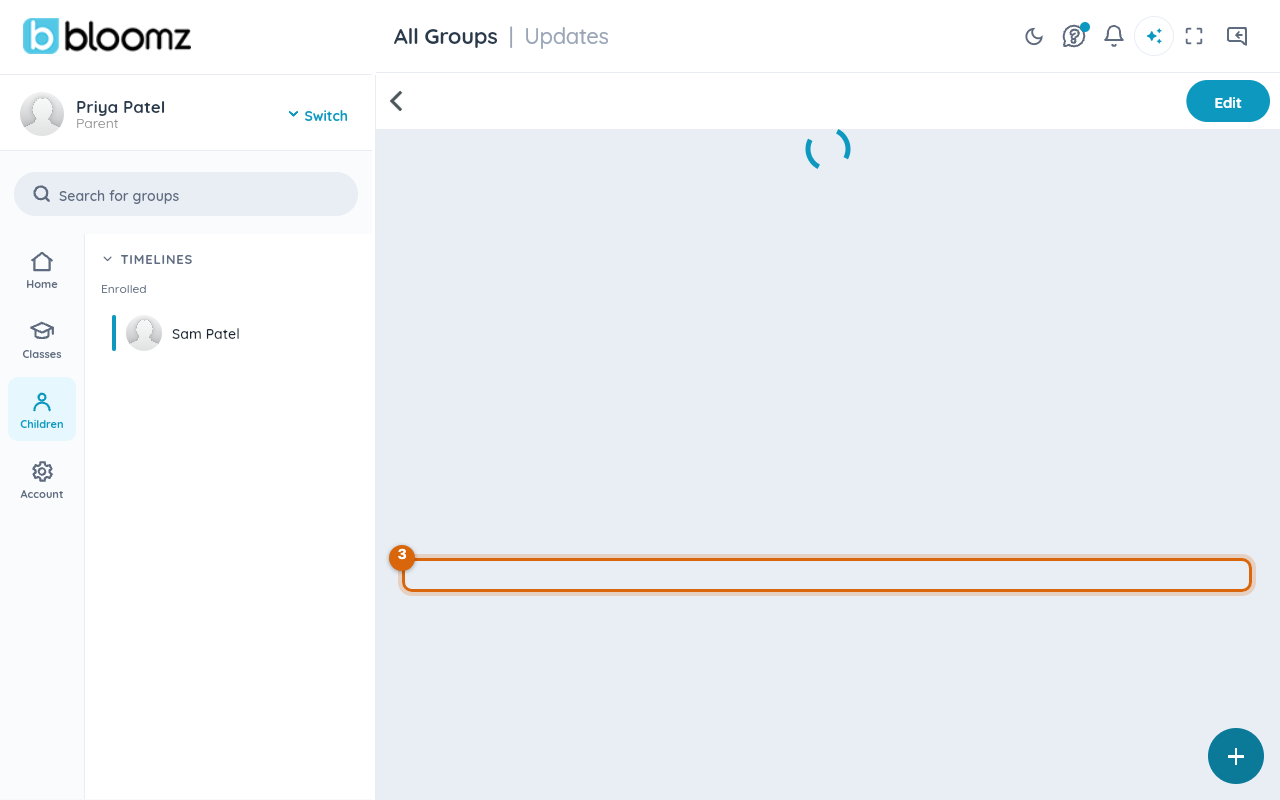
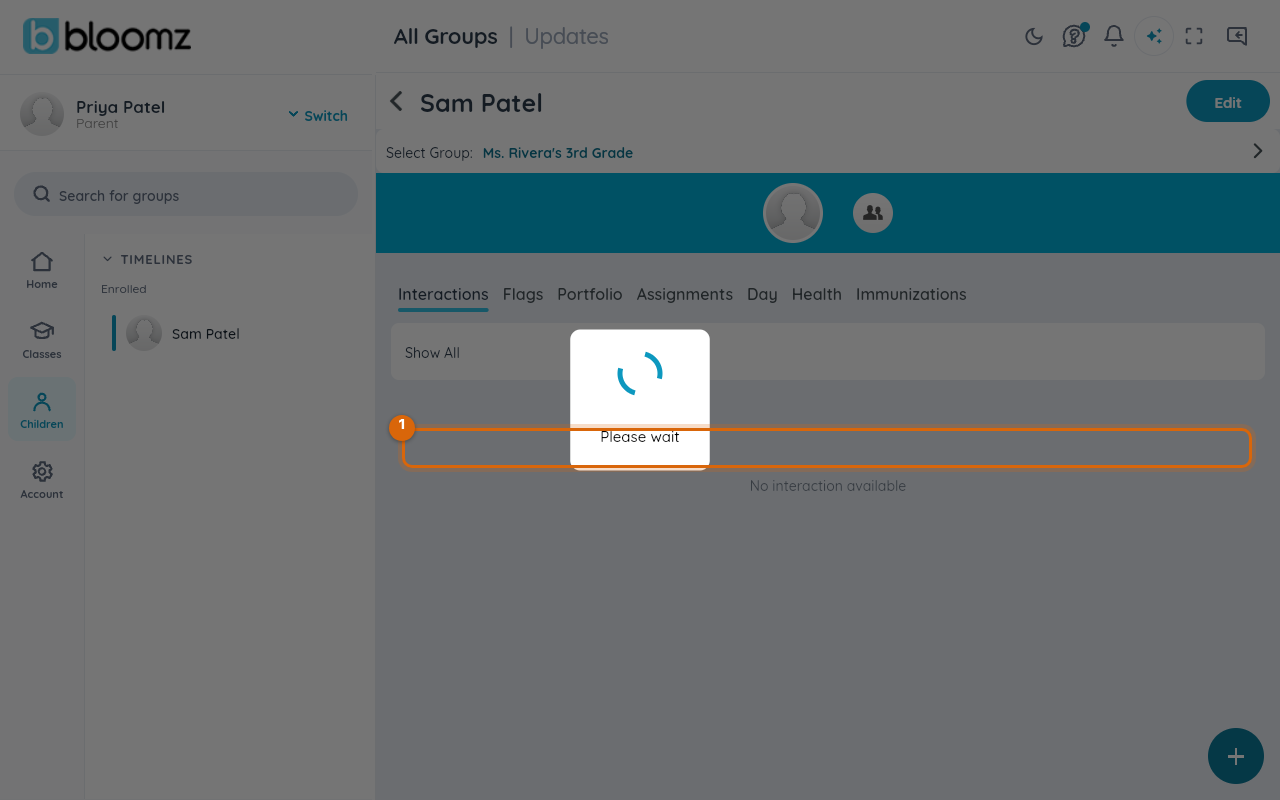
The read-only Day tab on the student profile shows the whole day in order: arrival, departure, hall passes, the method used, the pickup person, the status label, and a warning if the health screening at check-in was flagged. Staff of the group and the child's own guardians can see it.
Work with immunization records
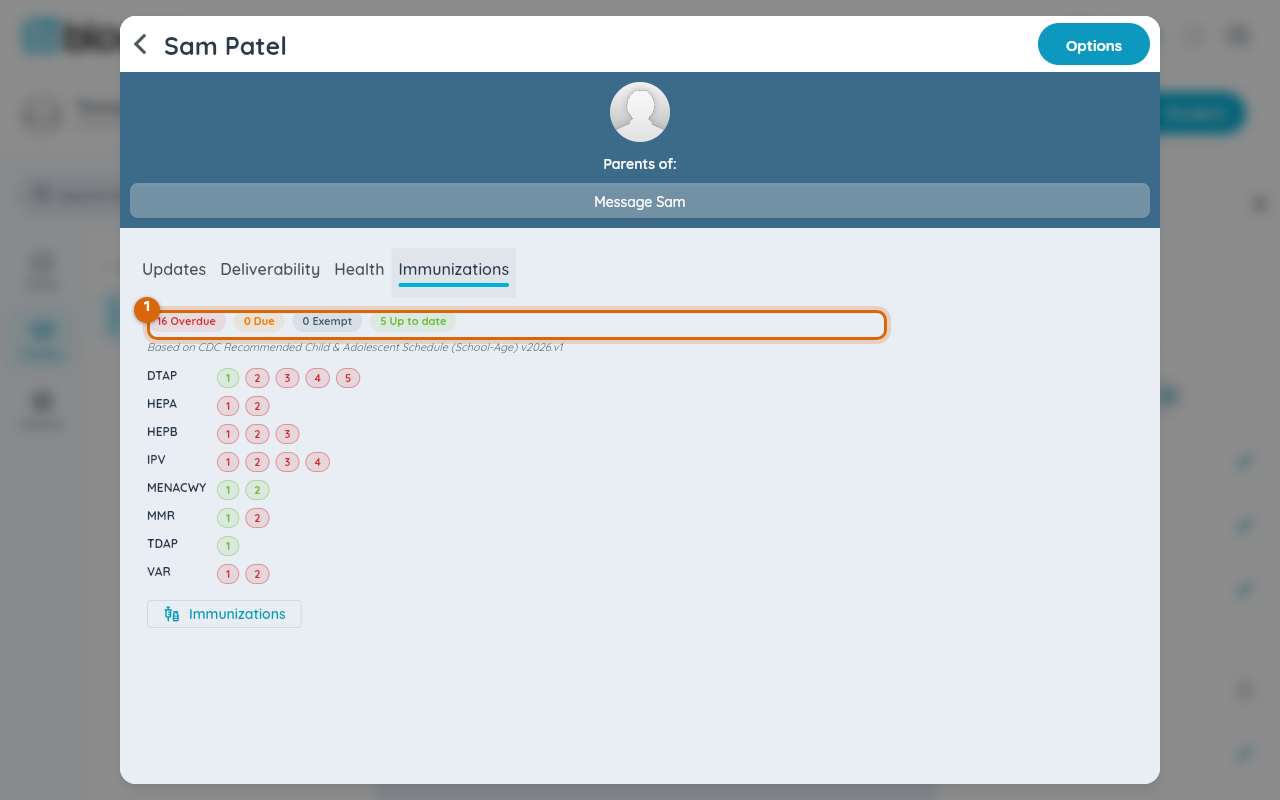
The student's Immunizations tab shows a dose table for every required vaccine, a due/overdue summary at the top, any exemptions on file, and the schedule version it was computed against (early-childhood or school-age, per the group). The status is informational — Bloomz flags what is due or overdue; it never blocks a check-in.
Upload a card instead of typing
- Select Upload Card and pick a PDF of the immunization card.
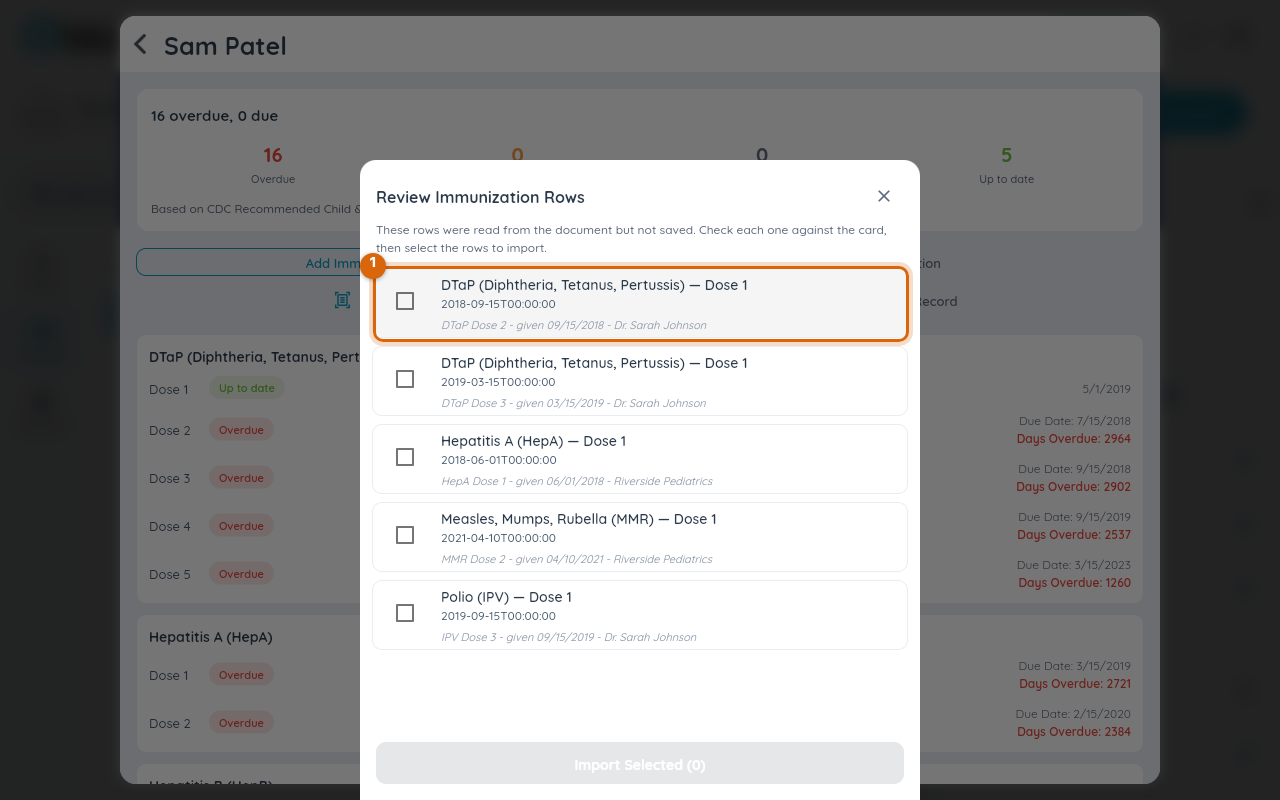
- Review the candidate rows. Rows start unselected, each shows the exact source line it was read from, and lines the reader could not understand are listed in an unread-lines panel rather than guessed at.
- Confirm the rows you accept — nothing is saved until you confirm, and the import still runs its normal review-then-commit steps.
Hand the record to the next school
Transfer Record downloads a PDF certificate of the child's immunization record — the packet a family hands to the next school. Health-privileged staff and the child's own parents can fetch it.
Admins also get due/overdue and records reports (among nine check-in reports), exportable as CSV or PDF or emailed to specific Bloomz users — each recipient only ever receives what their own role allows.
Related
- Issue a hall pass
- Run dismissal as staff
- Set up safety tip reporting