 Bloomz
Issue a hall pass
Send a student to the nurse, the office or the restroom with a live pass: where they are going, when they left and when they are due back. You issue it in four taps from your class roster, and Bloomz tells you if they do not come back on time.
Before you start
Your school must have Hall Pass switched on (it is off by default) and you need a teacher or staff role in the class. Durations, daily limits and blackout times are set by your school admin and applied automatically. If the school has halted passes — an emergency control — the issue controls are disabled until the halt is lifted.
Step 1 — Open your class roster
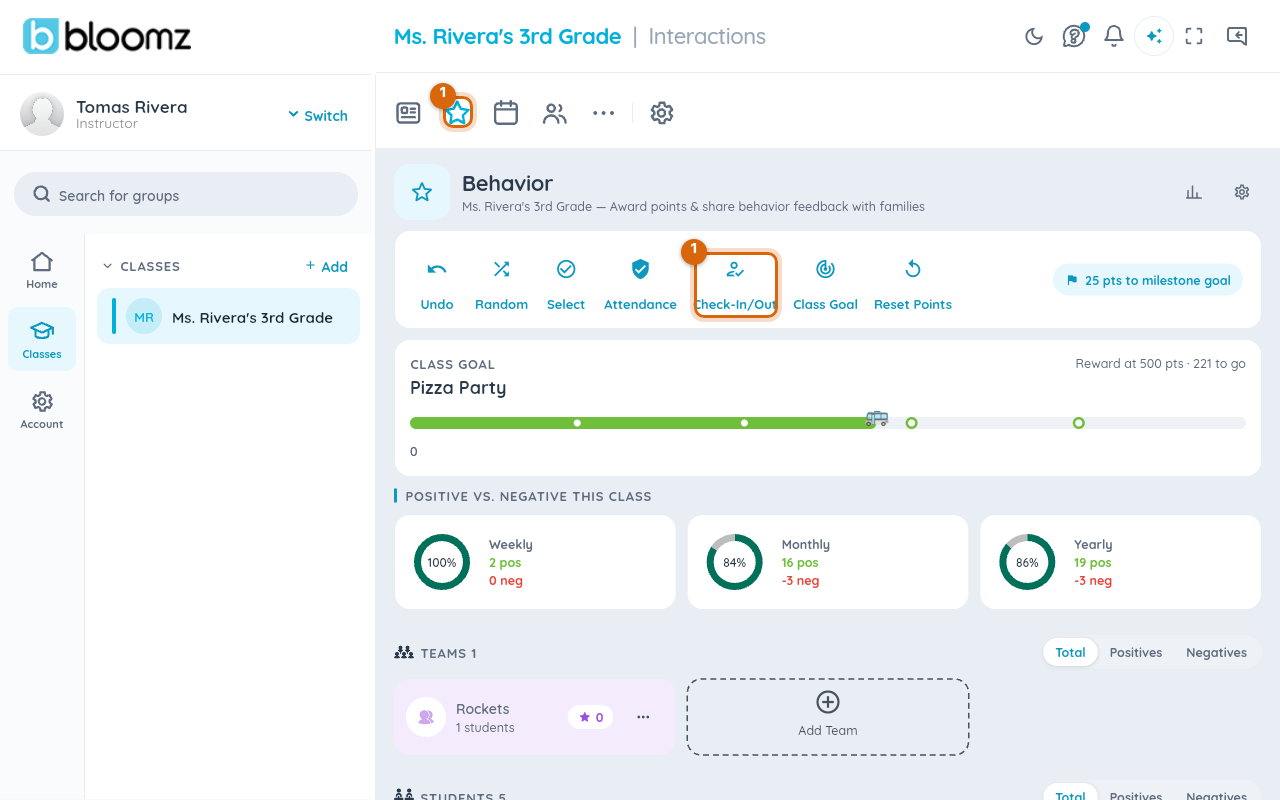
Open your class, select the Behavior tab, then Check-In/Out in the row of actions. The Room Check-In roster opens with one tile per student.
Step 2 — Choose Issue pass
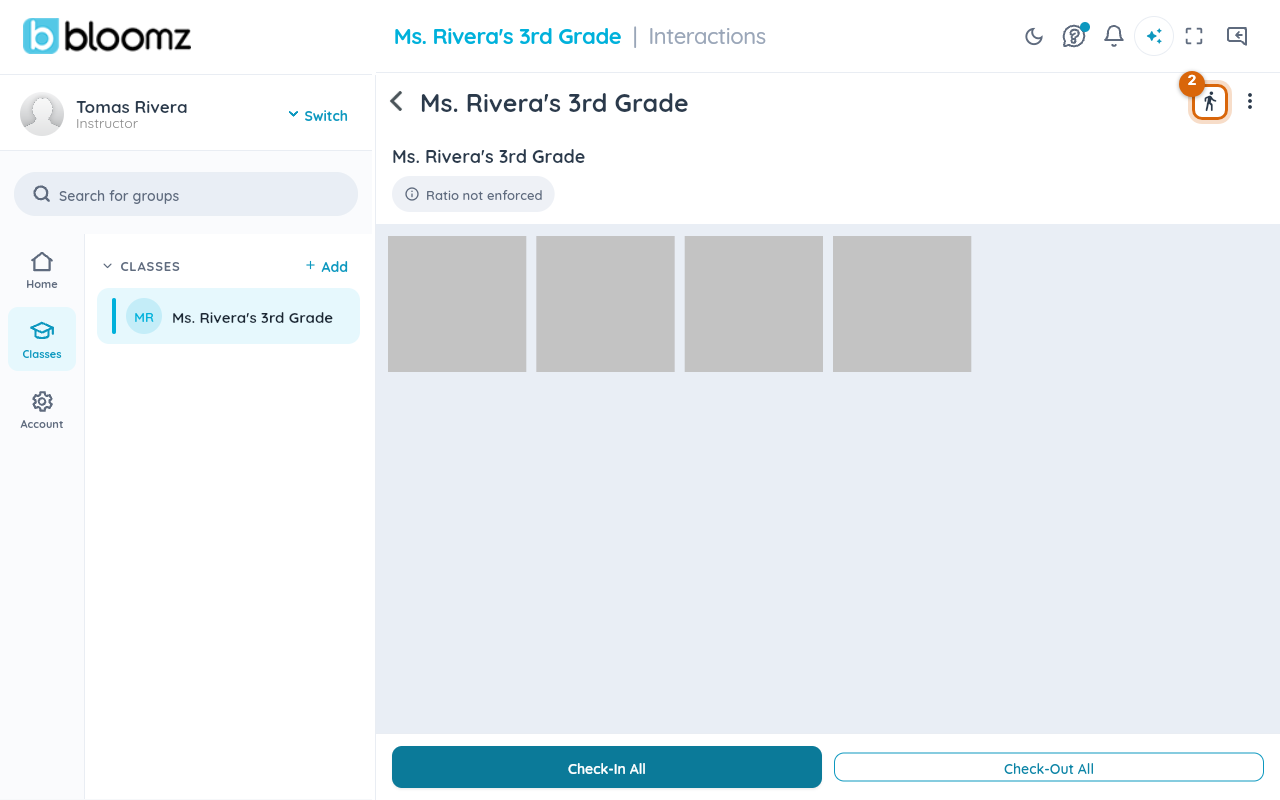
Select the Issue pass icon (the walking figure) in the top corner of the roster. A Select a student sheet lists your class.
Step 3 — Choose the student
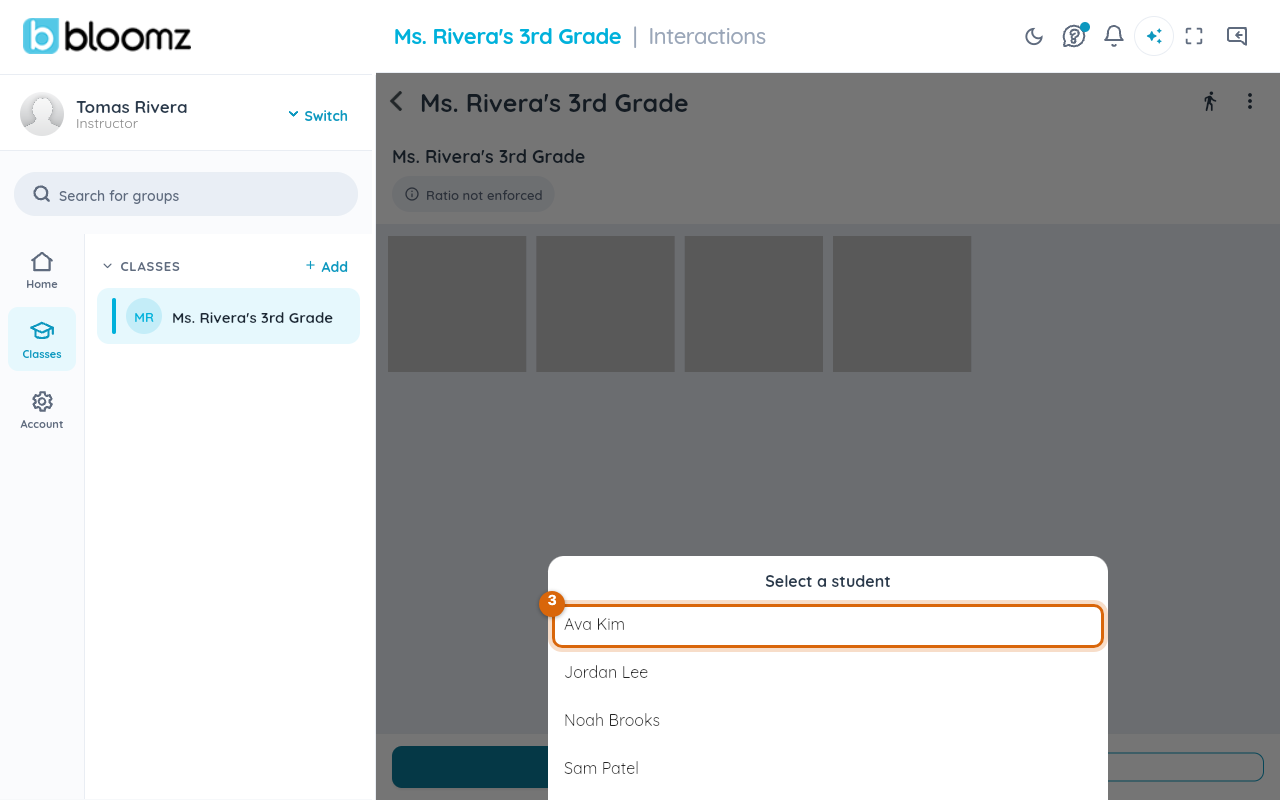
Select the student's name.
Step 4 — Choose a destination and a duration
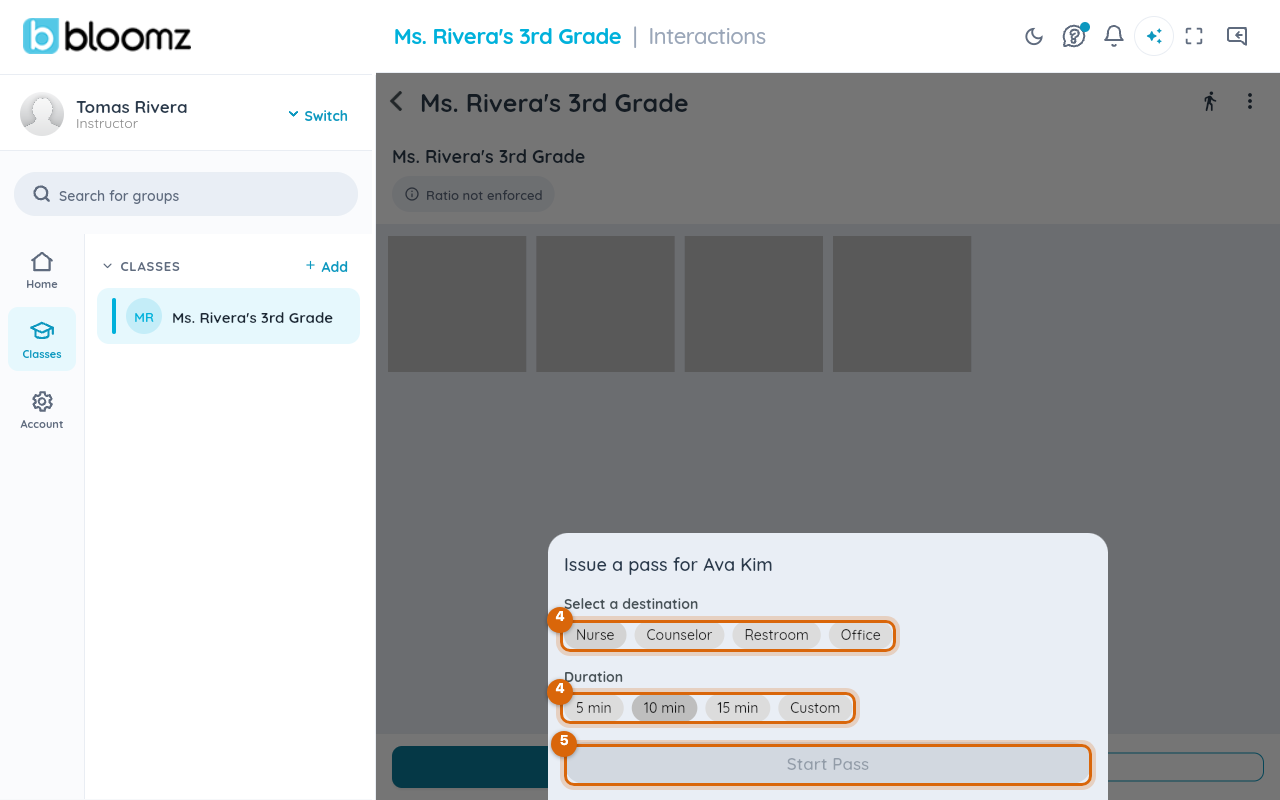
In the Issue a pass sheet, select a destination chip — schools start with Nurse, Counselor, Restroom and Office — then a duration: the school default is preselected, or choose Custom and type the minutes. Durations beyond the school's maximum are not offered.
Step 5 — Start the pass
Select Start Pass. The student is marked out on the roster, the pass appears on the school's Hall Pass Console, and the student's own My Hall Pass screen starts a live countdown.
Watch out: if a school rule blocks the pass — daily cap reached, cooldown, too many students out, a blackout window, a blocked destination or a keep-apart conflict — the sheet lists exactly which rules were hit. You can override most of them for this one pass by giving a reason, which is recorded on the pass. Two things can never be overridden: a school-wide halt, and a student who is already out on another pass.
What happens next
When the pass runs past its return time you are notified, and if the student still has not returned after the school's grace period the pass closes itself as auto-closed. Staff at the destination can confirm the student arrived; when the student is back, open the pass and select Return (see Confirm arrival and close a pass).
Related
- Confirm arrival and close a pass
- Approve or deny a student's pass request
- Set hall pass limits and student accommodations
- Take attendance for your class