 Bloomz
Confirm arrival and close a pass
A pass is not done just because the timer says so — staff at the destination confirm the student actually got there, and close the pass when they are ready to go back. That is what stops the clock and clears them from every roster.
Before you start
Anyone with Hall Pass access at the destination — office staff, the nurse, or the issuing teacher — can confirm arrival and close a pass. This works from the Hall Pass Console (staff) or the class roster (teachers, for their own students).
Step 1 — Open the Hall Pass Console
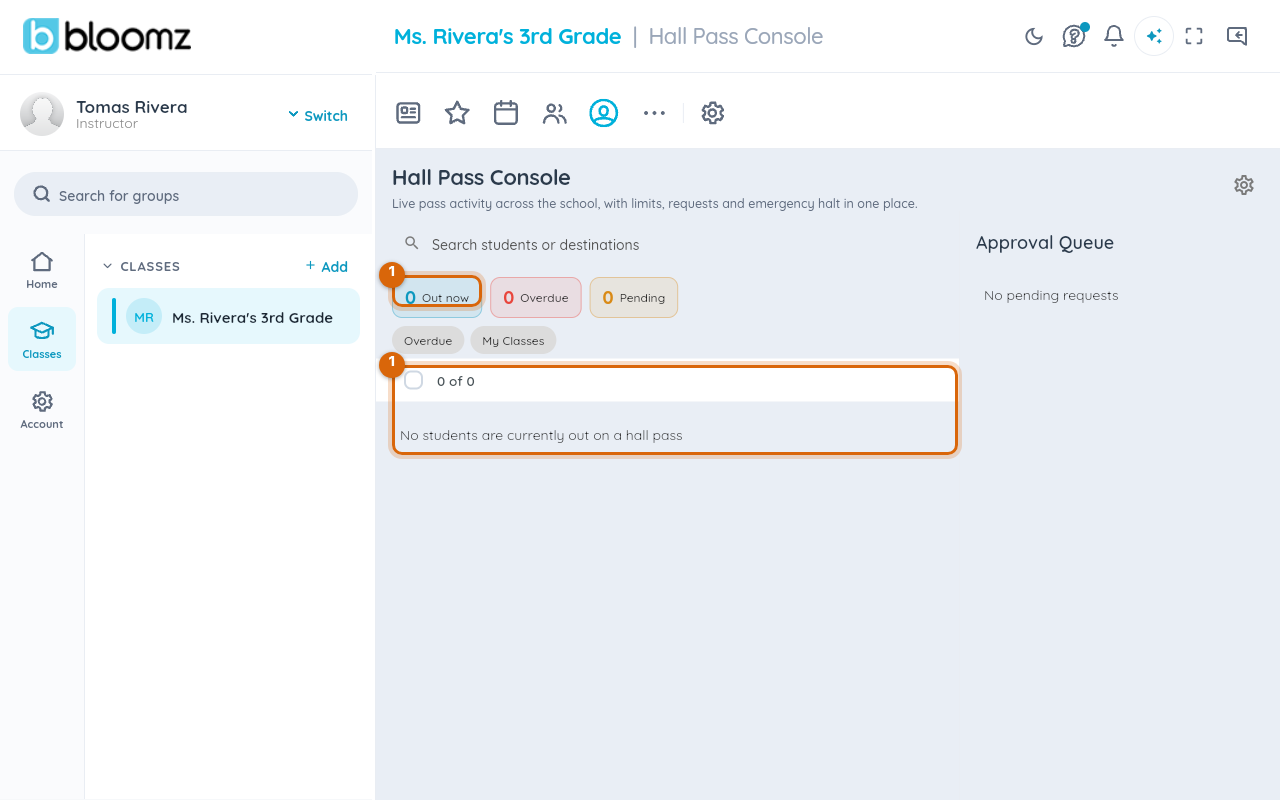
Open your school, select More (…), then Hall Pass Console under Safety & Wellbeing. The En Route list shows every student currently walking to a destination.
Step 2 — Find the pass
Find the student by name, or filter by Destination to see only passes headed to your location.
Step 3 — Confirm arrival
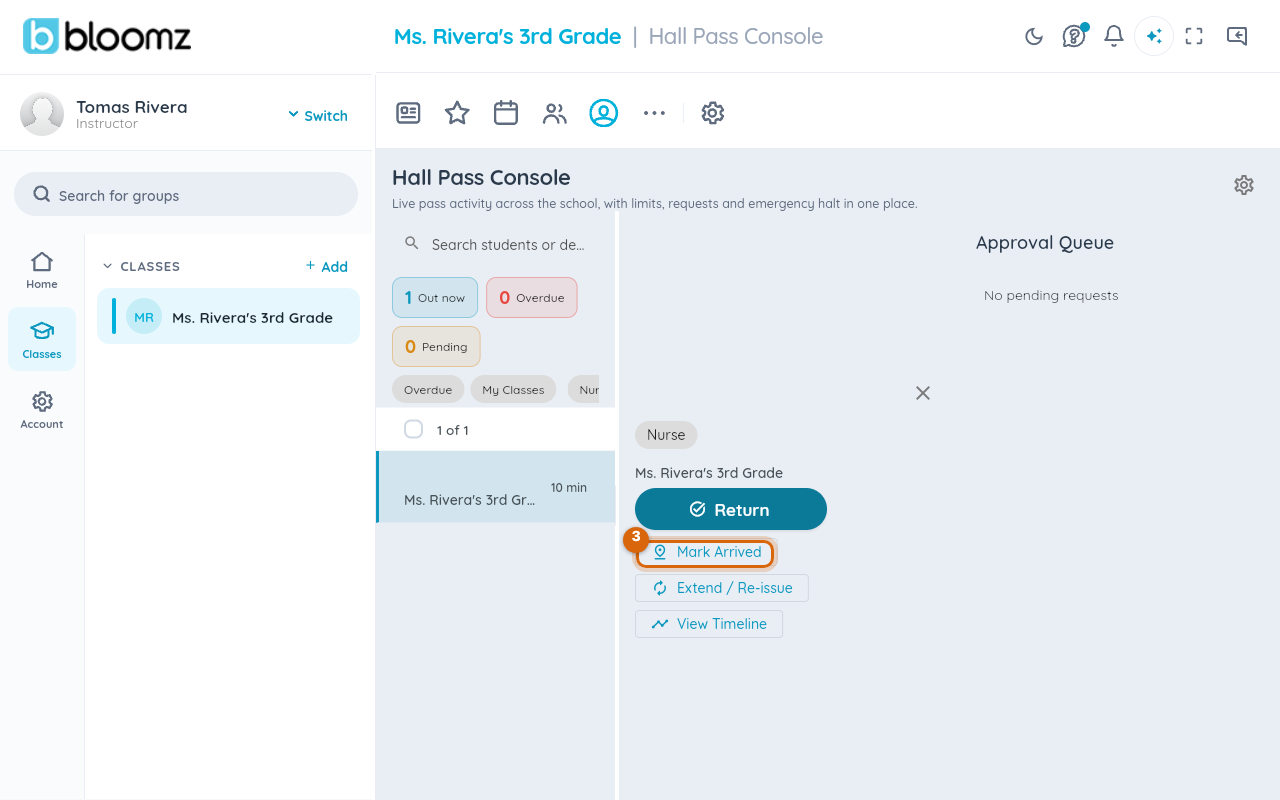
When the student reaches you, select Confirm Arrival on their entry. The pass moves from En Route to At Destination, and the elapsed-time clock the teacher sees now reflects time spent there, not time in transit.
Step 4 — Close the pass when they leave
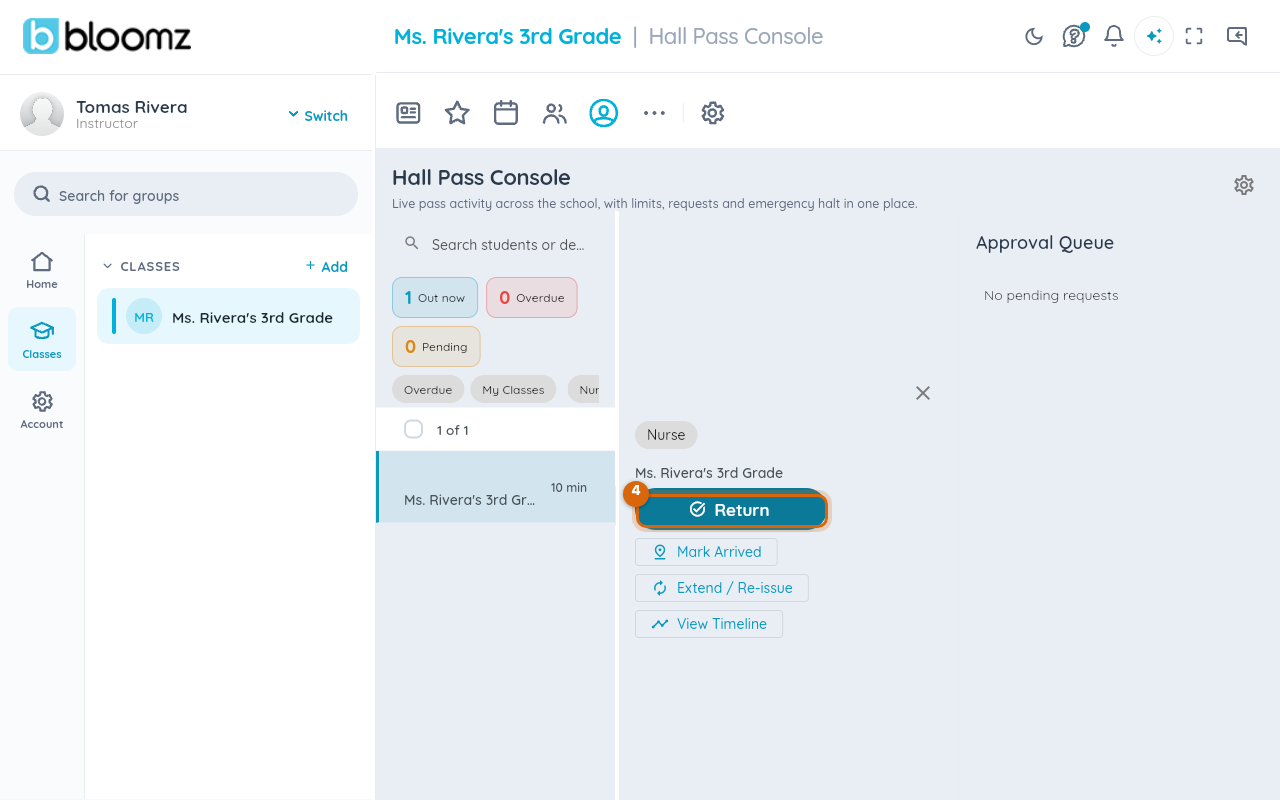
When the student is ready to head back, select Return (or Close Pass). The pass moves to Completed, the student's roster tile clears, and their My Hall Pass countdown stops.
Watch out: a pass nobody confirms or closes still runs its overdue timer and auto-closes after the school's grace period — confirming arrival is what keeps a legitimately long visit (a nurse visit, say) from reading as overdue.
Related
- Issue a hall pass
- Approve or deny a student's pass request
- Read hall pass reports and a student's movement timeline
- Halt all hall passes in an emergency