 Bloomz
Read your school's attendance analytics
▶ Watch the video (49 seconds): Thrive Attendance+ in Bloomz: absence reports, automatic notices and analytics.
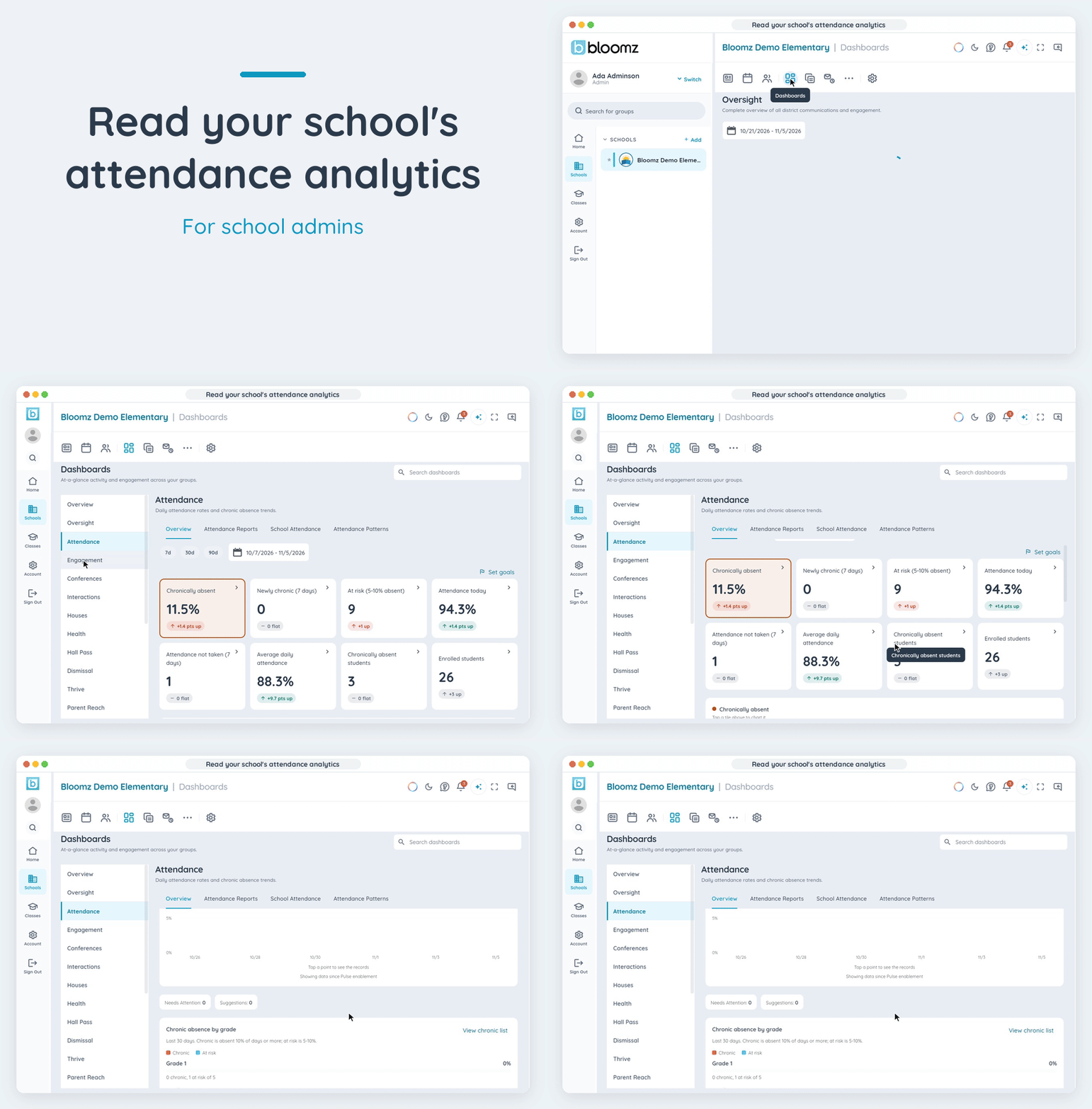
Beyond the day-to-day attendance you take in class, Bloomz keeps a rolling analytics view for admins: a daily heatmap, a per-student roster, an estimated ADA (average daily attendance) funding figure, and a period-by-period report for schools whose SIS sends period-level data.
Before you start
You need school or district admin access, and Attendance Analytics switched on for your school. All four sections share one date-range picker, so changing it updates the heatmap, roster, funding estimate and period report together.
Step 1 — Open the Attendance lens
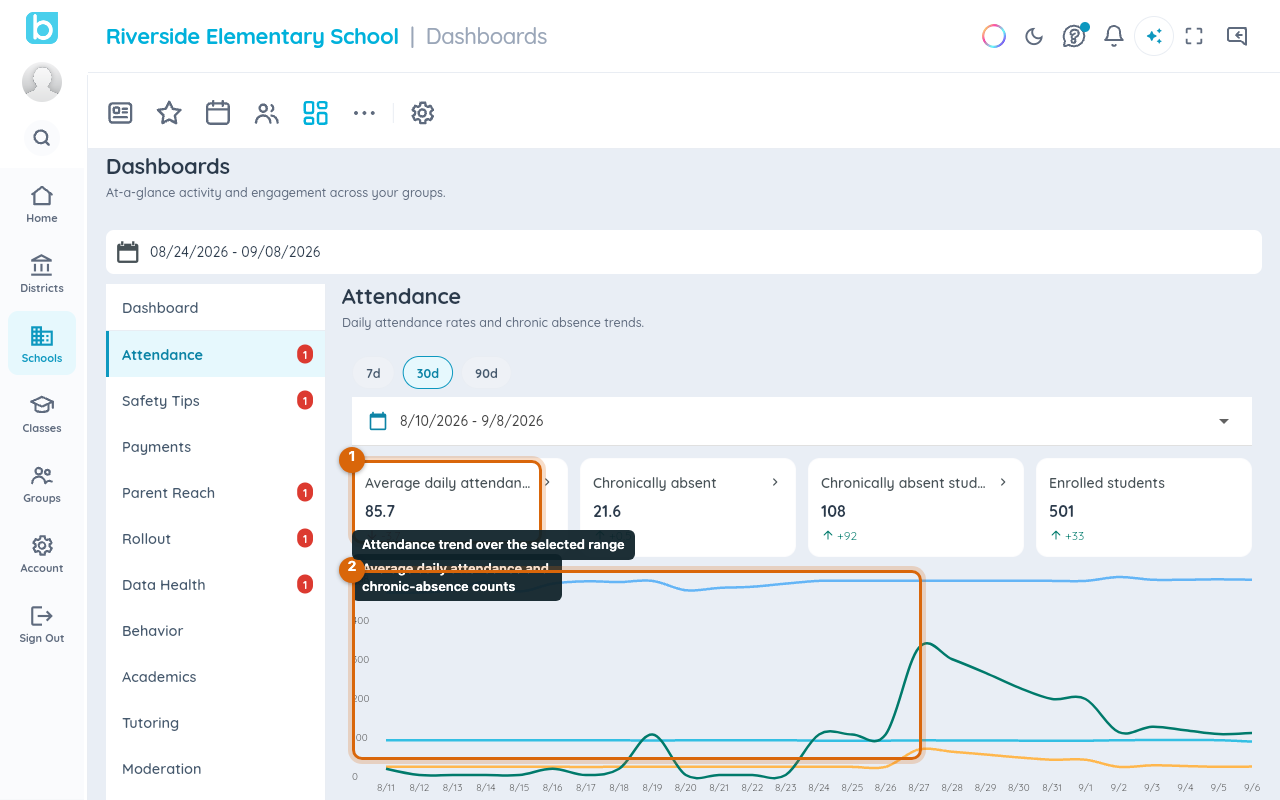
Open your school, select the … (More) menu, and choose Dashboards — search "Dashboards" if it isn't in the first screen. In the left-hand list, select Attendance. The top of the lens shows average daily attendance, chronic-absence counts, and a trend chart for the selected range (7d / 30d / 90d, or a custom range).
Step 2 — Read the heatmap and the roster
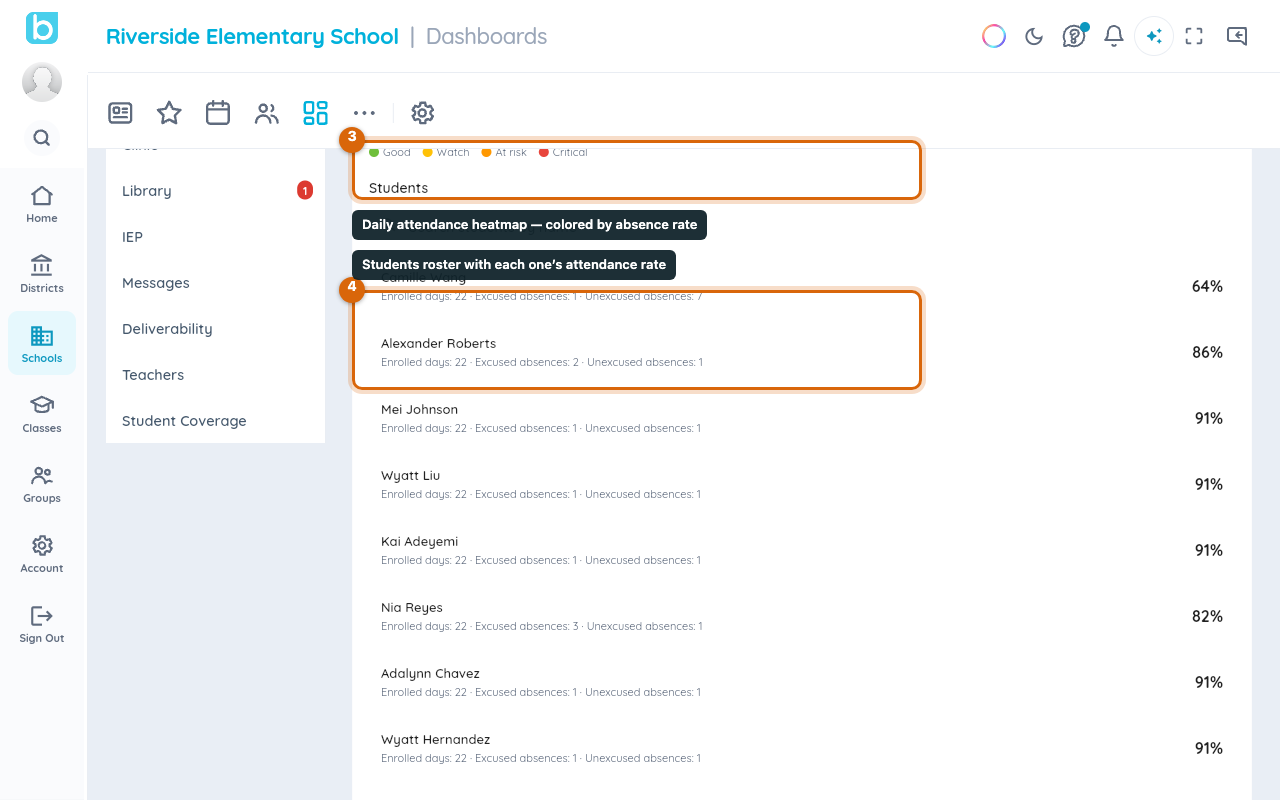
Scroll down to the daily heatmap: each cell is colored by that day's absence rate — Good, Watch, At risk or Critical. Below it, the Students list shows every student's enrolled days, excused and unexcused absences, and attendance rate; search by name or select Load More for the rest of the roster.
Step 3 — Check ADA funding for the range
Keep scrolling to ADA Funding: school days, enrolled and present student-days, ADA percentage, and — once your district has set a rate per student per day — an estimated funding-earned and funding-at-risk figure for the range.
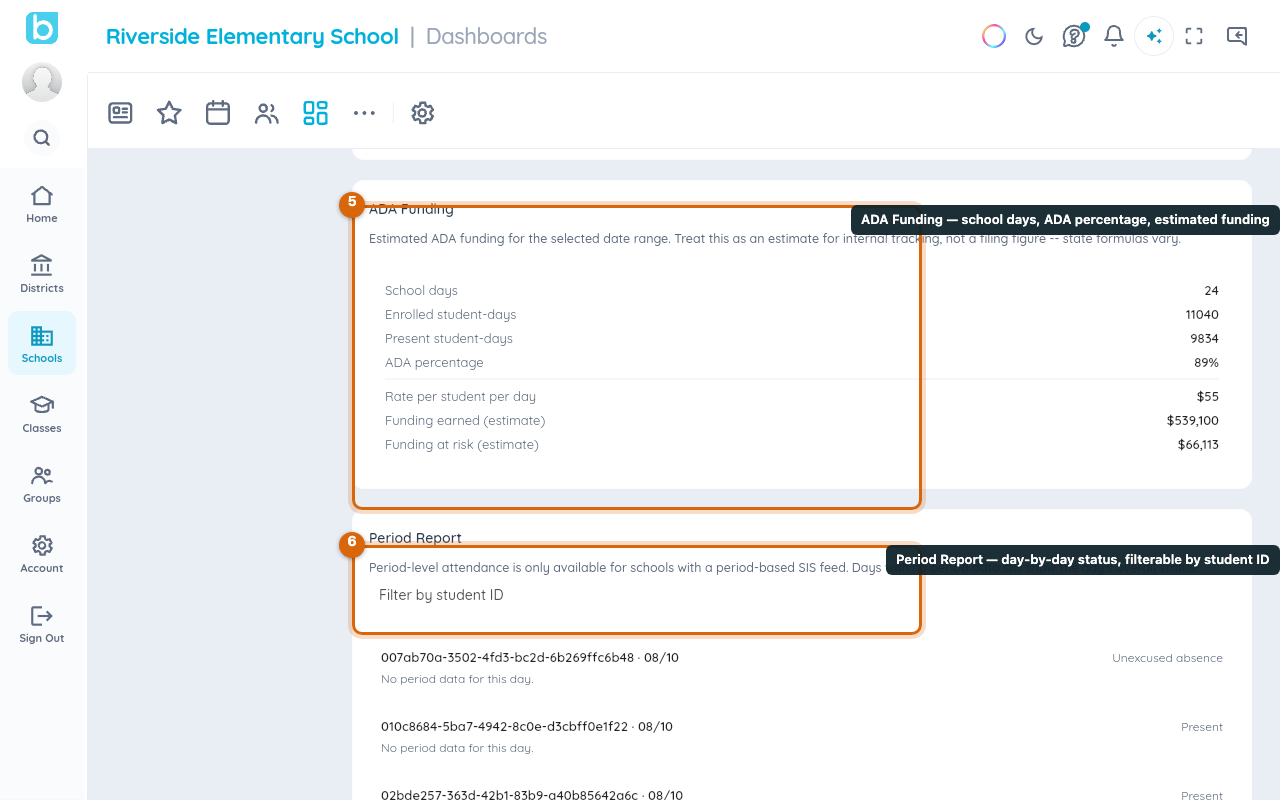
Watch out: treat the funding figures as an internal-tracking estimate, not a filing number — the calculation is one configurable rate, not your state's specific formula (weighting, floors, hold-harmless rules and the rest).
Step 4 — Check the period report
Below ADA Funding, Period Report lists each day's overall status and, where your school's SIS sends period-level detail, flags any day where status differed across periods. Filter it by typing a student ID into the field — this build doesn't yet offer a name search here, so copy an ID from the roster above if you need to look someone up.
Watch out: period-level detail is only available for schools with a period-based SIS feed — a school without one still shows each day's overall status, just no per-period breakdown, and that's expected, not a data gap.