 Bloomz
Read Bloomz Pulse and act on an attention item
Bloomz Pulse watches your school's activity for things that need a human decision — a sudden drop in read announcements, a class that has gone quiet, a spike in unread messages — and lists them as attention items so you do not have to go looking.
Before you start
Bloomz Pulse is for school admins and district admins. It only surfaces items computed from your school's own live data, so a quiet week can mean an empty list — that is expected, not a sign anything is broken. Pulse looks back over a rolling window (typically the last 7–14 days) and compares each class or school against its own recent history, not against other schools — so what counts as "a spike" or "gone quiet" is calibrated to that group's normal pattern, not a fixed number.
Step 1 — Open Bloomz Pulse
Open your school, select More (…) in the tab row, and choose Dashboards. The Pulse heading near the top of the Dashboards screen leads straight into the Needs Attention list.
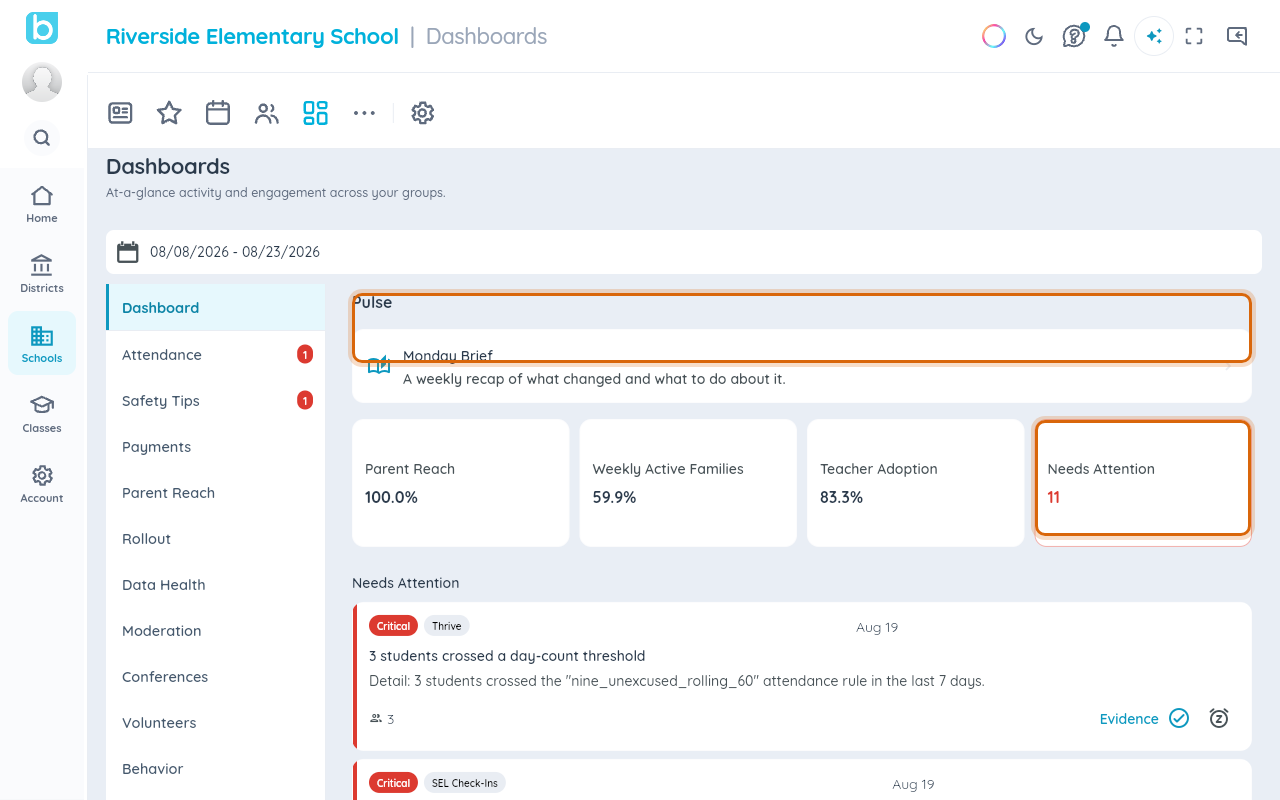
Step 2 — Read the attention items list
Each item names what changed, shows the date it was raised, and a severity badge — Critical or Warning — plus a tag naming which underlying signal raised it (for example Thrive or SEL Check-Ins). The list is sorted with the most urgent item first.
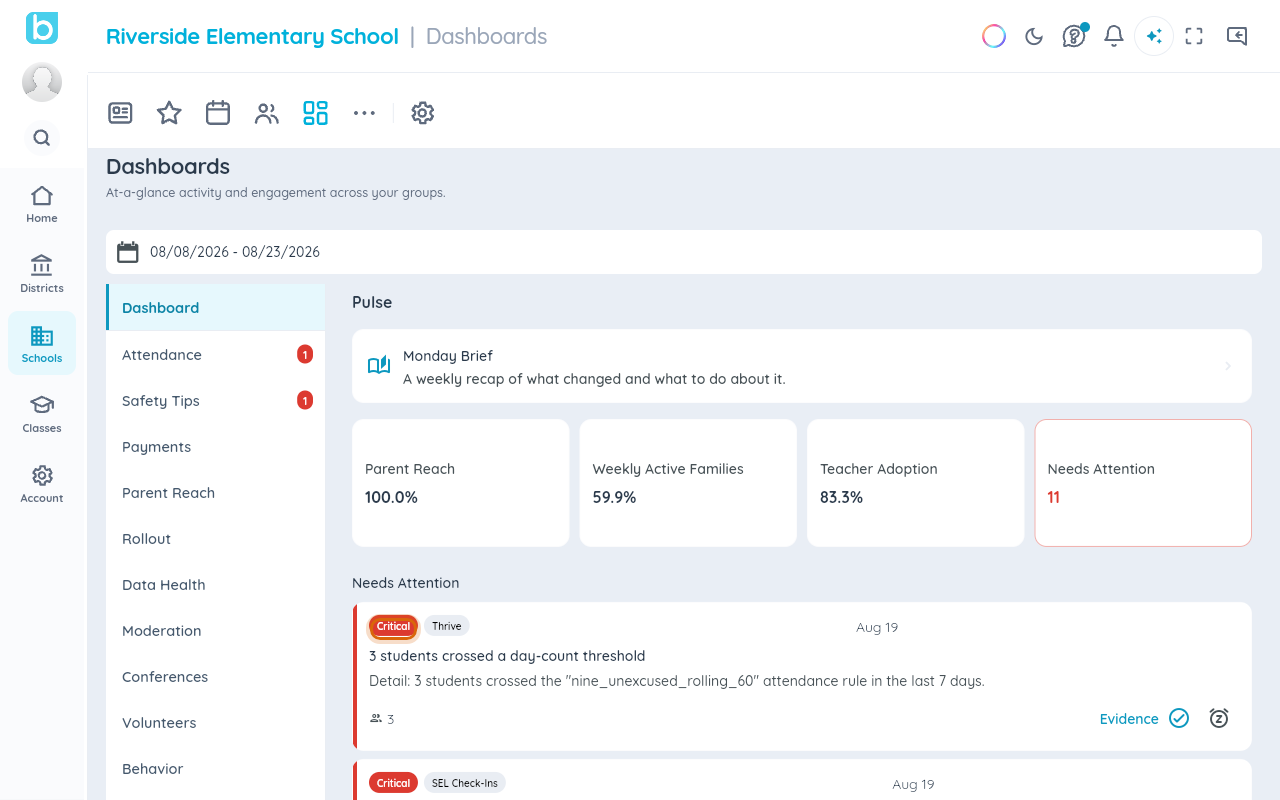
Step 3 — Open the evidence
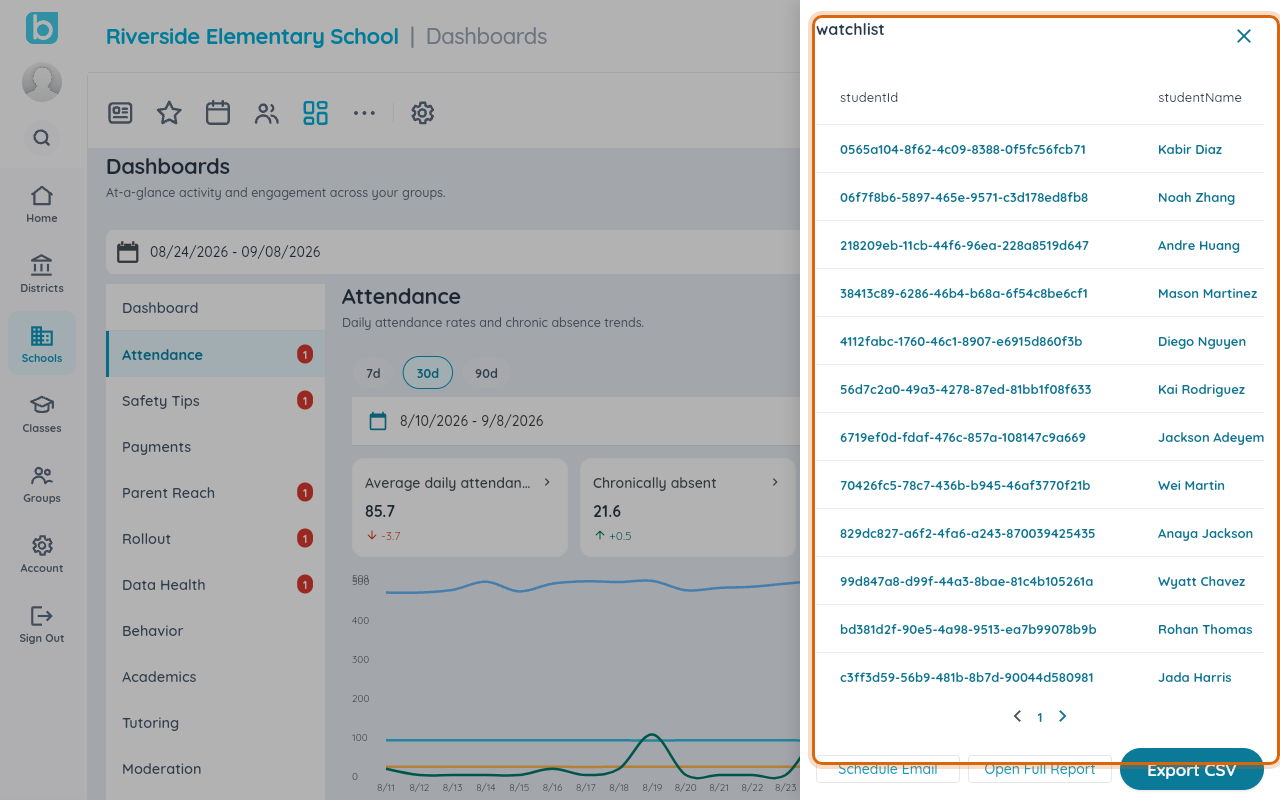
Select Evidence on an item to see exactly who it affects: a raw table of the students (or staff) whose records triggered it, with Open Full Report and Export CSV actions below. There is no separate detail page beyond this — the evidence table is the full drill-in.
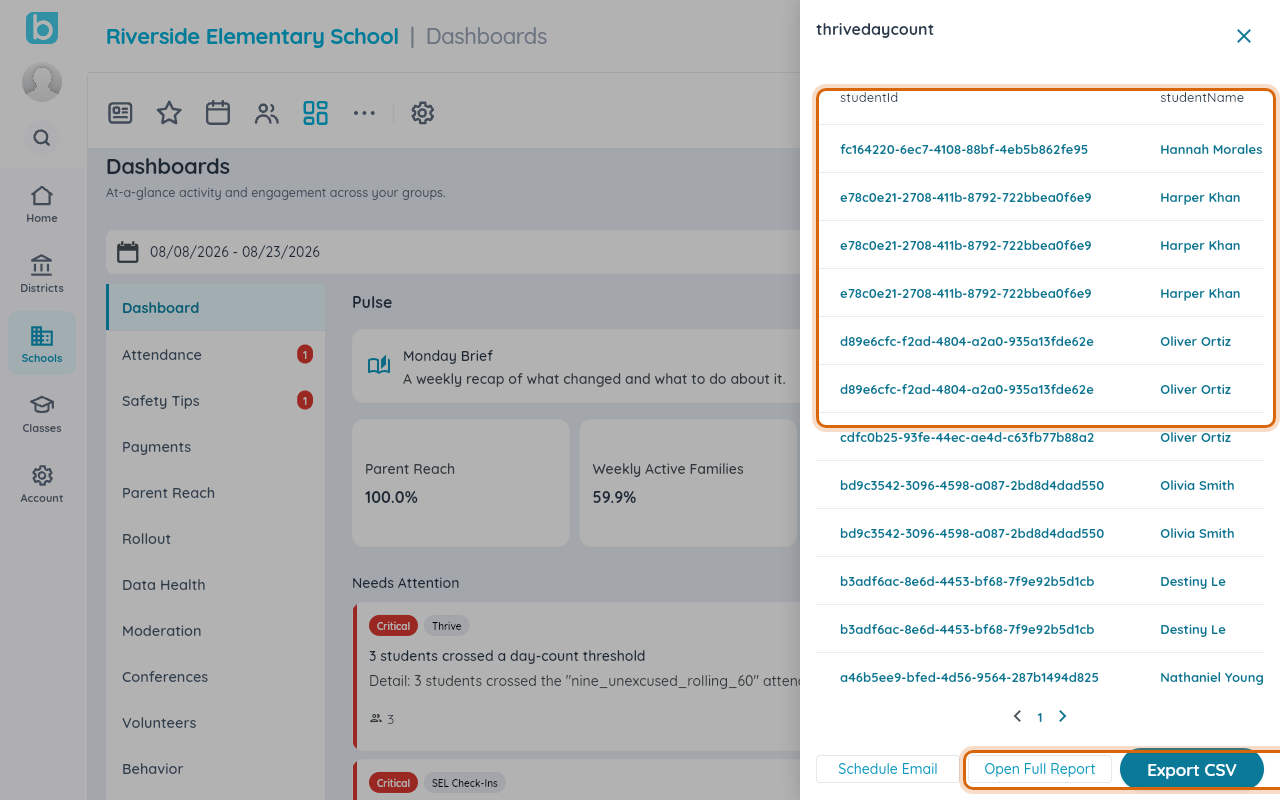
Watch out: an attention item describes a pattern, not a cause. A "class gone quiet" item is just as likely to mean a teacher is on planned leave as a problem — check the evidence before you act on the assumption behind it.
Step 4 — Snooze it
Once you've reviewed an item and don't need it resurfacing right away, select the Snooze icon (the bell, at the right of the row) to hold it out of the active list for a while.
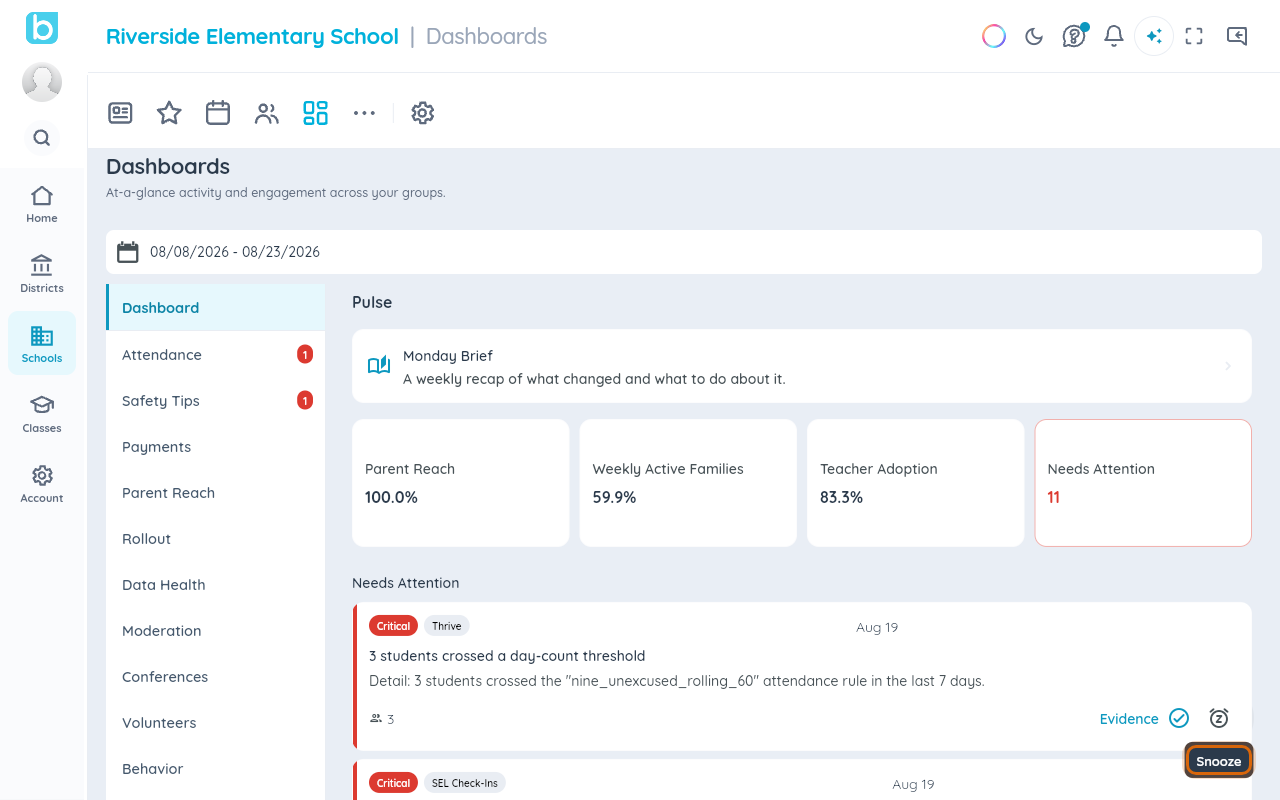
Step 5 — Open a lens for the full picture
The left side of the Dashboards screen lists every lens your school has data for — Attendance, Safety Tips, Payments, Parent Reach, Rollout, Data Health, Behavior, Academics, Tutoring, Moderation and more (a red badge means that lens has its own attention items). Select one to see that module's own KPIs and trend chart, over a 7d / 30d / 90d preset or a custom date range.
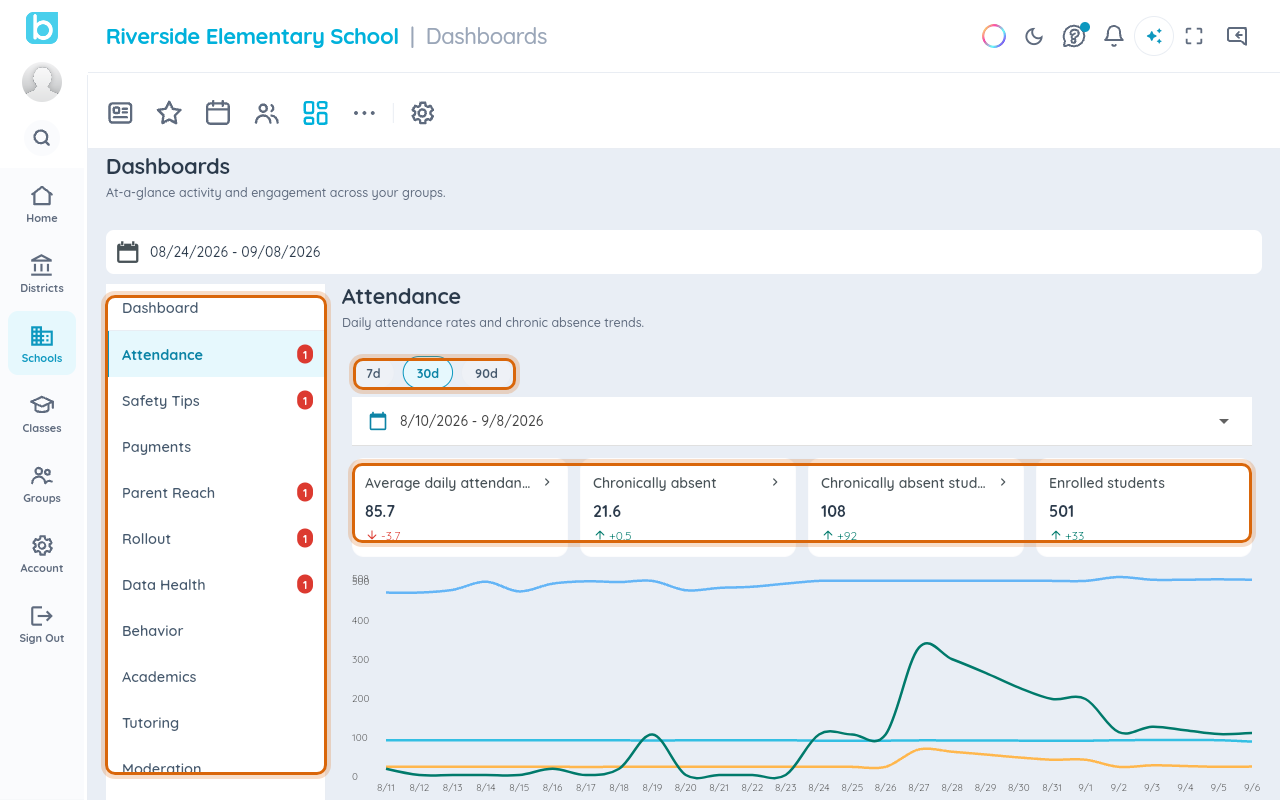
Every number is a door. A KPI card with a small chevron (›) next to its title opens the same kind of Evidence view Step 3 showed you — a table of exactly the students or records behind that number, pre-filtered, with Schedule Email, Open Full Report and Export CSV. A KPI with no chevron (like Enrolled students above) is a plain count with no drill-in behind it.
If your school has AI Writing turned on, an AI Writing Insights lens covers positive/neutral/concerning message tone by teacher, reached the same way as any other lens.
What happens next
Snoozing an item does not resolve the underlying pattern — it only quiets the notification for a while. If the pattern is still present when the snooze period ends, the item reappears. District admins see Pulse for every school they administer, alongside the same Dashboards cards (Parent Reach, Weekly Active Families, Teacher Adoption) that give the item context.