 Bloomz
Read your school's usage insights
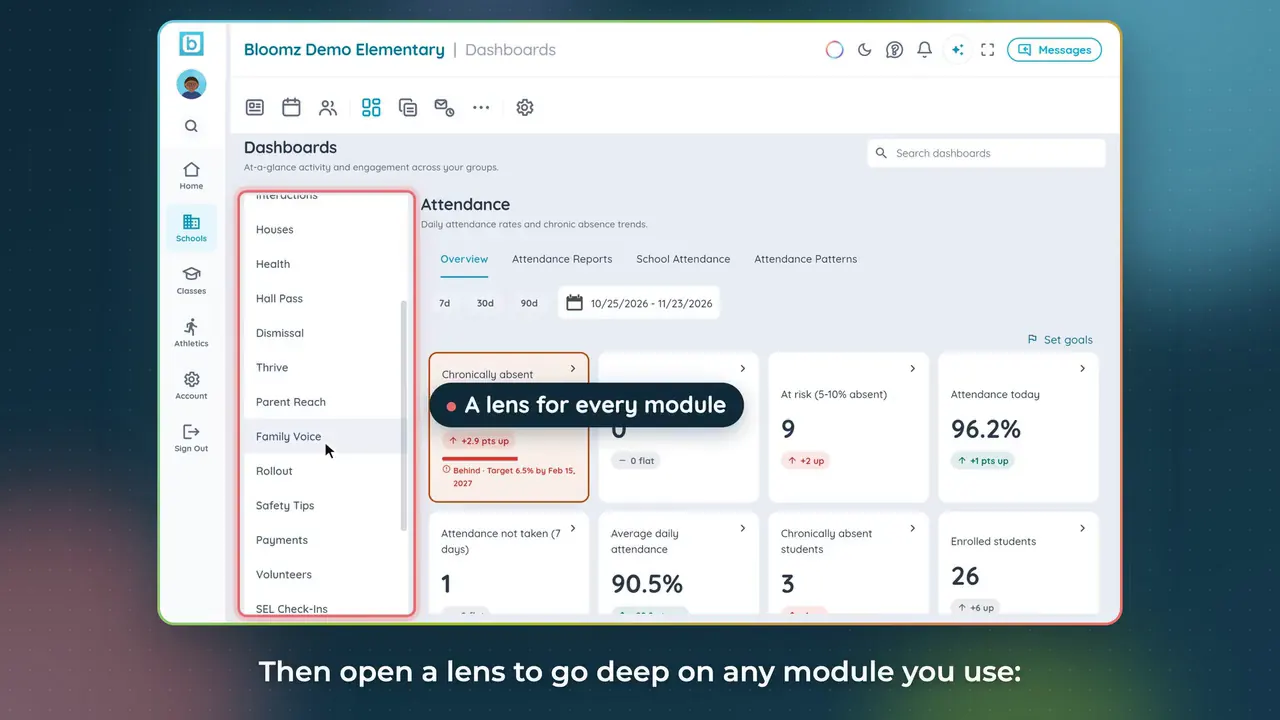
▶ Watch the video (61 seconds): Bloomz Insights & Analytics: headlines, KPI targets and a lens for every module.
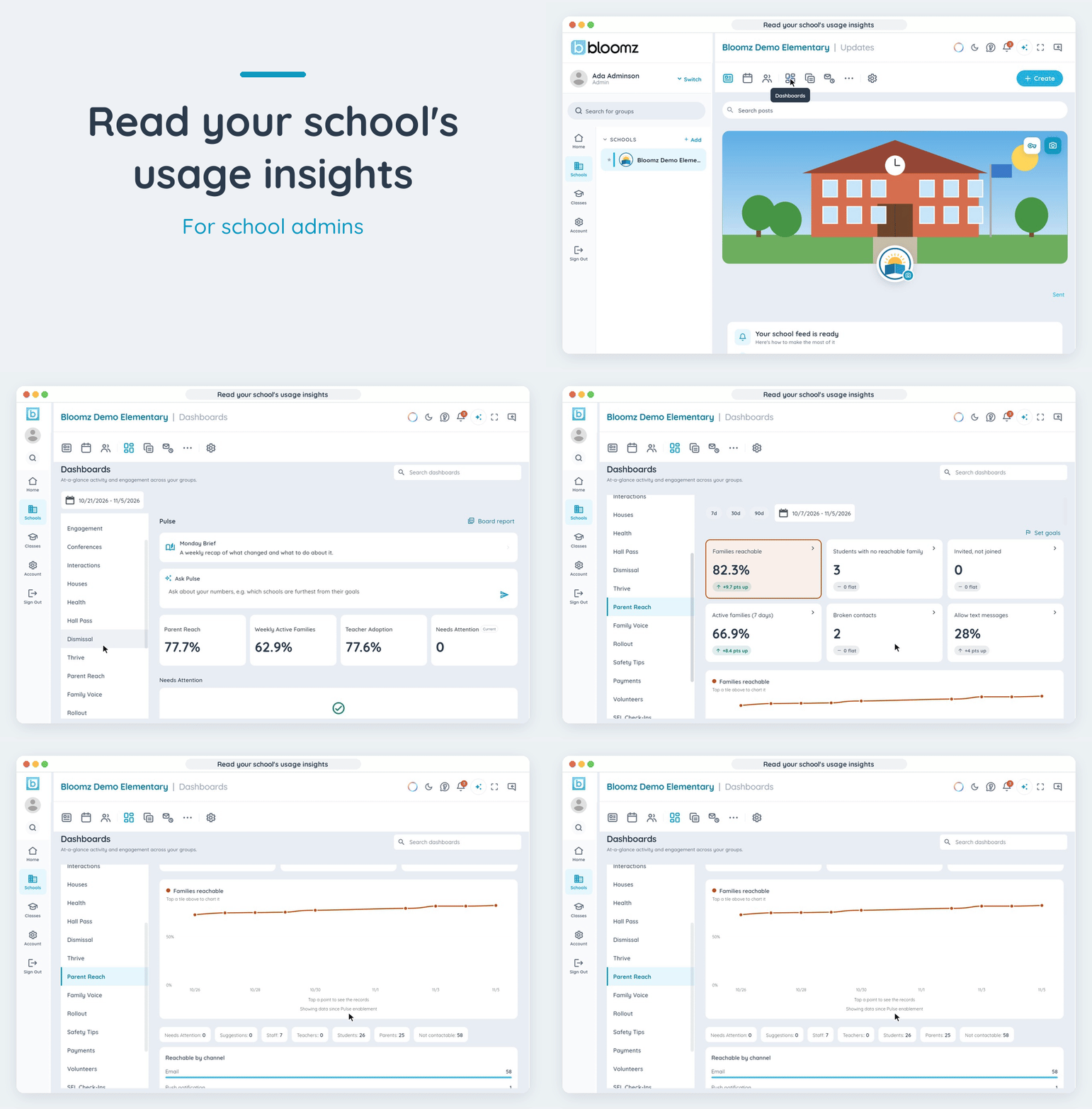
Usage insights answers a narrower question than the engagement dashboard: not what your school is posting, but who is actually opening the app, and whether that is trending up or down over time.
Before you start
Usage insights is for school admins and district admins. Figures are computed daily, so today's activity may not appear until tomorrow. Think of it as the "is anyone opening this app" view, separate from the engagement dashboard's "what are they doing once they're in it" view — the two are meant to be read together, not as alternatives to each other.
Step 1 — Open Usage Insights
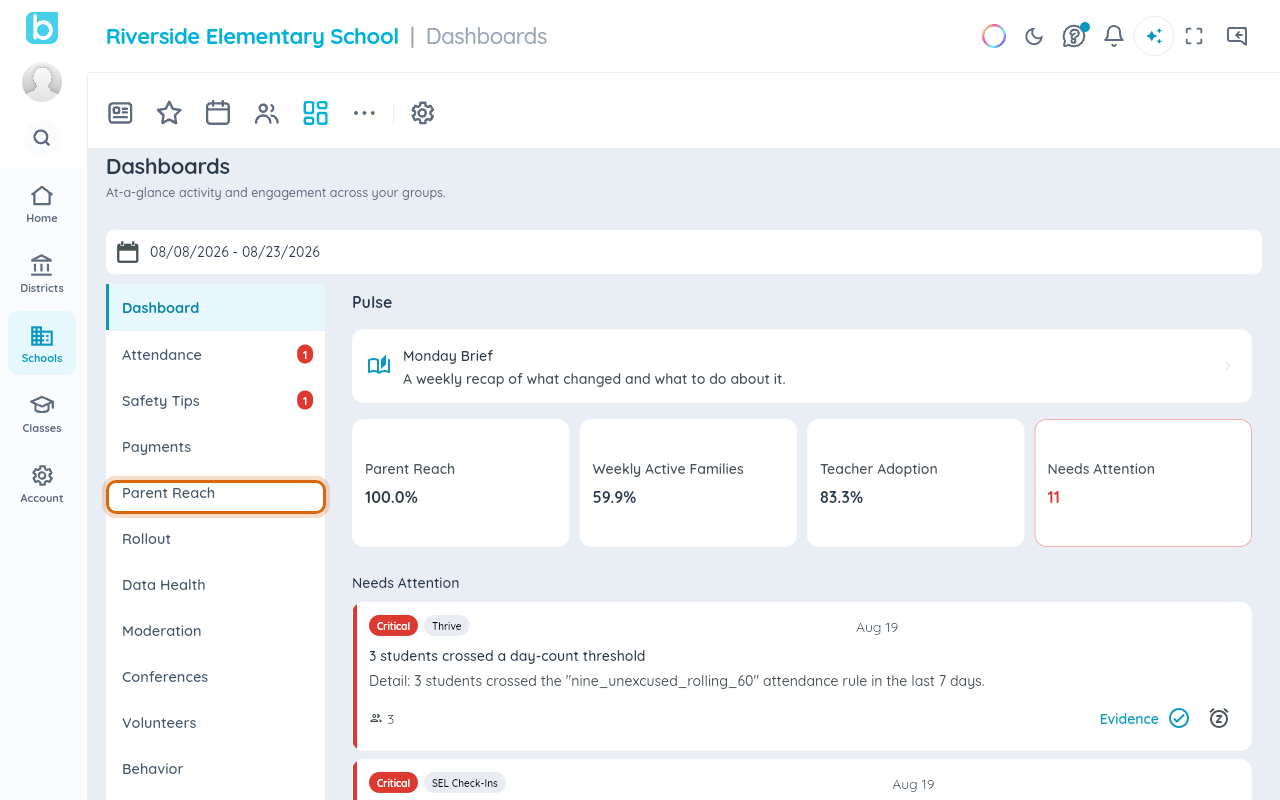
Open your school, select More (…), and choose Dashboards under Insights. Then select Parent Reach in the left navigation — that's where usage insights live, not a separate top-level card.
Step 2 — Read active users
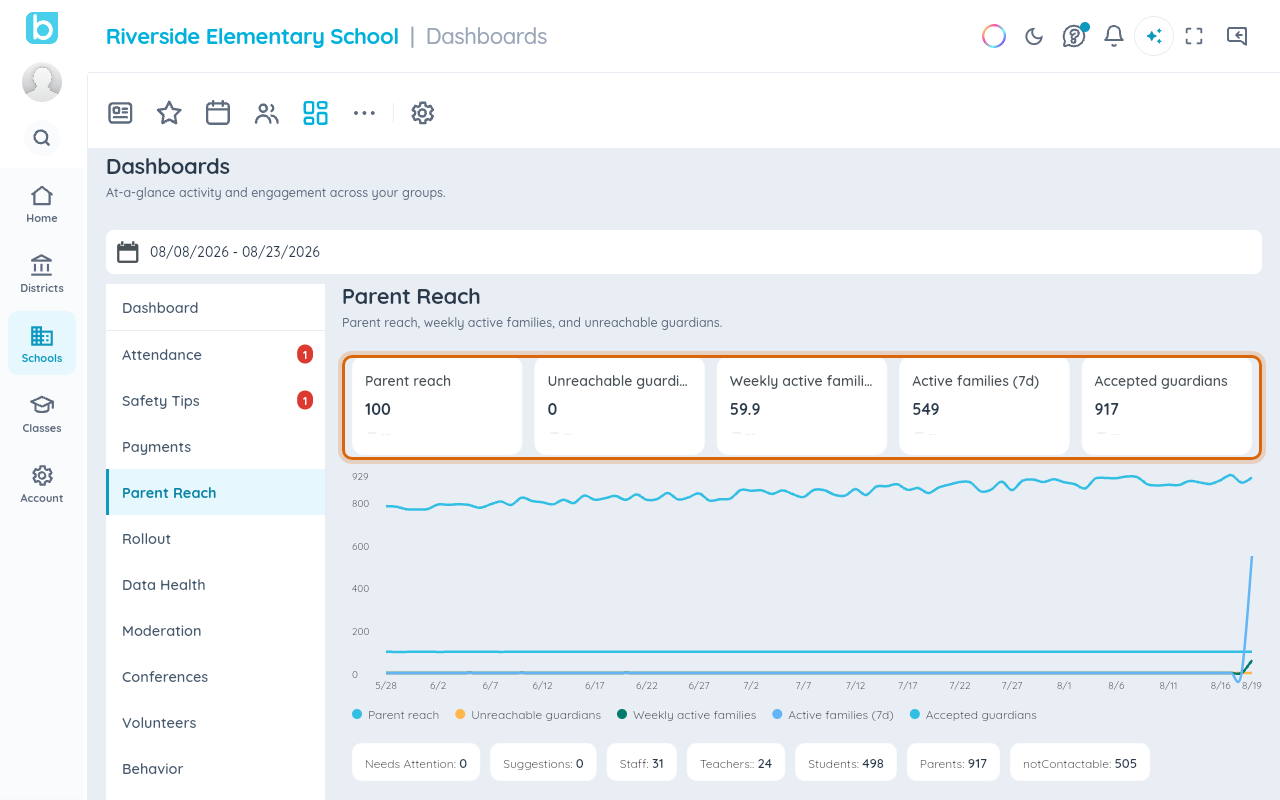
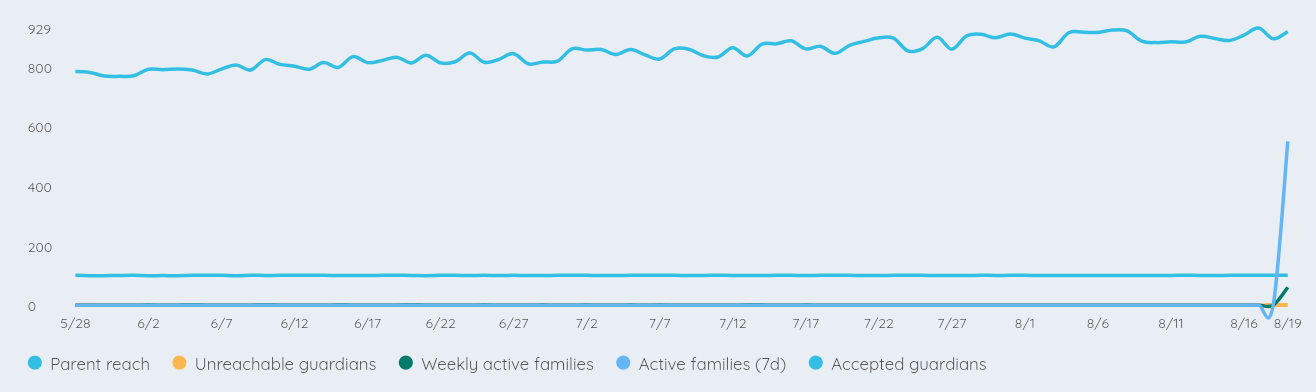
The Parent Reach cards show Parent reach (the percent of guardians Bloomz can contact), Unreachable guardians, Weekly active families, Active families (7d) and Accepted guardians.
Step 3 — Read the engagement trend
Below the cards, a line chart plots the same figures — reach and active-family counts — over the selected period. A flattening or dropping line is the signal worth investigating — cross-check it against Bloomz Pulse for a likely cause.
Step 4 — Change the date range
Select the date range field at the top of Dashboards to open the picker; the Parent Reach cards and trend chart both update to match.

Watch out: a dip right at the edges of the chart is often just an incomplete day or week still being computed, not a real drop — widen the range by a few days before reacting to it.
What the numbers mean
Parent reach measures how much of your family base Bloomz can actually contact and how many of them are actively using it — it's the "is anyone reachable and opening this app" view, separate from the engagement dashboard's "what are they doing once they're in it" view. Read the two together. District admins see the same cards with the All Schools switcher on Dashboards to move between schools.