 Bloomz
Check invitation coverage for your school
Invitation coverage shows exactly who is registered in Bloomz, who's been invited, and who was only ever imported from your roster and never actually invited — so you know precisely who to nudge instead of re-sending a blanket reminder to everyone.
Before you start
Invitation coverage is for school admins and district admins, and lives on the Manage > Parents screen (it works the same way for Students and Staff). Bloomz tracks each person's status as one of: Registered (has an active Bloomz account), Invited (sent an invitation, hasn't registered yet), Imported (added to the roster from your SIS or a CSV, but never actually invited), Suspended, or Muted. An Imported person needs an actual invitation before they can do anything in Bloomz — importing a roster does not invite anyone by itself.
Step 1 — Open Manage > Parents
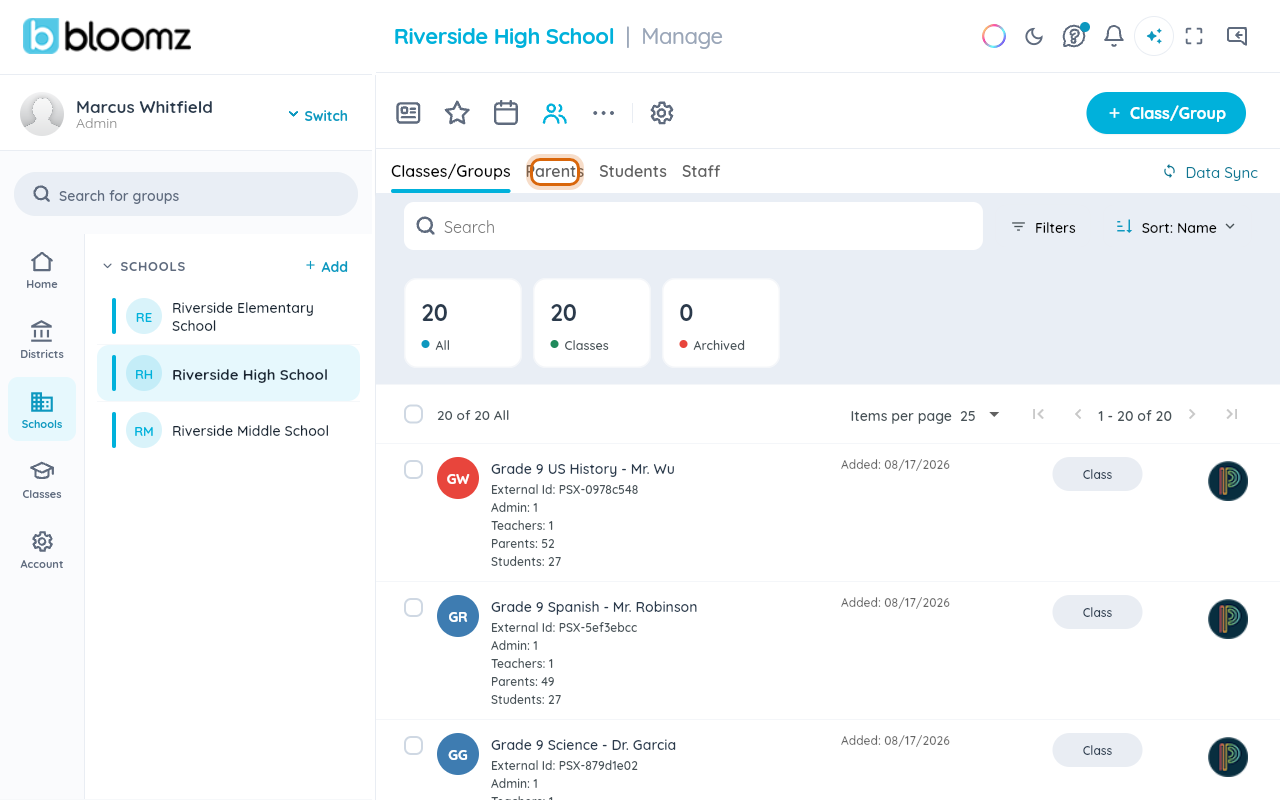
Open your school and select the Parents tab under Manage.
Step 2 — Read the coverage summary
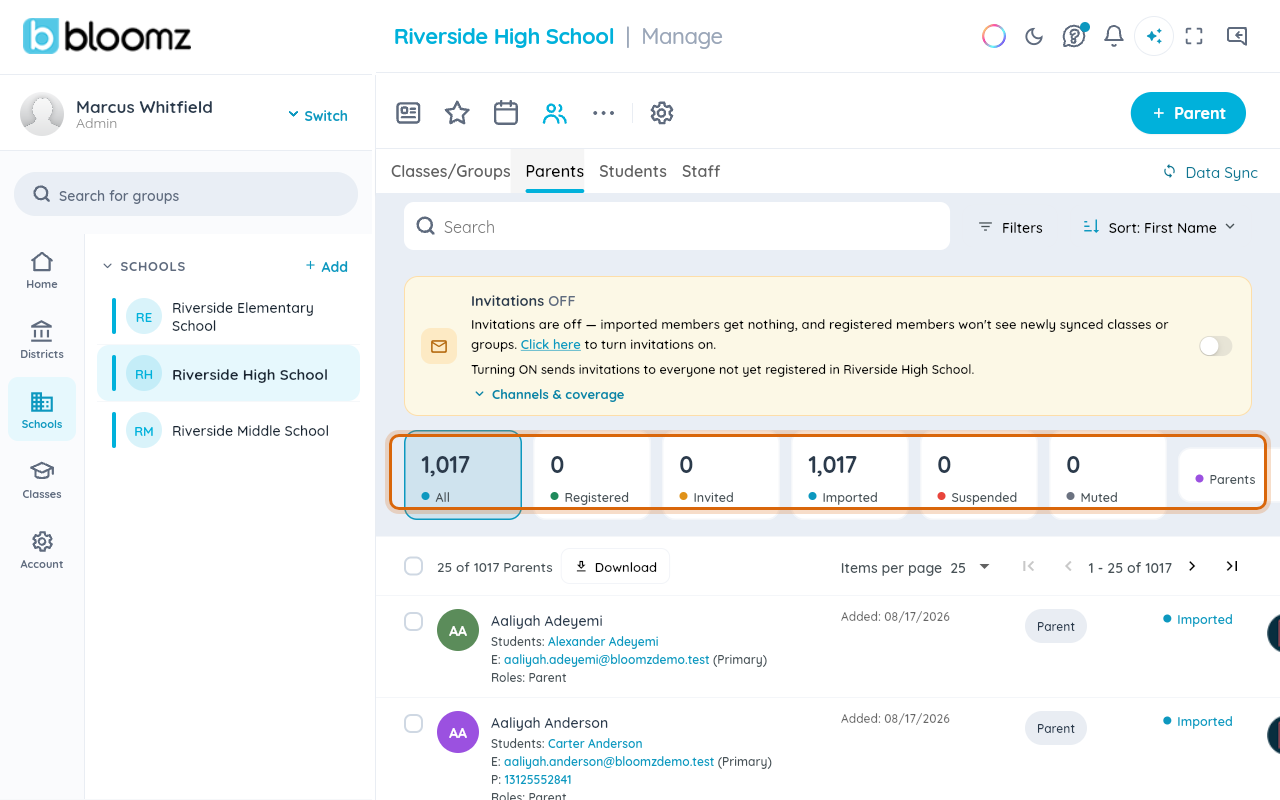
The top of the screen shows counts for All, Registered, Invited, Imported, Suspended and Muted, plus a Channels & coverage breakdown you can expand for more detail. If invitations are off for the school, a banner says so — imported members get nothing and registered members miss newly synced classes until you turn it on.
Step 3 — Filter to Imported
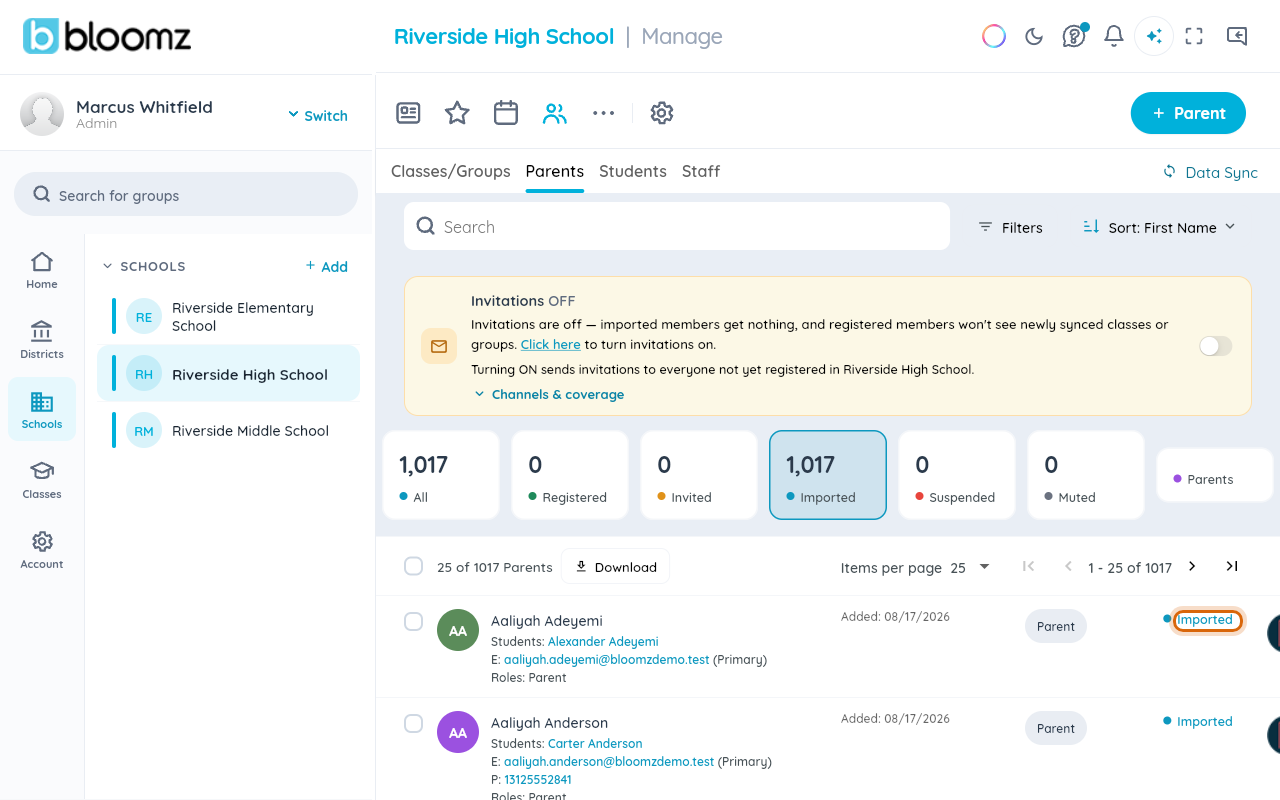
Select the Imported figure to list everyone who's in Bloomz from your roster but has never actually been invited — these are the people most worth following up with first, since nothing further happens for them until they are.
Step 4 — Follow up
Select several rows with the checkboxes, then choose Verify Parents/Students from the bulk action bar to invite all of them at once.
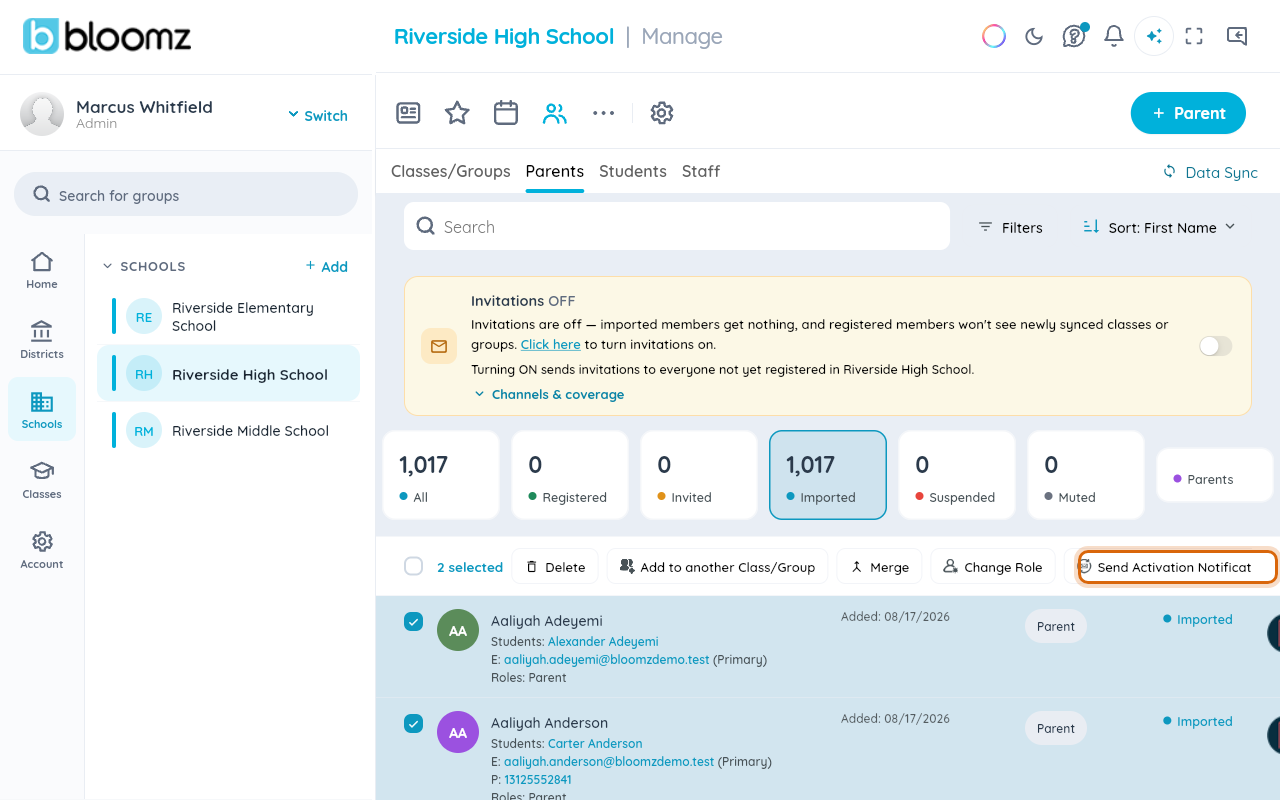
Watch out: an Imported person with no invitation ever sent isn't a "reminder" — it's their first activation notification, so there's no resend cap to worry about the way there might be for someone who's already been invited and just hasn't responded.
What happens next
Coverage updates live as people register — there is nothing to refresh. Once someone you sent an activation notification to registers, they move out of the Imported count into Registered automatically, and drop out of the Imported filter.