 Bloomz
See your child's health profile and immunization status
Check what the school has on file for your child — allergies, conditions, emergency notes, and where their immunizations stand — from your own account.
Before you start
Your school must have Health Profiles switched on. You see this for your own children only; editing the health details themselves is done by the school (see Update a student's health profile) — message the office if something needs to change.
Step 1 — Open your child's profile
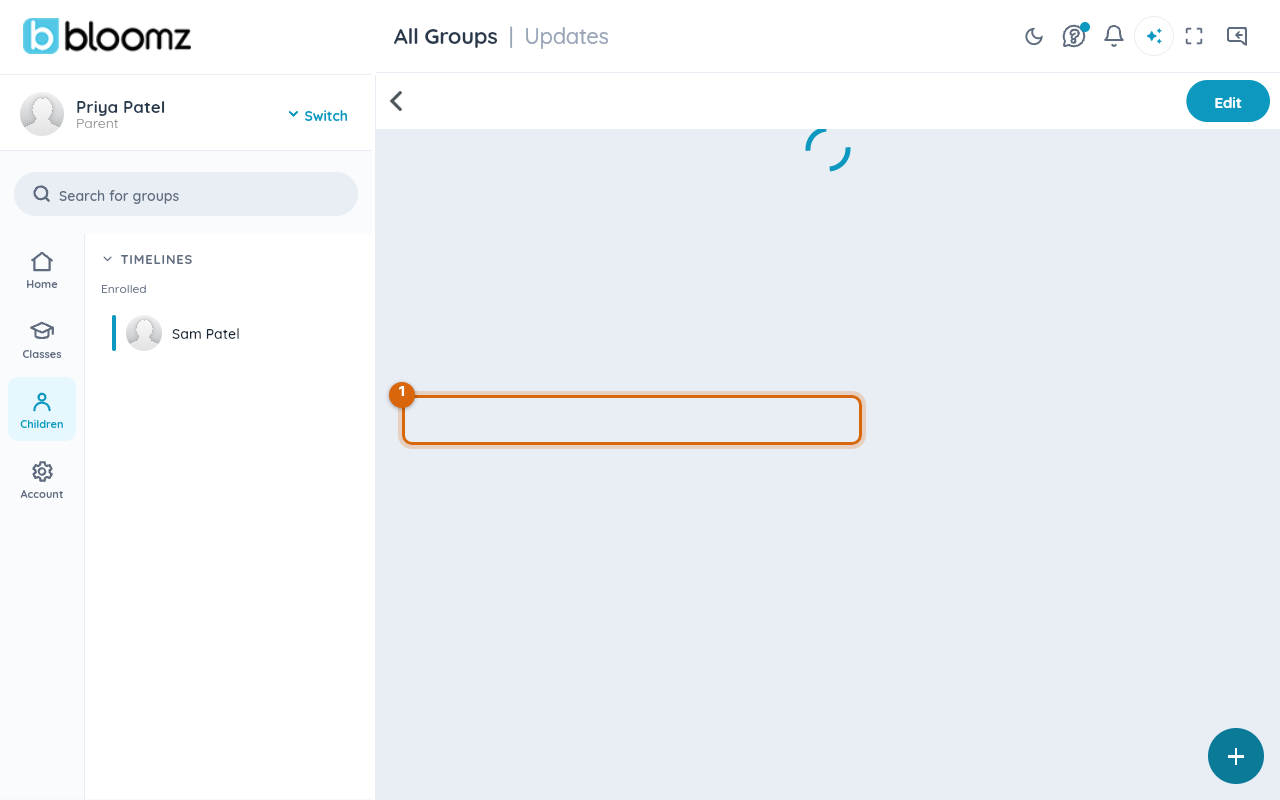
Open your child's profile.
Step 2 — Open the Health Profile tab
Select the Health tab to see allergies, conditions and emergency notes on file.
Step 3 — Open the Immunizations tab
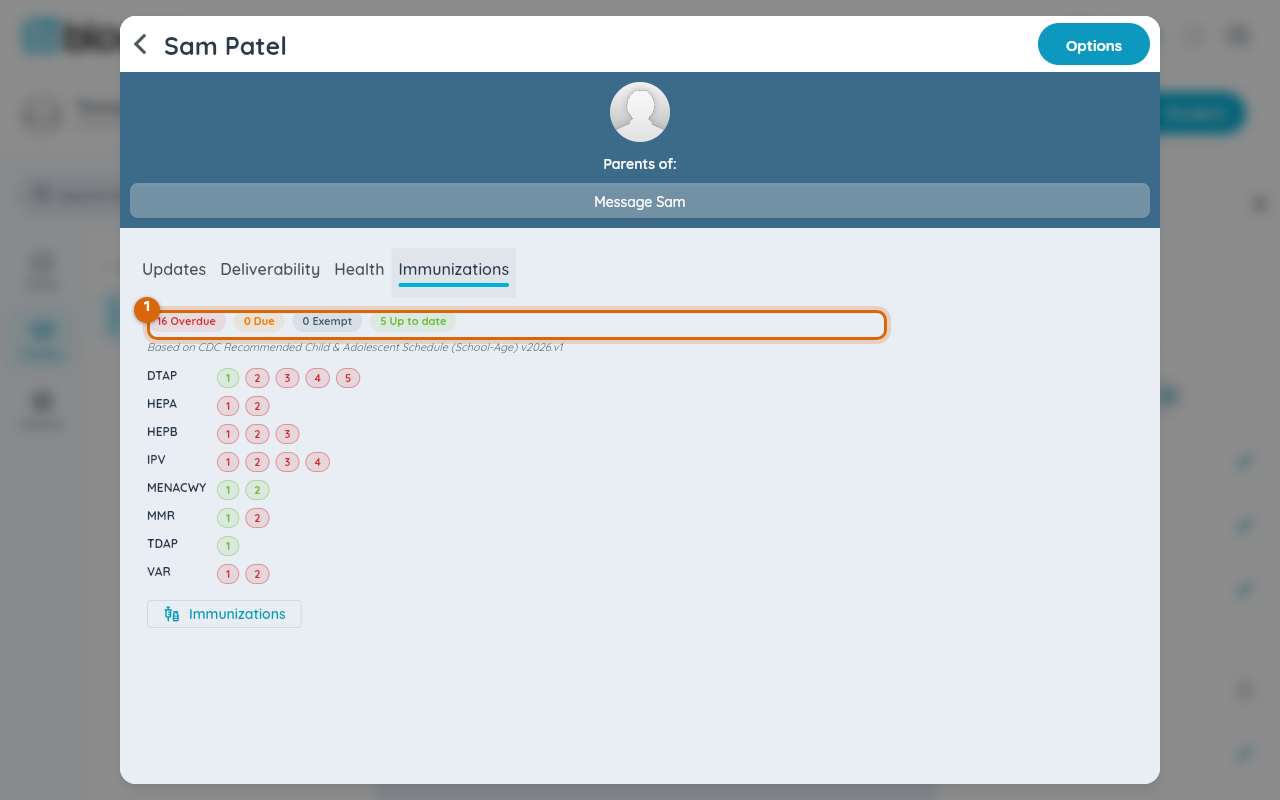
Select the Immunizations tab for the dose table, a due/overdue summary, and any exemptions on file.
Step 4 — Download a record if you need one
Select Transfer Record to download a PDF certificate of your child's immunization record — the packet schools ask for when a child transfers.
Watch out: the status shown here is informational — it tells you what is due or overdue, but it never blocks your child from checking in. If something in the health profile looks wrong, contact the office; you cannot edit it yourself.
Related
- Student check-in and immunizations
- Update a student's health profile
- Track immunization compliance for your school