Bloomz
Send an automated message series to families
Enroll families in a ready-made sequence of messages that goes out on its own — weekly family check-ins, a home-learning tip series, or attendance support — instead of writing and sending each one by hand. Bloomz tracks who opened and replied to every step.
Before you start
Your school must have Message Series switched on. You need a teacher, staff or admin role to view and manage series; a district admin sets the one district-wide option (the literacy trigger, see the Watch-out below).
Step 1 — Open Message Series
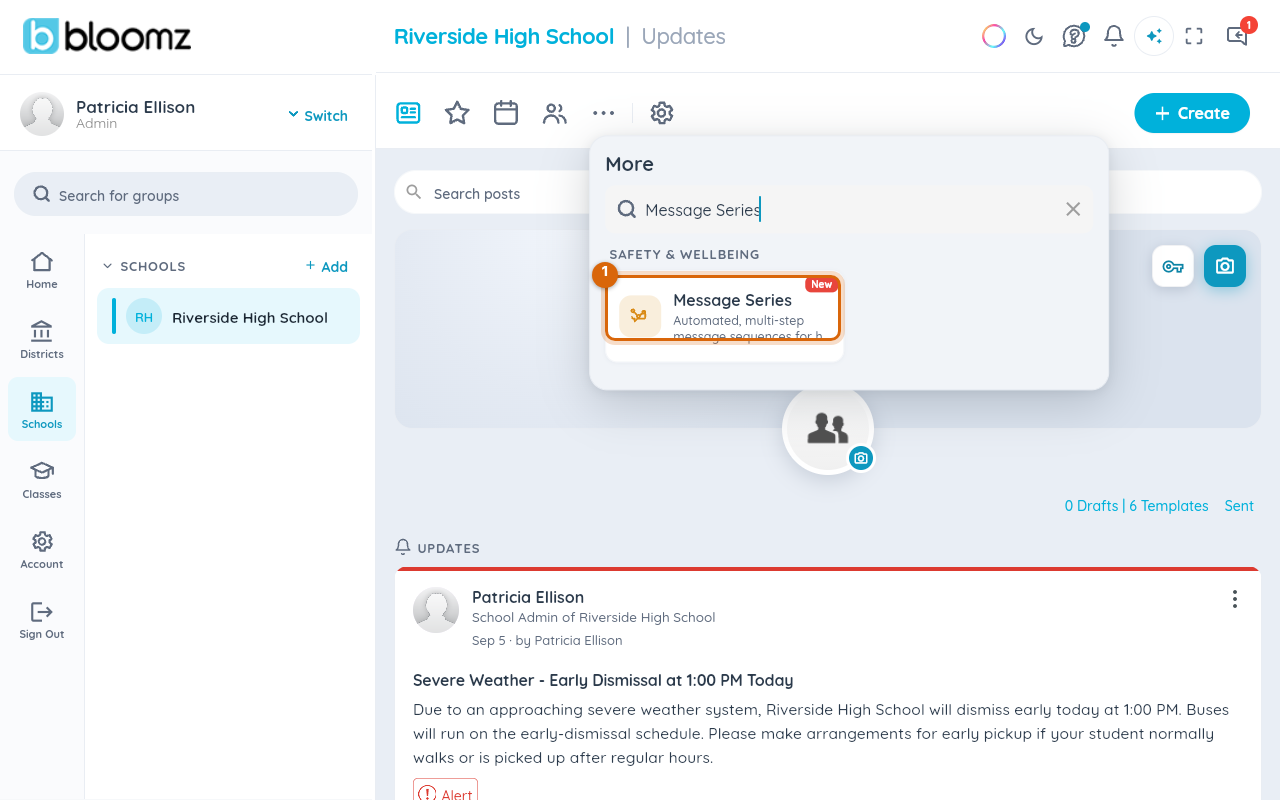
Select More (…), then Message Series under Safety & Wellbeing.
Step 2 — Find a series
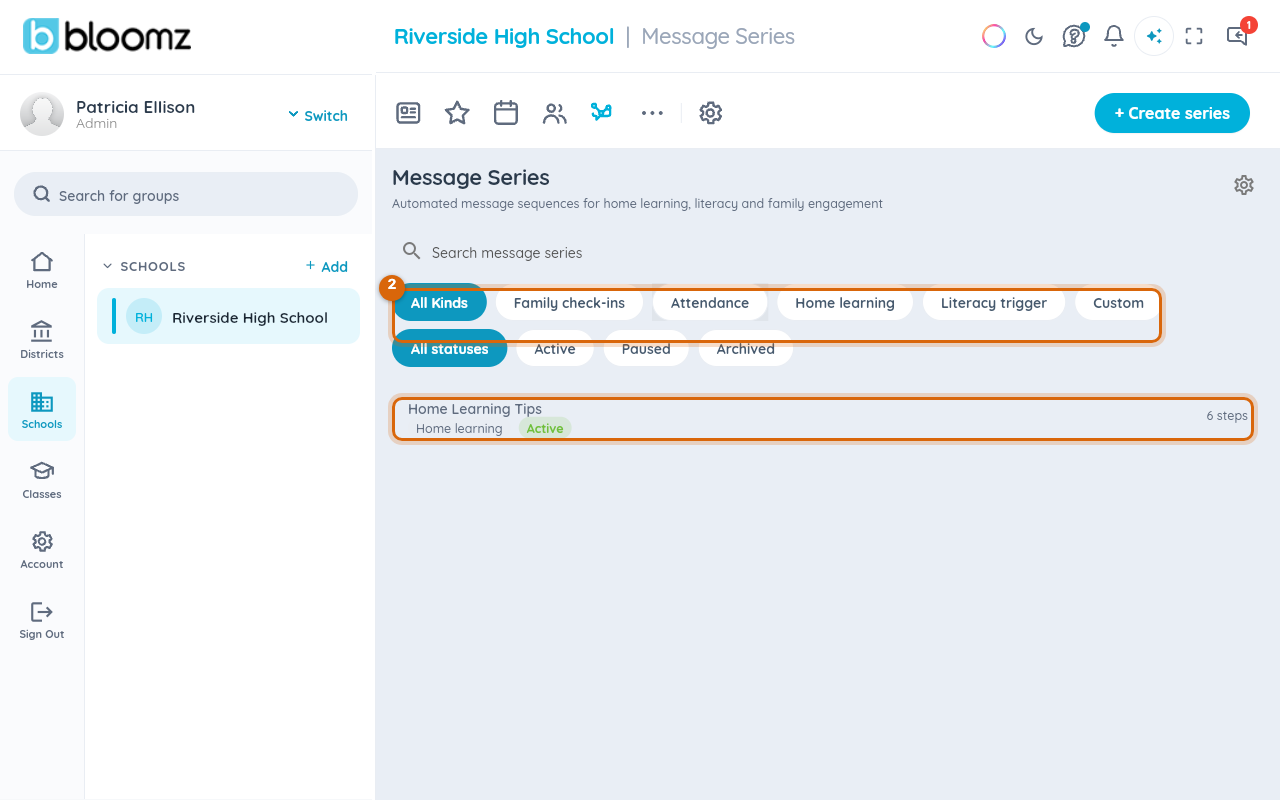
Filter by Kind — Family check-ins, Attendance, Home learning, Literacy trigger, or Custom — or by status. This school's active Home Learning Tips series sends a new tip every week for 6 steps.
Step 3 — Read its enrollment
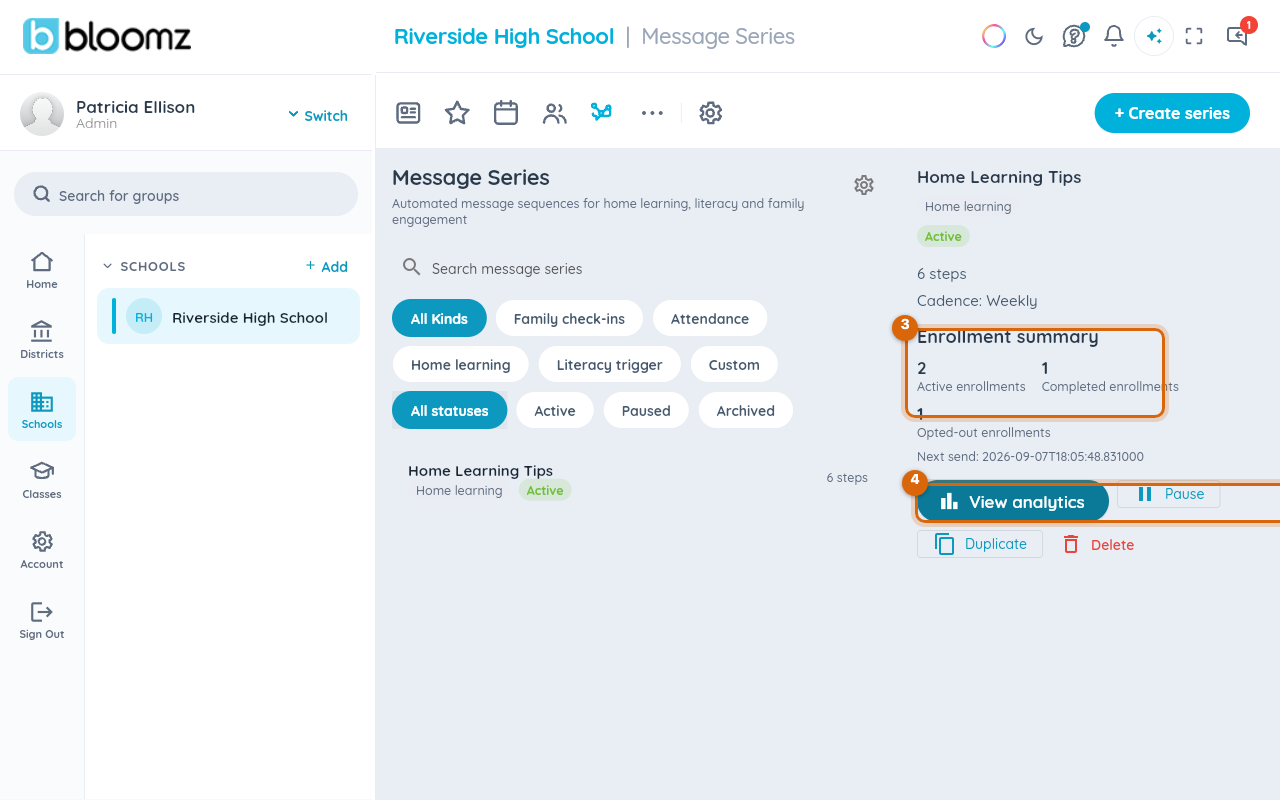
Select a series to see how it's doing: how many families are actively enrolled, how many finished the whole sequence, how many opted out, and when the next message goes out. From here you can Pause, Duplicate or Delete the series.
Step 4 — Check step-by-step performance
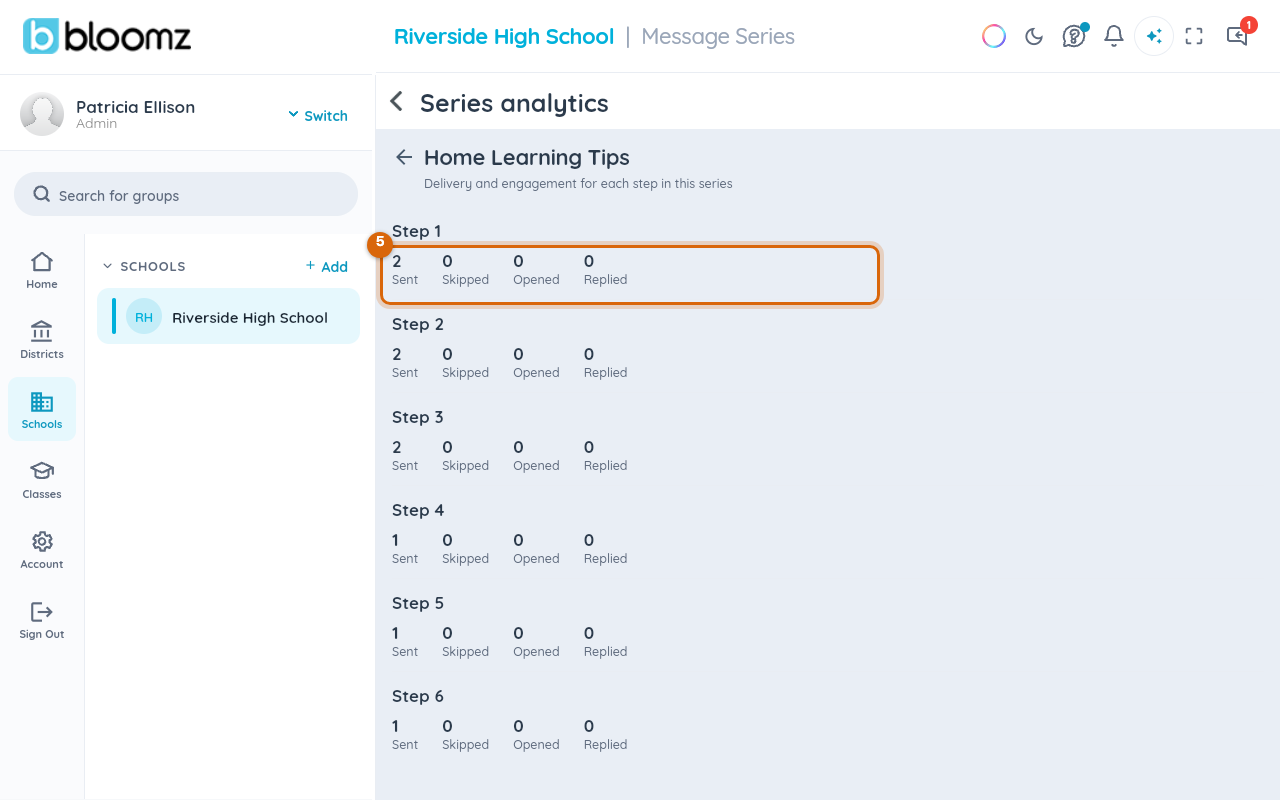
Select View analytics to see delivery and engagement broken out for every individual step — Sent, Skipped, Opened and Replied — so you can tell which message in the sequence is actually landing.
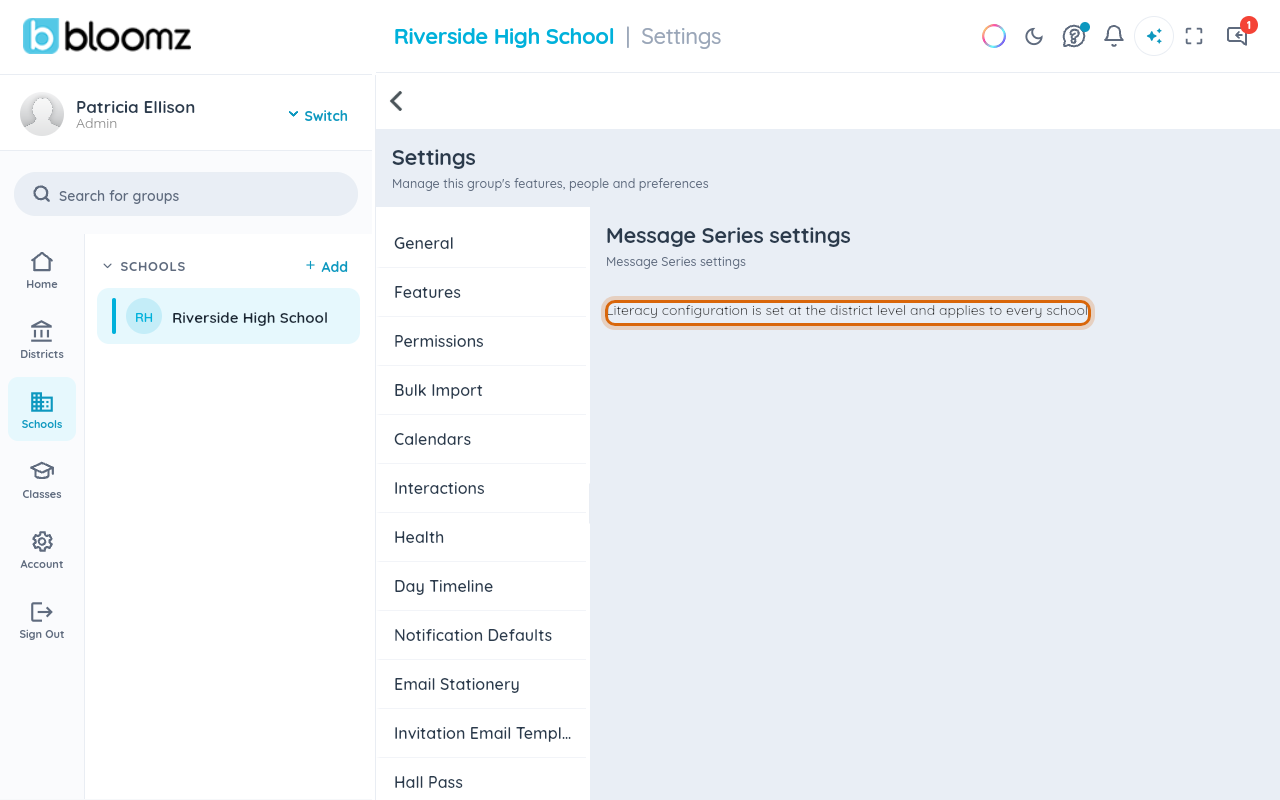
Watch out: the literacy trigger — automatically enrolling a family the moment a reading assessment comes in for their child — has its own setting, and it lives one level up. A school's own Settings > Message Series tab says so plainly rather than showing a control that would not do anything.