 Bloomz
Set hall pass limits and student accommodations
▶ Watch the video (43 seconds): Digital Hall Pass in Bloomz: live console, request queue, limits and emergency halt.
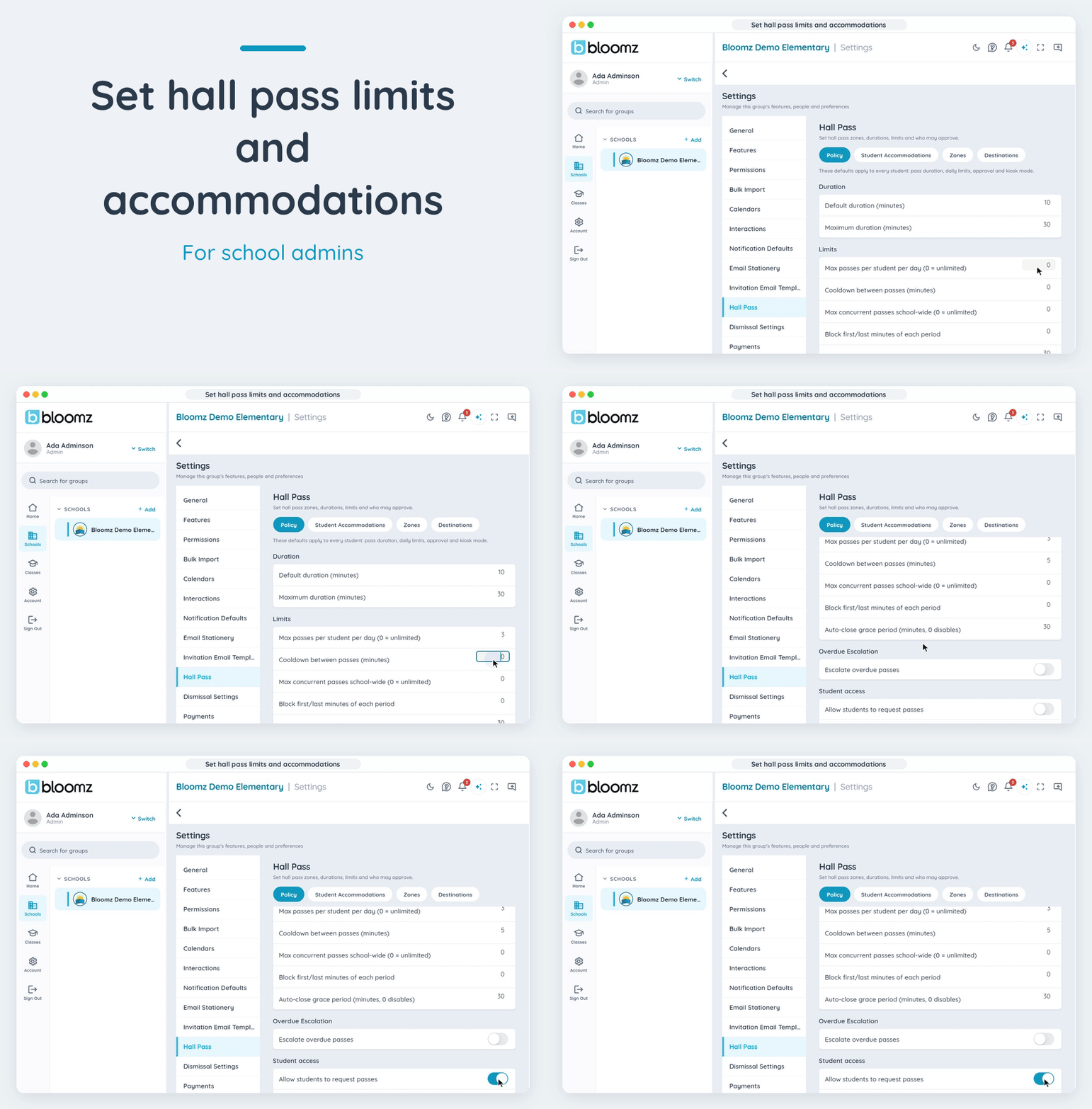
The school policy decides how long a pass lasts, how many a student may take, when staff are told a student is late back, and whether students may request their own passes. Set it once here; every teacher's issue sheet follows it automatically, and individual students can be exempted.
Before you start
School admins and office admins can change the policy. Decide your defaults first — most schools start with a 10-minute default, a 30-minute maximum and no daily cap — and list any students whose medical or IEP plan needs an exemption.
Step 1 — Open the Hall Pass Console
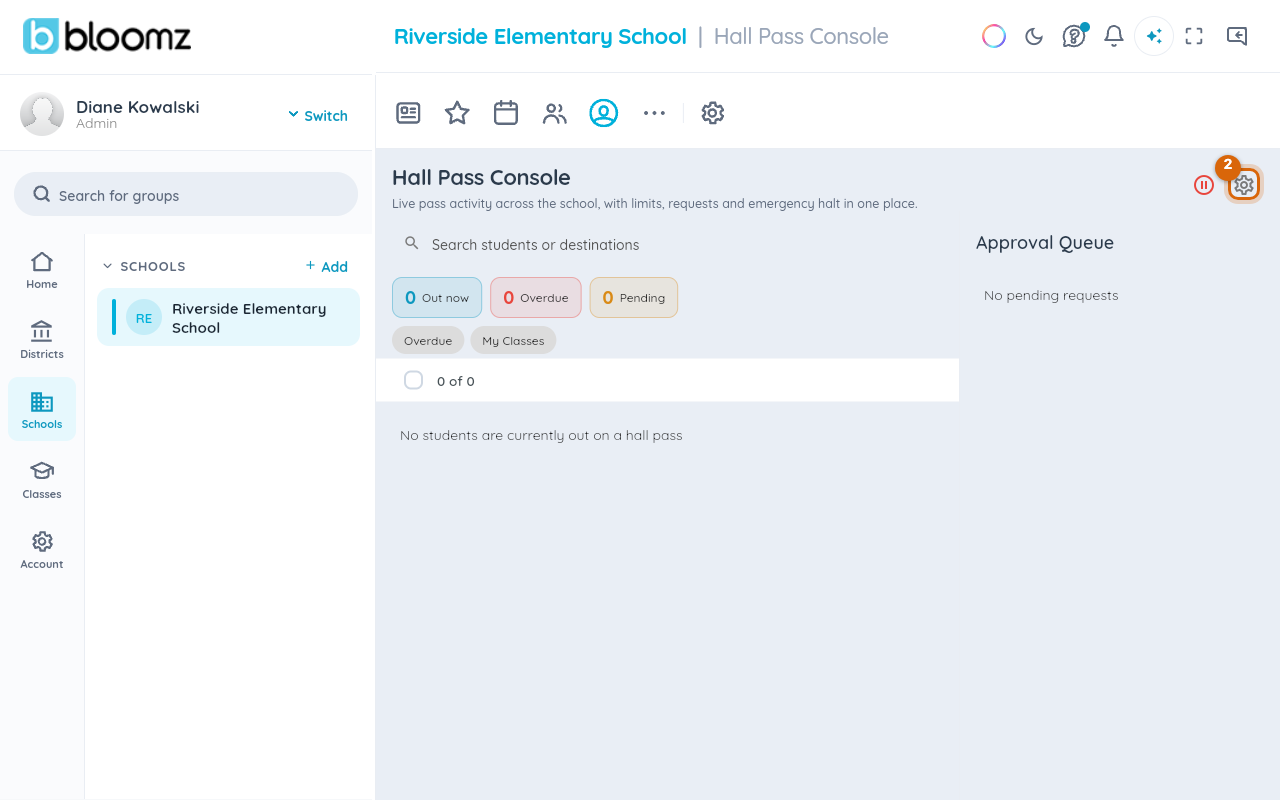
Open your school, select More (…) in the tab row, and choose Hall Pass Console under Safety & Wellbeing.
Step 2 — Open Settings
Select the settings gear in the console's top corner. Hall Pass Settings opens on its Policy tab.
Step 3 — Set durations and limits
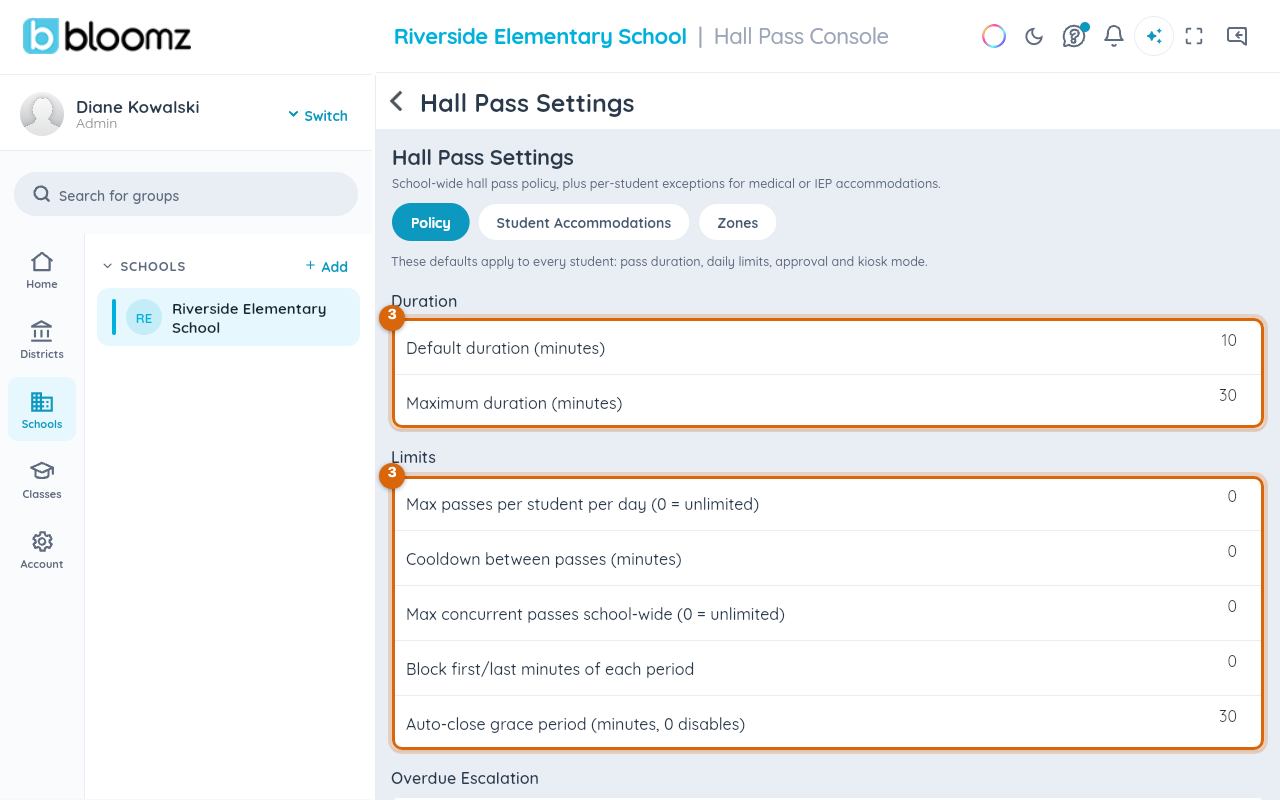
Under Duration, set the Default duration teachers see preselected and the Maximum duration they may choose. Under Limits, set Max passes per student per day, Cooldown between passes, Max concurrent passes school-wide, Block first/last minutes of each period and the Auto-close grace period (0 disables each limit).
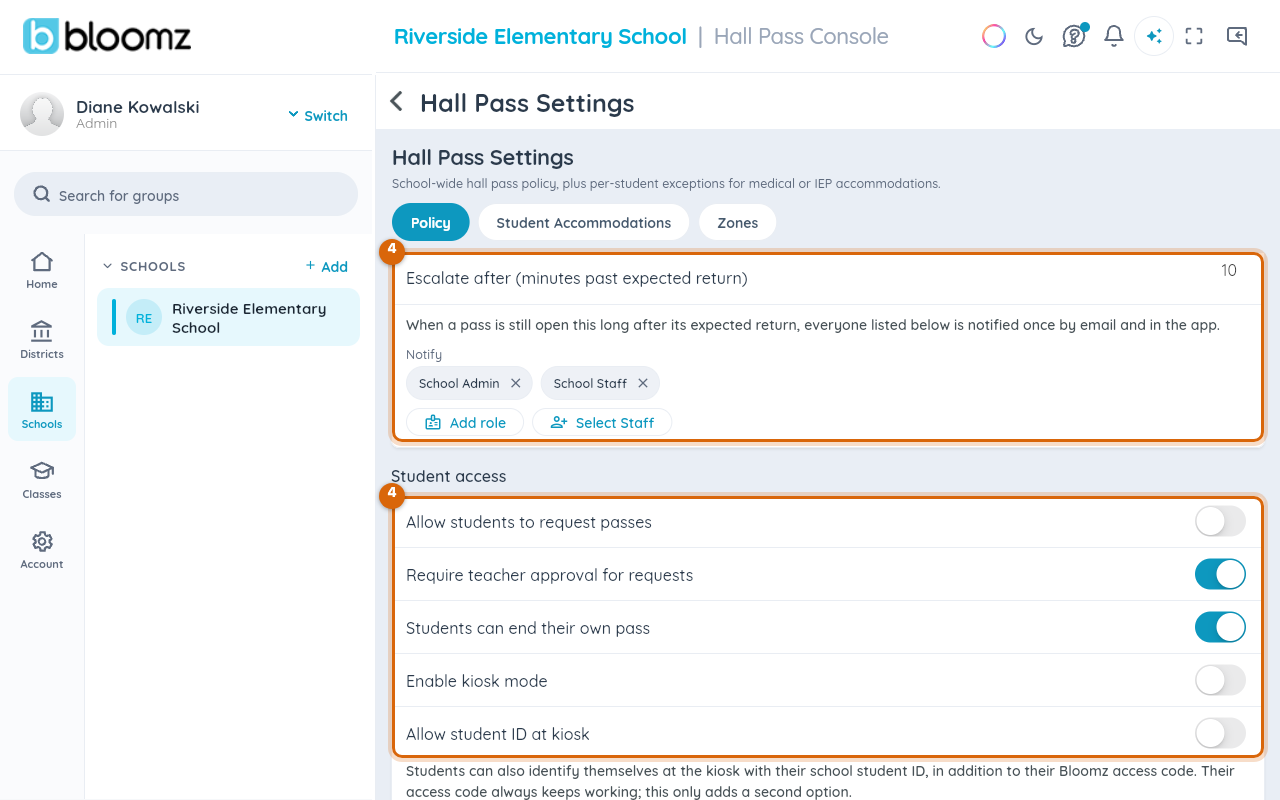
Step 4 — Set escalation and student access
Scroll down. Under Overdue Escalation, set Escalate after (minutes past the expected return) and the roles or staff to Notify. Under Student access, switch on Allow students to request passes and choose whether requests need teacher approval, whether students can end their own pass, and whether the kiosk is enabled. Then select Save Policy at the bottom of the Policy tab. Nothing on the Policy tab takes effect until you save it.
Step 5 — Add student accommodations
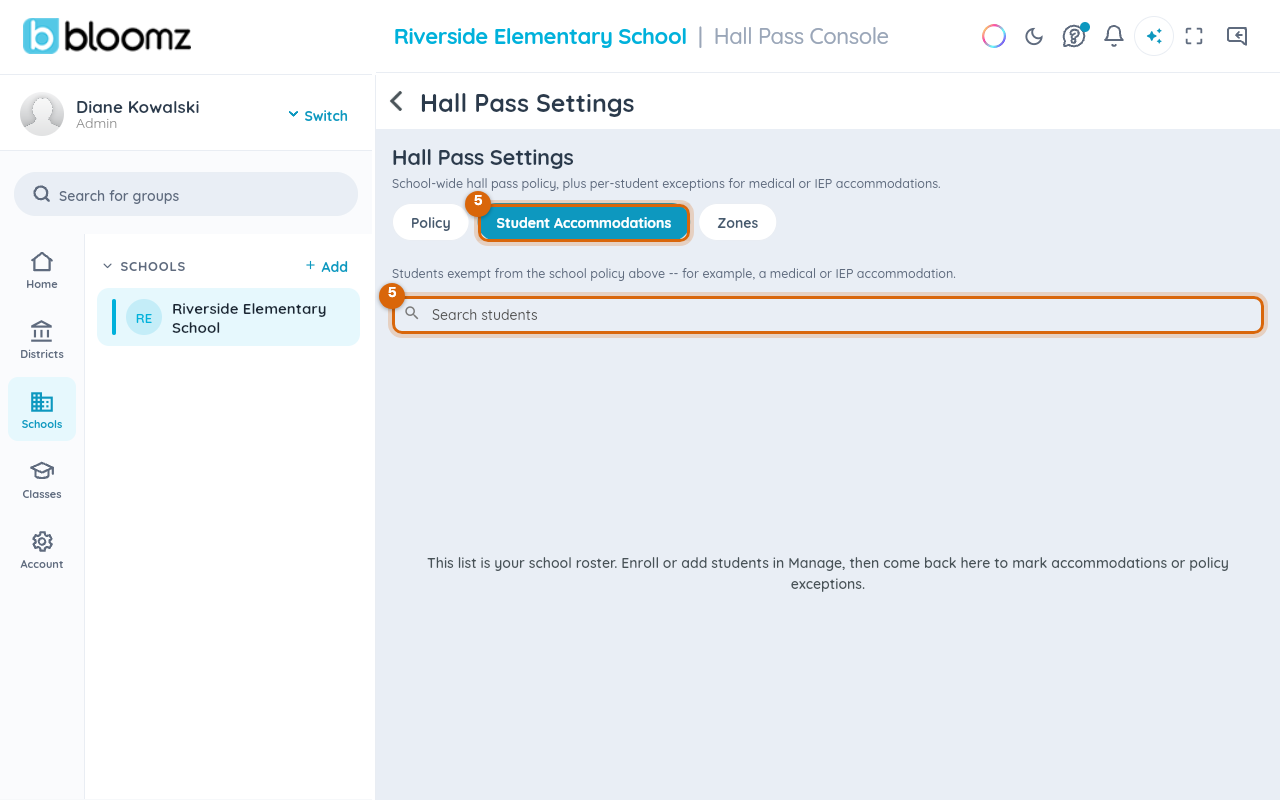
Open the Student Accommodations tab, search the roster for the student, and mark them Exempt from the limits above (or set their own limits). This is for medical and IEP accommodations — it is recorded on every pass they take.
Step 6 — Restrict destinations by zone
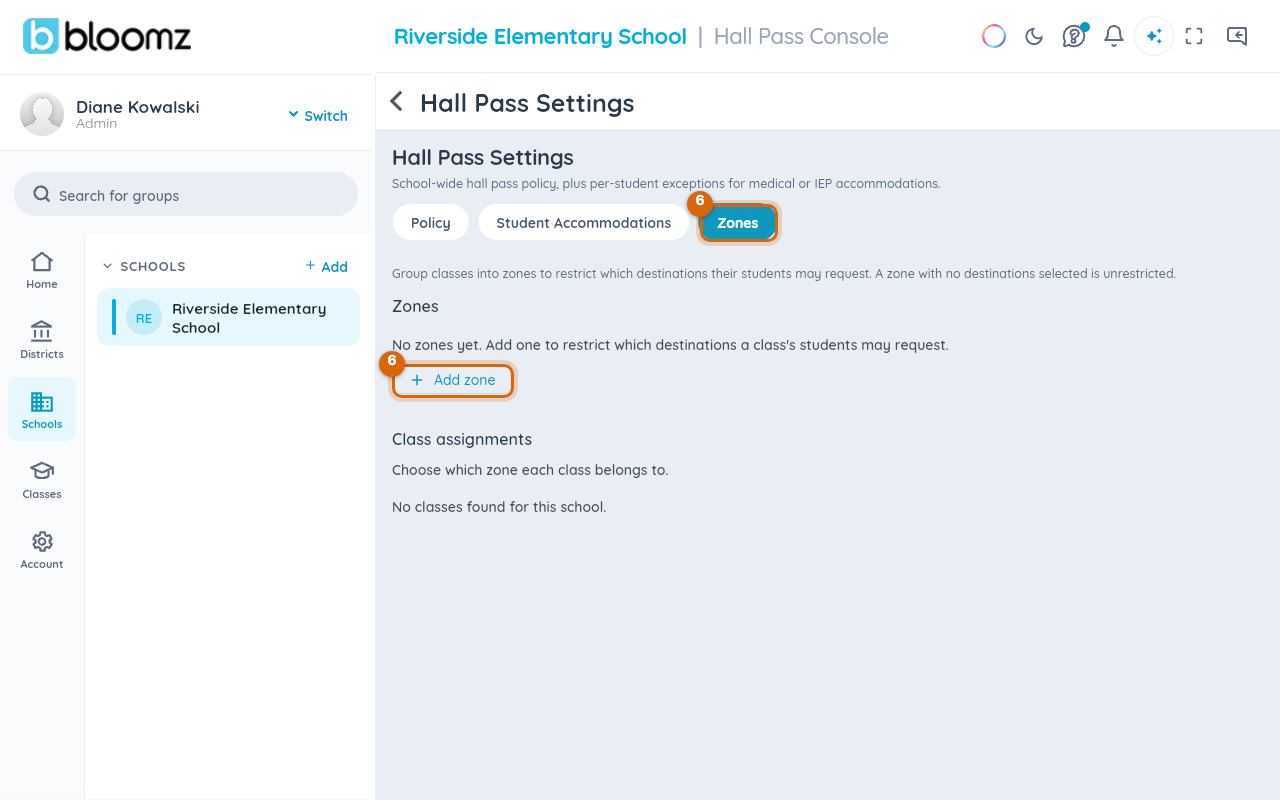
On the Zones tab, Add zone to group classes and choose which destinations their students may request; a zone with no destinations selected is unrestricted. Select Save zone in the zone window when you are done. This tab has no separate Save Policy step.
Settings > Hall Pass has a Destinations tab built from your school's Locations.
Watch out: the maximum duration is a hard ceiling — a teacher typing a longer custom duration has it trimmed to the maximum without a warning. Set it to the longest legitimate trip in your building (a walk to the far gym, say), not the typical one.
What teachers see
The issue sheet preselects your default duration, offers only durations up to the maximum, and reports any limit a pass would break — which teachers can override with a reason for one pass, except the school-wide halt.
Related
- Issue a hall pass
- Halt all hall passes in an emergency
- Run dismissal from the staff console