 Bloomz
Show your Bloomz newsletters on your school website
Publish your school's Bloomz newsletters on the public website automatically: a Newsletters block shows each newsletter your school has shared to the web as a card — title, date, author, thumbnail and excerpt — linking to the newsletter's own public Bloomz page, which anyone can read without signing in. Publish a new issue in Bloomz and the website updates itself; nobody retypes anything. This article is for site editors.
Before you start
You need editor access to the site, and the site must be connected to your school's Bloomz group (see Your school website with Slick Sites). Only newsletters your school has shared to the web appear — the block is always live from Bloomz; there is no way to type a newsletter into the website by hand, because a newsletter is a Bloomz document by nature.
Step 1 — Add the Newsletters block
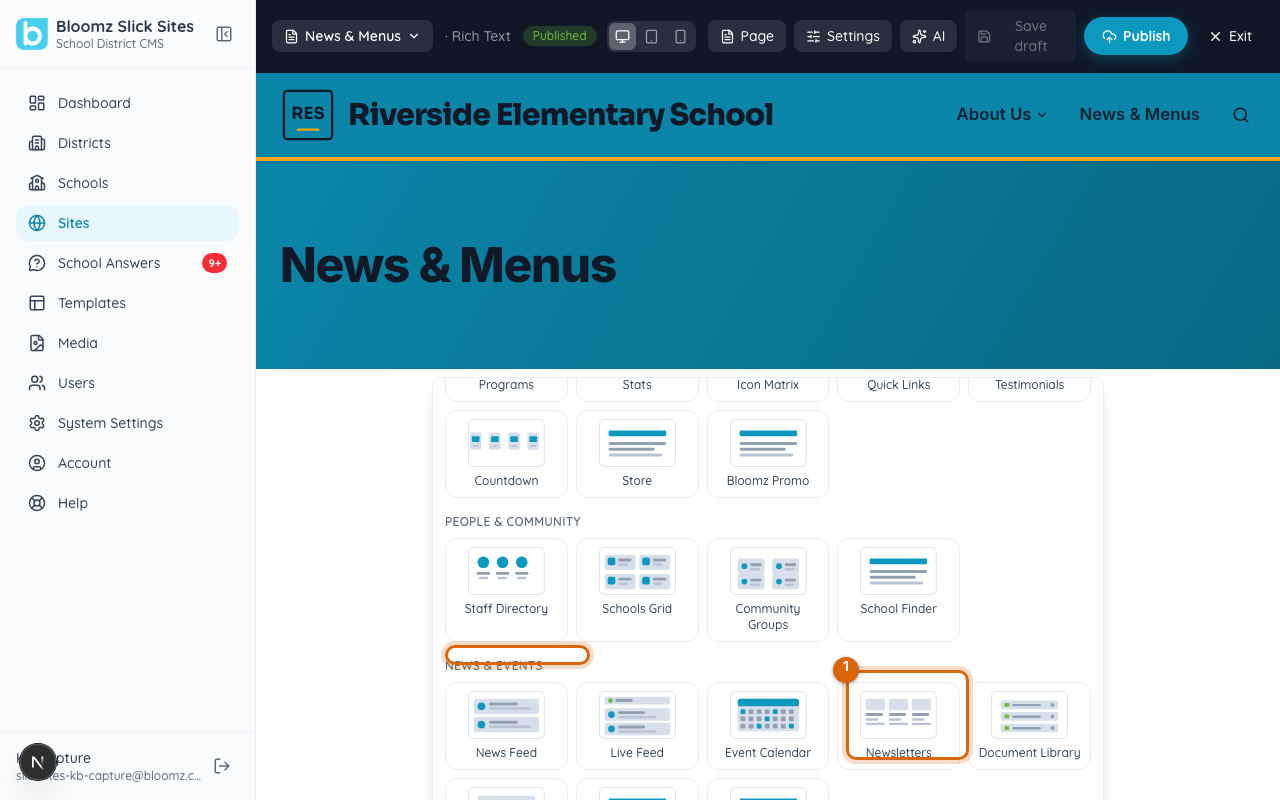
Open the page, select Add block, and choose Newsletters — it sits in the News & Events group of the panel.
Step 2 — Choose what the cards show
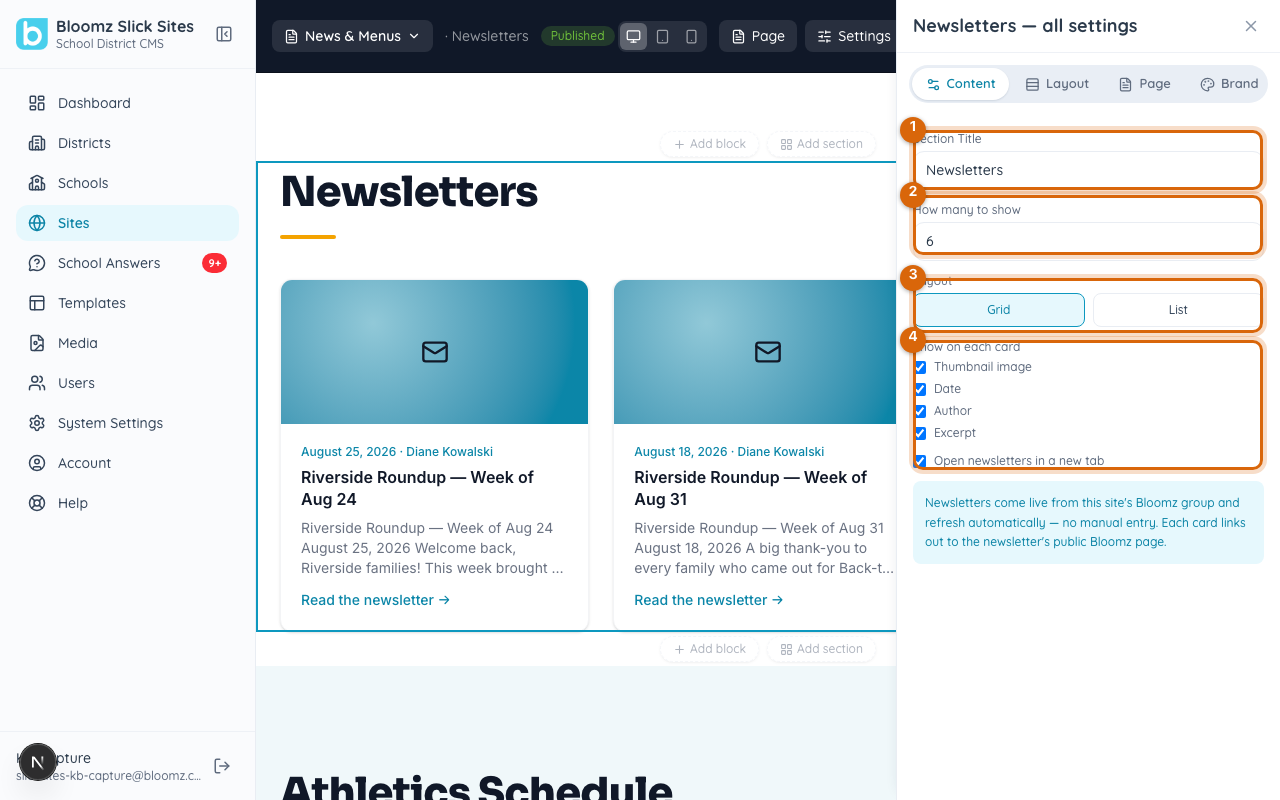
In the block's settings, set the Section Title, How many to show, and the Layout — a card grid or a list. Under Show on each card, switch the thumbnail, date, author and excerpt on or off independently, and choose whether cards open in a new tab.
Step 3 — Publish and check the live page
Publish the page and open the public site. Each card links out to that newsletter's public Bloomz page — select one to confirm it opens without a login.
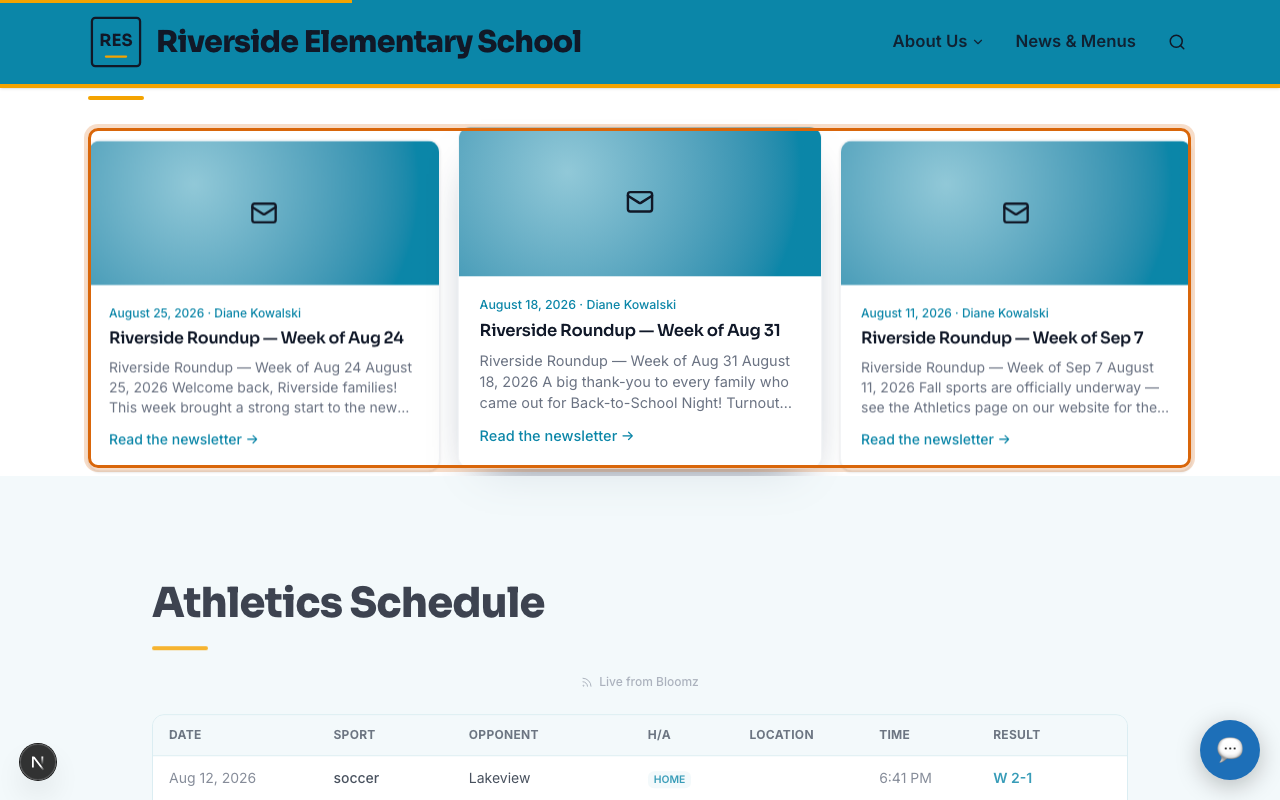
What you should see: your web-shared newsletters as cards, newest issues first up to the limit you set. When a new issue is shared from Bloomz it appears here on its own.
Watch out: if the block shows nothing, the site is either not connected to a Bloomz group yet, or no newsletter has been shared to the web — on the public page an empty Newsletters block collapses to nothing rather than showing an empty band, so adding the block ahead of your first issue is safe.