 Bloomz
Understand the Data Sync page
Once a sync source is connected, Data Sync is where you check on it — not just when something looks wrong, but as a normal way to see what your SIS is sending and how much of it made it into Bloomz. This article is an orientation to the whole page; for working through one specific problem, see Check your SIS sync and fix an issue.
Before you start
Data Sync is for school admins and district admins. A district admin sees a roll-up across every school; a school admin sees just their own school's detail.
Step 1 — Open Data Sync
From your school or district, select More (…) in the tab row, and choose Data Sync under Administration.
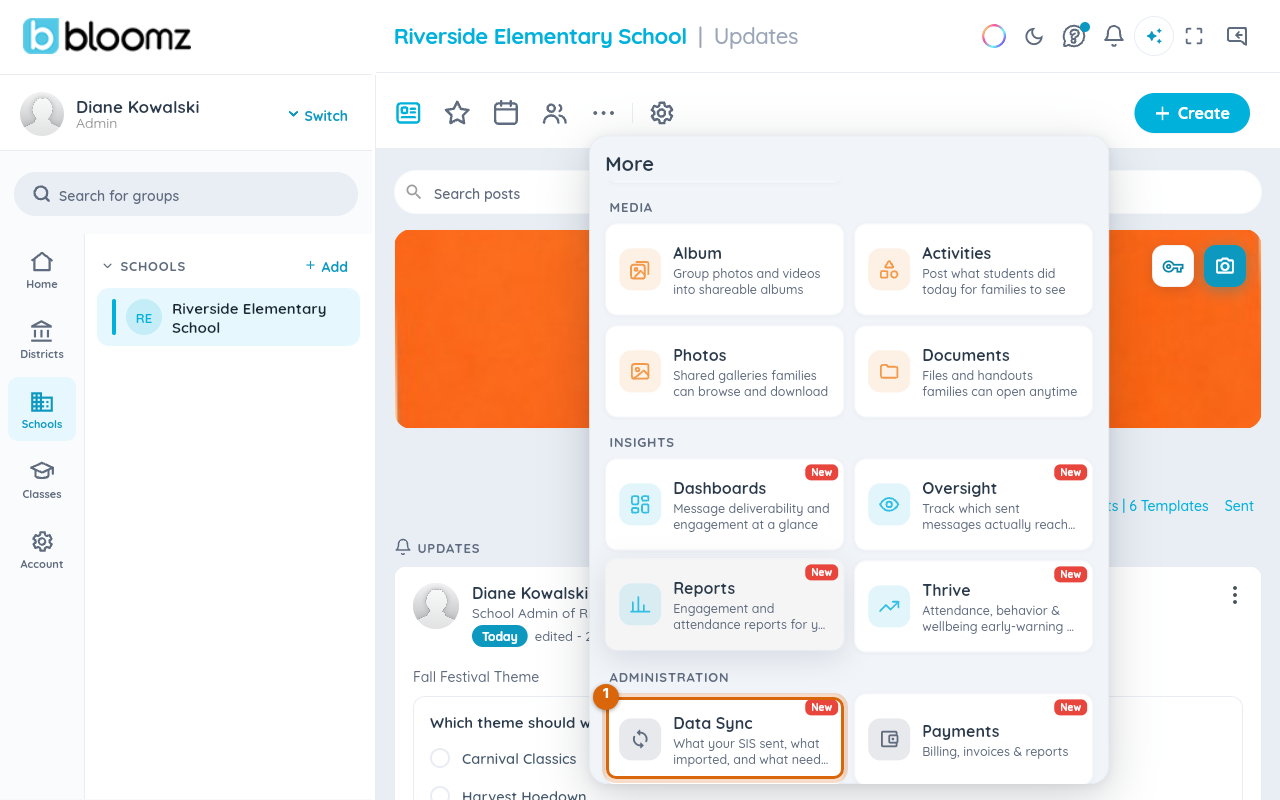
Data Sync leads with the last runs. Bulk Import has a Data Sync shortcut. Last Import Status says why a sync finished with problems, links to the rows that will not import, and flags a problem that repeats every night.
Step 2 — Read the overall status
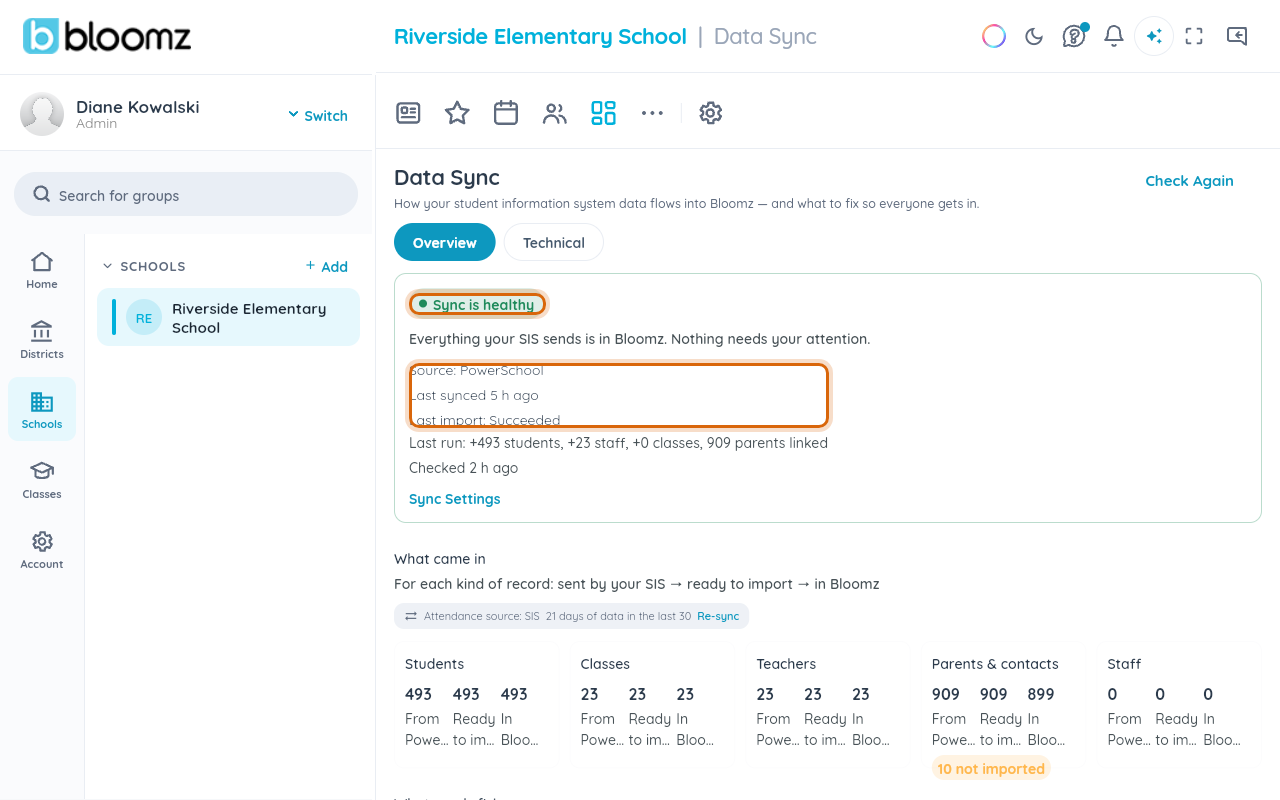
The status badge is one of five states: healthy (everything's current), needs attention, action required, no sync configured (this school has no source connected), or unknown (Bloomz hasn't been able to check recently). Alongside it: your source (Clever, ClassLink, PowerSchool, Skyward, Infinite Campus, or a CSV/SFTP feed), the last synced time, and the last import result.
Step 3 — Read the pipeline
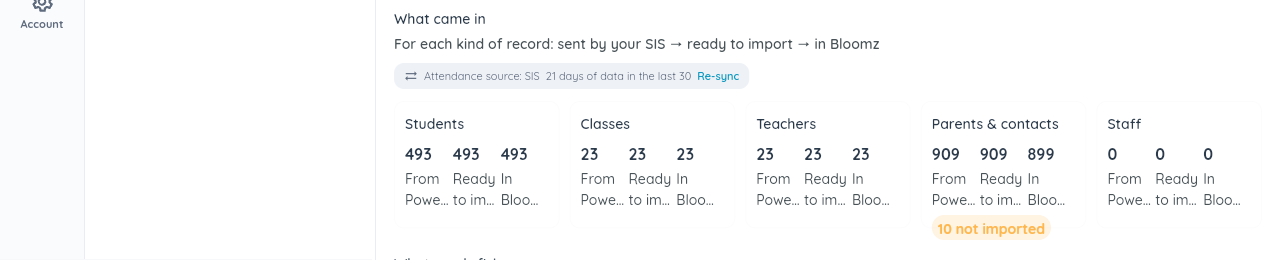
Below the status, a "What came in" breakdown by record type — Students, Classes, Teachers, Parents & contacts, and Staff — shows, for each: what came from your source, what's ready to import, and what's actually in Bloomz. A gap between these numbers is flagged right on the card (for example, "10 not imported"), which is usually where something below explains why.
Step 4 — Work a discrepancy
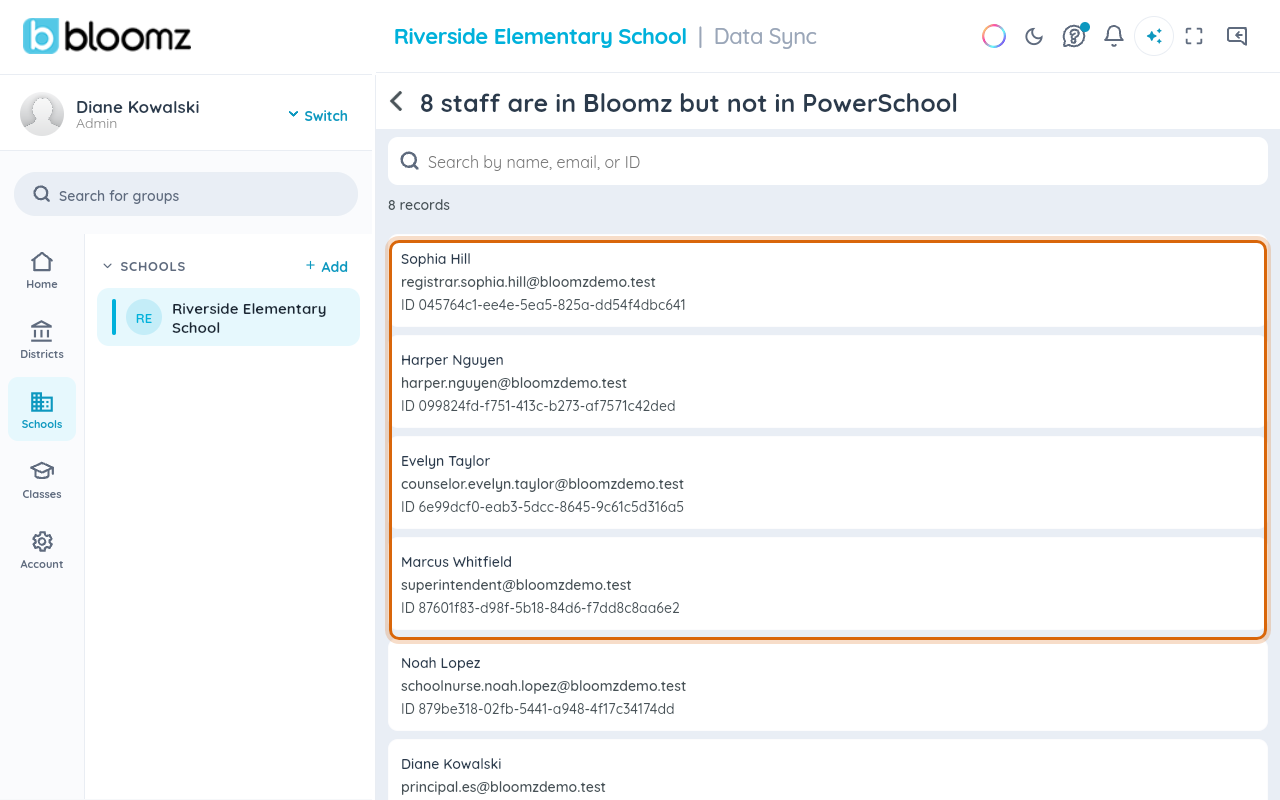
A flagged count like "10 not imported" on a record-type card is where something needs your attention. Select it to open the full list of affected records — for example, staff who are in Bloomz but not in your SIS's feed — each one shown by name, email, and ID so you can check it against your source system.
Watch out: fixing something in your SIS doesn't change anything in Bloomz until the next sync runs. Use Check Again (top of the page) to re-check immediately, or wait for the next scheduled sync.
Step 5 — Find your SIS Id
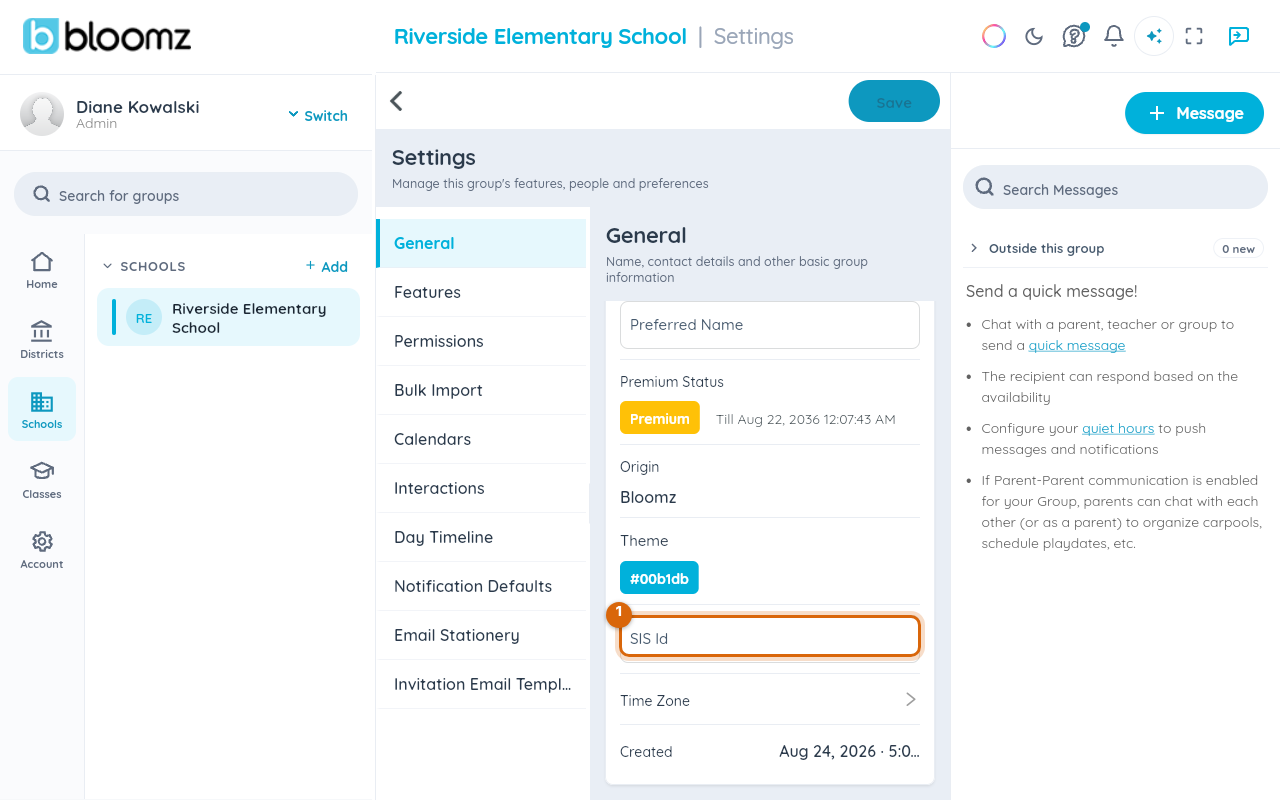
Select Sync Settings to open this group's Settings > General tab, where a SIS Id field records the identifier your sync source uses for this school or district. Bloomz's implementation team sets this up with you when a sync source is first connected (see Connect your SIS for which guide fits your source) — this is where you can look the value up afterward, not a self-service place to add or swap a source yourself.
What you'll typically see
- A healthy status most days — the pipeline numbers line up, and no record-type card shows a discrepancy count.
- Records in Bloomz but not in your source feed — someone who was added by hand and never entered into your SIS, or someone the SIS has stopped sending. Students added by hand to a class are tagged Added manually. By default the nightly sync can remove them if the SIS does not list them. Turn on Keep manually added students in the sync options to stop that. Anyone the SIS has stopped sending is removed at the next scheduled sync, and a student is also removed from any class whose SIS section doesn't list them (see Combine two class sections into one class).
- Possible duplicates or name mismatches — your SIS sends someone who closely matches an existing Bloomz record, or the same person's name differs slightly between the two systems. These route to a manual review — see Resolve duplicate identities found by sync.