 Bloomz
Combine two class sections into one class
When your SIS lists one real class as two sections — for example, a few students scheduled in a separate section of the same period — Bloomz creates a separate class for each. Merge them into one class so the teacher posts and messages in one place, and every nightly sync keeps all the students in it.
Before you start
You need to be a school admin. You merge classes from your school's Classes/Groups list, and only classes of the same type can be merged together.
Watch out: don't add the students to the other class by hand instead. If your SIS has them in a different section, the next sync removes them from any class whose section doesn't list them — and their families come off that class with them.
Step 1 — Open your Classes/Groups list
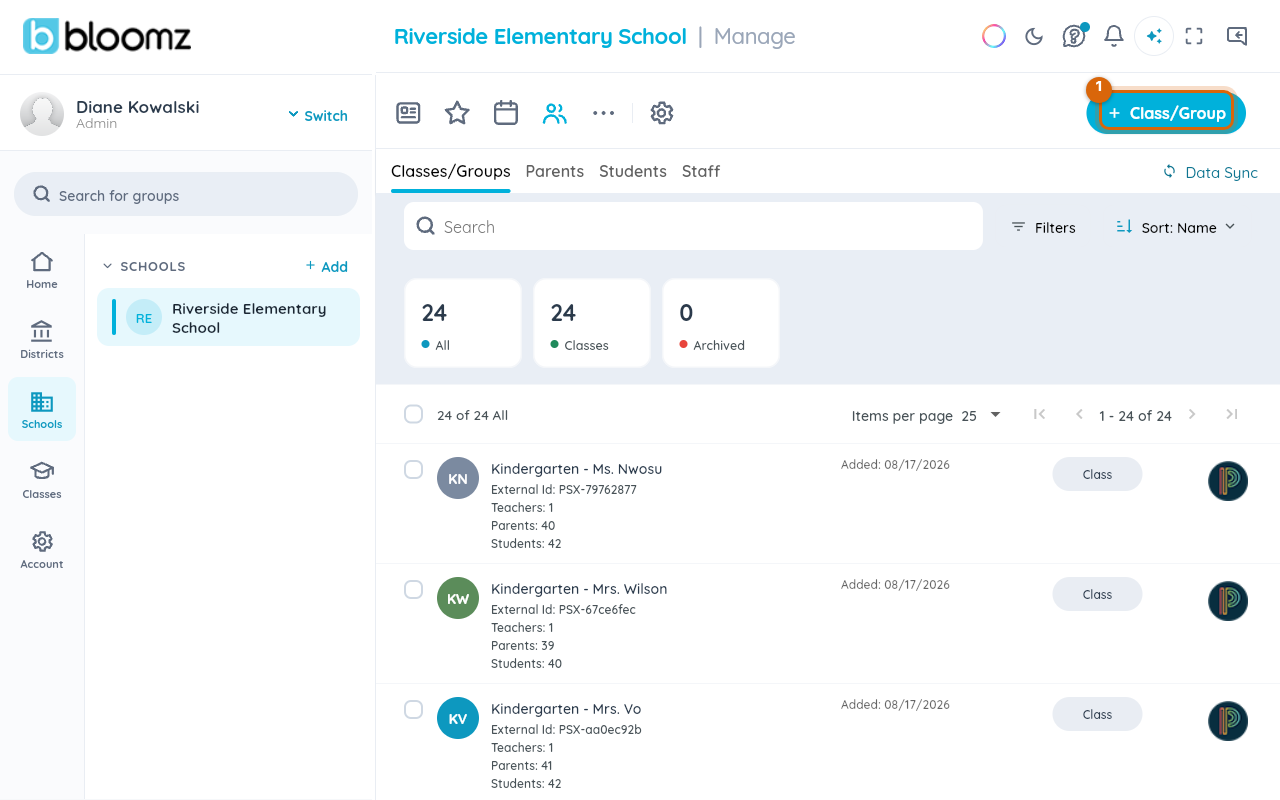
Open your school and select the Manage tab. The Classes/Groups list shows every class and group at your school.
Step 2 — Select the classes to combine
Check the box next to each class you want to combine. Selecting two or more classes reveals the Merge bulk action above the list.
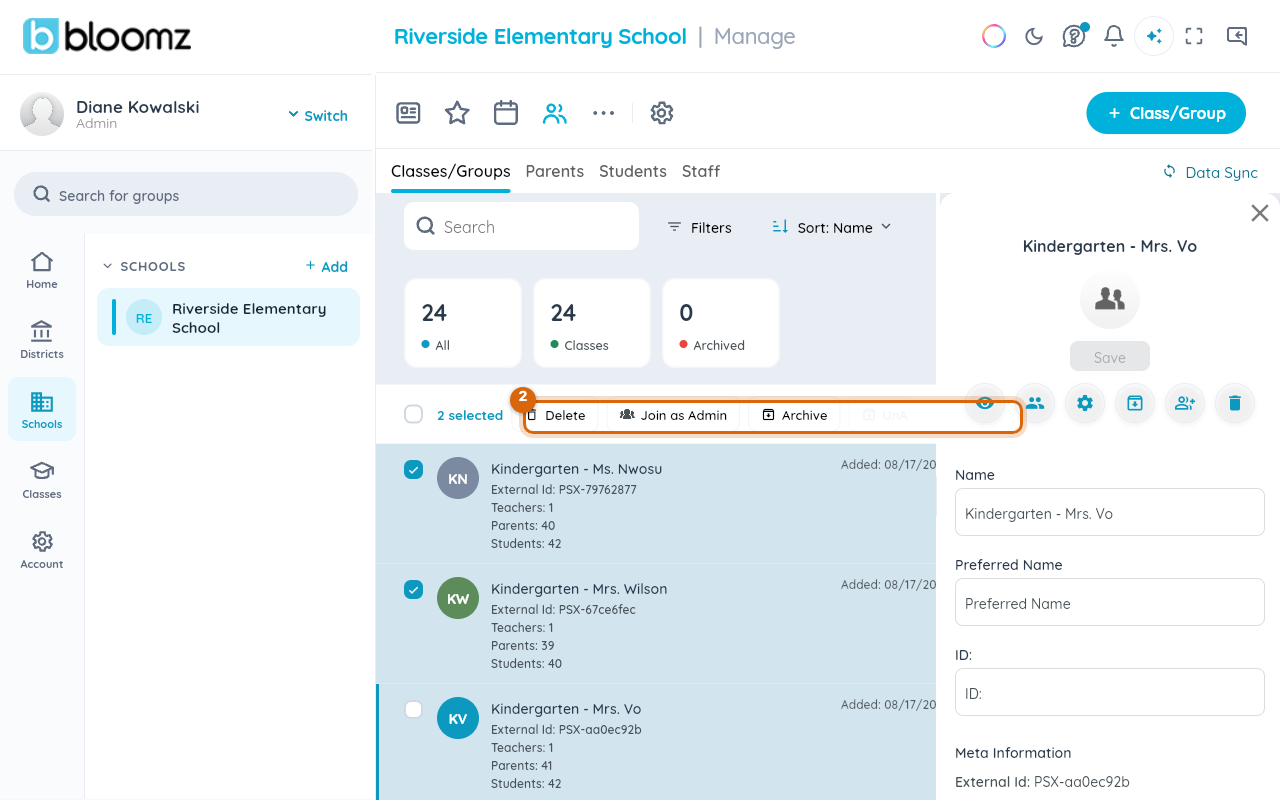
Watch out: everyone in every class you select joins the merged class — students, families, and any co-teacher your SIS lists on that section. Check each class's member list first if you are not sure who is in it.
Step 3 — Review the selection
Select Merge. The dialog lists the classes you selected, each with its SIS ID, so you can confirm they are the right sections. Select a class to take it out of the merge, then select Merge.

Step 4 — Name the merged class
Enter the name you want the teacher and families to see, such as the regular class's name, and select Merge. The merged class appears in your Classes/Groups list, and the classes you combined disappear from it.

What happens next
The merged class stays linked to every SIS section you combined. On each nightly sync, Bloomz checks the class against all of those sections together, so a student who is on any of them stays in the class. A student who leaves all of the sections in your SIS is removed as usual.
Posts, events and messages from the original classes are not moved into the merged class. Merging can't be undone from this screen — contact Bloomz support if you merged the wrong classes.
What teachers and families see
The merged class appears in their class list without an invitation, and the original classes no longer appear. Anything posted from now on goes to everyone in the merged class.