 Bloomz
Announce that you've arrived — including automatic arrival
Let the office know you are here to pick up without a phone call or a wave through the windshield — tap one button, or turn on Auto Announce so your phone prompts you as you pull in.
Before you start
Your school must have Dismissal switched on, and your child needs a pickup plan for today. The Announce I'm Here button only appears during your school's dismissal window. Auto Announce is only in the Bloomz phone app (it doesn't appear on the web), needs Location access set to Always (iPhone) or Allow all the time (Android), and needs your school to have a street address on file.
Step 1 — Open Dismissal
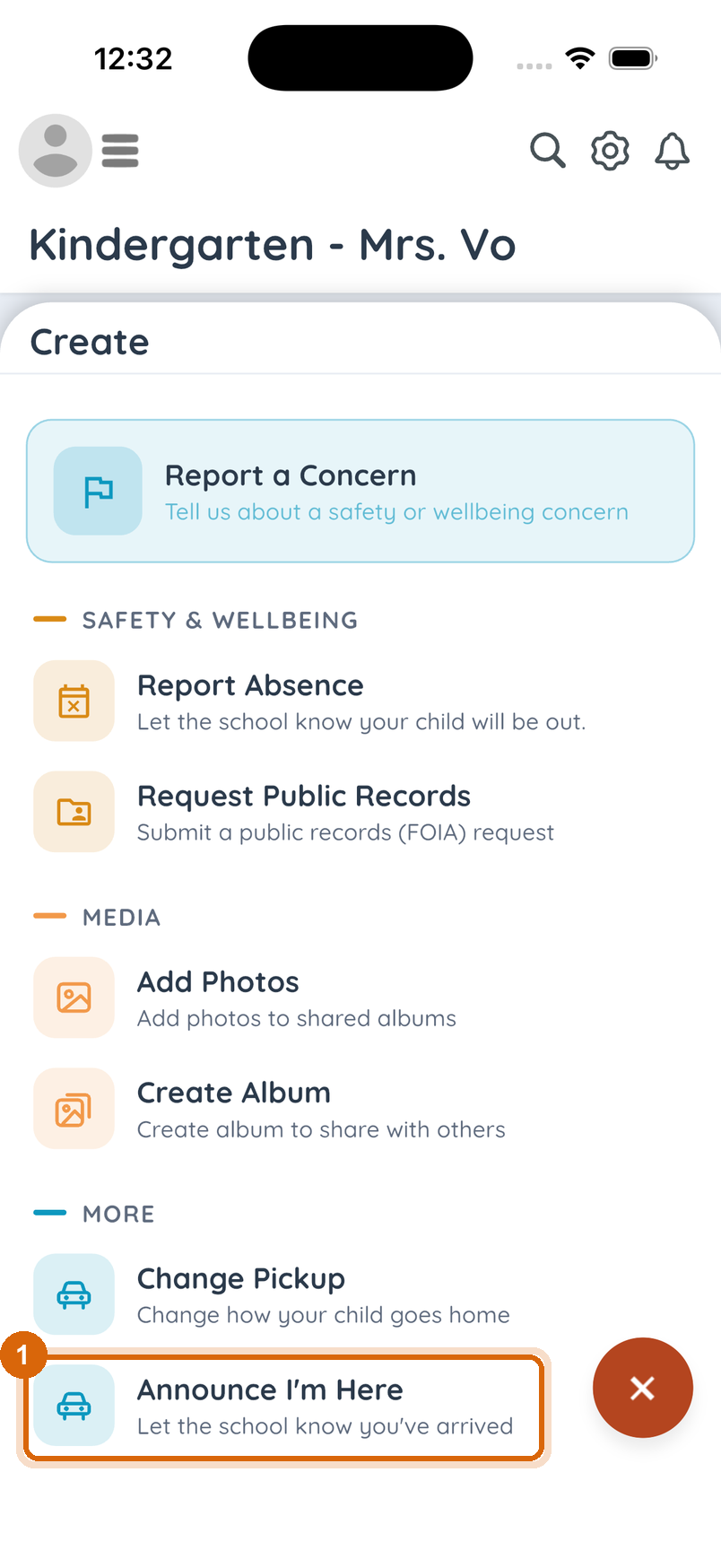
The quickest way: in your child's class, select + (Create) and choose Announce I'm Here under More.
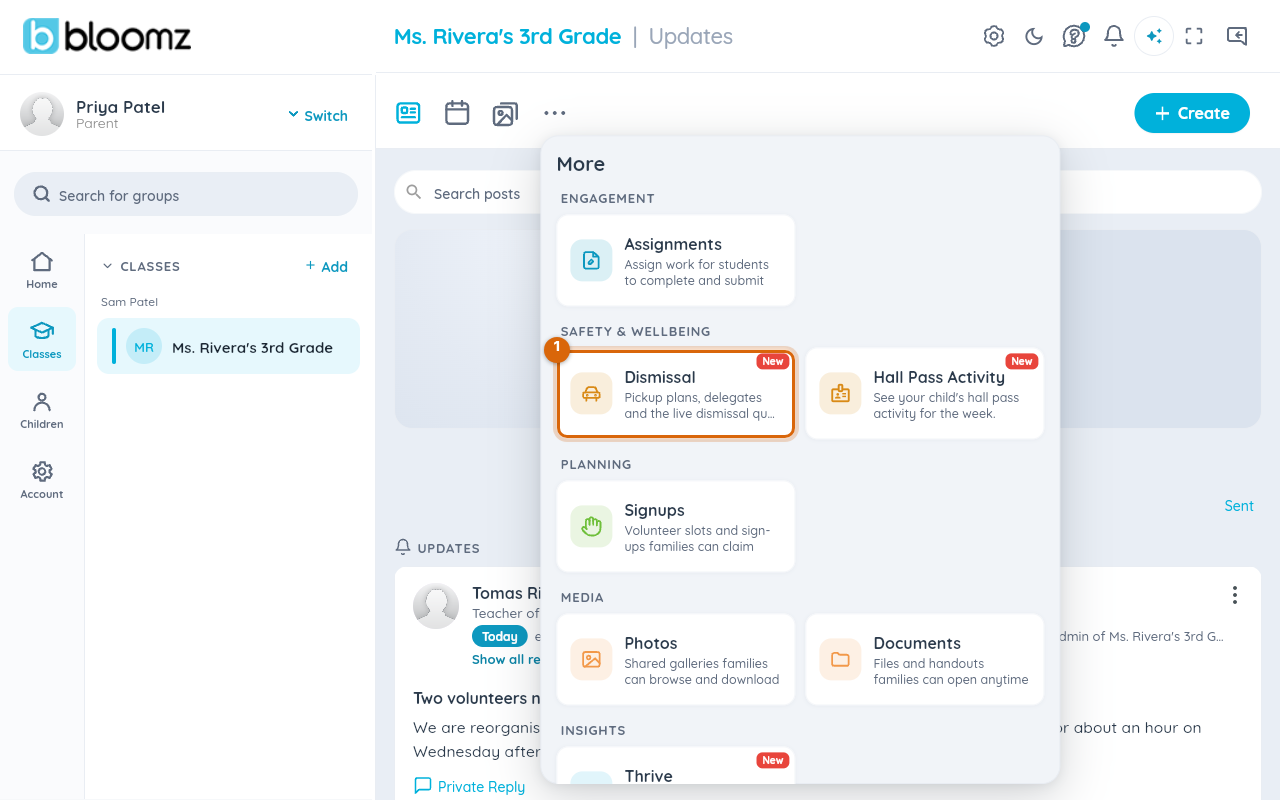
You can also select More (…) and then Dismissal. Either way, the Dismissal Plan screen opens.
Step 2 — Announce you're here
During the dismissal window, the Today card at the top of the Dismissal screen shows Announce I'm Here. Select it. The card switches to your pickup's progress.

Step 3 — Or turn on Auto Announce
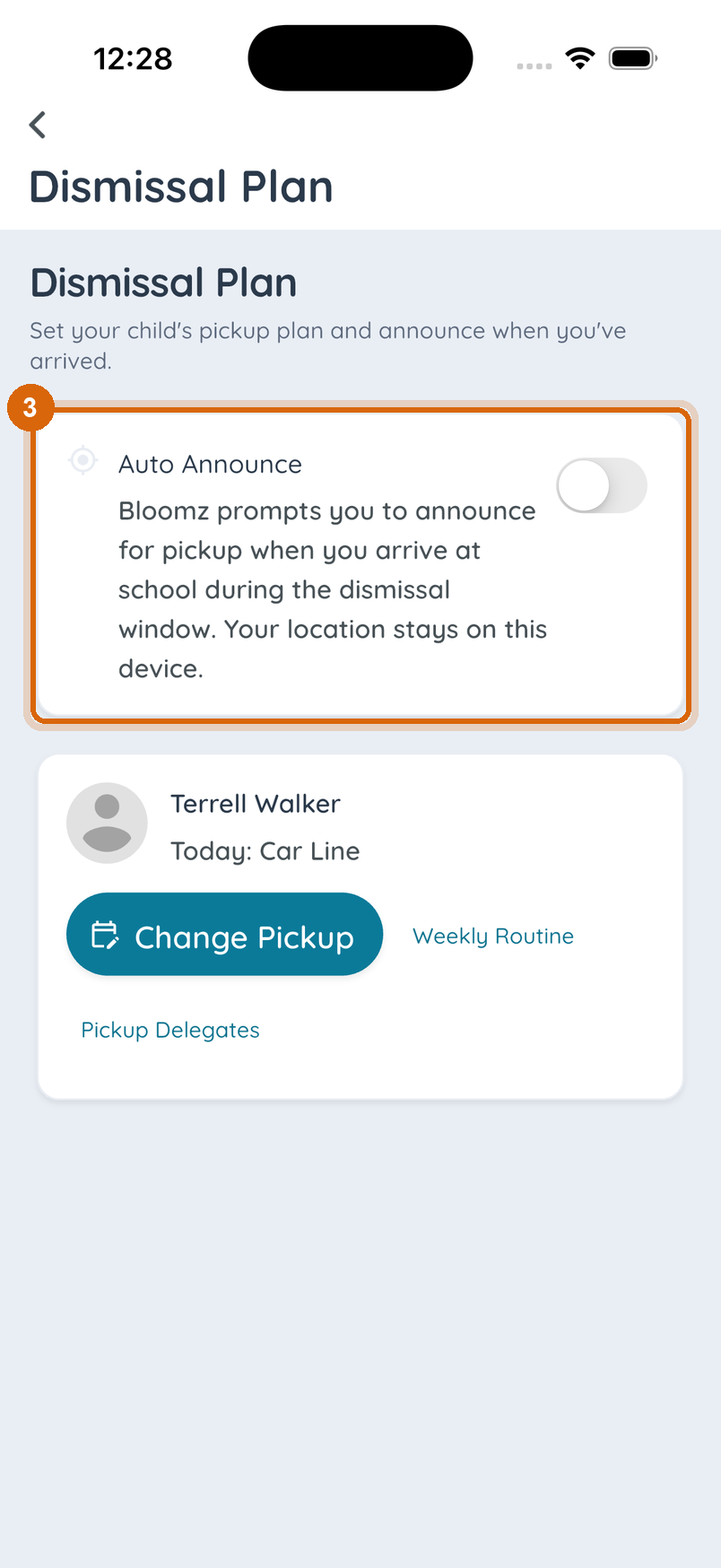
In the phone app, switch on Auto Announce on the same Dismissal screen. From then on, when you arrive at school during the dismissal window, your phone shows a notification — "You've arrived: Announce for pickup?" — and one tap announces you. Nothing is announced until you tap it.
Step 4 — Watch your card update
Whichever way you announced, the card moves to Announced and the school's dismissal board picks it up within a few seconds.
Watch out: the location check behind Auto Announce runs entirely on your phone — your location is never sent to Bloomz. Turn it off any time with the same Auto Announce switch on the Dismissal screen.
Related
- Set your child's weekly pickup plan
- Change today's pickup
- Run dismissal as staff
- Verify a handoff with QR, PAC or visual check