 Bloomz
Set your child's weekly pickup plan
Tell the school once how your child goes home on each weekday — car line, bus, walking, after-school program or staying at school — and the dismissal team expects exactly that every week until you change it. Plans change? Change a single day instead (see Change today's pickup).
Before you start
Your school must have Dismissal switched on; if the Dismissal card is missing from the class More menu, the school is not using it yet. You set a plan per child, and only for your own children.
Step 1 — Open Dismissal
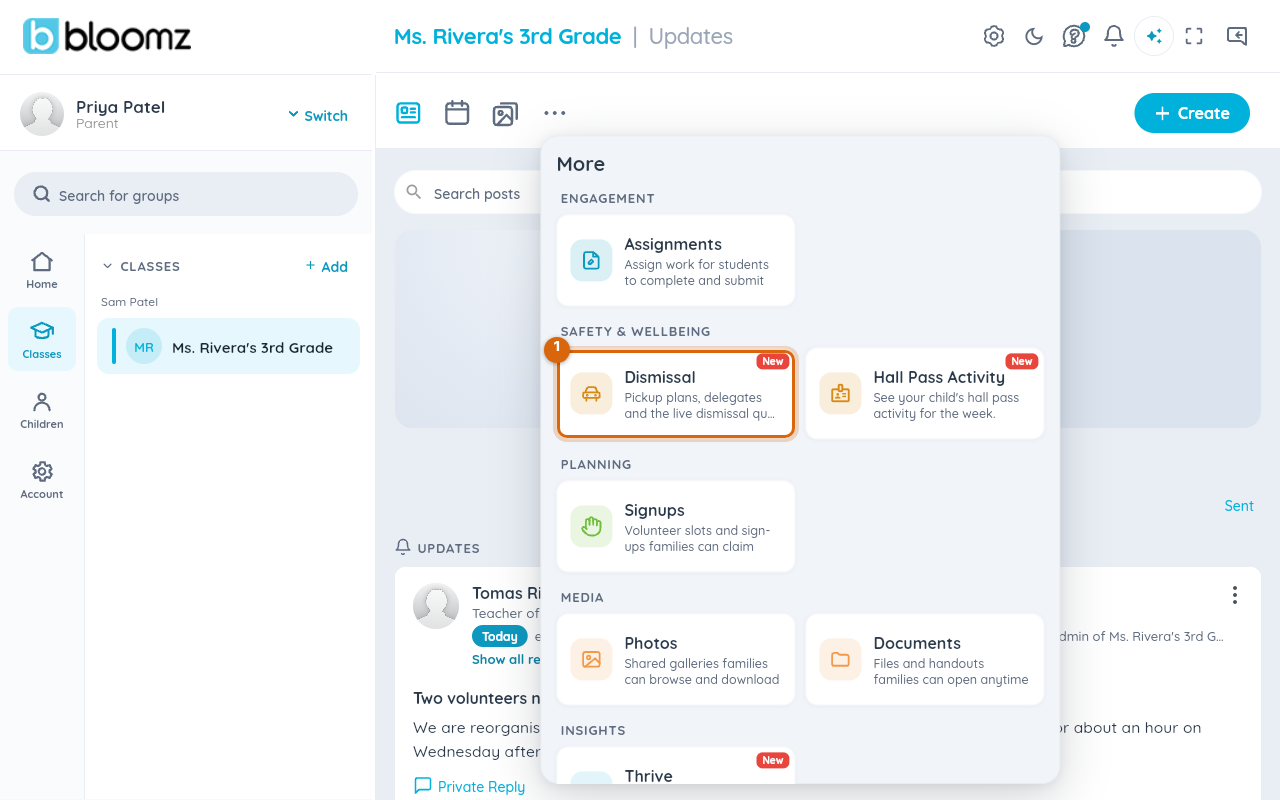
Open your child's class, select More (…) in the tab row, and choose Dismissal under Safety & Wellbeing.
Step 2 — Open Weekly Routine
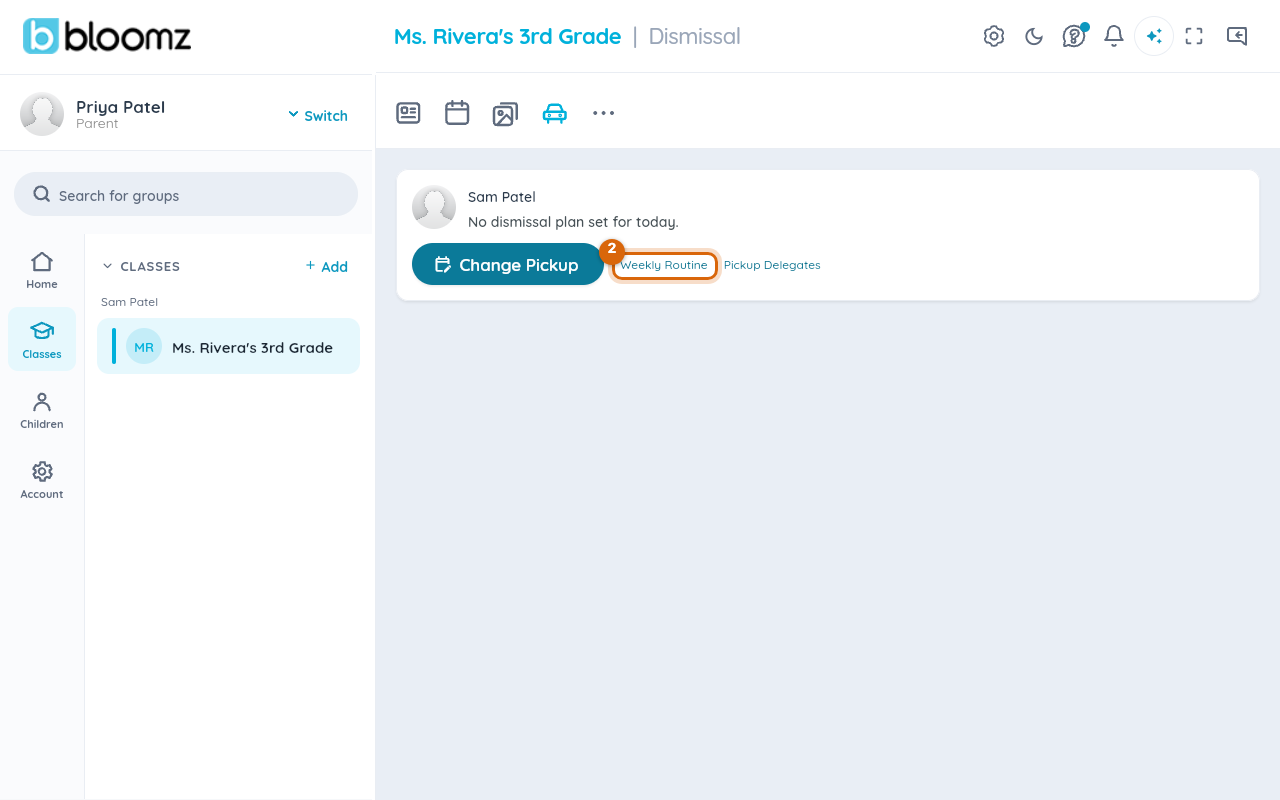
Your child's card shows today's plan (or No dismissal plan set for today). Select Weekly Routine beneath it.
Step 3 — Pick a method for each weekday
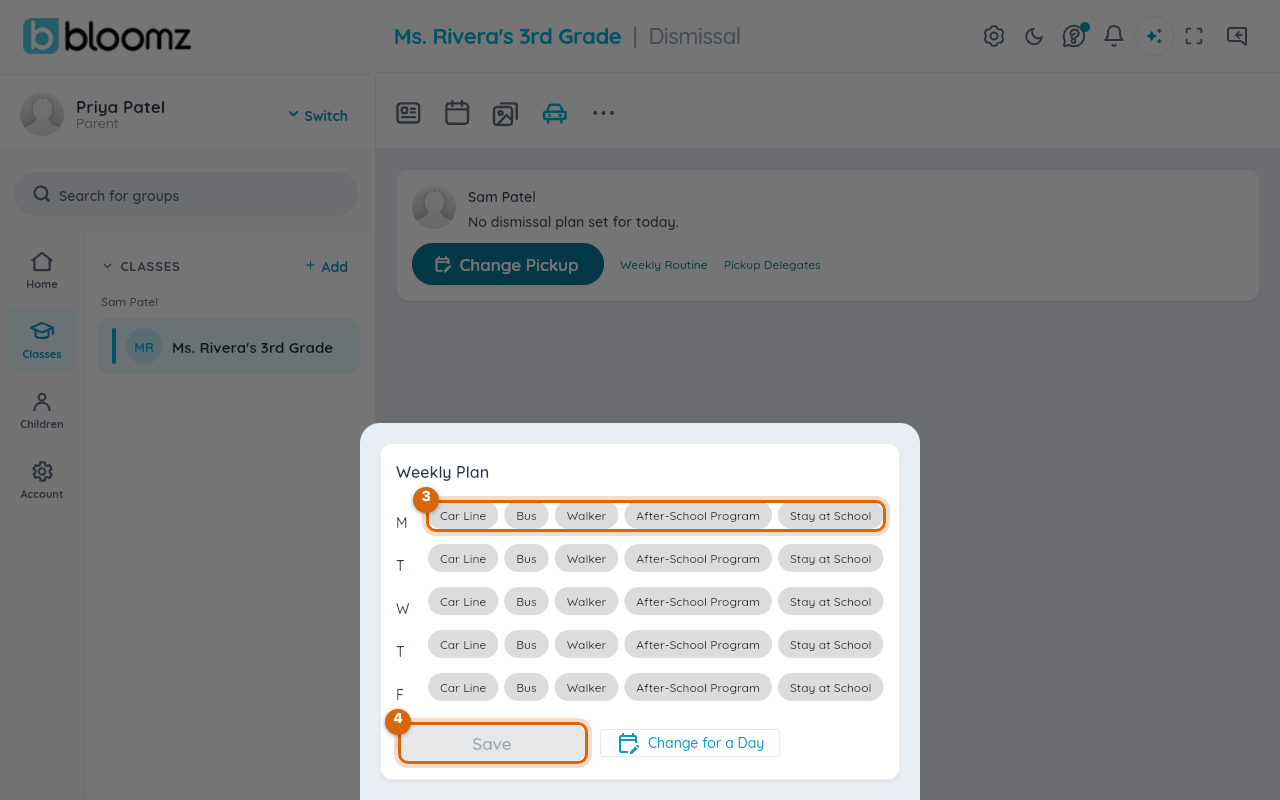
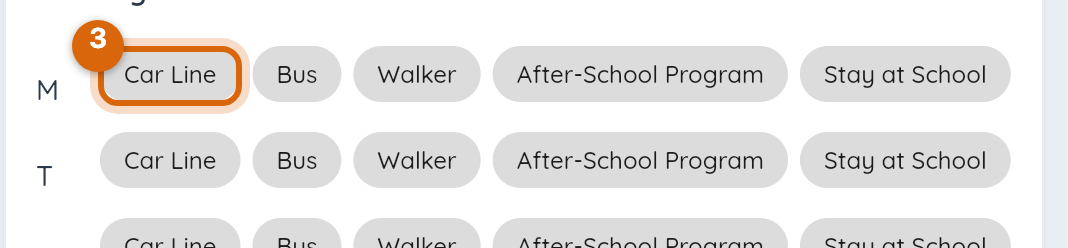
The Weekly Plan sheet has one row per school day, Monday to Friday, and the methods your school runs as chips: Car Line, Bus, Walker, After-School Program, Stay at School. Select one chip in every row.
Step 4 — Save
Select Save. The card now shows today's method, and the school's dismissal console uses your plan from the next dismissal on.
Watch out: a day with no chip chosen has no plan — the school will call you at dismissal to ask. Fill in all five rows, even if four are the same.
What the school sees
Staff running dismissal see each child's method for the day on the console, and car-line children appear in the pickup queue only when you announce you have arrived. A one-day change made with Change for a Day on this sheet, or Change Pickup on the card, overrides the weekly plan for that date only.
Related
- Change today's pickup
- Report an absence
- Run dismissal as staff