 Bloomz
Report an absence
Let the school know your child will be out — the office sees it before the day starts, attendance staff do not have to call you, and your child is taken out of that day's dismissal queue.
Before you start
Your school must have Dismissal switched on. An absence reported here reaches the office's absence queue; if your school also asks for a note or a call, follow that too.
Step 1 — Open Dismissal
Open your child's class, select More (…) in the tab row, then Dismissal.
Step 2 — Choose Change Pickup
On your child's card, select Change Pickup.
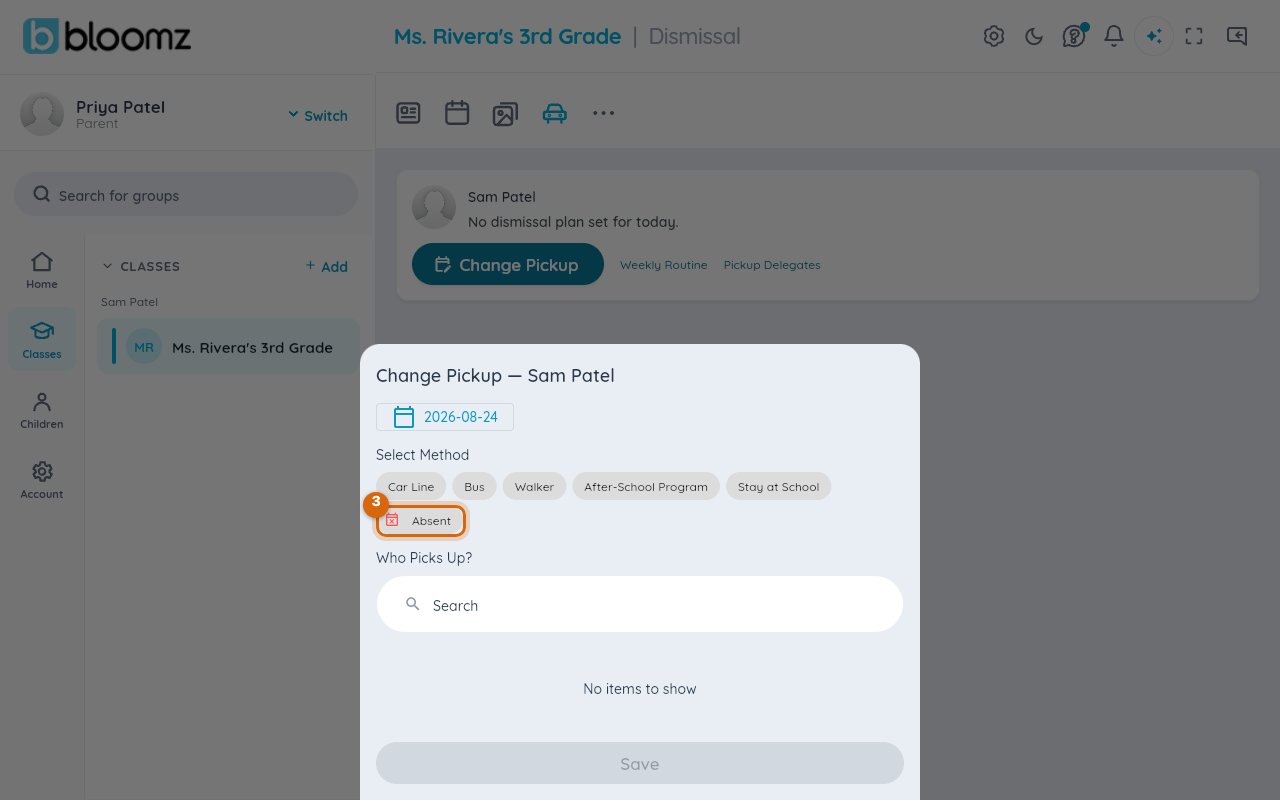
Step 3 — Choose Absent
Under Select Method, select the Absent chip (with the red calendar icon). The Report Absence sheet opens with your child already selected.
Step 4 — Pick the dates
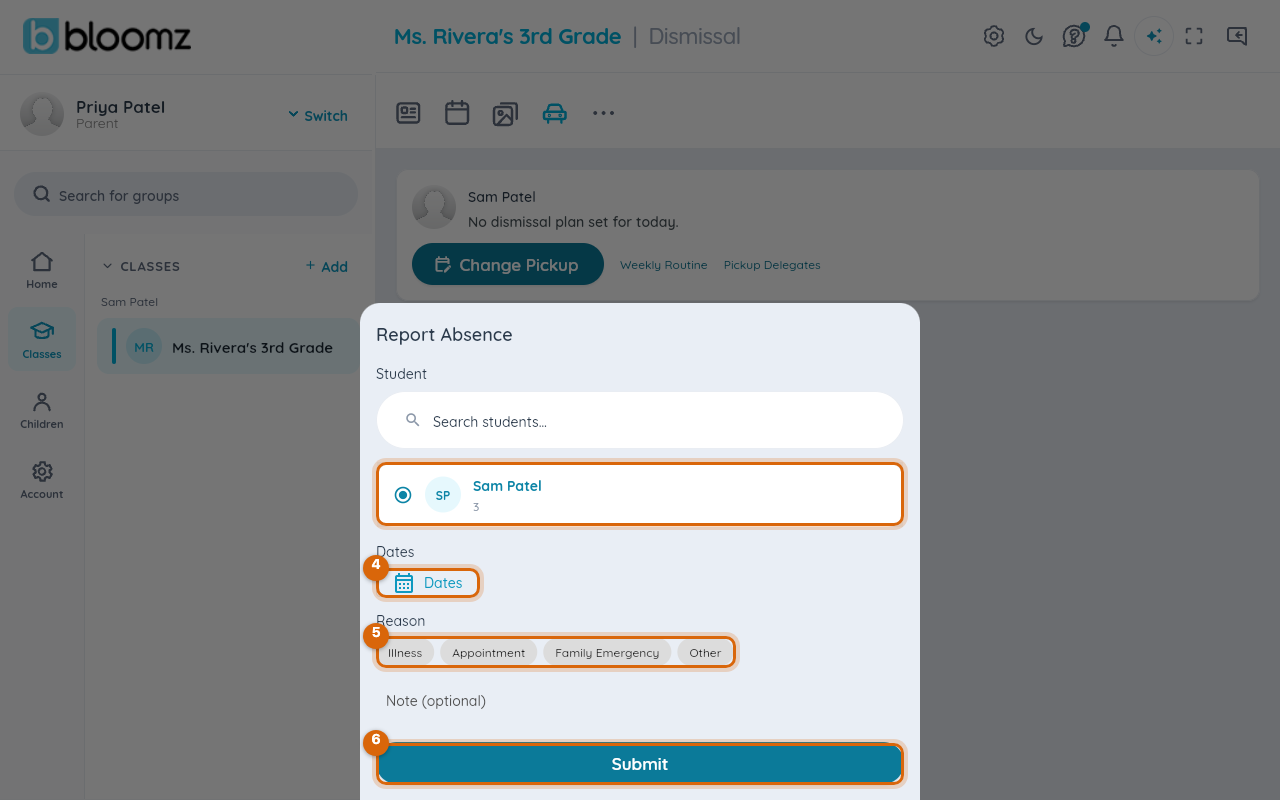
Select Dates and choose the day, or the run of days, your child will be away.
Step 5 — Give a reason
Select one reason chip — Illness, Appointment, Family Emergency or Other — and add a Note if the office needs detail (a doctor's name, an expected return).
Step 6 — Submit
Select Submit. The report lands in the office's absence queue.
Watch out: an absence reported after the school's cutoff time may not reach the office before dismissal — for a same-day absence, call the office as well.
What the school sees
The office's absence queue lists your report with your child's name, the dates and the reason; office staff confirm or deny it, and a confirmed absence removes your child from the dismissal board for those days.
Related
- Change today's pickup
- Set your child's weekly pickup plan
- Run dismissal as staff