 Bloomz
Change today's pickup
A dentist appointment, a grandparent collecting, an unexpected bus day — change how your child goes home on one date without touching the weekly plan. The school's dismissal console shows the change for that day only.
Before you start
Your school must have Dismissal switched on. Same-day changes close at the school's cutoff time; after that the app asks you to call the office, and office staff make the change for you.
Step 1 — Open Dismissal
In your child's class, select + (Create) and choose Change Pickup under More, or select More (…) in the tab row, then Dismissal.
Step 2 — Choose Change Pickup
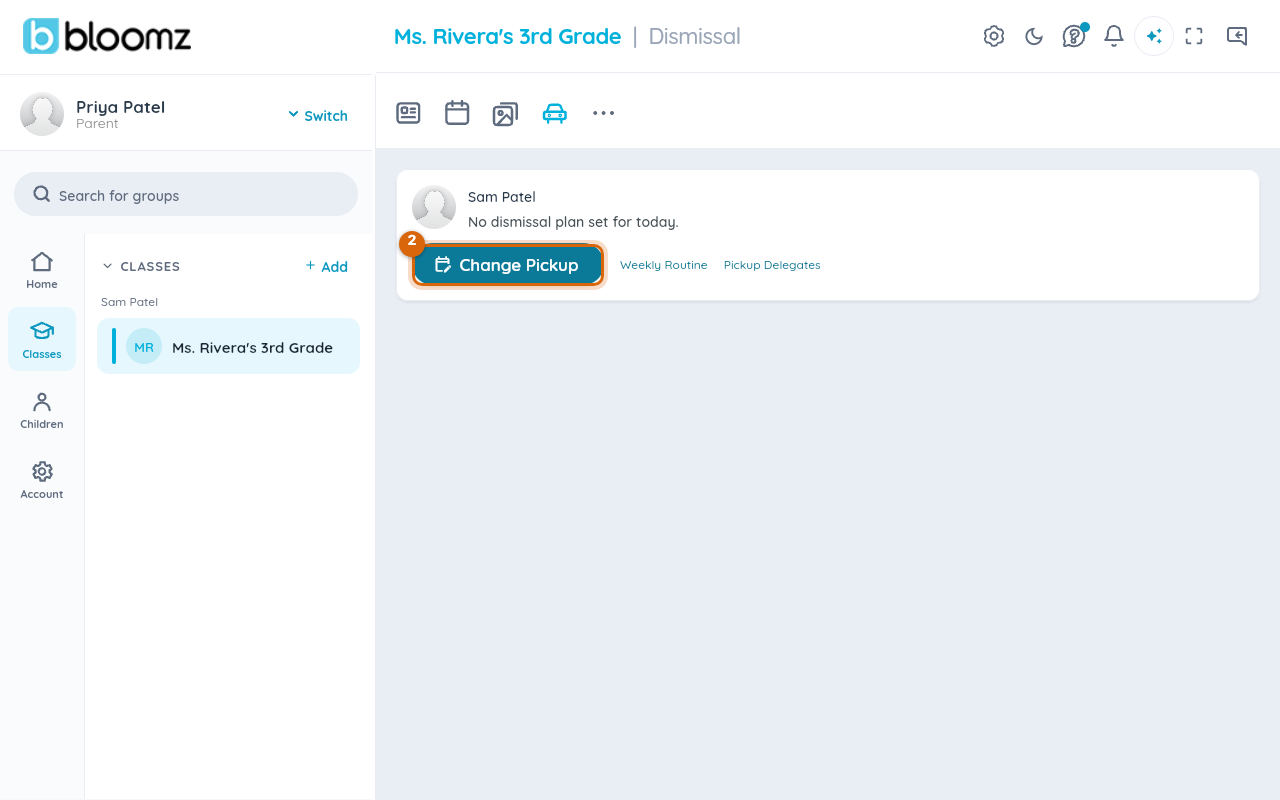
On your child's card, select Change Pickup.
Step 3 — Pick the date
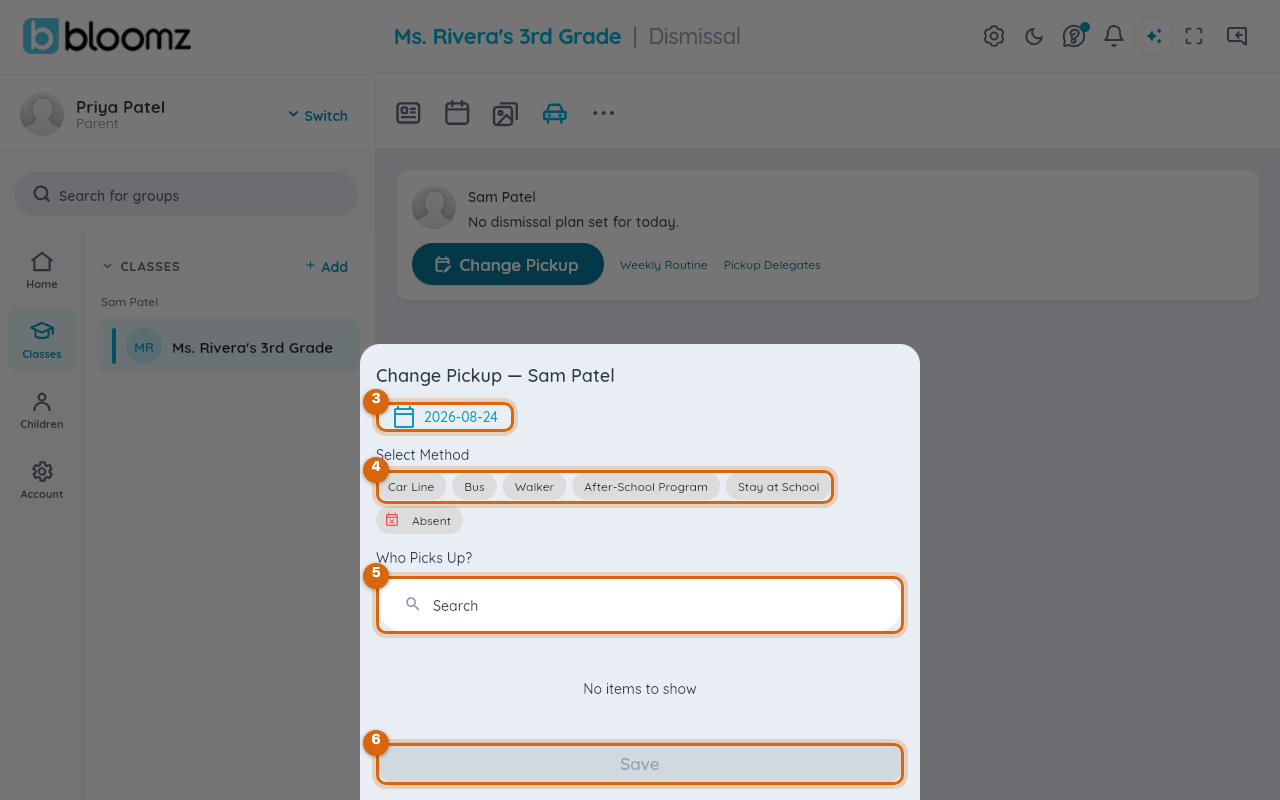
The Change Pickup sheet opens with the next school day selected. Select the date button to choose a different day.
Step 4 — Choose how your child goes home that day
Under Select Method, select one chip: Car Line, Bus, Walker, After-School Program or Stay at School. (The Absent chip is for a day your child will not be in school at all — see Report an absence.)
Step 5 — Say who is picking up
Under Who Picks Up?, search for and select the adult collecting your child. Only adults on your child's pickup-delegate list can be chosen; add a new one through Pickup Delegates on the card first.
Step 6 — Save
Select Save. The card shows the new plan for that date, and the weekly plan stays as it was for every other day.
Watch out: the change applies to the date shown at the top of the sheet. If you opened the sheet yesterday evening, check the date before you save — it defaults to the next school day, not necessarily the day you have in mind.
What the school sees
The dismissal console shows the one-day method and the named adult for that date; at the curb, staff verify the adult against the delegate list before releasing your child.
Related
- Set your child's weekly pickup plan
- Report an absence
- Run dismissal as staff