 Bloomz
Approve or reject a form waiting in your inbox
When a form you're an approver on collects a submission, it lands in your Needs My Approval inbox — act on it there without hunting through Sent Forms.
Before you start
You need to be named as an approver on the form's workflow — by role, by a capability, or by name. If you only ever reach your inbox by tapping a notification, that still works; this is the same list, reached from Forms directly.
Step 1 — Open Needs My Approval
Open your school or district, select the … (More) menu, and choose Forms. Select + Forms, then switch to the Needs My Approval tab.
Step 2 — Read what's waiting
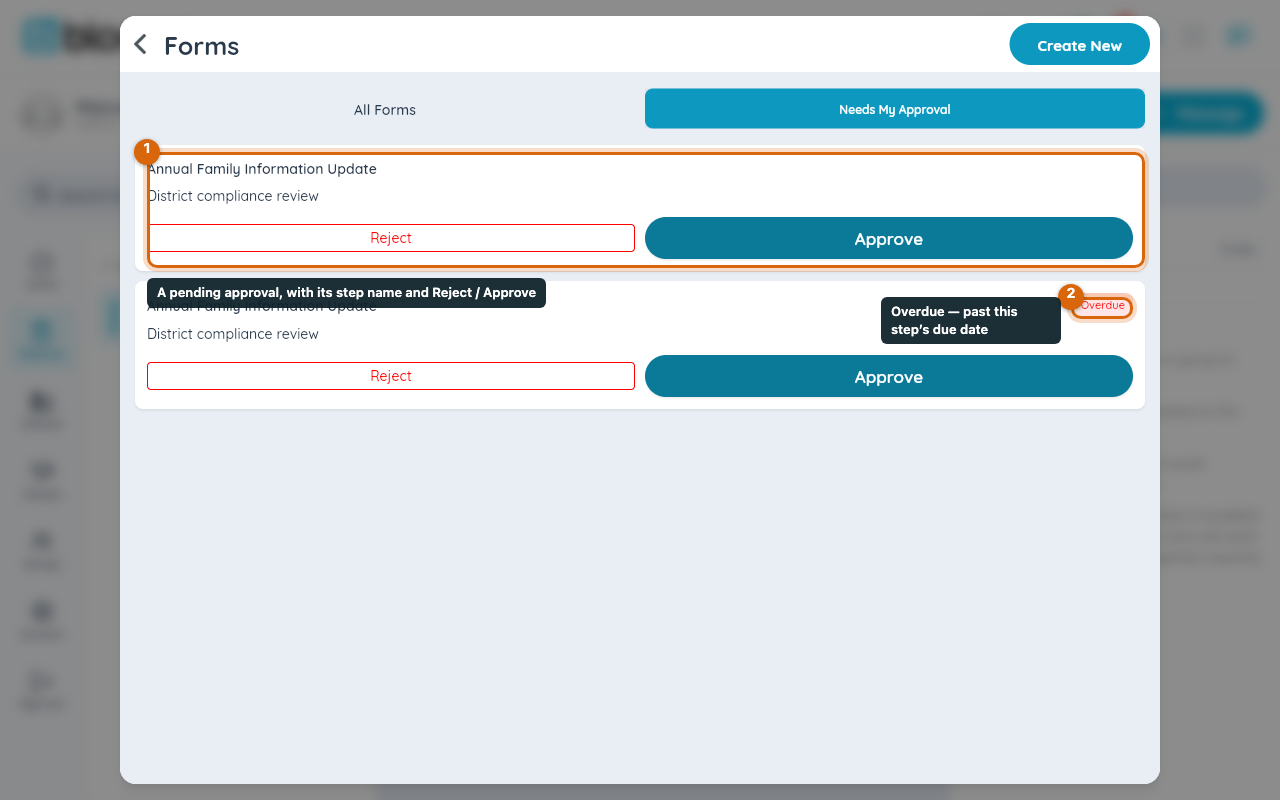
Each row shows the form's title and the current step's name (for example "District compliance review"), so you know what you're being asked to check. A row marked Overdue has passed that step's own due date — those are the ones to clear first.
Step 3 — Approve or reject
Select Approve to move the submission on to its next step (or close out the workflow, if this was the last one), or Reject to send it back — a confirm dialog warns that the submitter is notified and can resubmit, and that rejecting can't be undone.
Watch out: if Forms itself isn't in your More menu because you don't hold the "create a form" permission, tap the notification for a step instead — it deep-links straight to your inbox even without that permission.