 Bloomz
Create an event
Put a date on your class calendar — a field trip, a concert, a parent evening — with the details families need and, if you want, an RSVP, a reminder or a payment attached. Families see it on their calendar and in the feed, in their own language.
Before you start
Teachers and school staff can add events to any class or group calendar they belong to. Have the date, time and place ready. For sign-up sheets (items to bring, helpers needed) use Volunteer Help instead; for conference slots, Conferences/Office Hours.
Step 1 — Open the calendar and choose Event
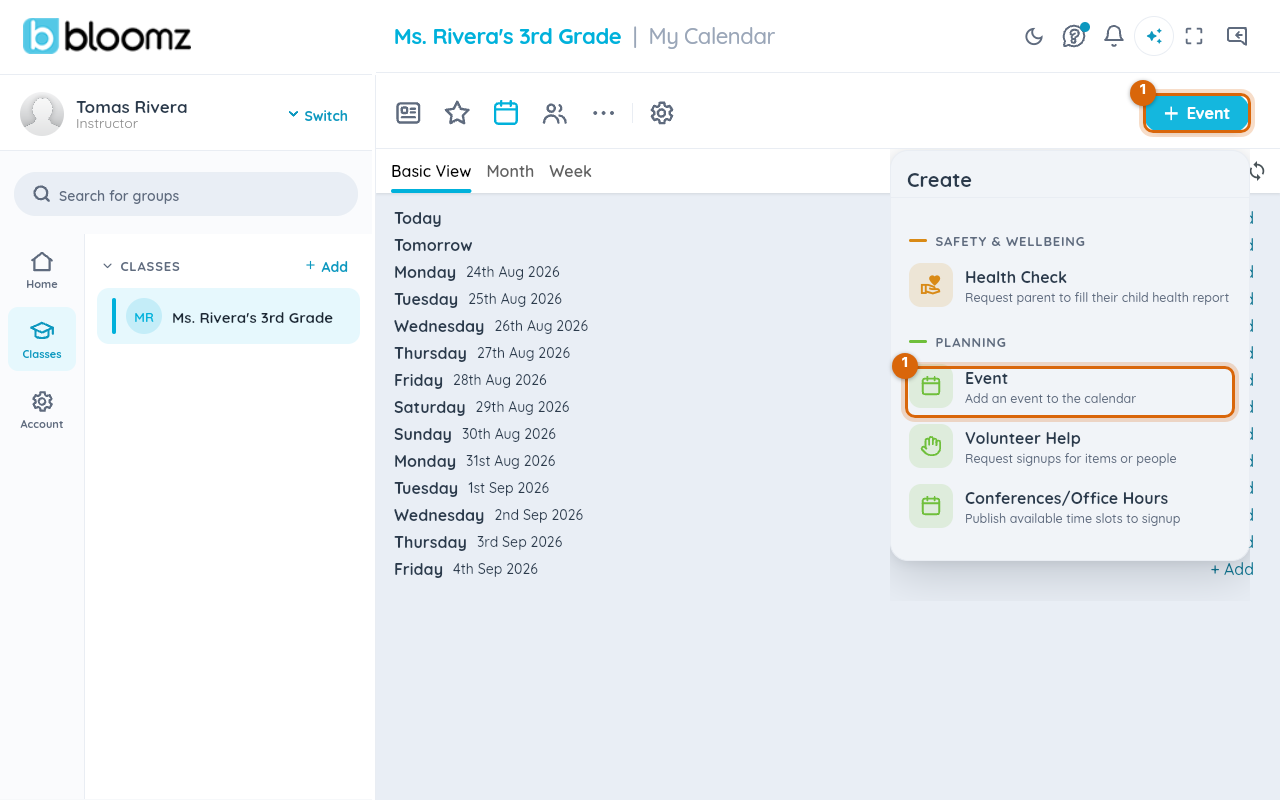
Open your class, select the Calendar tab, then + Event in the top corner. In the Create menu, under Planning, choose Event.
Step 2 — Give it a title, a place and notes
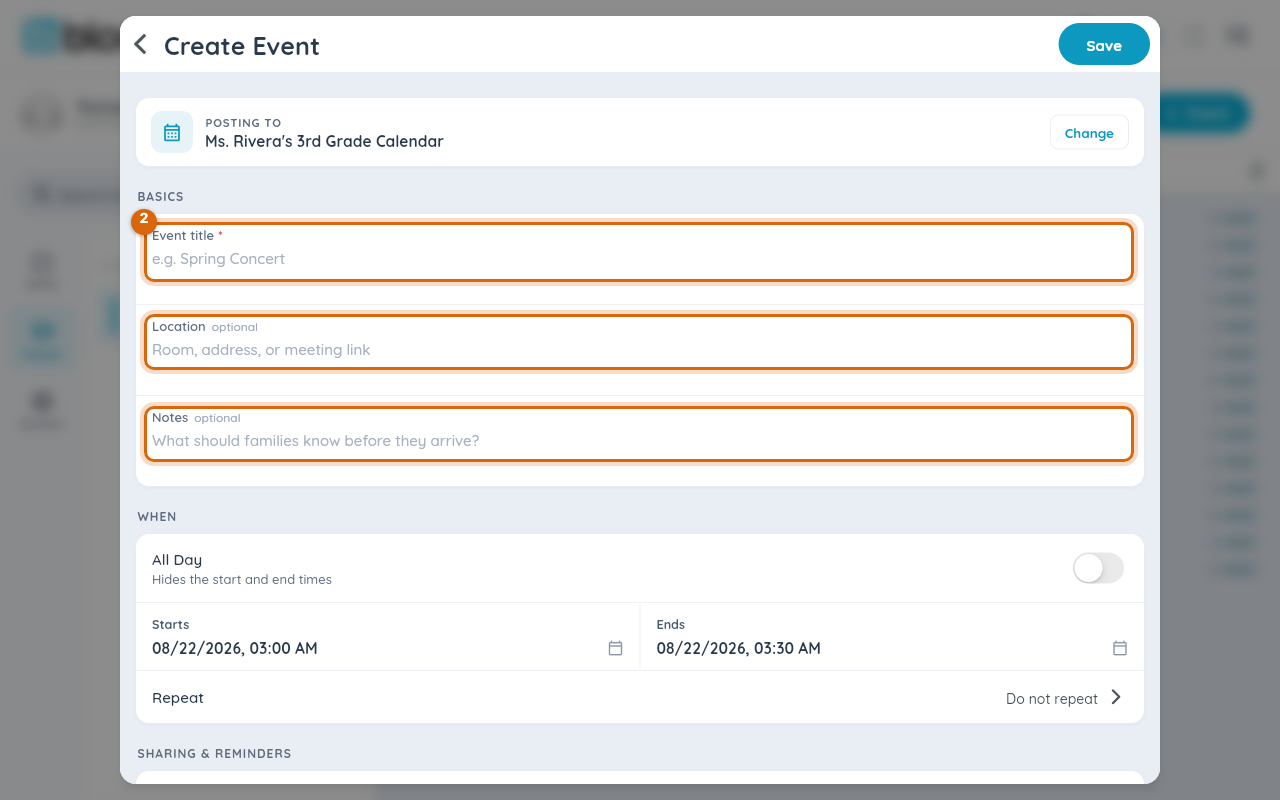
Type the Event title (required). Location and Notes are optional — notes are what families read before they arrive, so put the practical things here: what to bring, where to park, when to collect.
Step 3 — Set when
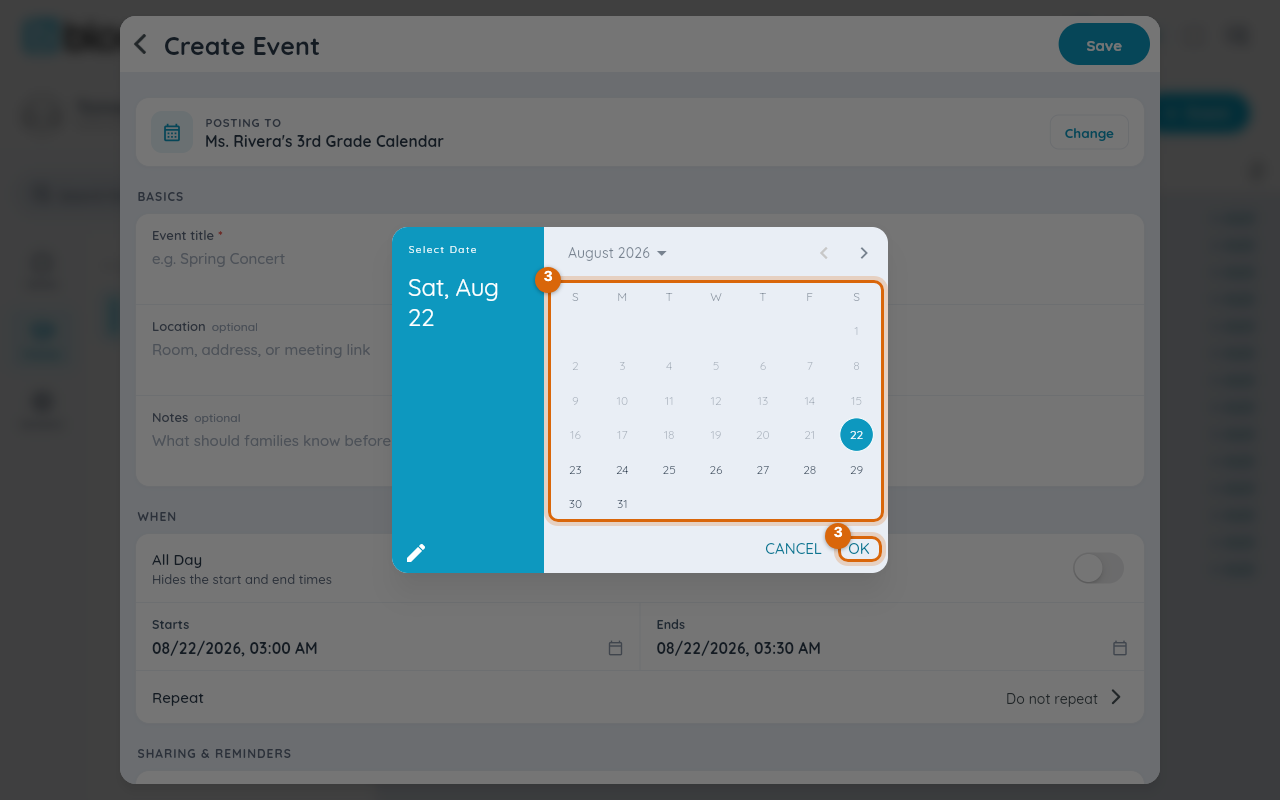
Under When, select Starts and pick the date in the calendar, then the time; do the same for Ends. Switch on All Day for an event with no set time. Use Repeat for something weekly or monthly — each repeat is its own event on the calendar.
Step 4 — Choose reminders, RSVP and more
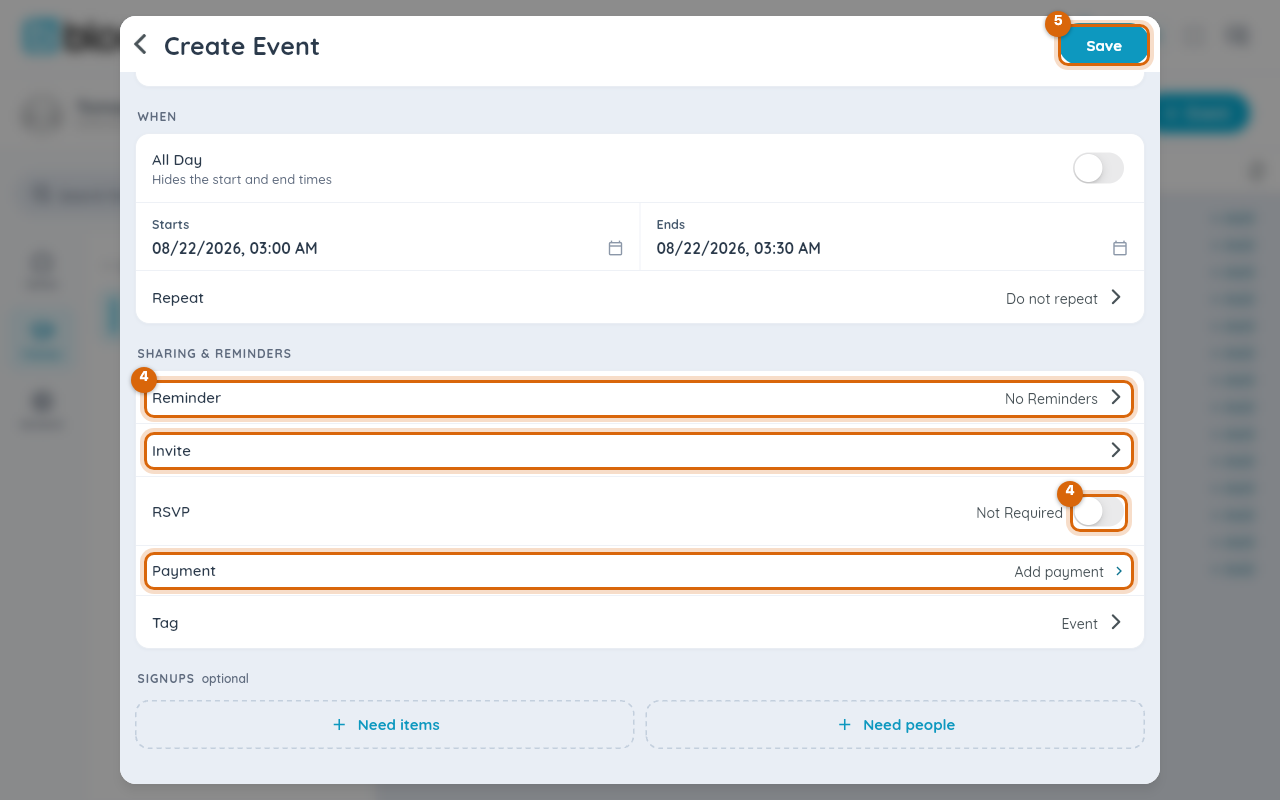
Under Sharing & Reminders: Reminder sends a notification before the event (from At time of event to days ahead); Invite lets you pick individual recipients instead of the whole calendar; switch RSVP on when you need a headcount; Payment attaches a Pay Now request (see Attach a payment to an event); Tag labels the event type.
Step 5 — Save
Select Save in the top corner. The event appears on the class calendar and in the feed, and a notification goes to everyone on the calendar.
Watch out: the date fields start at today's date and the current time. If you leave them untouched, you will publish an event that is already in progress — check Starts before you save.
What families see
The event shows on their Bloomz calendar and in the feed with your notes, in each family's own language. If you switched RSVP on, they see Going / Not going on the event; if you attached a payment, a Pay Now button; reminders arrive by whichever channels each family has chosen.
Related
- RSVP to an event
- Create a volunteer sign-up sheet
- Set up conference sign-ups for your school
- Subscribe to your Bloomz calendar from another calendar app