 Bloomz
Find your way around the calendar
The calendar shows everything scheduled for the classes and groups you belong to — events, sign-up slots and anything with a date on it — in one place.
Open it
Select the calendar icon in the view switcher, next to the feed icon.
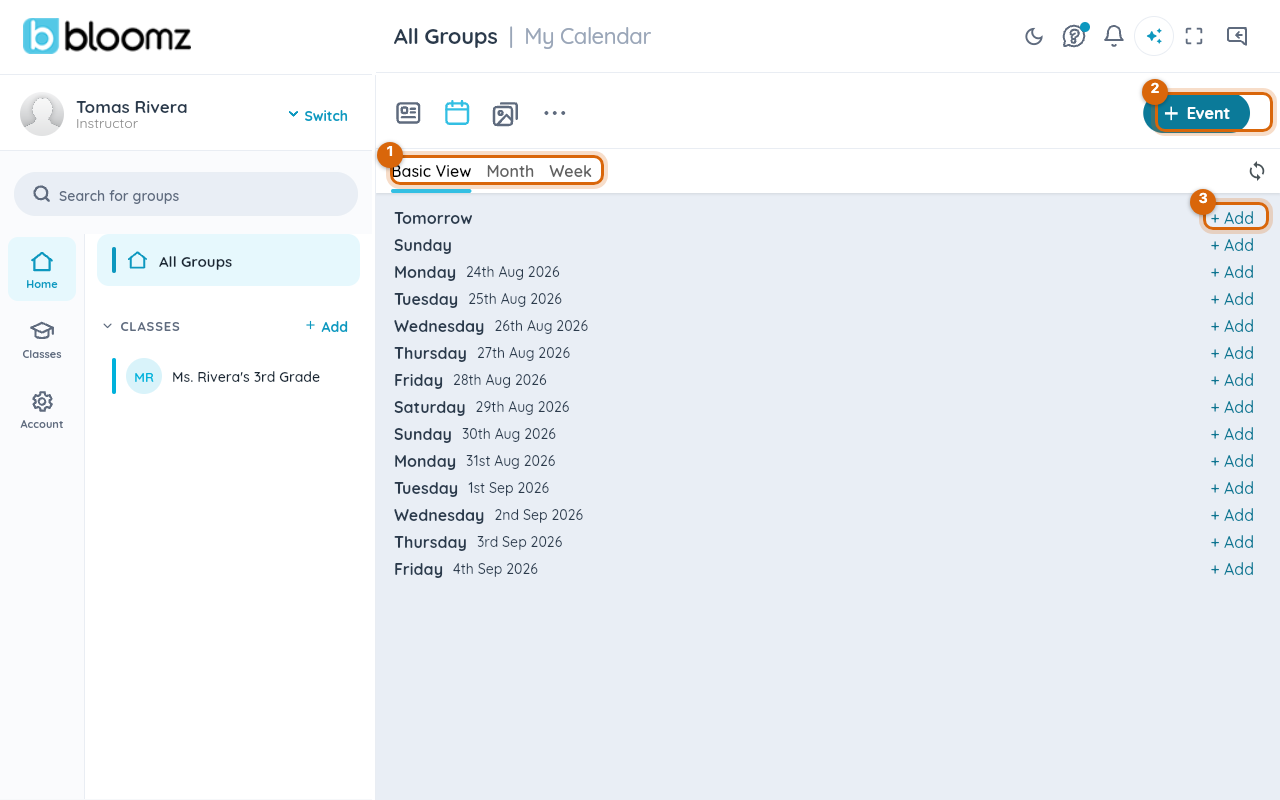
- The views — Basic View, Month and Week.
- Event — create a new event.
- Add — create an event on that specific day.
The three views
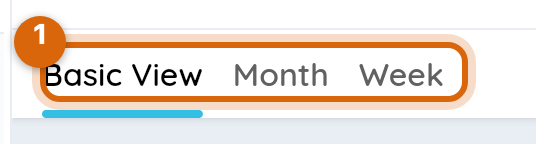
- Basic View lists upcoming days one after another. Good for "what is coming up".
- Month is the familiar grid, for seeing a whole month's shape at once.
- Week narrows to the current week.
The view you choose is just how you look at the calendar — it does not change what is on it.
Adding something
There are two ways, and the difference is worth knowing:
- The Event button, top right, starts a new event with no date chosen.
- The Add link on a day starts one with that day already filled in.

If you already know the date, use the day's Add link — it is fewer steps and removes the most common slip, which is creating an event on today's date by accident.
Watch out — the button in the top right renames itself. On the feed it says Create; on the calendar it says Event. It is the same corner of the same screen, so instructions written against one view can look wrong in the other.
Whose calendar is this?
The header says My Calendar when you are on All Groups — that is everything from every class combined. Select a single class first and the calendar narrows to that class.
Related
- Where everything else lives: the More and Create menus
- Share an update with your class