 Bloomz
Publish conference slots for families to book
Offer parent-teacher conference times once, and let families pick their own slot — no sign-up sheet on the door, no back-and-forth email. Bloomz builds the slots from your hours, families book from their phone, and you see who is coming. (Looking for your phone-calling hours instead? See Make and receive calls with Staff Calling — that's a different feature that happens to share the word "Office Hours" in its name.)
Before you start
Teachers can publish conference slots for their own class; school admins can do it for any class. Decide the day (or days), your start and end times, how long each appointment runs, and whether families may see each other's bookings.
Step 1 — Open Conferences/Office Hours
Open your class, select the Calendar tab, then + Event, and choose Conferences/Office Hours under Planning.
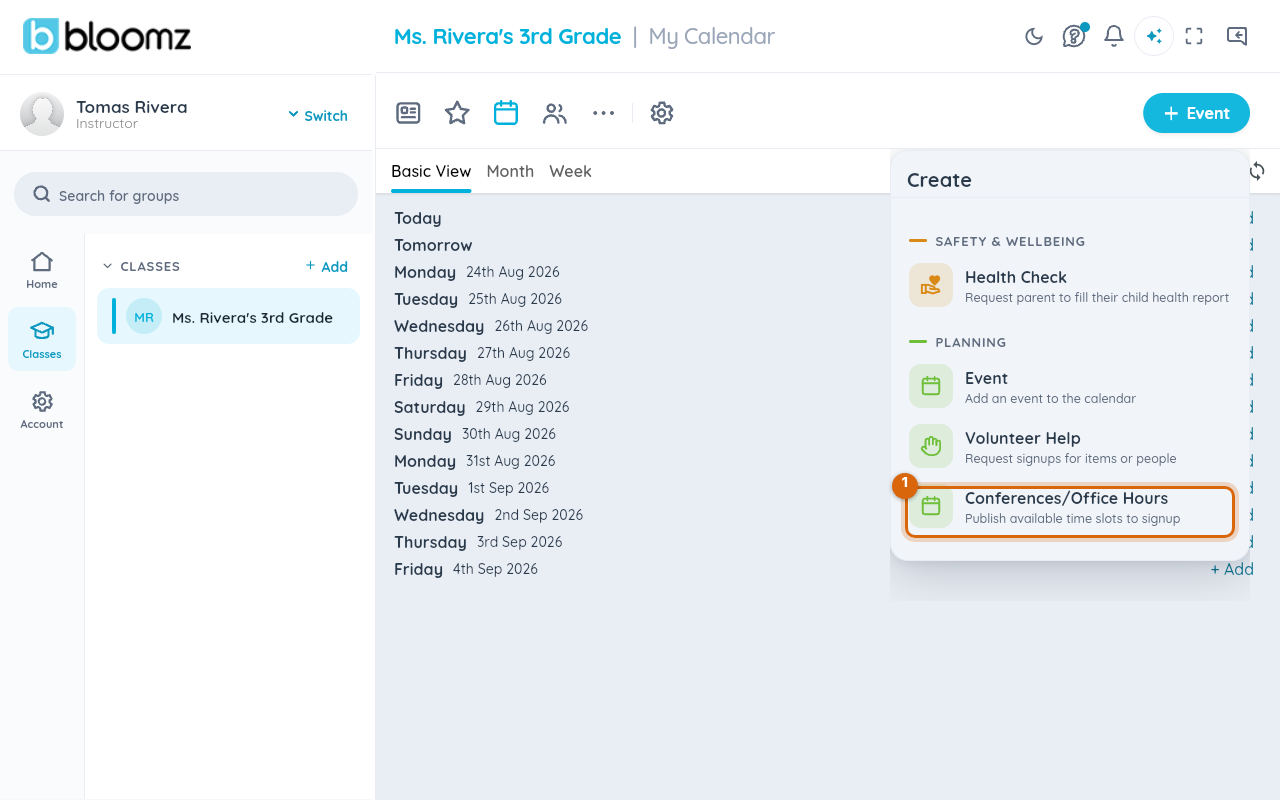
There's a second way in: open More → Signups and select + Signups in the top bar (or the matching button on mobile). If you're allowed to create both a conference sign-up and a volunteer sheet, it asks which one first; if you can only create one of the two, it takes you straight there — either way you land on the same Hours step described below.
Step 2 — Set your hours
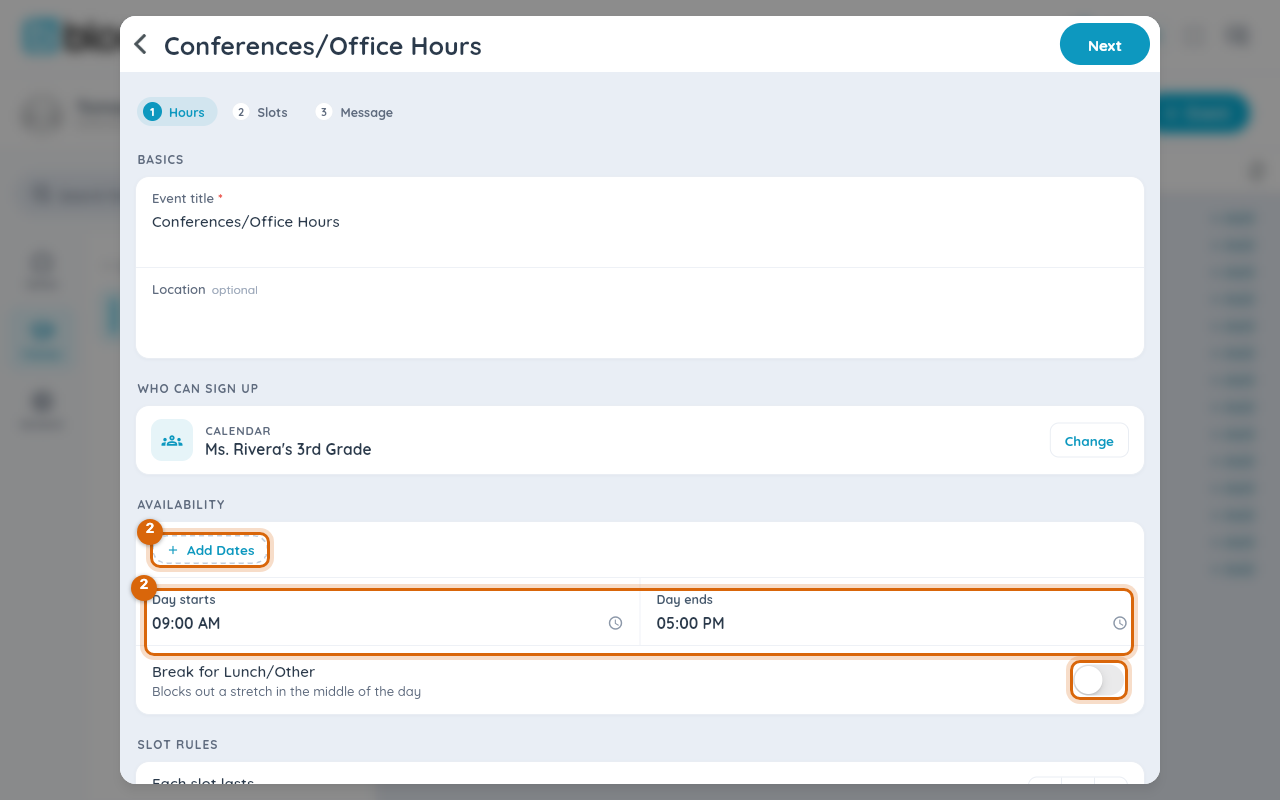
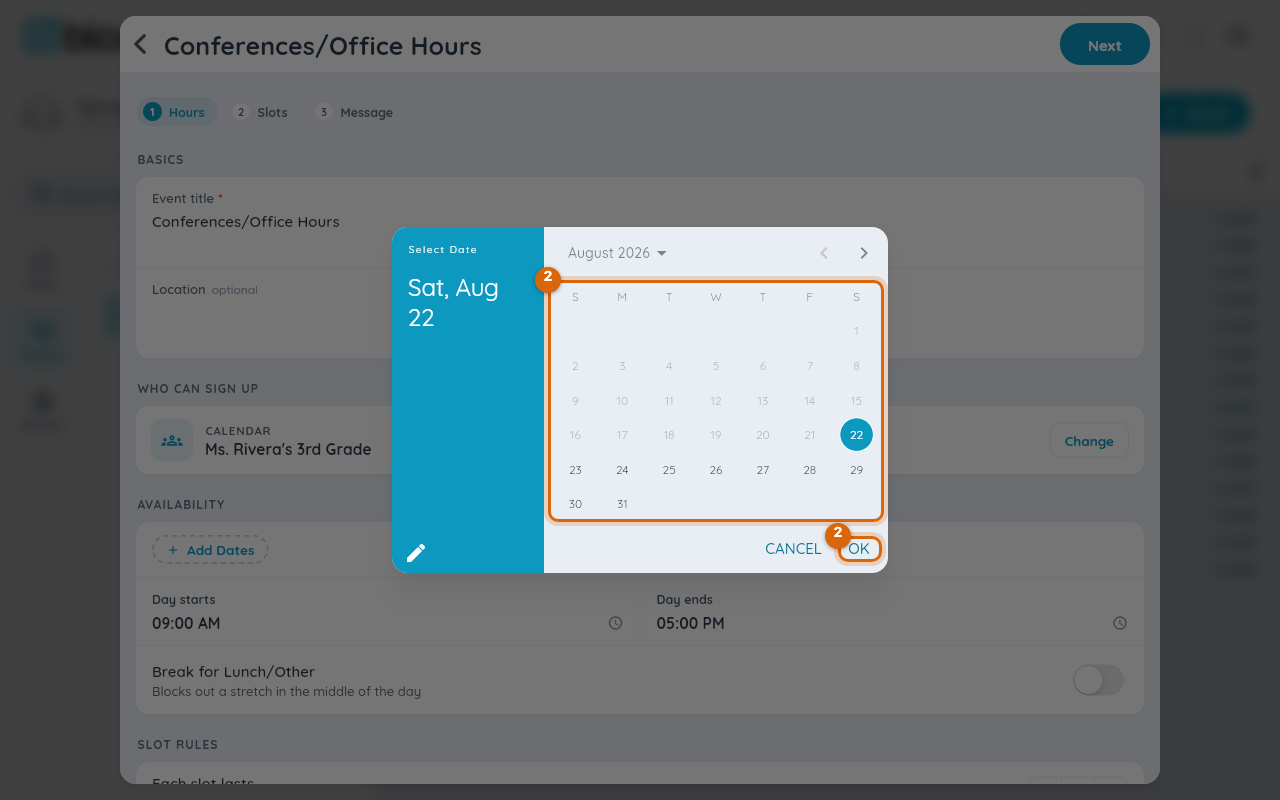
On the Hours step, check the title (it defaults to Conferences/Office Hours) and add a Location if families need one. Under Availability, select + Add Dates and pick the conference day in the calendar, then OK. Set Day starts and Day ends, and switch on Break for Lunch/Other to block out the middle of the day.
Step 3 — Set the slot rules
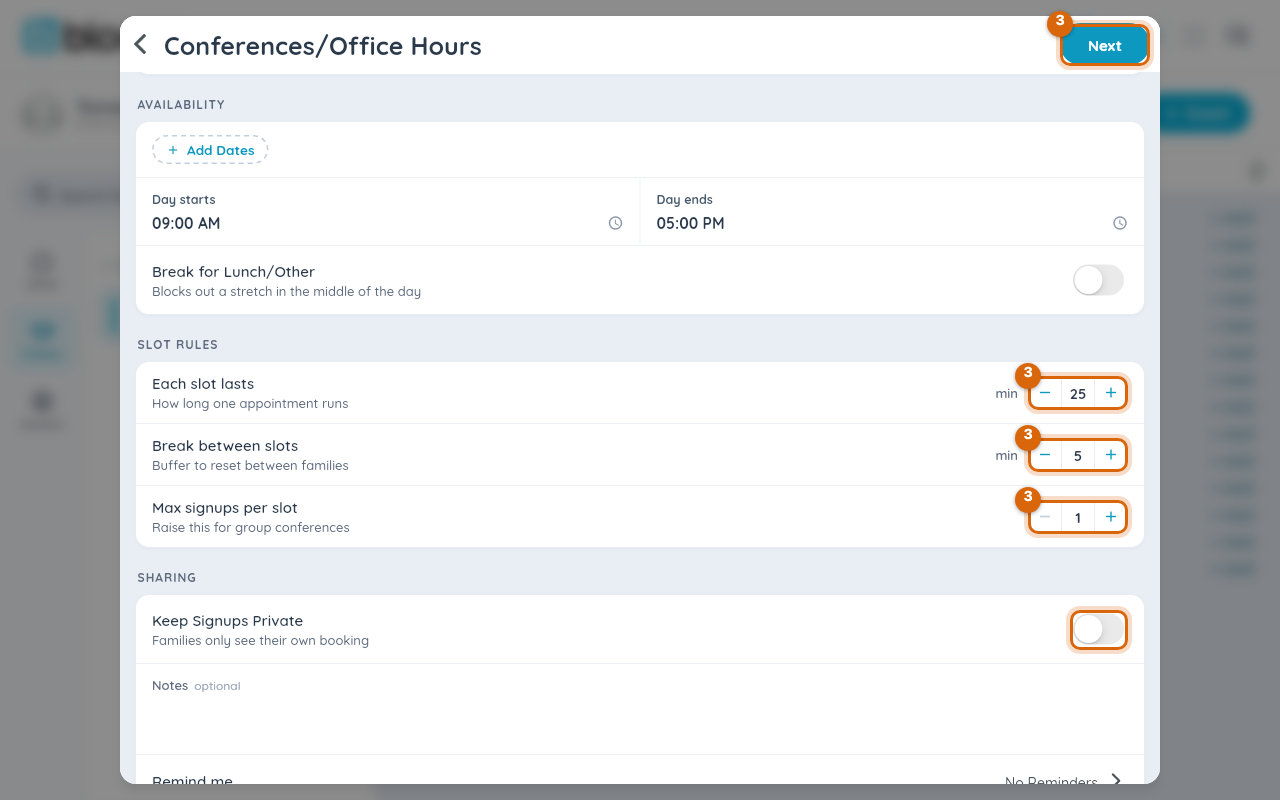
Scroll down to Slot Rules: Each slot lasts (minutes per appointment), Break between slots (your reset time) and Max signups per slot (raise it for group conferences). Under Sharing, Keep Signups Private hides other families' bookings. Then select Next.
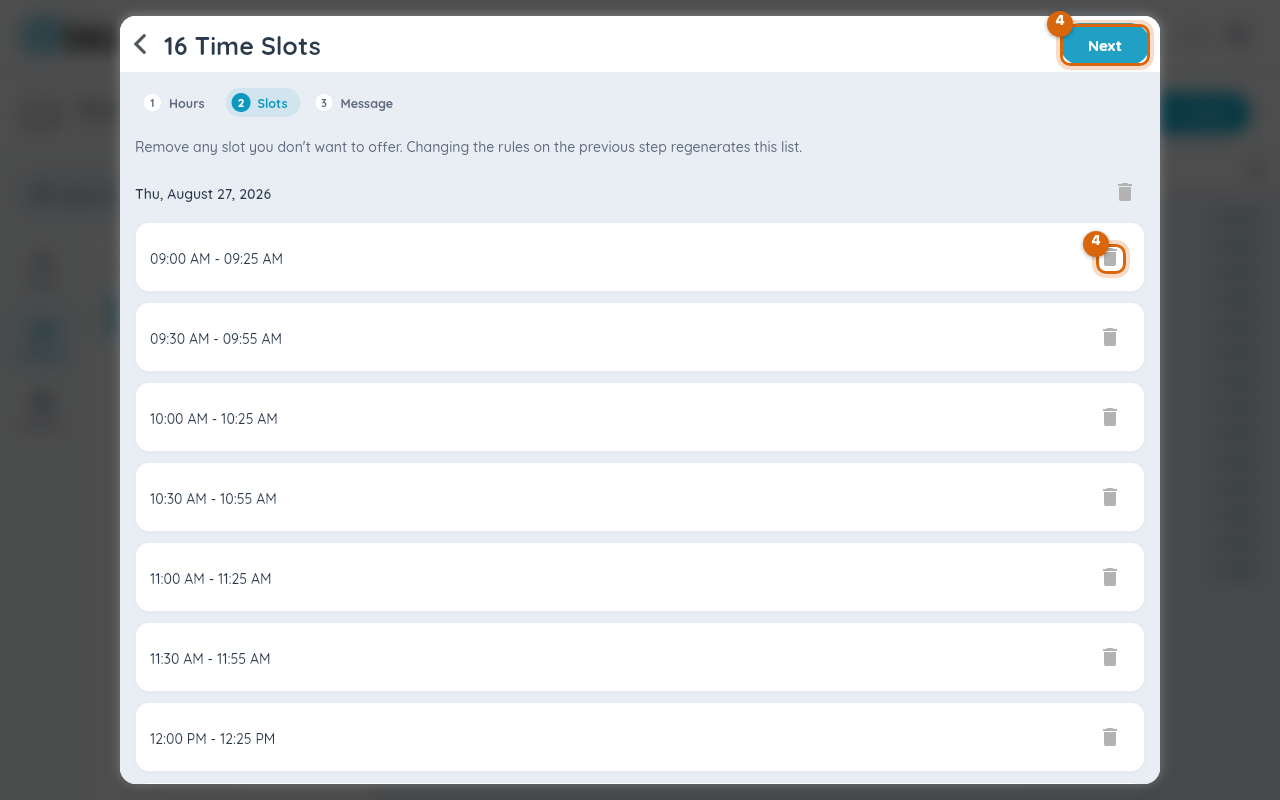
Step 4 — Remove any slots you don't want
The Slots step lists every appointment Bloomz built from your hours — sixteen 25-minute slots for a 9-to-5 day, say. Select the bin icon on any slot you do not want to offer, then Next.
Step 5 — Choose who can book
The recipient picker opens with your class selected. Leave it as it is to invite every family, or narrow it to specific parents. Select Next.
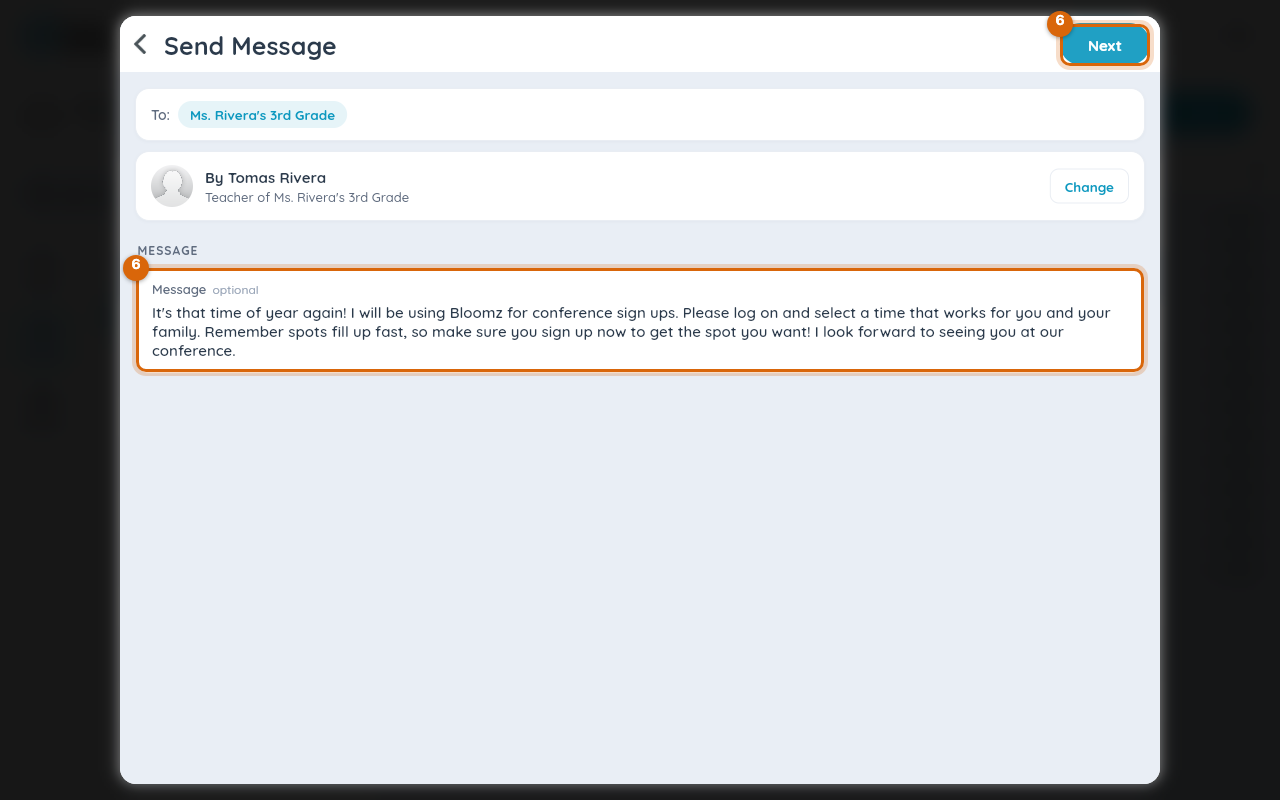
Step 6 — Send the invitation
The Send Message step carries a ready-made message inviting families to book. Edit it if you like, then select Next to publish.
Watch out: changing the hours or slot rules after families have booked regenerates the slot list — and can drop bookings. Get the rules right before you publish; afterwards, remove individual slots rather than changing the day.
What families see
The conference appears on the class calendar and in the feed with your message; families open it, pick an open slot and confirm — see Book a parent-teacher conference. You see each booking on the event, and families can change or withdraw until the cutoff you set.
Related
- Book a parent-teacher conference
- Create an event
- Set a sign-up cutoff date, or close sign-ups early