 Bloomz
Book a parent-teacher conference
When your child's teacher publishes conference times, you pick the slot that suits you from your phone — no paper sheet, no waiting to hear back. You can ask for an interpreter and leave the teacher a note at the same time.
Before you start
The teacher must have published the conference (you get a notification and it shows in the class feed and calendar). Slots are first come, first served; if the one you want is gone, pick another — you can change it later until the teacher's cutoff.
Step 1 — Open the conference
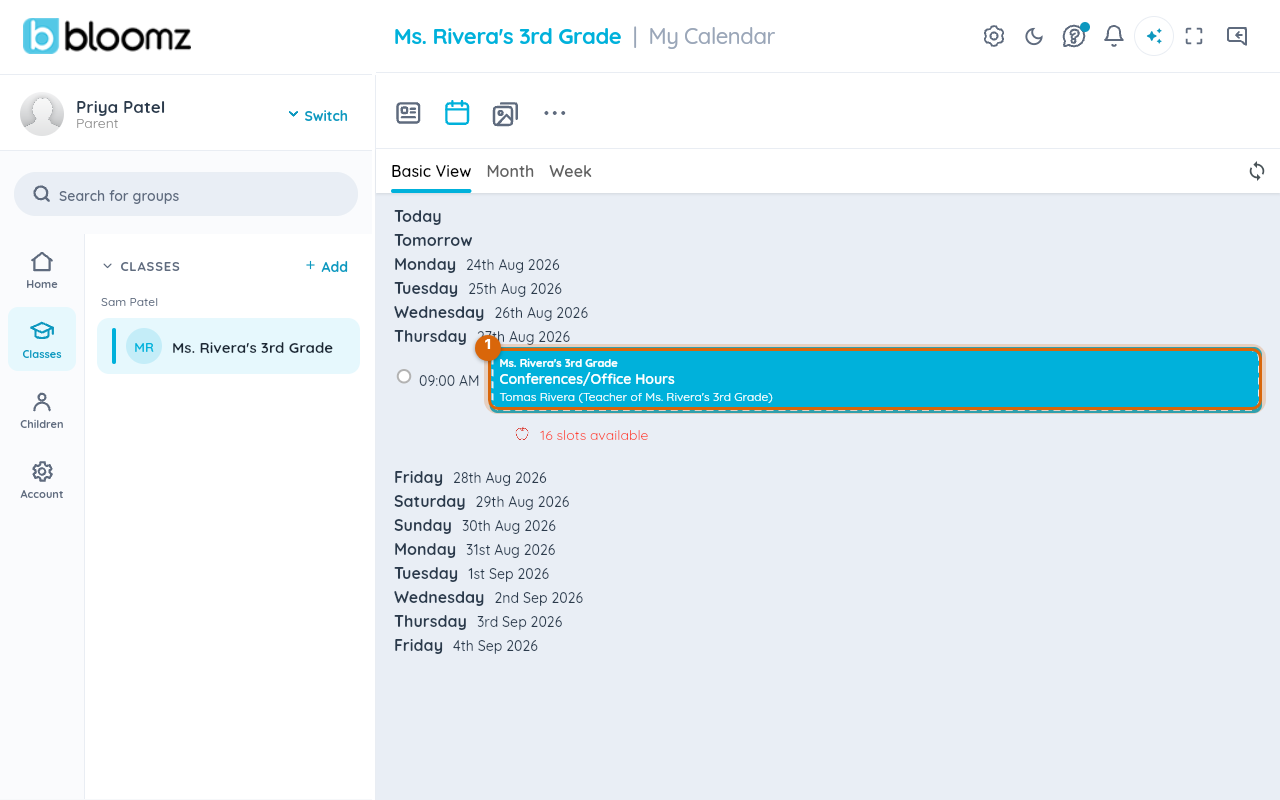
Open your child's class and select the Calendar tab; the conference shows on its day with how many slots are still open. Select it. (It is also on the feed under You're invited, and under More → Signups.)
Step 2 — Choose a time slot
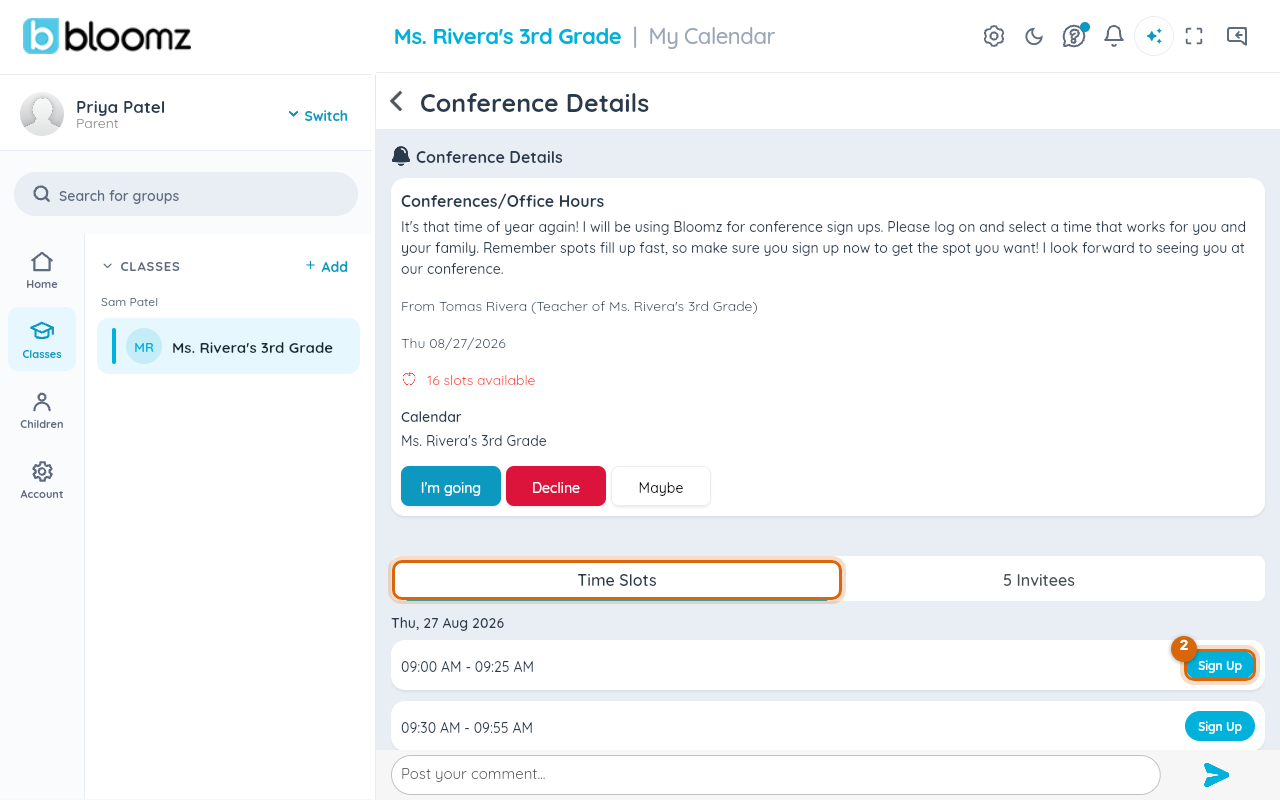
Conference Details lists the Time Slots. Select Sign Up on the one you want.
Step 3 — Set a reminder (optional)
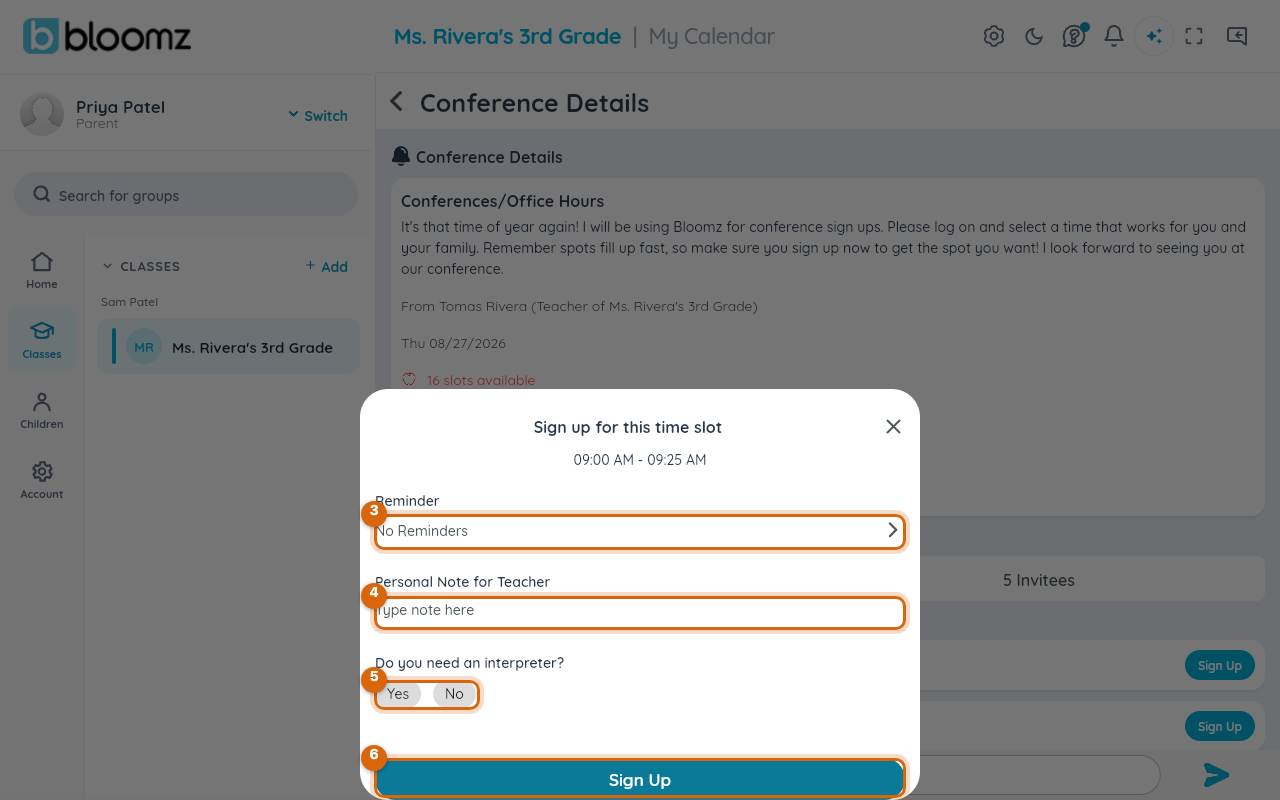
In Sign up for this time slot, select Reminder to be notified before the appointment.
Step 4 — Leave a note for the teacher (optional)
Type anything the teacher should know beforehand into Personal Note for Teacher — a topic you want to cover, or that another guardian is coming too.
Step 5 — Answer the interpreter question
Under Do you need an interpreter?, select Yes or No. If you choose Yes, the school sees the request with your booking and arranges one for your language.
Step 6 — Sign Up
Select Sign Up. The slot is yours: it shows as booked on the conference, the teacher sees your name on it, and it appears on your Bloomz calendar.
Watch out: one slot per family. If you and a co-parent both book, you take two of the teacher's slots — agree on one, or change it afterwards from the same screen.
Change or withdraw
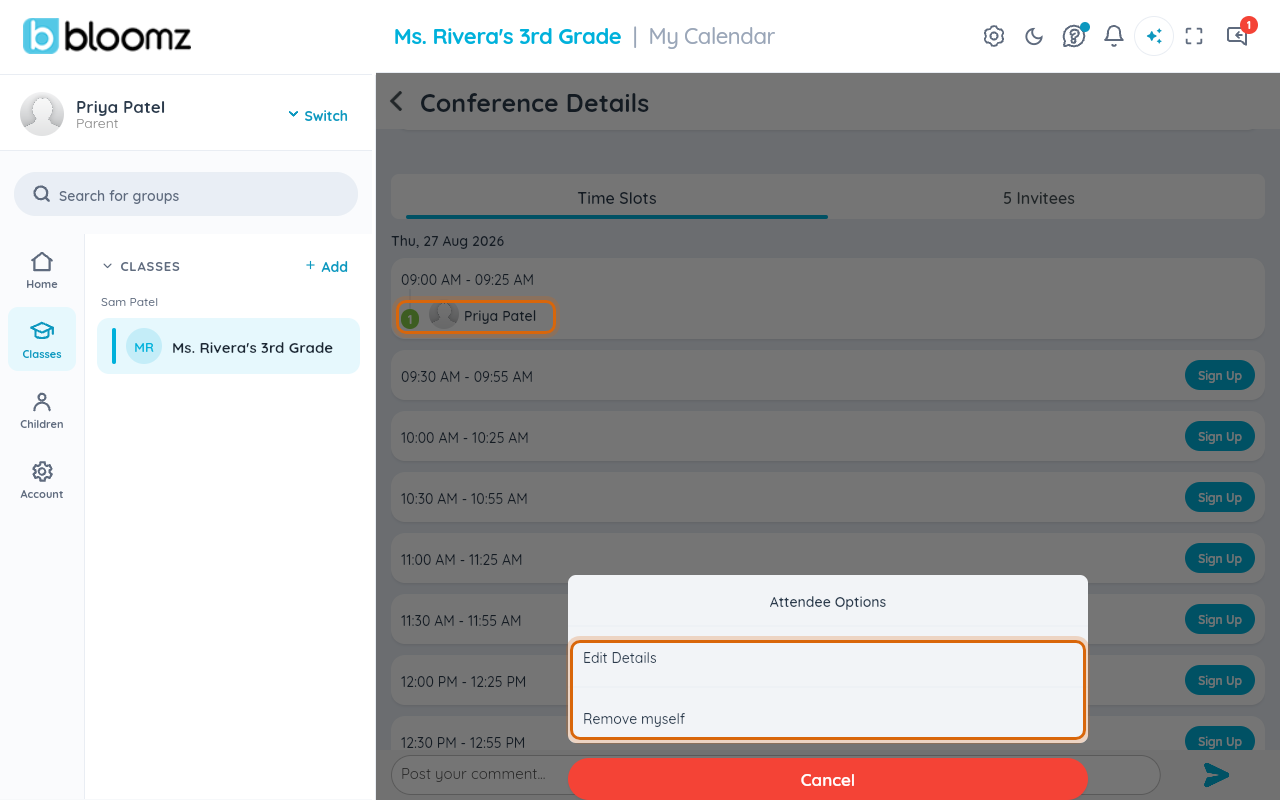
Open the conference again: your name now sits on the slot you booked. Select it to open Attendee Options — Edit Details changes your note, reminder or interpreter answer; Remove myself gives the slot back, after which you can Sign Up for a different one. Both work until the cutoff the teacher set; after that, message the teacher.
Related
- Publish conference slots for families to book
- RSVP to an event
- Subscribe to your Bloomz calendar from another calendar app