 Bloomz
Subscribe to your Bloomz calendar from another calendar app
Your Bloomz calendar can appear inside Google Calendar, Apple Calendar, Outlook, or any other app that accepts a calendar subscription link. Once subscribed, school events show up alongside the rest of your life and stay current on their own — your calendar app refreshes the link itself.
Before you start
Anyone can do this — parents, teachers, staff, and students — on every plan. You get one personal link that merges every class and group calendar you can see in Bloomz.
There is a second way to reach the same screen: Account Settings → Calendar Settings, in the Calendar Subscription section. The steps below use the calendar itself, which is the shorter path.
Step 1 — Open your calendar
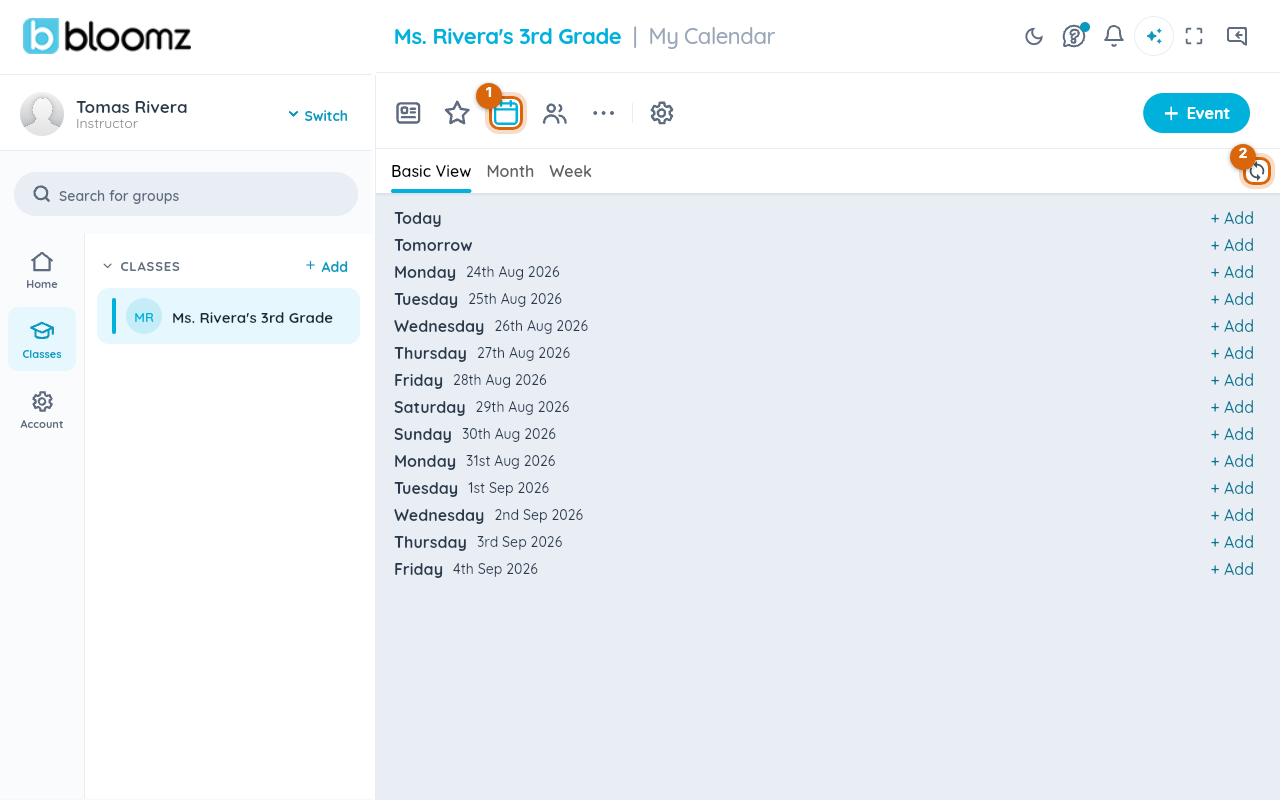
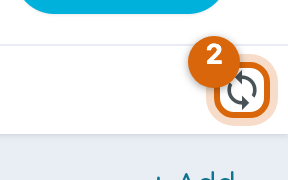
Open the Calendar in Bloomz. In the calendar's tab row you'll find a sync icon — it sits there for every role, on every plan.
Step 2 — Open the Calendar Subscription sheet
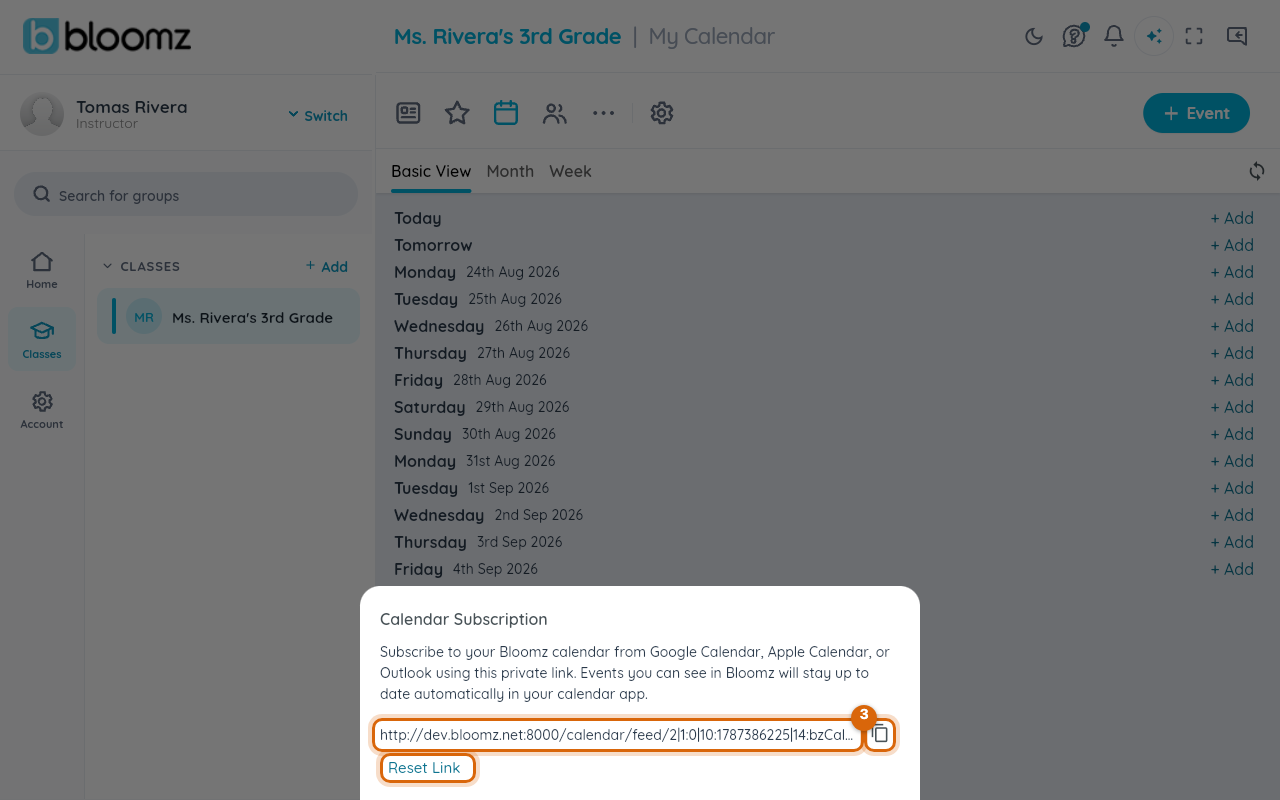
Select the sync icon. The Calendar Subscription sheet opens and shows your personal
link — a URL ending in .ics. If it takes a moment to appear, that's just the link being
fetched; if you see "Something went wrong", choose Retry.
Step 3 — Copy the link
Select the copy icon next to the link. A "Link copied" confirmation appears, and the link is on your clipboard.

Watch out: this link is personal. Anyone who has it can read your calendar — including events from private groups — without signing in, for as long as the link stays valid. Don't post it anywhere public or forward it to others. If it ever leaks, use Reset Link (below).
Step 4 — Subscribe in your calendar app
In your calendar app, find the option to add a calendar by URL (often called "subscribe") and paste the link:
- Google Calendar — in settings, add a calendar From URL.
- Apple Calendar — add a New Calendar Subscription.
- Outlook — add a calendar by Subscribe from web.
Your Bloomz events appear as a separate calendar you can show, hide, or color like any other.
What families see
The feed contains exactly the events you can see in Bloomz — the same visibility rules as the in-app calendar, never more and never less. By default it covers the current school year, not your full history.
Your calendar app refreshes the link on its own schedule and picks up new, changed, and removed events. Bloomz has no control over that schedule, so a brand-new event may take a while to appear — that's normal, and no action is needed.
If your link leaks — reset it
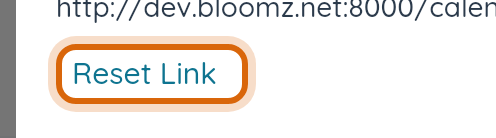
In the Calendar Subscription sheet, choose Reset Link and confirm. The old link stops working immediately and a new one appears in its place.
Watch out: resetting cuts off every device subscribed with the old link — including your own. After a reset, re-subscribe in each calendar app with the new link; they cannot pick it up automatically. If your phone's calendar suddenly stops updating with Bloomz events, a reset link is the first thing to check.
Related
- Find your way around the calendar
- Set a sign-up cutoff date, or close sign-ups early
- Book a parent-teacher conference