 Bloomz
Push your Bloomz calendar to Google or Microsoft
Keep the school events you already follow on Bloomz updated automatically in your own Google or Microsoft calendar — connect once, then choose which calendars to sync. This is the reverse of subscribing to Bloomz from another app: here, Bloomz writes events into a calendar it creates on your account.
Before you start
Your school must have Calendar Sync switched on — it does not appear until they turn it on. Reaching the setting also needs a calendar the flag is enabled for currently selected: open a class or school where it's on before going to Account. Apple has no equivalent — use the existing subscription link instead (see Subscribe to your Bloomz calendar from another calendar app).
Step 1 — Open Calendar Settings
Select Account, then Calendar Settings.
Step 2 — Connect Google or Microsoft
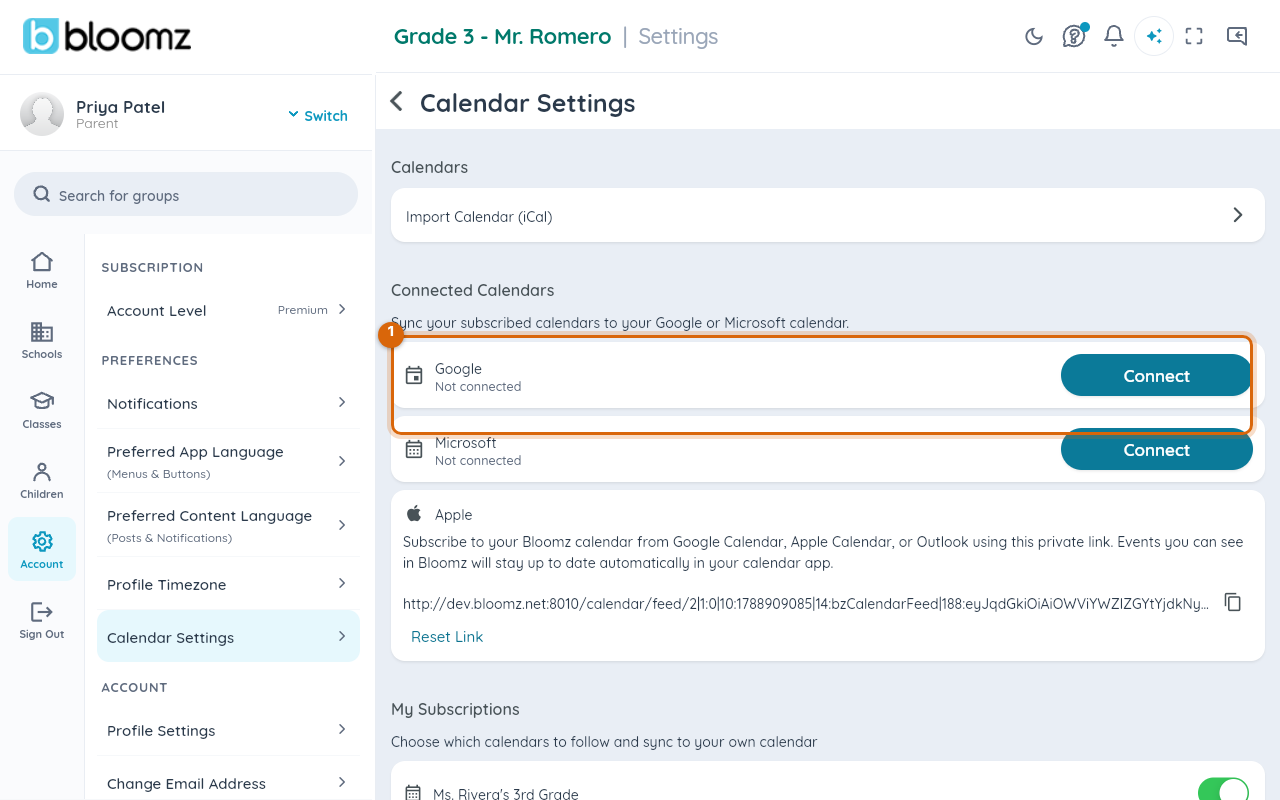
Under Connected Calendars, select Connect next to Google or Microsoft and sign in. Bloomz creates its own secondary calendar named "Bloomz" on your account — your other events are never touched.
Step 3 — Choose which calendars to sync
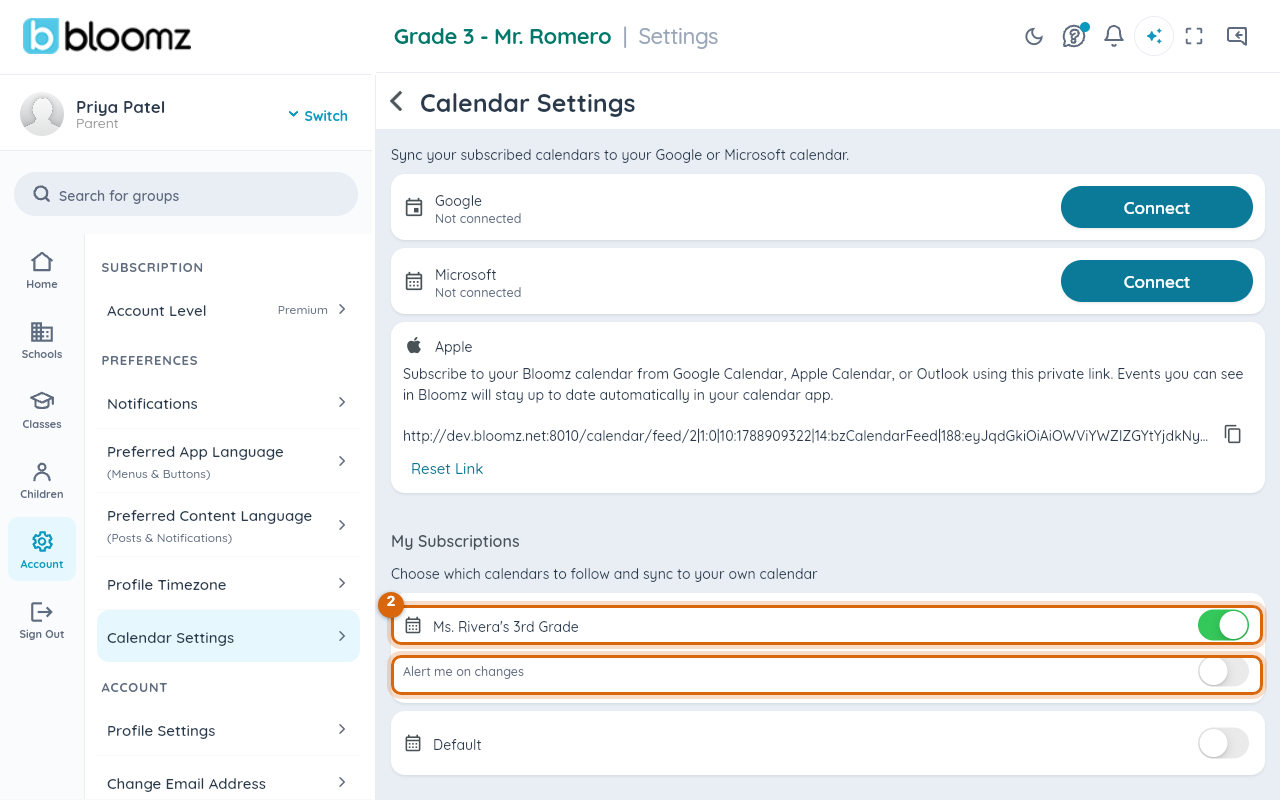
Scroll to My Subscriptions. It lists every calendar you can see — every child's class, every school — regardless of which one you have open right now. Switch on the ones you want pushed to your connected account.
Step 4 — Turn on change alerts (optional)
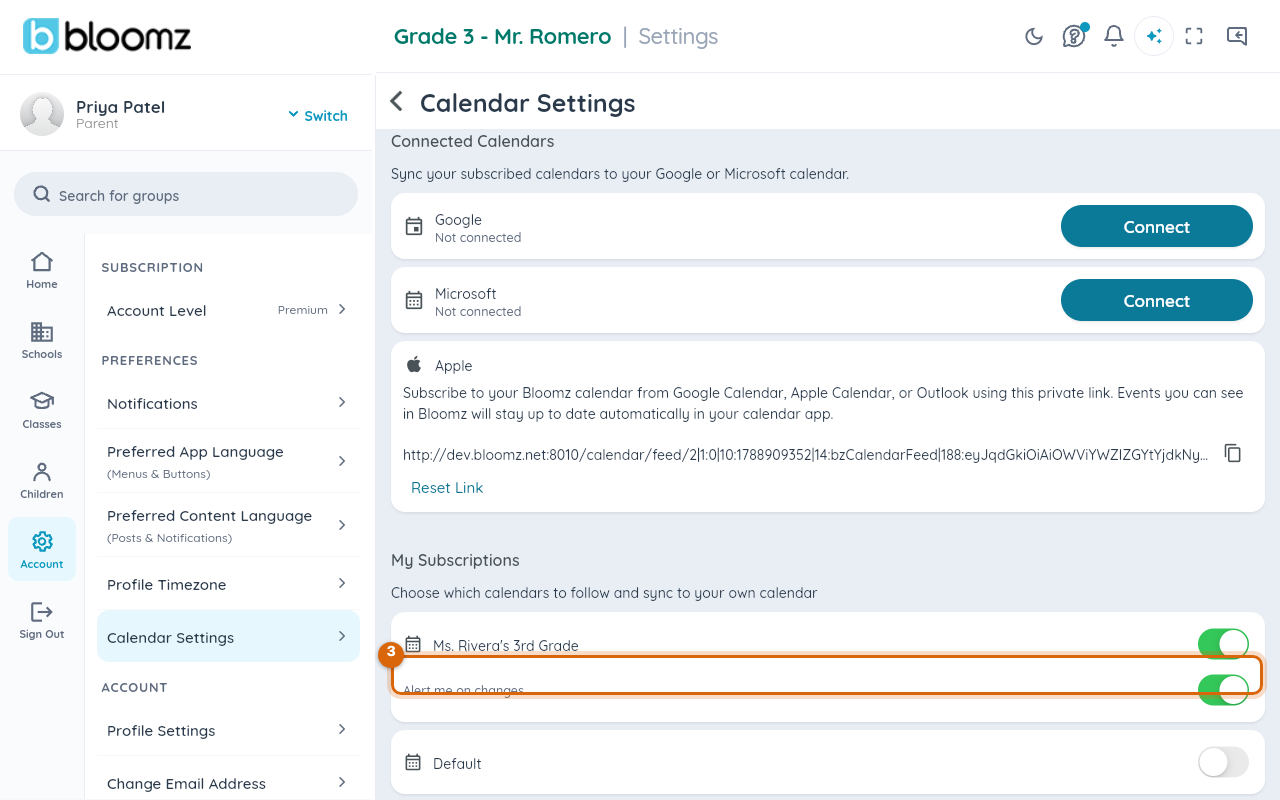
Each subscription has its own Alert me on changes toggle. Switch it on to get notified whenever an event on that calendar is created, updated or cancelled.
Watch out: this pushes Bloomz events to your calendar app — it does not read anything back. RSVPing or editing an event inside Google or Outlook does not change your RSVP or headcount in Bloomz; do that from inside Bloomz.
Related
- Subscribe to your Bloomz calendar from another calendar app
- RSVP to an event
- Choose which notifications you receive