 Bloomz
Set a sign-up cutoff date, or close sign-ups early
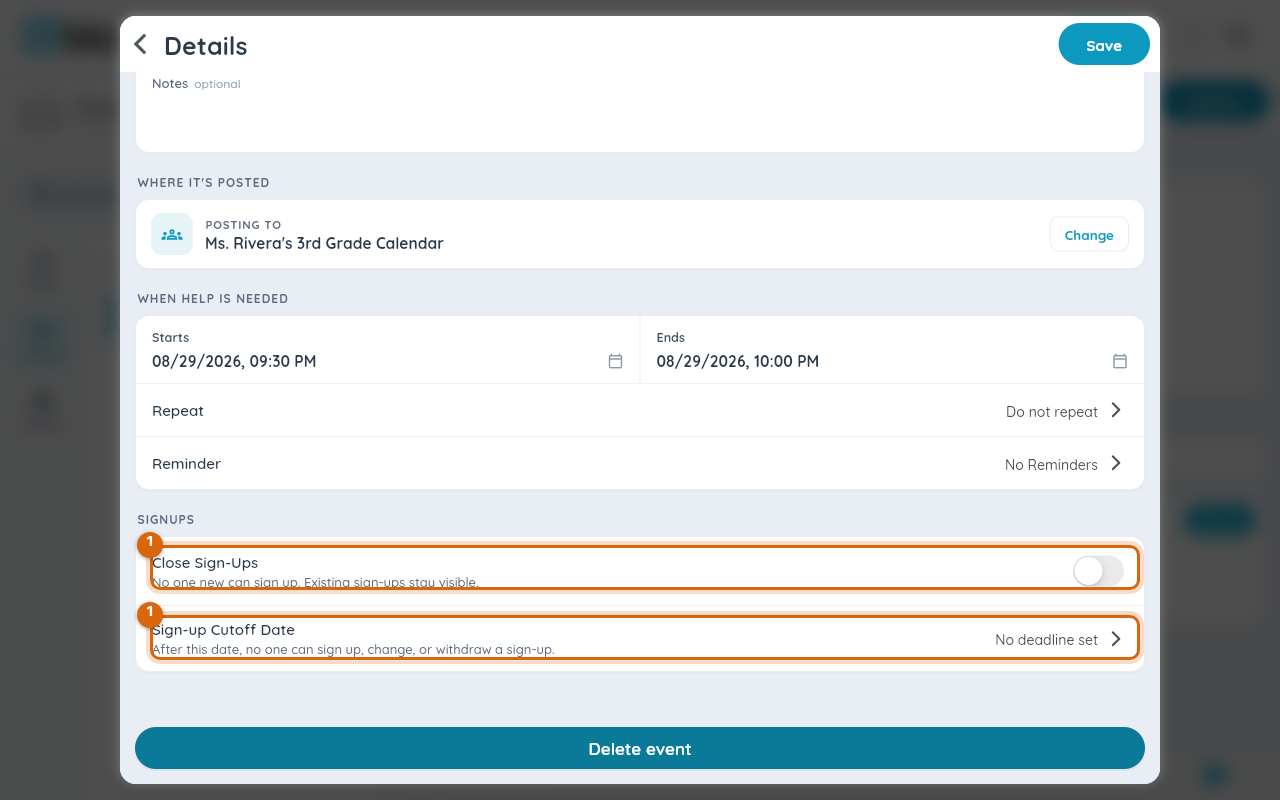
Give yourself a firm number to work with — a cutoff freezes sign-ups automatically at a moment you choose, or you can close them the instant you have enough. You can set the cutoff from the moment you start building the event, not only after you've saved it.
Before you start
You need to be the event's owner or a class admin. The Sign-up Cutoff row now appears while you're creating a general event, a Volunteer Help sheet, or a Conferences/Office Hours event — as well as later, when you edit one you already saved. The manual Close Sign-Ups switch is edit-only, since there's nothing for it to close until the event exists.
Step 1 — Find the Sign-up Cutoff row
Scroll to the SIGN UPS section, whether you're creating a new event or editing one you already saved.
Step 2 — Pick a preset, or set an exact date and time
Select the Sign-up Cutoff row. Instead of a bare calendar, Bloomz offers ready-made options timed off the event's own start: 6 hours before, 1 day before, 2 days before, or 1 week before. Pick Custom date & time… if none of those fit and you want an exact moment.
Step 3 — Bloomz won't let the cutoff land after the event
Whichever you choose, the cutoff can never fall after the event itself starts — Bloomz enforces this both in the picker and on save, so there's no way to end up with a "deadline" that arrives after the event is already over.
Step 4 — Or close sign-ups right now
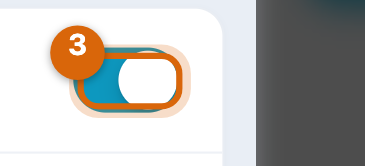
If you already have what you need before the cutoff arrives, open the saved event for editing, flip Close Sign-Ups on, and save. New sign-ups and RSVPs stop immediately.
Step 5 — Know the difference
The switch stops new sign-ups but leaves existing ones editable — people can still change or withdraw theirs. The cutoff freezes everything at once, including changes and withdrawals, which is why it's the right tool for a final headcount — catering, printed schedules, a volunteer roster you're about to print.
Watch out: if you pick a preset or a custom time that would land after the event starts, Bloomz quietly pulls it back to the event's own start time instead of warning you — check the cutoff shown before you save if the exact moment matters.
Watch out: deleting an event to stop sign-ups destroys the roster of who already signed up. Use the switch or the cutoff instead — both stop new sign-ups while keeping your list intact.
Related
- Create a volunteer sign-up sheet
- Limit sign-ups per person
- Publish conference slots for families to book