 Bloomz
Create a volunteer sign-up sheet
Instead of a paper sign-up on the classroom door, build a Volunteer Help sheet in Bloomz: list what you need — snacks, chaperones, a driver — and families claim a slot from their phone.
Before you start
Teachers and school staff can create a Volunteer Help sheet on any class or group calendar they belong to. Decide your tasks and how many people or items each one needs before you start; you can always add more tasks later.
Step 1 — Open Volunteer Help
Open your class, select the Calendar tab, then + Event. In the Create menu, under Planning, choose Volunteer Help.
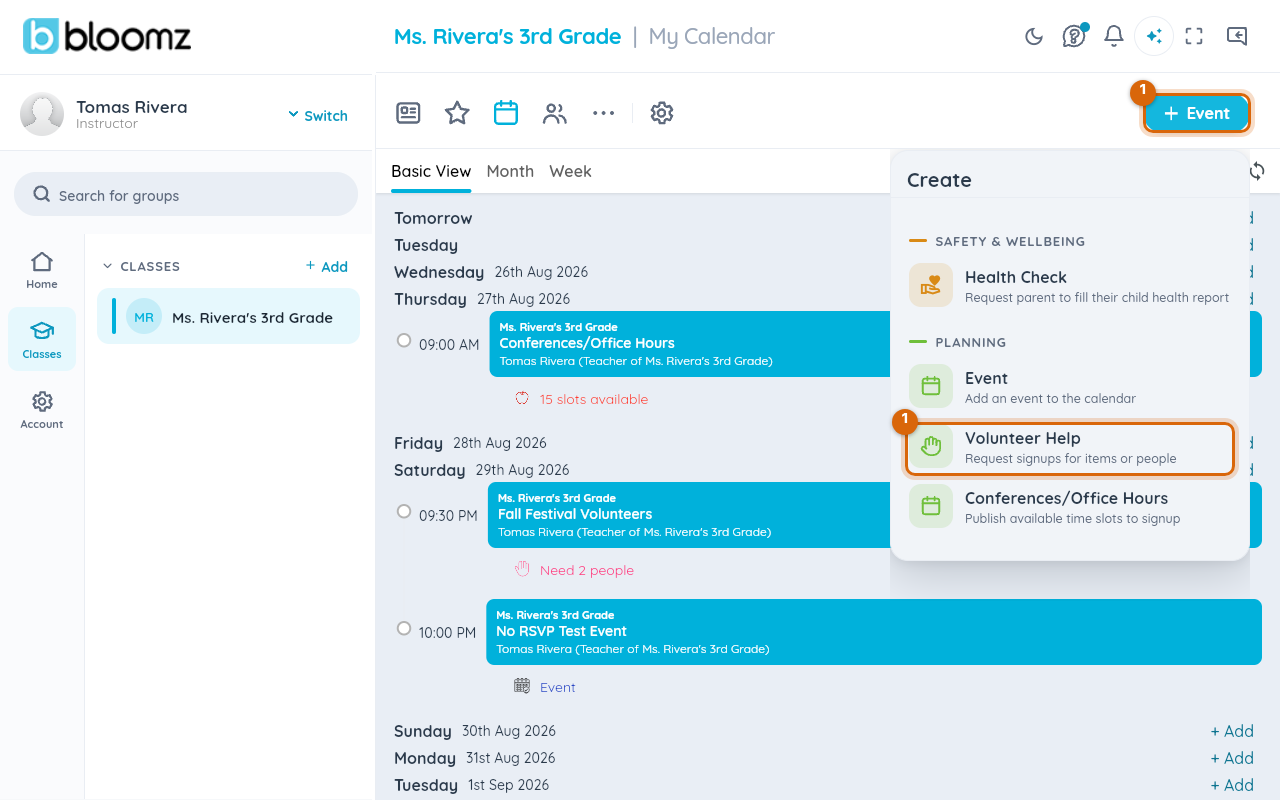
There's a second way in: open More → Signups and select + Signups in the top bar (or the matching button on mobile). If you're allowed to create both a volunteer sheet and a conference sign-up, it asks which one first; if you can only create one of the two, it takes you straight there — either way you land on the same Volunteer Help form described below.
Step 2 — Give it a title and set when
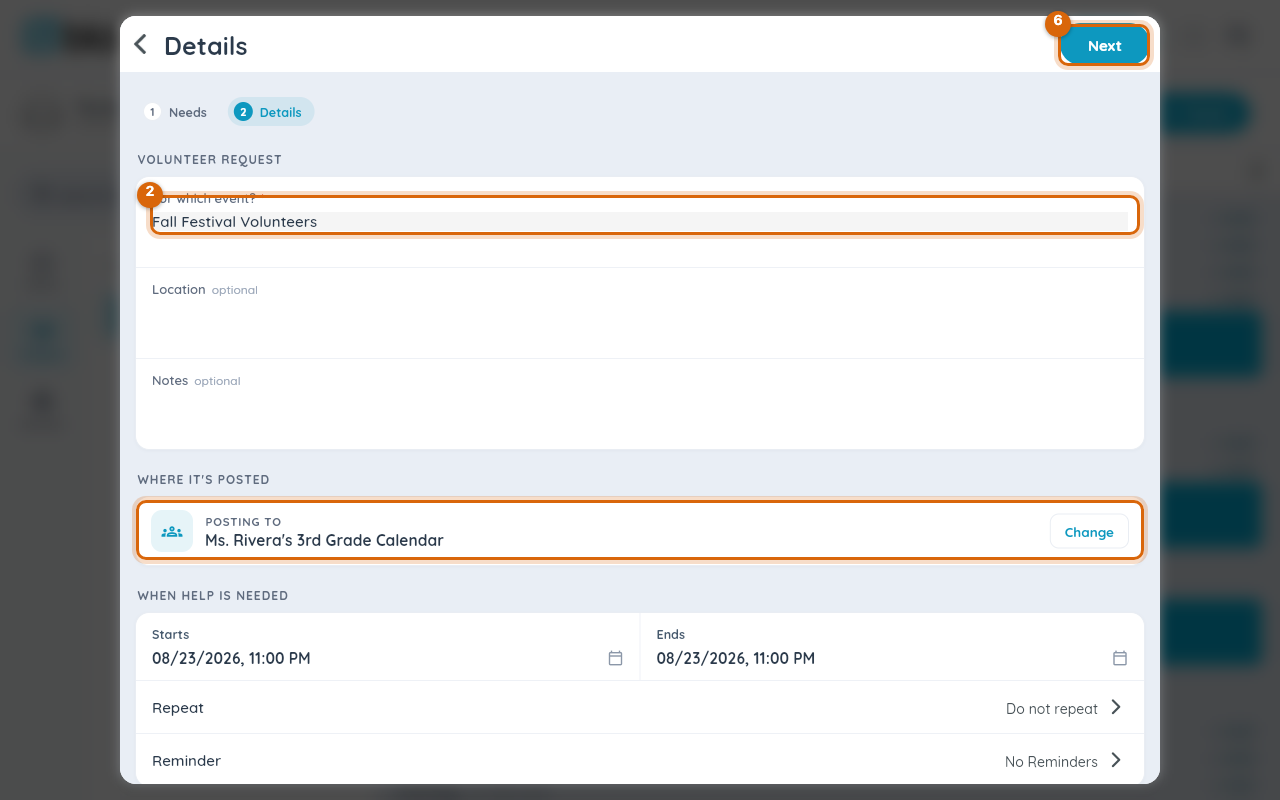
Type a title families will recognize — "Fall Festival Volunteers", say — and set the date families are signing up for, the same way you would for any event.
Step 3 — Add your first task
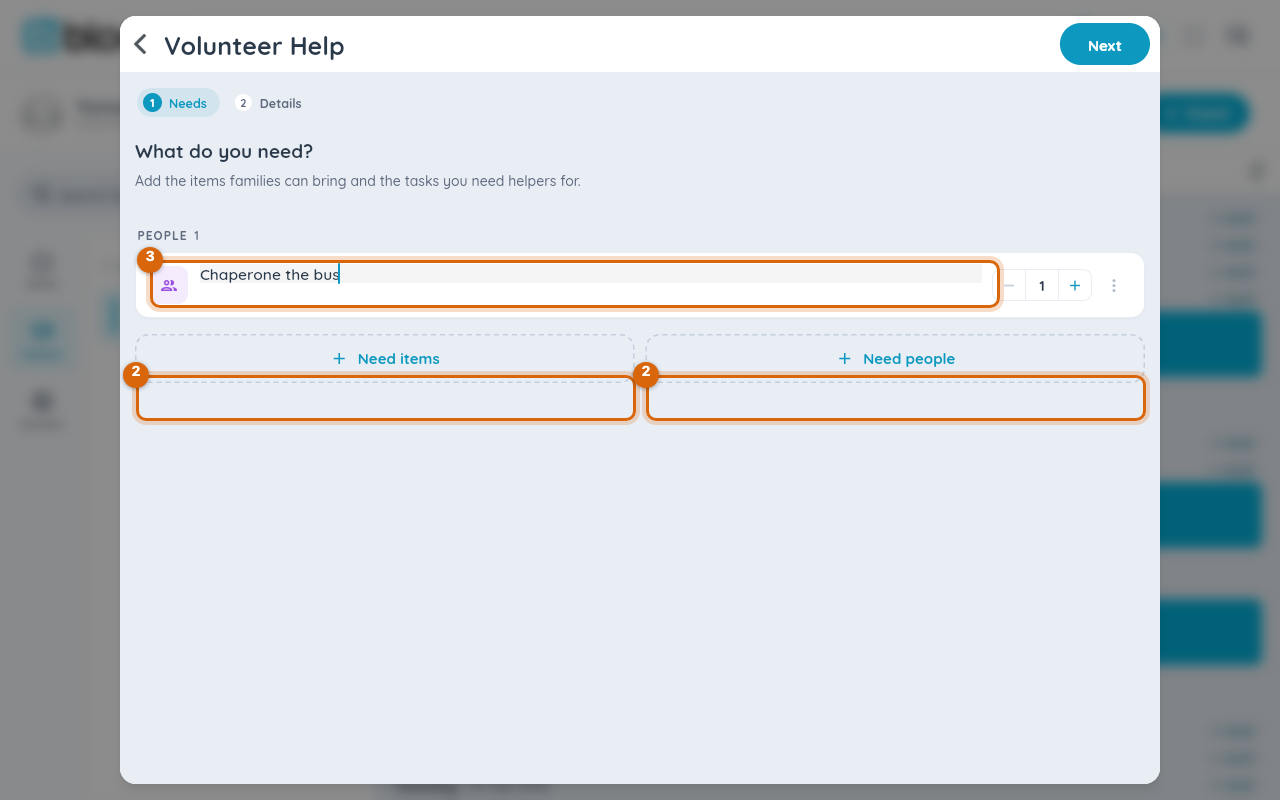
Select + Add Task and name it — "Bring snacks", "Chaperone the bus", "Set up chairs". Each task is its own line on the sheet, with its own slot count.
Step 4 — Set how many slots the task needs
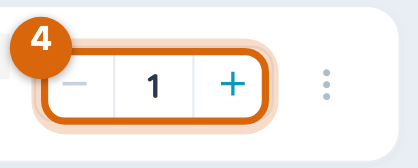
Under the task, set Slots needed — how many families can claim this task before it's full. For an item you need several of, like "bring a dessert", raise the slot count instead of creating duplicate tasks.
Step 5 — Add the rest of your tasks
Repeat + Add Task for everything you need. Reorder or delete a task by opening it; nothing publishes until you save.
Step 6 — Save and send
Select Save. The sheet posts to the class calendar and feed, and families get a notification.
Watch out: once a family claims a slot, lowering that task's slot count can leave more people signed up than slots available — Bloomz won't remove anyone for you. Check who's already claimed a task before lowering its count.
What families see
Families see each task with its remaining slot count and a Sign Up button. Once a task is full, its button reads Full and is disabled — see Sign up for a volunteer slot. Once you confirm a claimed slot's hours (see Track volunteer hours for your school), that volunteer sees their own logged hours — and a remaining-quota line, if your school set one — on their own Signup page, right above the volunteer asks they haven't claimed yet.
Related
- Sign up for a volunteer slot
- Track volunteer hours for your school
- Limit sign-ups per person
- Set a sign-up cutoff date, or close sign-ups early
- Put one sign-up sheet on several class calendars