 Bloomz
Sign up for a volunteer slot
When a teacher posts a Volunteer Help sheet, claim any open slot in a couple of taps — no reply-all email, no paper sheet to lose.
Before you start
Anyone on the class or group can sign up once the teacher publishes the sheet. Slots are first come, first served, and some tasks may cap how many you personally can claim — see Limit sign-ups per person.
Step 1 — Open the sign-up sheet
Open the class, select the Calendar tab, and select the Volunteer Help event on its day — or open it from the feed. Each task lists how many slots remain.
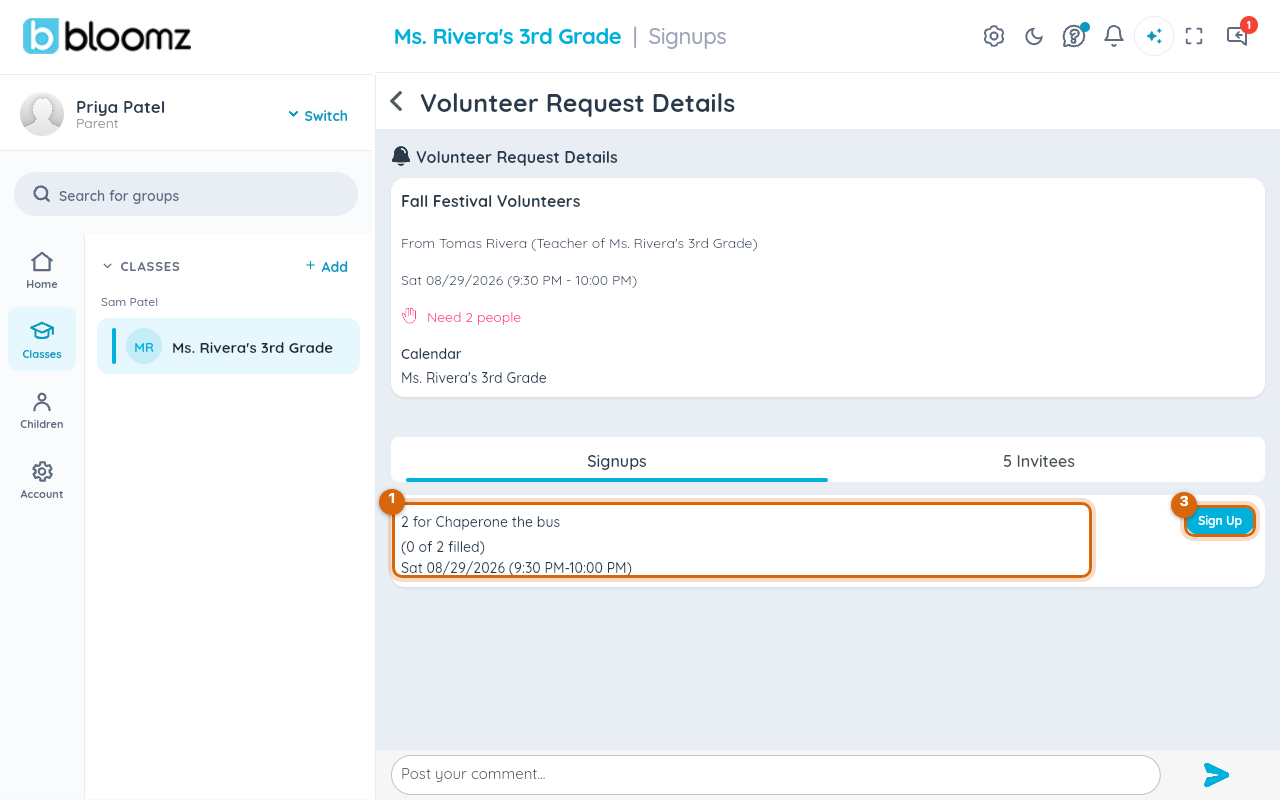
Step 2 — Pick a task
Read through the tasks — "Bring snacks", "Chaperone", "Set up chairs" — and find one that fits your schedule. A task with 0 slots left shows Full instead of a Sign Up button.
Step 3 — Claim your slot
Select Sign Up on the task you want. Your name is added immediately; the task's slot count drops by one for everyone else viewing the sheet.

Step 4 — See or cancel your sign-up
Open the sheet again any time — the task you claimed shows your name and a Remove myself option. Removing yourself frees the slot for someone else and lets you sign up for a different task if you change your mind.
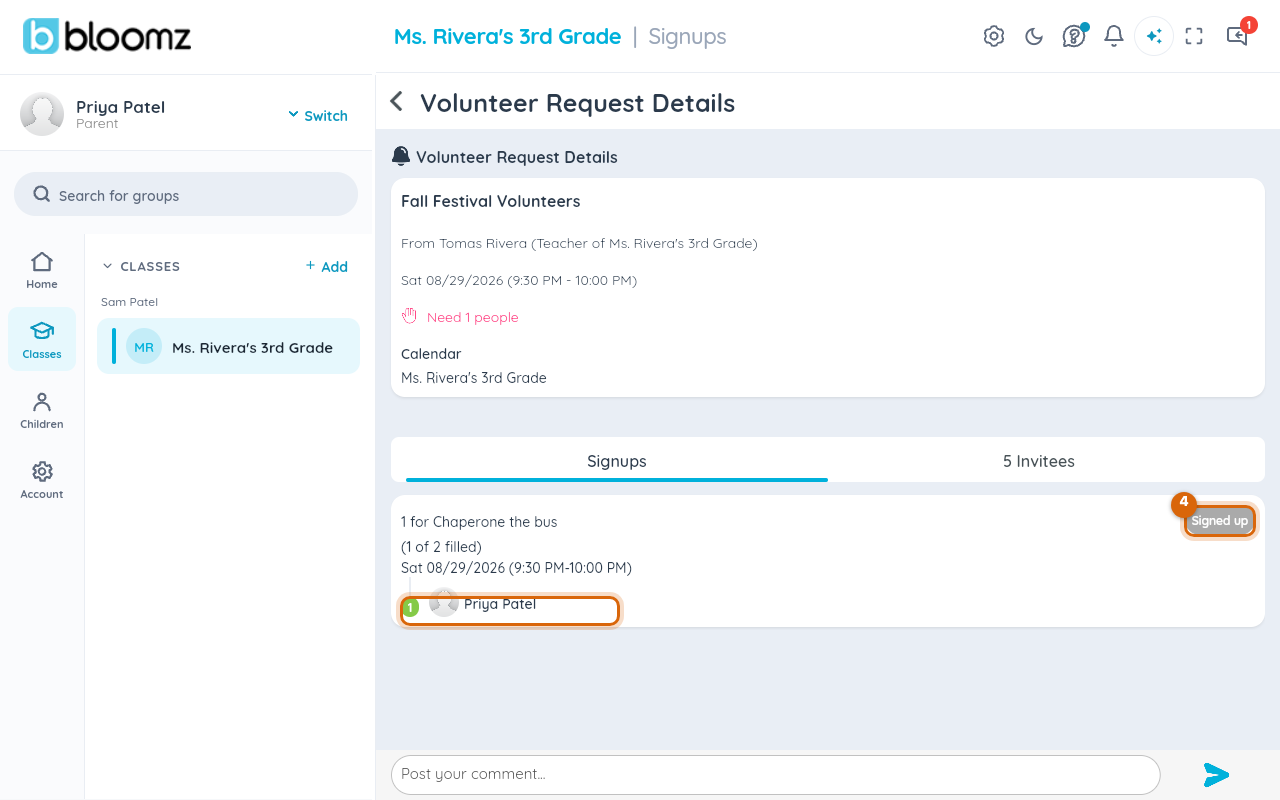
Watch out: if the teacher has closed sign-ups or the cutoff date has passed, Remove myself disappears too — you can no longer withdraw on your own. Message the teacher directly if your plans change after that point.
Related
- Create a volunteer sign-up sheet
- RSVP to an event
- Limit sign-ups per person