 Bloomz
Where everything else lives: the More and Create menus
Two menus hold most of Bloomz: More, for things to look at, and Create, for things to make. If you cannot find a feature, it is almost certainly in one of them.
More — things to look at
Select the … icon in the view switcher.
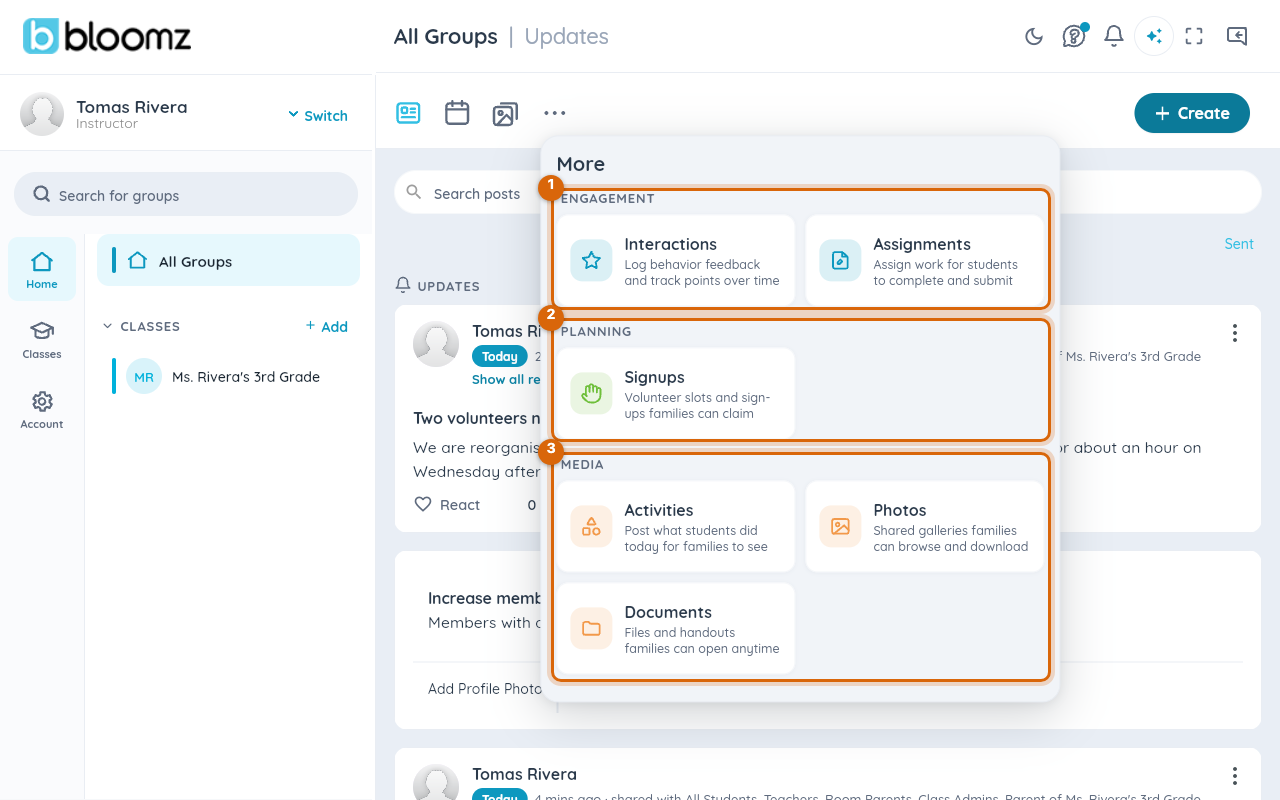
It is grouped in three:
- Engagement — Interactions (behaviour feedback) and Assignments.
- Planning — Signups.
- Media — Activities, Photos and Documents.
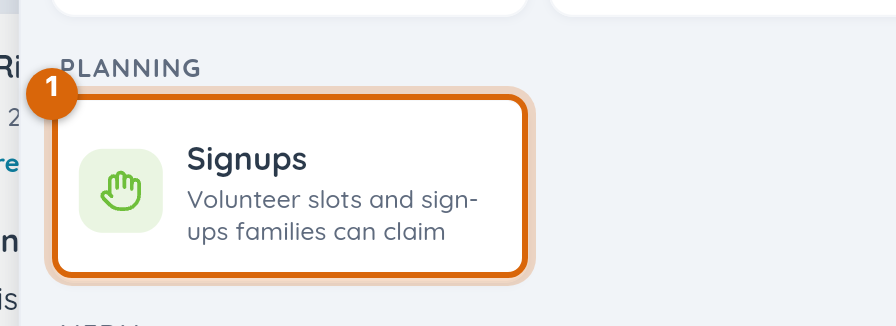
Signups is where volunteer slots and sign-ups live — the lists of items or time slots that families can claim.
Create — things to make
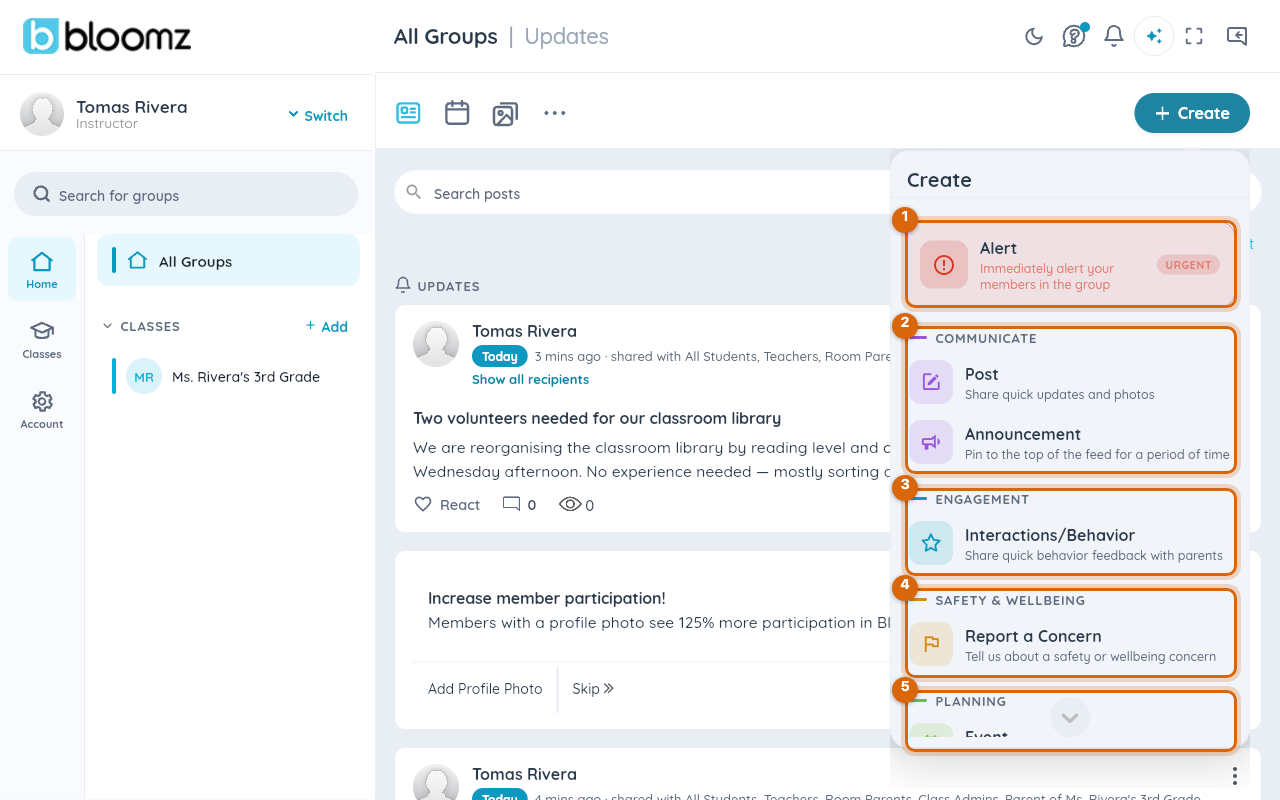
- Alert — see the warning below.
- Communicate — a Post (a normal class update) or an Announcement (pinned to the top of the feed for a period of time).
- Engagement — Interactions/Behavior, for quick feedback to parents.
- Safety & Wellbeing — Report a Concern, for telling the school about a safety or wellbeing worry.
- Planning — an Event, Volunteer Help (sign-ups for items or people), or Conferences/Office Hours (publishing slots families book). Scroll down — this group sits at the bottom of the menu.
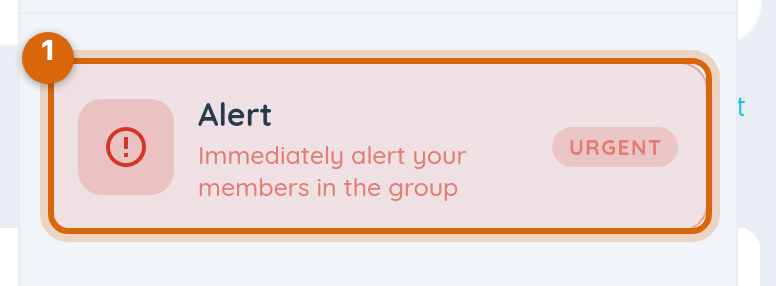
Watch out — Alert sits directly above Post. Alert notifies immediately and insistently, and it is styled red and marked Urgent for that reason. It is for genuine emergencies. If you want to tell families something, even something time-sensitive, you almost always want Post — one item below it.
Not seeing something described here?
Several of these are switched on per school. If a feature named above is missing from your menus, your school has not enabled it — your school administrator can, and support cannot enable it for an individual teacher.
Related
- Share an update with your class
- Find your way around Bloomz