 Bloomz
Find your way around Bloomz (for families)
Everything about your child at school arrives in one place. Here is how that place is laid out.
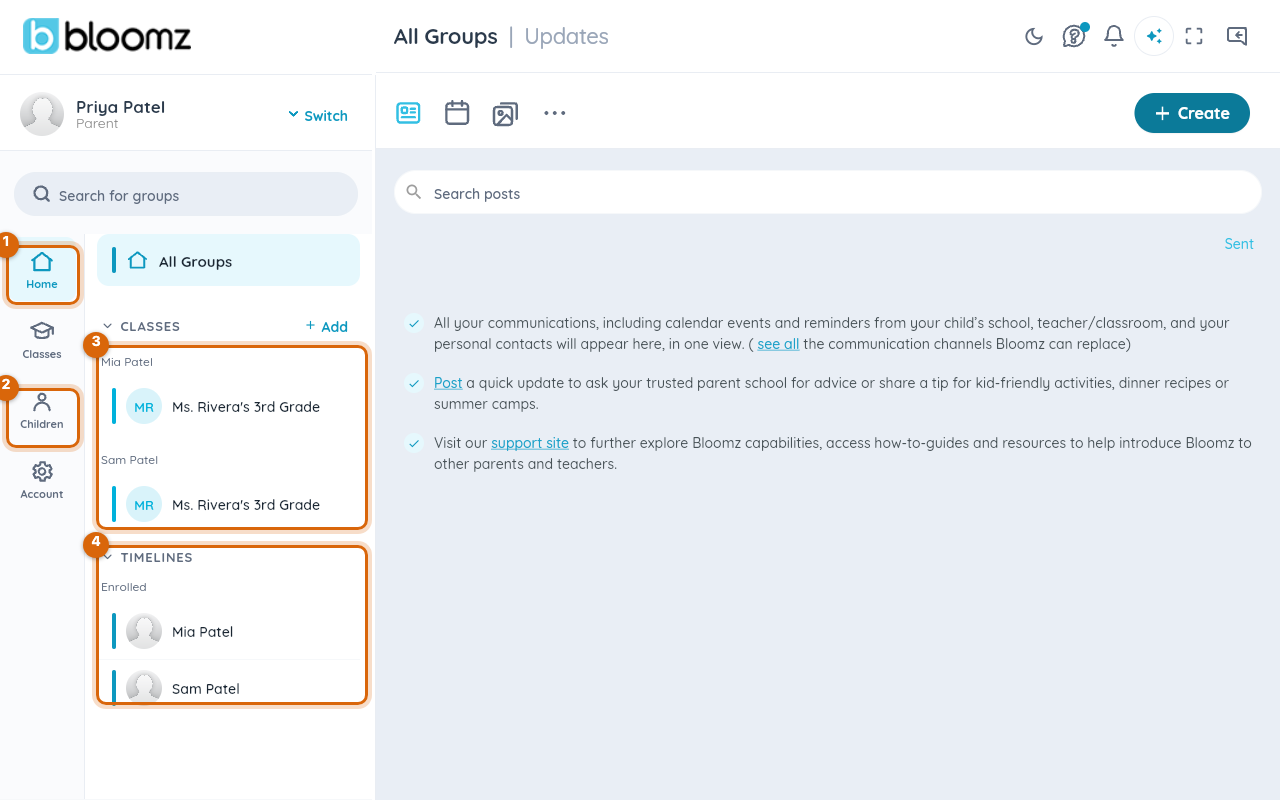
- Home — everything from every class, in one feed. This is where you land.
- Children — one child at a time.
- Classes — grouped under each child's name.
- Timelines — your child's own record.
The left rail
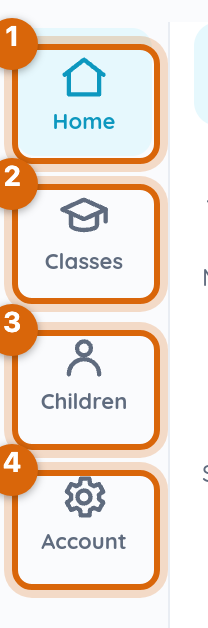
- Home — the combined feed.
- Classes — the classes you are connected to.
- Children — everything for one child, gathered together.
- Account — your language, notifications and account.
If you have more than one child
Classes are listed under the name of the child they belong to, so you can tell at a glance which class belongs to whom. Below them, Timelines holds each child's own record.
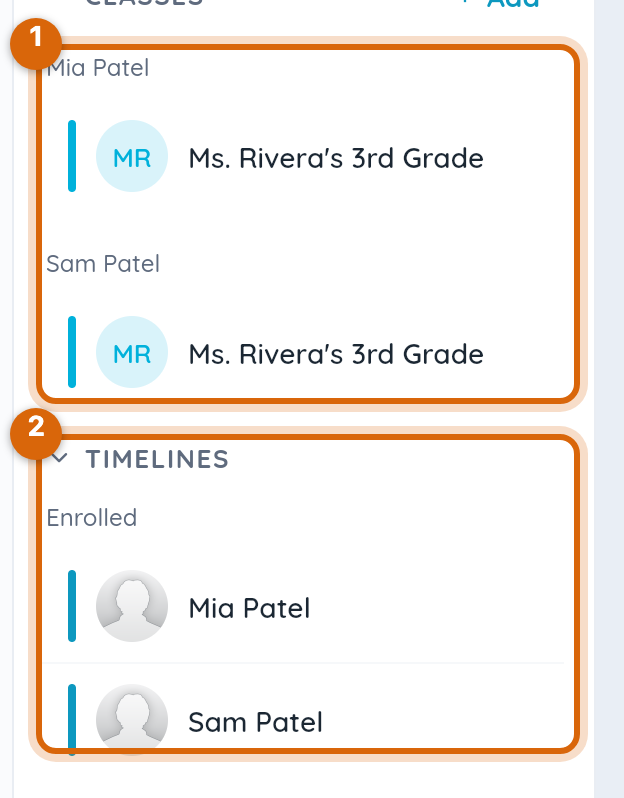
Watch out: if a child is missing here, you have not been connected to that class yet — it is not a display problem you can fix in settings. Ask the school to check that your account is linked to your child, and see A class is missing from my account.
What else is available
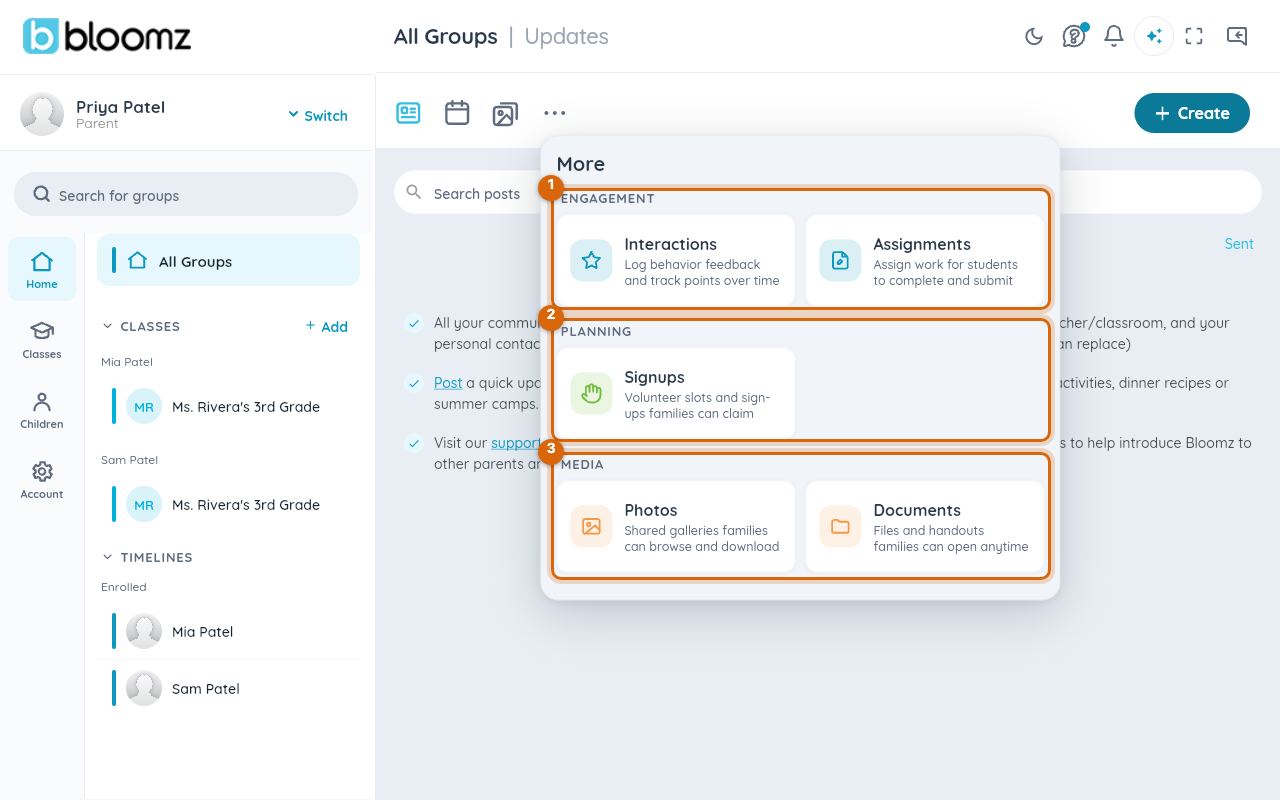
The … icon holds the rest: Interactions and Assignments, Signups (volunteering and slots), and Photos and Documents shared with the class.
Some entries appear only if your school has switched that feature on, so your menu may be shorter than a friend's at another school.
Related
- Change the language Bloomz shows you
- The wrong child is linked to my account