 Bloomz
What's new in Bloomz 2026
The 2026-27 school year brings the biggest Bloomz update yet: 24 new enhancements and 13 new modules. This article is the map — where the launch shows up in your app, and which article to open for each new thing. It is written for teachers and administrators, because those are the roles the launch surfaces are shown to.
Before you start
You will only see the surfaces below if you are an admin or a teacher. Parents and students never see the banner or the launch links — there is nothing for them to set up. And as with every Bloomz feature, what appears in your menus depends on your role and on what your school has enabled, so your More menu may not exactly match a colleague's.
The welcome banner
A bright banner greets you at the top of your home screen: "24 new enhancements. 13 new modules. Welcome to the new Bloomz!" Selecting See What's New opens the full illustrated rundown at bloomz.com/whats-new-2026.
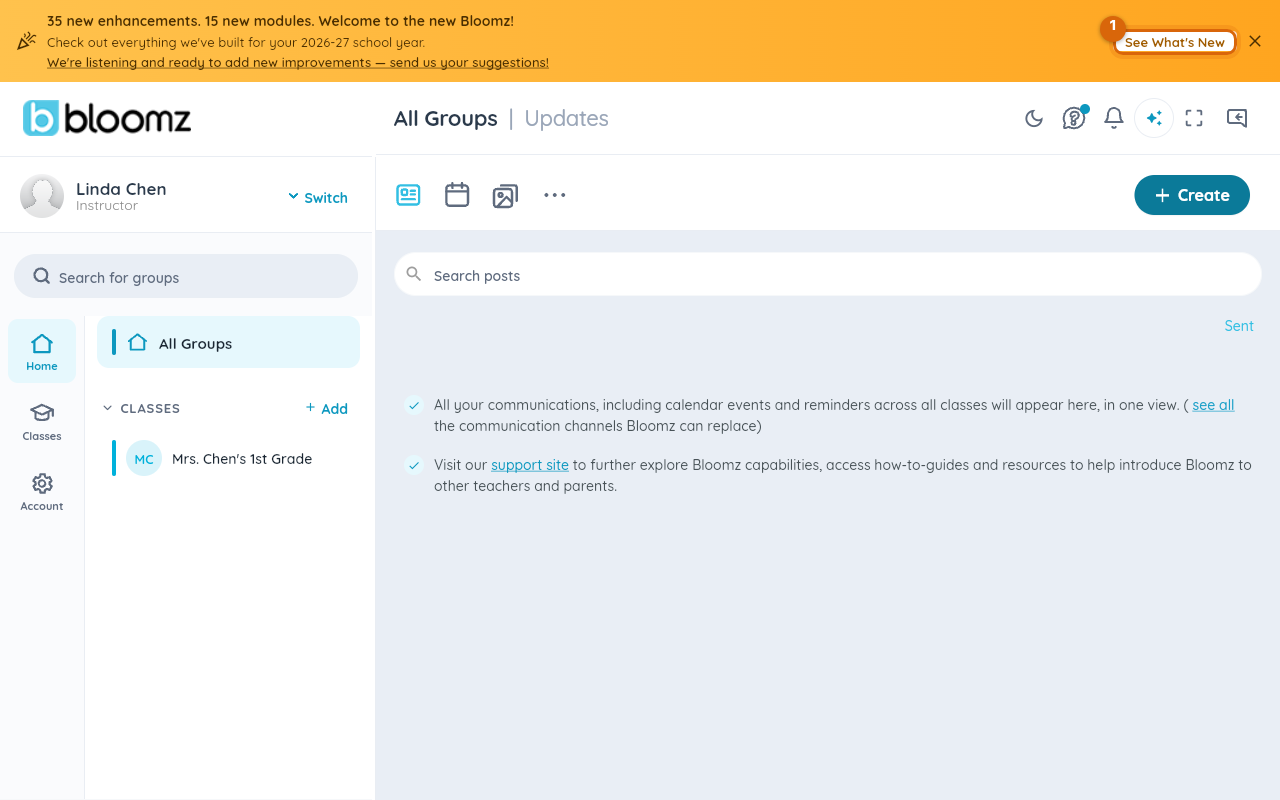
Two things on the banner are easy to miss:
- The "We're listening… send us your suggestions!" line is tappable and opens the in-app feedback form — the team really does read these.
- Dismissing the banner with the X dismisses it on that device for good. It does not come back, so grab the link first if you want it.
If you still use the classic Bloomz web app at app.bloomz.net, you will see a version of the same banner there announcing that the new Bloomz is coming for 26-27, with the same See What's New button.
Two links in the Support menu
Every Support menu in the app carries two launch links, each marked with a "New" tag. They are the way back to the launch material after you have dismissed the banner.
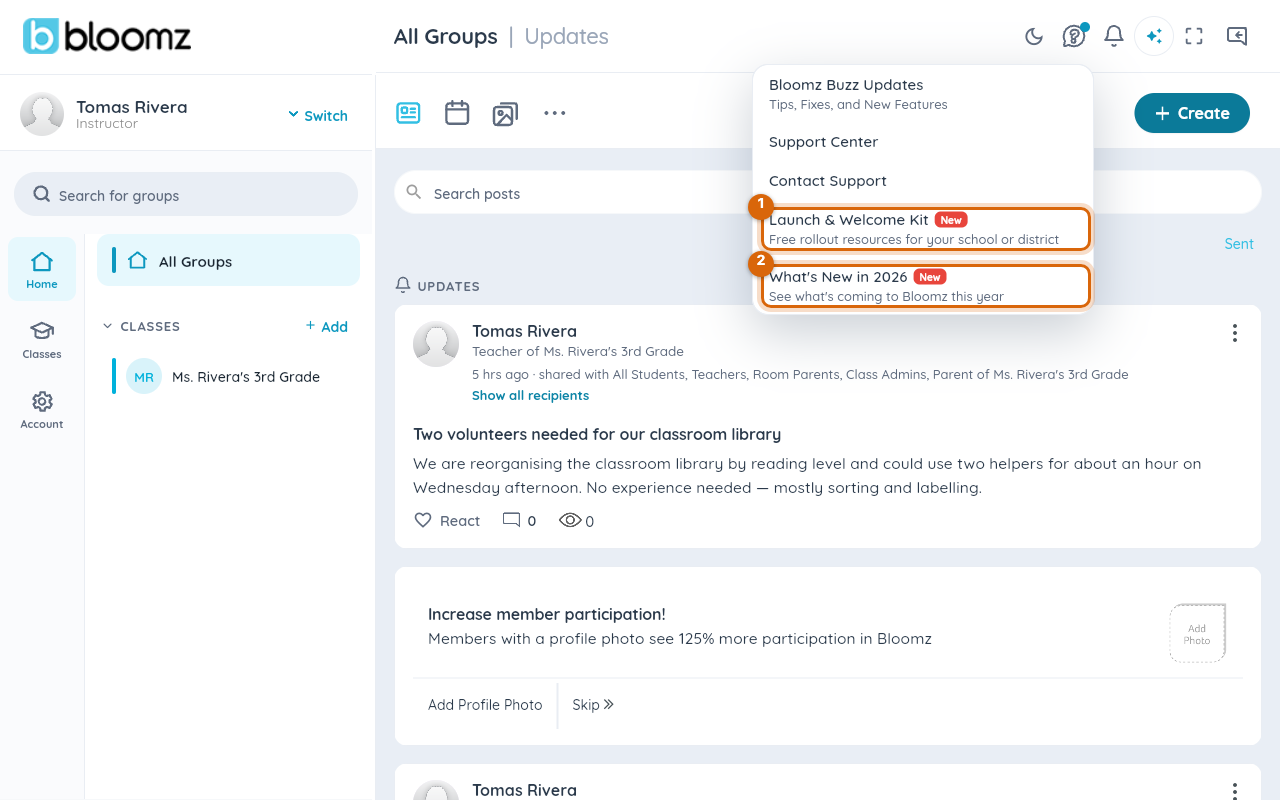
- What's New in 2026 — the complete list of what shipped, with screenshots.
- Launch & Welcome Kit — resources for starting the school year on the new Bloomz. Worth sharing with colleagues who are new to Bloomz this year.
Follow the "New" tags
Rather than hunting for what changed, look for the small "New" pill — it marks each recently added feature right where it lives. Each one has its own how-to article:
- Mass Messaging, in the More menu. School- and district-wide outreach gets its own home, separate from classroom posts. See Send a mass message for how it works and who can use it.
- Dashboards, in the More menu. A single place to see how your school is doing at a glance. See Read your school dashboards for what each card means.
- Oversight, in the More menu. New visibility tools for administrators. See Use Oversight as an administrator to get started.
- Reports, in the More menu — including a new conferences card on the Reports page for tracking parent-teacher conference activity. See Run reports for the full list.
- BLISS, in the create menu, alongside posts and events. See Create with BLISS for what you can make with it.
Watch out: the "New" tags and the banner are signposts for this launch and will retire as the year goes on. The features themselves are here to stay, in the same places — so learn the locations, not the tags.
Where to start
If you only have five minutes: open See What's New from the banner, skim the list, then open the one or two modules that touch your daily routine from the More menu.
Related
- Use Bloomz without an account
- Your school website with Slick Sites
- School Answers: AI answers on your school website