 Bloomz
Find your way around Bloomz
Bloomz on the web is one screen with four parts. Learn where those four are and the rest of the product is findable.
If you have used Bloomz before: there is no hamburger menu and no side drawer any more. If instructions you are following mention one, they are describing the old app. Everything those menus held now lives in the left rail or under More.
The four parts
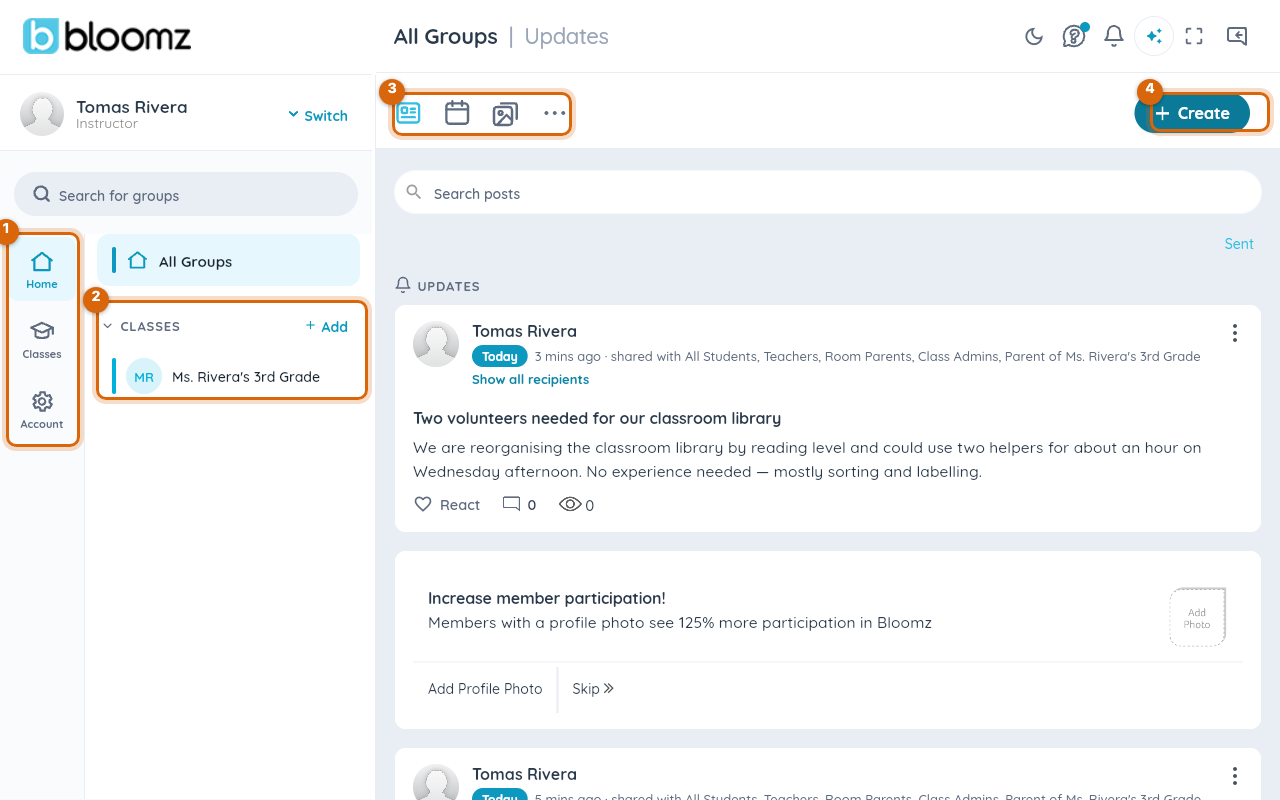
- The left rail — the main sections: Home, Classes, Account.
- Your groups — every class and group you belong to.
- The view switcher — updates, calendar, photos, and More.
- Create — everything you can make: a post, an event, a sign-up.
The left rail
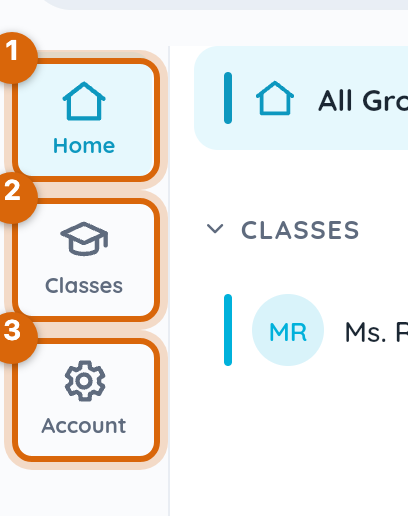
- Home — everything from every class in one feed. This is where you land.
- Classes — one class at a time, when you want to focus.
- Account — your account, language and notification preferences.
The view switcher
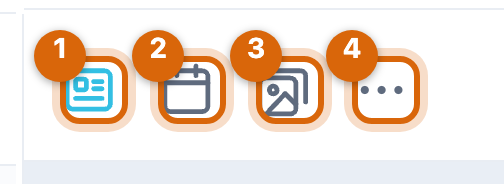
The first three icons switch what you are looking at for the class or group you have selected: the feed of updates, the calendar, and photos and files. The fourth — More — holds everything else.
Who you are signed in as
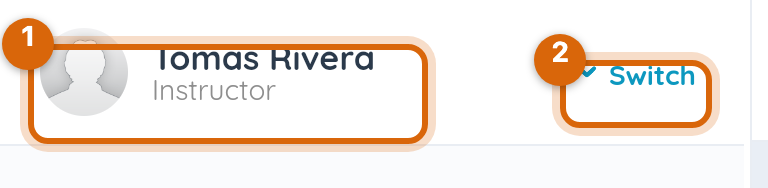
Your name and role sit at the top left. If you are both staff and a parent at the same school, Switch moves between those roles — and the app looks different in each, because it is showing you a different set of permissions, not a different theme.
Watch out: the role shown here is your overall role in Bloomz, not your role in the class you happen to be looking at. Someone who is a teacher in one class and a parent in another will see one label, not two.
Related
- Where everything else lives: the More and Create menus
- Change the language Bloomz shows you