 Bloomz
Set up conference sign-ups for your school
A school admin can publish conference sign-up slots the same way a teacher does for one class — using the identical Conferences/Office Hours wizard — just launched from the school itself instead of a single class. One window can cover the whole school, or several schools at once, sharing one pool of slots.
Before you start
You need a school-admin role. Decide the day (or days), your start and end times, how long each appointment runs, and which classes or schools should share this window — the wizard itself is the one documented in Publish conference slots for families to book; this article covers the school-level entry point and audience picker.
Step 1 — Open the school and start Conferences/Office Hours
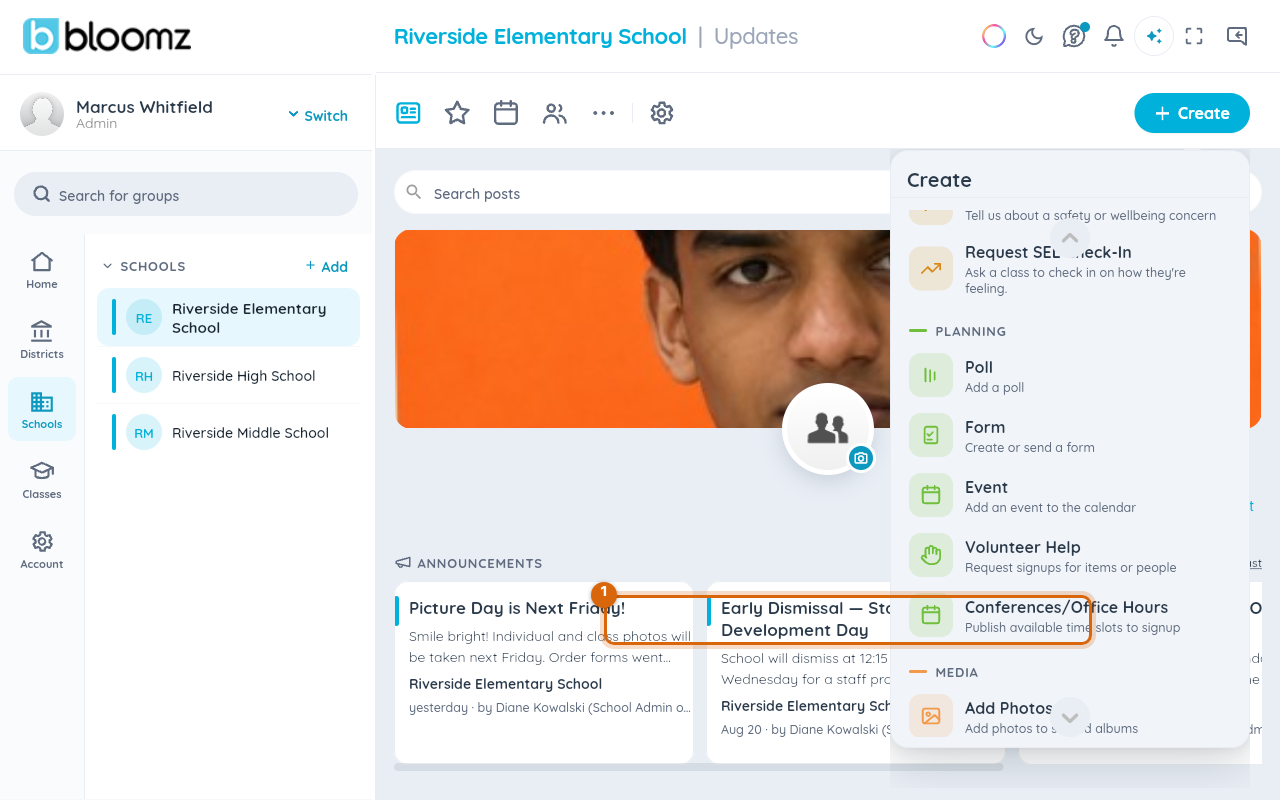
Select the school under SCHOOLS in the left nav, then + Create. In the Create menu, under Planning, choose Conferences/Office Hours.
Step 2 — Check who it's for
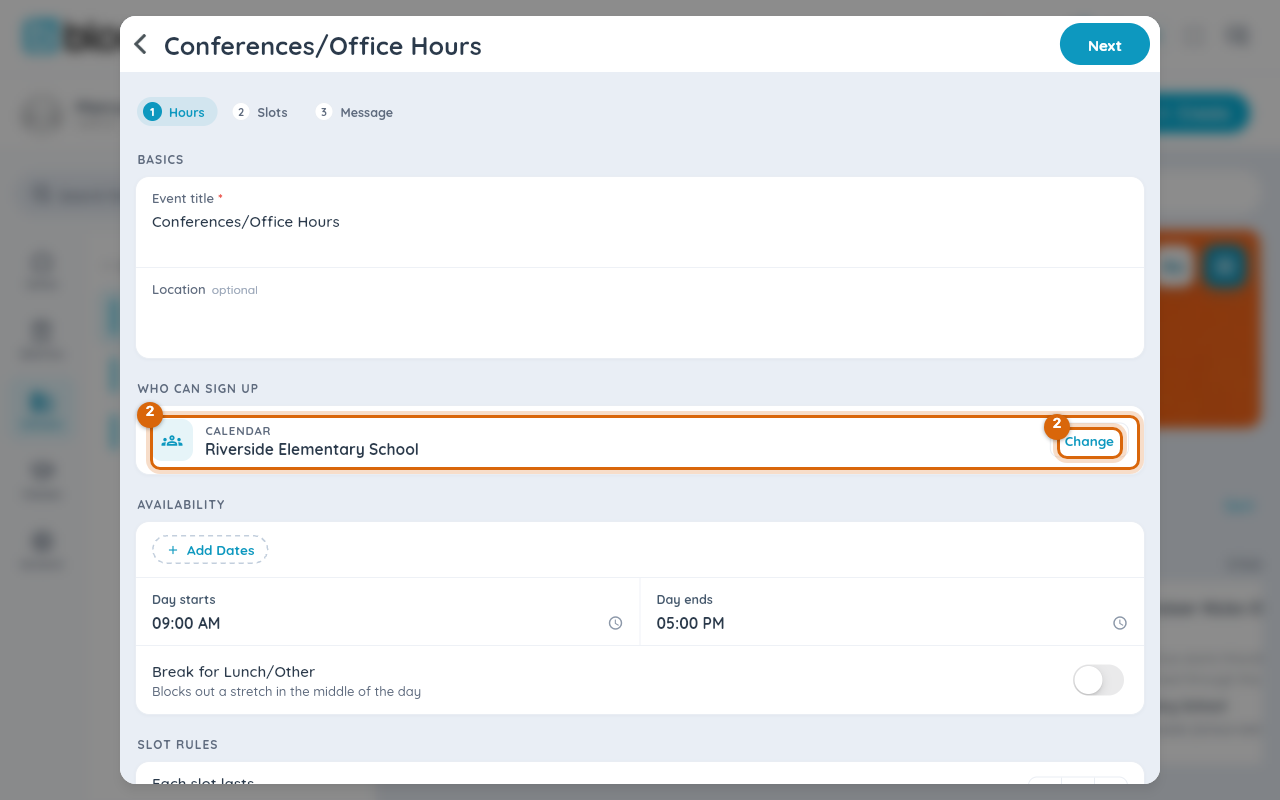
The Hours step opens with WHO CAN SIGN UP already set to your school. If that's right, leave it — every class at the school shares this conference window.
Step 3 — Narrow or widen the audience (optional)
Select Change to open Pick Calendar — the same shared-pool picker used to post one sign-up sheet to several classes. Check any combination of schools and classes in your district; every one you check shares the same slots, so a family sees the same open times no matter which calendar they book from.
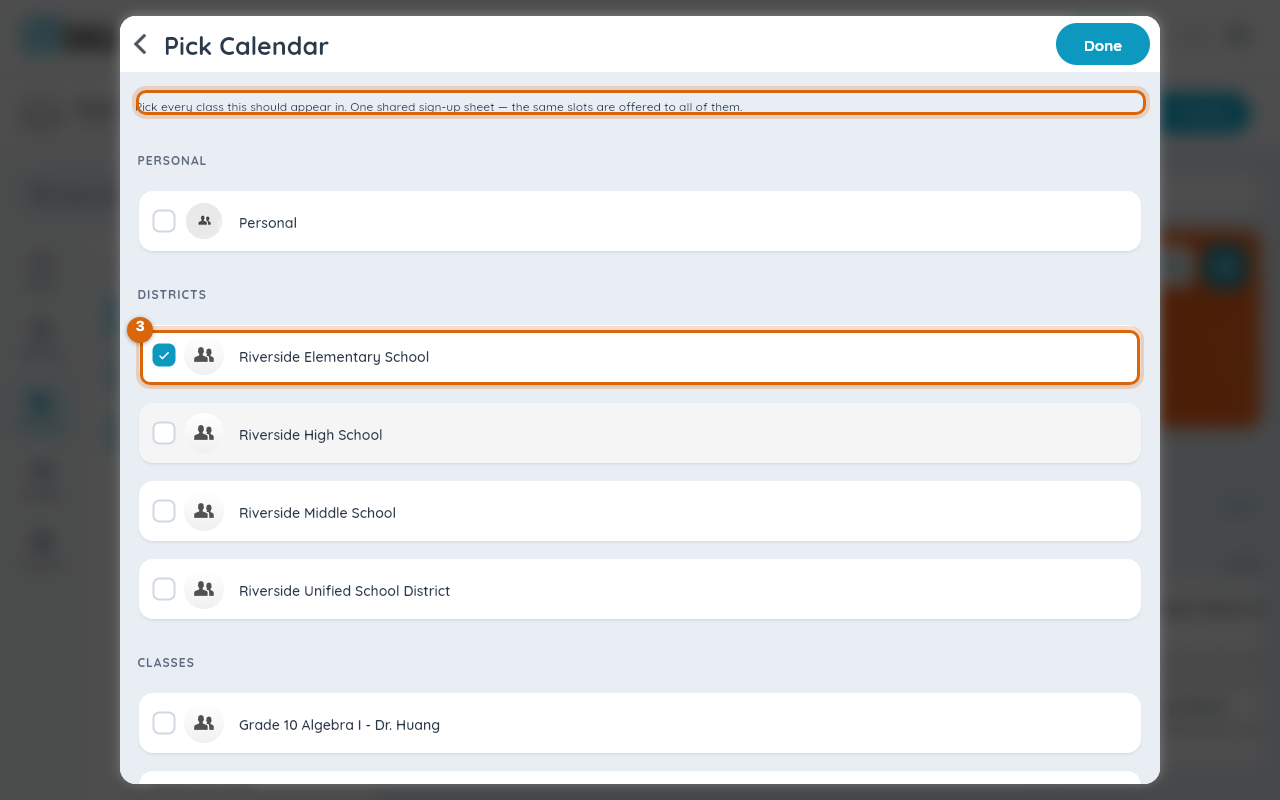
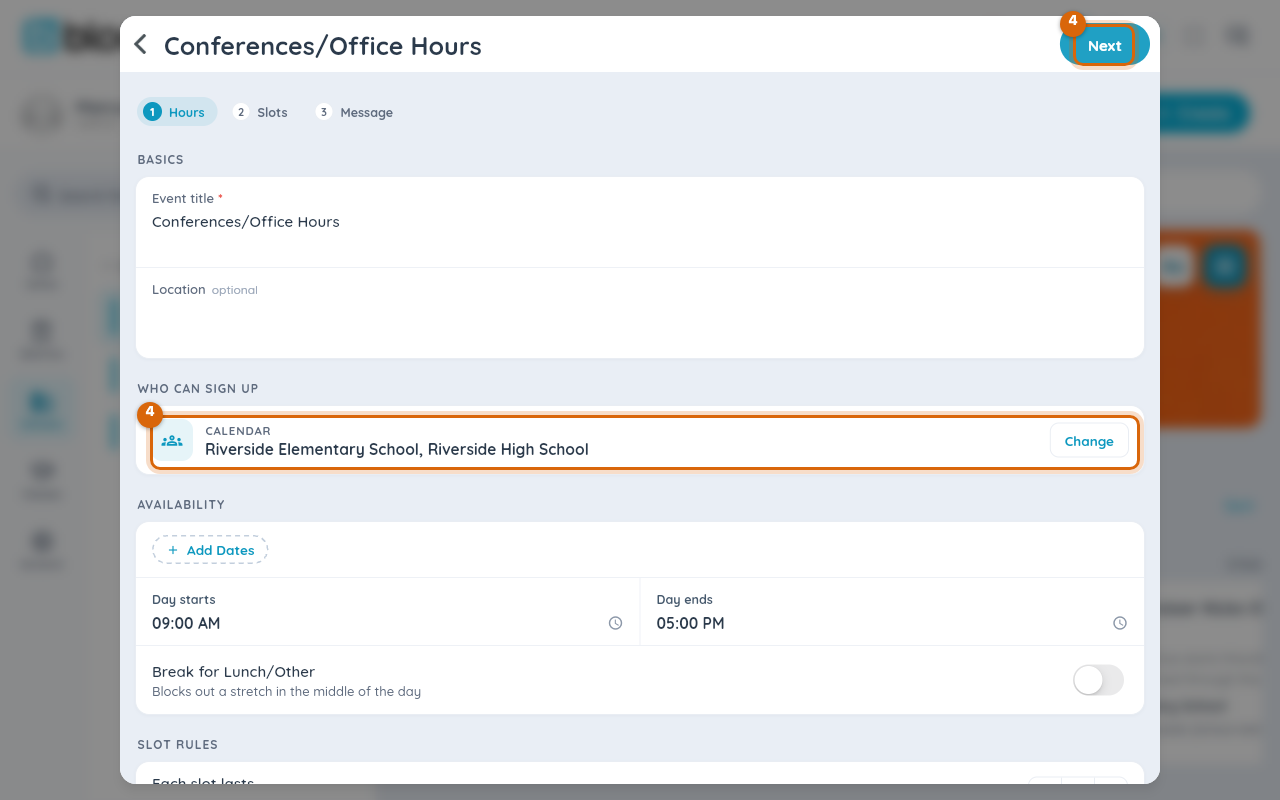
Select Done to confirm your choice — the Hours step now lists every calendar you picked.
Step 4 — Finish the wizard
Fill in the rest of the Hours step (day, day-start/end, break), then continue through Slots and Message exactly as a teacher would — see Publish conference slots for families to book for those steps. The final Next publishes.
Watch out: the slot pool is shared across everything you check in Pick Calendar — a burst of sign-ups from one school can fill the window before another school's families see it. If each school needs its own guaranteed slots, publish a separate window per school instead of one shared one.
What families see
The conference appears on every calendar you chose, and families book it exactly as described in Book a parent-teacher conference.
Related
- Publish conference slots for families to book
- Book a parent-teacher conference
- Read the Conferences dashboard — and switch schools as a district admin